
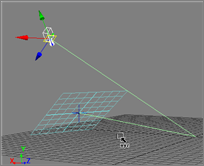
Camera looking at a reference plane
You can use Ref mode to quickly set up the camera so that it is looking straight down at a reference plane.
- Set the current reference plane.
- Activate the Ref transform mode (in Ref mode, values are relative to the active reference plane).
- Select the camera interest, and in the Transform panel enter X=0, Y=0, Z=0.
- Select the camera and set X=0 and Z=0. You can also set the Y, or just go to the viewport and use the mouse scroll wheel to pull back from the reference plane.
Here’s a script that does this for you. The script works with a default Softimage camera rig: just select some part of the camera rig and the script will figure out the rest.
var o = ( Selection(0).IsClassOf( siX3DObjectID ) ? Selection(0) : Selection(0).Parent3DObject );

var c = null;
var ci = null;
switch ( o.type ) {
	case "camera" :
		c = o;
		ci = c.Interest;
		break;
	case "CameraInterest" :
		c = o.Parent3DObject.Camera;
		ci = o;
		break;
	case "CameraRoot" :
		c = o.Camera;
		ci = c.Interest;
		break;
	default :
		LogMessage( "Cannot find the camera and camera interest. Please select part of a camera rig." );
}

if ( c != null & ci != null )
{
	// Translate Camera Interest
	Translate(ci, 0, 0, 0, siAbsolute, siObjCtr, siObj, siX, null, null, null, null, null, null, null, null, null, 0, null);
	Translate(ci, 0, 0, 0, siAbsolute, siObjCtr, siObj, siY, null, null, null, null, null, null, null, null, null, 0, null);
	Translate(ci, 0, 0, 0, siAbsolute, siObjCtr, siObj, siZ, null, null, null, null, null, null, null, null, null, 0, null);

	// Translate Camera
	Translate(c, 0, 0, 0, siAbsolute, siObjCtr, siObj, siX, null, null, null, null, null, null, null, null, null, 0, null);
	Translate(c, 0, 20, 0, siAbsolute, siObjCtr, siObj, siY, null, null, null, null, null, null, null, null, null, 0, null);
	Translate(c, 0, 0, 0, siAbsolute, siObjCtr, siObj, siZ, null, null, null, null, null, null, null, null, null, 0, null);
}
.
 eX-SI
eX-SI 