In this video, I take a quick look at the Distribution Type and Seed parameters of the Random Value node.


In this video, I take a quick look at the Distribution Type and Seed parameters of the Random Value node.
In this video, I take a look at the Random Value node and show a basic technique for learning how ICE works (how to use attributes and Show Values to help visualize what’s going on).

In ICE, hidden attributes have names that start with two underscores (__). Hidden attributes don’t show up in the attribute explorers, but you can use scripting to find the hidden attributes:
var pc = Dictionary.GetObject( “PointCloud” );
var oPointCloudGeometry = pc.ActivePrimitive.Geometry;
oEnum = new Enumerator( oPointCloudGeometry.ICEAttributes.Filter( “”, “”, “__*” ) ) ;
for (;!oEnum.atEnd();oEnum.moveNext() )
{
var oSelItem = oEnum.item() ;
LogMessage( oSelItem.fullname );
}
You can use Set Data to write ICE attribute values to custom parameters (and Get Data to go the other way).
For example, you can use ICE to get the length of a curve and then store the length in a custom parameter.

Note: This didn’t work when I used the name “curve_length” for my custom parameter. The custom parameter value never changed.
A sine wave deformation:

Adding points along a sine wave:

Suppose you have several objects, and you want to use ICE to add a point at each vertex of each object. If all your objects had the same number of vertices, you could do it by plugging Get Group.PointPositions into Add Point:

But this works only if all the objects have the same number of vertices. Otherwise you won’t get points at all vertices of all objects.
Note that you have to either freeze the transforms on the objects or, as shown above, convert from local coordinates to global coordinates.
To add points on the vertices of any group of objects, you can use Get Closest Points. Just adjust the cutoff distance until you get all the points on the objects.
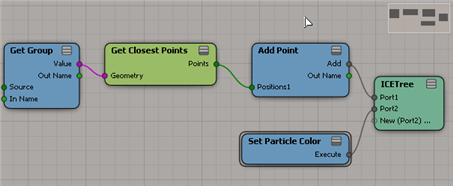
UPDATE: You can also use Generate Sample Set.
Hat tip: CiaranM
You can get the selected ICE nodes through the selection view attribute.
First, you have to get the ICE Tree view. You could try to get the view by name:
var oLayout = Application.Desktop.ActiveLayout;
var oICETreeView = oLayout.Views( "ICE Tree" );
but if the ICE Tree view is part of a layout (like the ICE layout) that won’t work, because the view has a different name (for example, in the ICE layout, the view name is “lower_panel”). To be sure you get the ICE Tree view, whether it is floating or embedded, filter by the Views by type.
// Get the ICE Tree views
var oLayout = Application.Desktop.ActiveLayout;
var oICETreeViews = oLayout.Views.Filter( "ICE Tree" );

// Now get the selected nodes
// and log the names of the selected nodes
var x = oICETreeViews(0);
var a = x.GetAttributeValue( "selection" ).split(",");
LogMessage( a.length );

for ( var i in a )
{
	var oNode = Dictionary.GetObject( a[i] );
//	LogMessage( classname(oNode) );
	LogMessage( oNode.Name );
}
You can get at the ICE attributes of a point cloud through PointCloudGeometry.ICEAttributes or PointCloudGeometry.GetICEAttributeFromName.
To get the attribute values for every point in a point cloud, you get the DataArray of the attribute.
Here’s some sample JScript that shows how to get ICE attributes. Run it once, and then randomize the initial shapes of the particles and run the script again. See the difference? (Look at the difference in IsConstant and the contents of DataArray for the Shape attribute).
Remember that in the script editor you can double-click a method or property name (like “DataArray”) and press F1 to go to the SDK reference page.
var pc = Dictionary.GetObject( "PointCloud" );
var oPointCloudGeometry = pc.ActivePrimitive.Geometry;

// Get the NbPoints attribute
var oIceAttrib = oPointCloudGeometry.GetICEAttributeFromName( "NbPoints" );
logAttributeInfo( oIceAttrib );
logDataArray( oIceAttrib.DataArray );

// Get the Shape attribute
var oIceAttrib = oPointCloudGeometry.GetICEAttributeFromName( "Shape" );
logAttributeInfo( oIceAttrib );
logDataArray( oIceAttrib.DataArray );

// Utility functions
function logAttributeInfo( oIceAttrib )
{
    LogMessage( oIceAttrib.Name + "ICE attribute");
    LogMessage( "\tIsConstant=" + oIceAttrib.IsConstant );
    LogMessage( "\tContextType=" + oIceAttrib.ContextType );
    LogMessage( "\tDataType=" + oIceAttrib.DataType );
}

function logDataArray( dataArray )
{
    // DataArray is a safe array
    // So, convert it to a JScript array
    var a = new VBArray( dataArray ).toArray();
    LogMessage( "\tDataArray.length=" + a.length );
    for ( var i in a )
    {
        if ( typeof(a[i])=="object" )
        {
            LogMessage( "\tDataArray["+i+"].Type=" + a[i].Type );
			LogMessage( ClassName( a[i] ) );	// Shape
        }
        else
        {
            LogMessage( "\tDataArray["+i+"]=" + a[i] );
        }
    }
}
The Modulo operation gives the remainder after division. For example, 14 modulo 12 gives you 2, because 12 goes into 14 once, with 2 left over.
You can use the Modulo node to generate a sequence of numbers that continually wraps around. For example, the sequence 0,1,2,0,1,2,0,1,2,… is the result of applying “modulo by 3” to the sequence 0,1,2,3,4,5,6,7,8,…
0 = 0 modulo by 3
1 = 1 modulo by 3
2 = 2 modulo by 3
0 = 3 modulo by 3
1 = 4 modulo by 3
2 = 5 modulo by 3
0 = 6 modulo by 3
…
In an ICE tree, you could use Modulo to sequentially assign instances from a group:

You could also use Modulo to do something to every Nth particle. For example, in the “modulo by 3” sequence “0,1,2,0,1,2,0,1,2,…”, note that every third number is a “2”. So if you wanted to do something to every third particle, you would set up this ICE tree:

Modulo arithmetic is sometimes called “clock arithmetic”. Consider that when you add 5 hours to 9am, you end up with 2pm, which is an example of modulo 12 arithmetic:
9:00 + 5 hours = 2:00
9 + 5 = 2
2 = 14 modulo by 12 (12 goes into 14 once, with 2 left over)
Here’s some visual displays of modular arithmetic.
Someone on the community forums was asking for a way to show the y coordinate of each point on a grid.
I gave it a quick try with ICE:

This ICE tree gets the point position, converts it to global coordinates, and stores it in an attribute. Then I just use Show Values (or an Attribute Display property) to show the coordinate value in the viewport:
Works ok but not great. The update is not interactive, you have to refresh the simulation to get the latest values displayed.
 eX-SI
eX-SI 