How to periodically delete a random number of particles


Let’s say you want to delete–oh, I don’t know–let’s say a random 7% of all particles, and you want to do that every N frames. Here’s one way to do it. You won’t get exactly 7%, but you’ll get close (eg I got numbers like 6.8%, 7.2%, and 7.25% when I tested it).

The Every Nth Frame compound is a custom compound that uses modulo:

Another look at IsElement problems


I’ve had some problems with IsElement lately, so I took another look at how to work around problems with IsElement, especially when you’re using it with ICE topology. Also, a quick look under the covers at the connections in the construction stack (aka operator history).

http://vimeo.com/47605597

Here’s the script I was using to print the connection stack info:

#
# This script works in 2013 SP1 only because it uses sipyutils 
#
from sipyutils import si			# win32com.client.Dispatch('XSI.Application')
from sipyutils import siut		# win32com.client.Dispatch('XSI.Utils')
from sipyutils import siui		# win32com.client.Dispatch('XSI.UIToolkit')
from sipyutils import simath	# win32com.client.Dispatch('XSI.Math')
from sipyutils import log		# LogMessage
from sipyutils import disp		# win32com.client.Dispatch
from sipyutils import C			# win32com.client.constants

si=si()
siut =siut()

sisel = si.Selection


from xml.etree import ElementTree as ET

prim = sisel(0).ActivePrimitive if si.ClassName(sisel(0)) ==  'X3DObject' else sisel(0)


stackInfo = siut.DataRepository.GetConnectionStackInfo( prim )
#log( stackInfo )
connections = ET.XML(stackInfo)
currentMarker =''

print "Connections for %s" % prim.FullName
for connection in connections:
		o = connection.find('object').text
		if o == currentMarker:
			continue
	
		if o.endswith('marker'):
			currentMarker = o
			
		print "%s (%s)" % (connection.find('object').text, connection.find('type').text)

Bullet Rigid Body Simulation with States


Softimage 2013 SP1 included a fix for a problem (aka a crash) with the Simulate Bullet Rigid Bodies nodes and states.

So, when a customer asked us how to do a two-part simulation, I gave Bullet + States a try. In the first part, the objects drop onto an obstacle, and in the second part, another obstacle comes along and pushes some of the objects away. Like this:
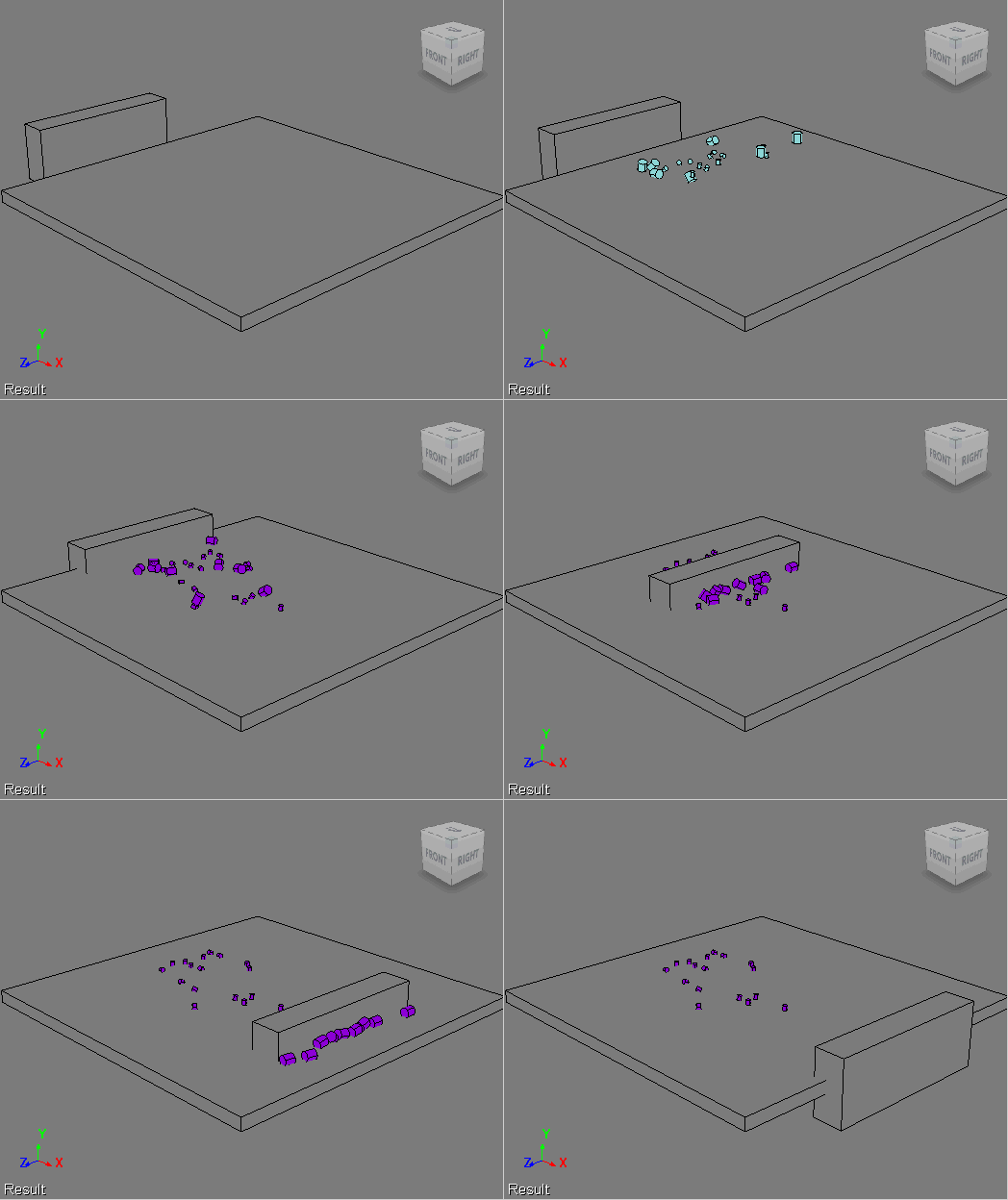
Here’s the ICE tree. I used Test Current Frame to trigger the state change. I did try some other triggers, like Test Particle Velocity and Test Particle Size, but I got some weird results with those triggers. By weird, I mean things like some, but not all, of the small cylinders being pushed away, even though they were still in the first state.

The idea here is to push just the big cubes. I make all the little cubes passive, so they get left behind.

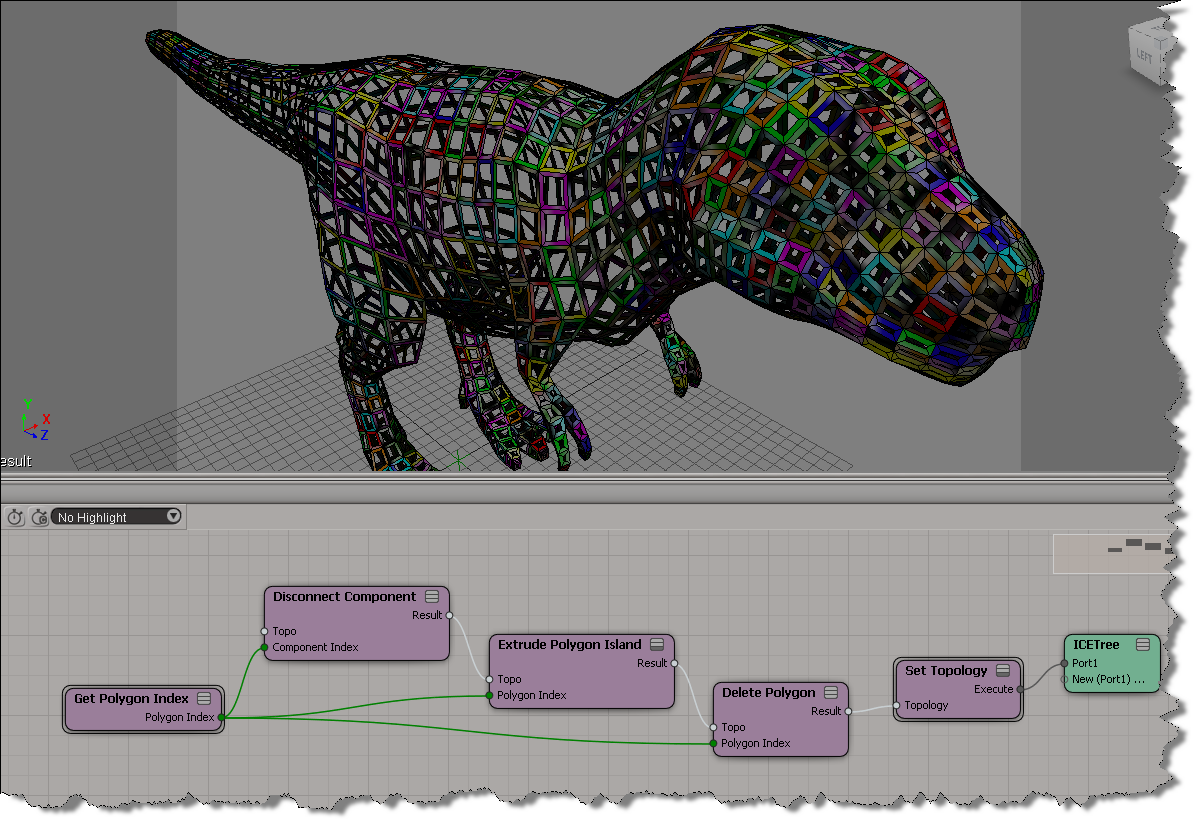
Context matters: point versus polygon


Since the introduction of ICE modeling, you may have hit context mismatches like this:

or this:

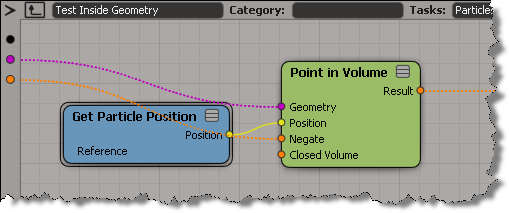
That’s because compounds like Test in Geometry and Randomize Around Value are built to work with points/particles. For example, if you look inside Test Inside Geometry, you’ll see it is getting the point position.

So, when you want to use these convenience compounds in a different context, you’ll have adapt them.

Keyboard shortcuts for adding nodes to ICE trees


A customer recently asked me how to write a command that adds a node to an ICE tree. His ultimate goal was to assign a keyboard shortcut to the command, so that he could quickly insert commonly-used nodes.

Unlike menus, which can easily get the current ICE tree view, commands have to do a bit more work. A command has to find the ICE tree view in the active desktop layout (and there’s no way the command can figure which view is the “active” view).

So, here’s a Python snippet that finds an ICE Tree view and adds a Get Data node. If you make this into a command, then you can assign a shortcut key to it. I look first for a docked ICE Tree view, and if I don’t find that, I look for a floating view.

si = Application
views = si.Desktop.ActiveLayout.Views

# Find docked ICE Tree views
oICETreeViews = views.Filter( "View Manager" )(0).Views.Filter( "ICE Tree" )

# If no docked ICE Tree view, then look for floating
if oICETreeViews.Count == 0:
    oICETreeViews = views.Filter( "ICE Tree" )

if oICETreeViews.Count > 0:
    # Get the ICE tree that is loaded into the view
    sICETree = oICETreeViews(0).GetAttributeValue( "container" )

    si.AddICENode("$XSI_DSPRESETS\\ICENodes\\GetDataNode.Preset", sICETree )