Adding your ICE operators to menus


The User Tools menu in an ICE Tree view has an Add Operator to Menu command that adds your compounds to menus, so you can apply them to the selected object. “Add Operators to Menu” is implemented in VBScript in %XSI_HOME%\Addons\ICEUserTools\Application\Plugins\ICEUserTools.vbs.

Unfortunately, this command wasn’t updated after 2011 Advantage Pack, so it doesn’t know about the new ICE toolbar and menu structure.

So, here’s a Python version that adds ICE operators to either the Particles > Create or Deform > Create menus in the ICE toolbar. When you apply the operators, they will be applied to all selected objects.

http://dl.dropbox.com/u/12898205/AddICEOperatorsToMenus.xsiaddon

The addon adds a “PSS Add Operators to Menu” command to the User Tools menu of the ICE Tree view, so it does add a bit of clutter (since I cannot programmatically remove the original Add Operators to Menu command).

To add operators to menus:

  1. Export your compound.
  2. In the ICE Tree view, click User Tools > PSS Add Operator to Menu.
  3. Type the name of the xsicompound file (without the .xsicompound extension).
  4. The next time you open the menu, it will be dynamically updated to include a command that applies your operator (with ApplyICEOp) to all selected objects.

See below the fold for the plugin code.
Continue reading

Select in Array and the structure type of the Index port


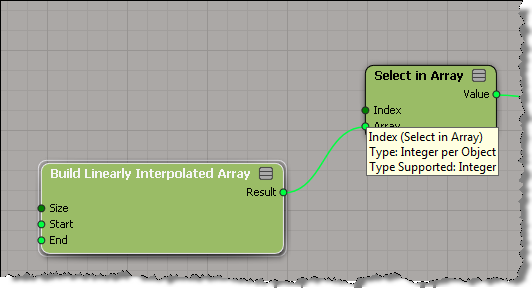
In general, the Index port of Select in Array can take either a single value or an array of values.

It doesn’t say that on the reference page, but if you dig into the user guide, you’ll find that info. Or, like many people, you’ll find that out by just trying it, or seeing it in someone else’s ICE tree.

The Index port is an example of a port that can change its structure type. The structure of a port is either single or array.

By default, (or if you plug an integer into the Index port), the Index port structure type is “single”.

If you plug an array into the Index port, then the structure type changes to “array”.

Sometimes, what’s downstream from Select in Array will determine the structure of the Index port. For example, if you plug Select in Array into the Distance Value of Curve Distance to Curve Location, then Index must be a single value (because Distance Value is a single value).

Getting Texture Map colors in ICE


I swear this didn’t work the first time I tried 😉 but you can use multiple texture maps.
Just don’t use the Explorer button in the Get Texture Map Color PPG.

Here’s how (hat tip to Letterbox):

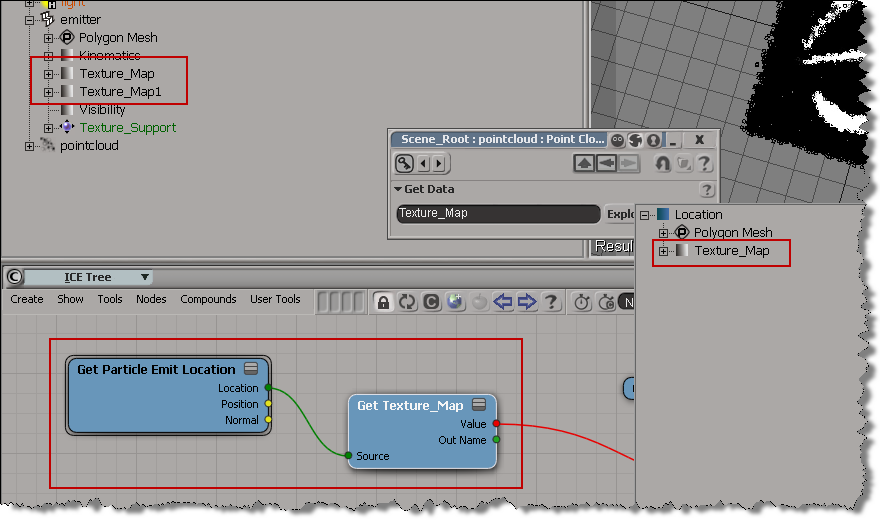
  • Drag a Get Texture Map Color into your ICE tree.
    This node will get the color from the first Texure_Map property you created.
  • Then just copy and paste that node, double-click it, and edit the name of the property (eg, change it to “Texture_Map1”).

The Explorer doesn’t want to let you use any other texture map:

Writing particle point positions to a CSV file


One of the nice things about Python is the convenience of modules like CSV.

A point cloud is an X3DObject, so you could just get the point positions the same way you would for a mesh. But the recommended way to do it is with ICEAttribute.GetDataArrayChunk or, for small point clouds, ICEAttribute.DataArray.

import csv
from siutils import si		# Application
from siutils import sidict	# Dictionary
from siutils import log		# LogMessage


# Get a CSV writer object
# http://docs.python.org/release/2.5.2/lib/module-csv.html
csvWriter = csv.writer(open('cloud1.csv', 'wb'), delimiter=',', quotechar='|', quoting=csv.QUOTE_MINIMAL)


# PointCloud is an X3DObject, so you can simply get points at current frame
# For large point clouds, use the ICEAttribute object instead
points = sidict.GetObject( "pointcloud" ).ActivePrimitive.Geometry.Points;
for p in points:
	#print "(%s, %s, %s)" % ( p.Position.X, p.Position.Y, p.Position.Z )
	csvWriter.writerow([p.Position.X, p.Position.Y, p.Position.Z])


# Use the ICEAttribute.DataArray for PointPositions
# For large point clouds, use ICEAttribute.GetDataArrayChunk
points = sidict.GetObject( "pointcloud" ).ActivePrimitive.Geometry.ICEAttributes("PointPosition").DataArray
for p in points:
	log( "%s, %s, %s" % (p.X, p.Y, p.Z) )
	csvWriter.writerow([p.X, p.Y, p.Z])

Update: The above script will write the CSV file in %XSI_BINDIR%. Changing the output location is an exercise left to the reader 😉 as is using GetDataArrayChunck (but for that you can copy the example in the docs).

Silly ICE tricks: randomizing the primitive particle shapes


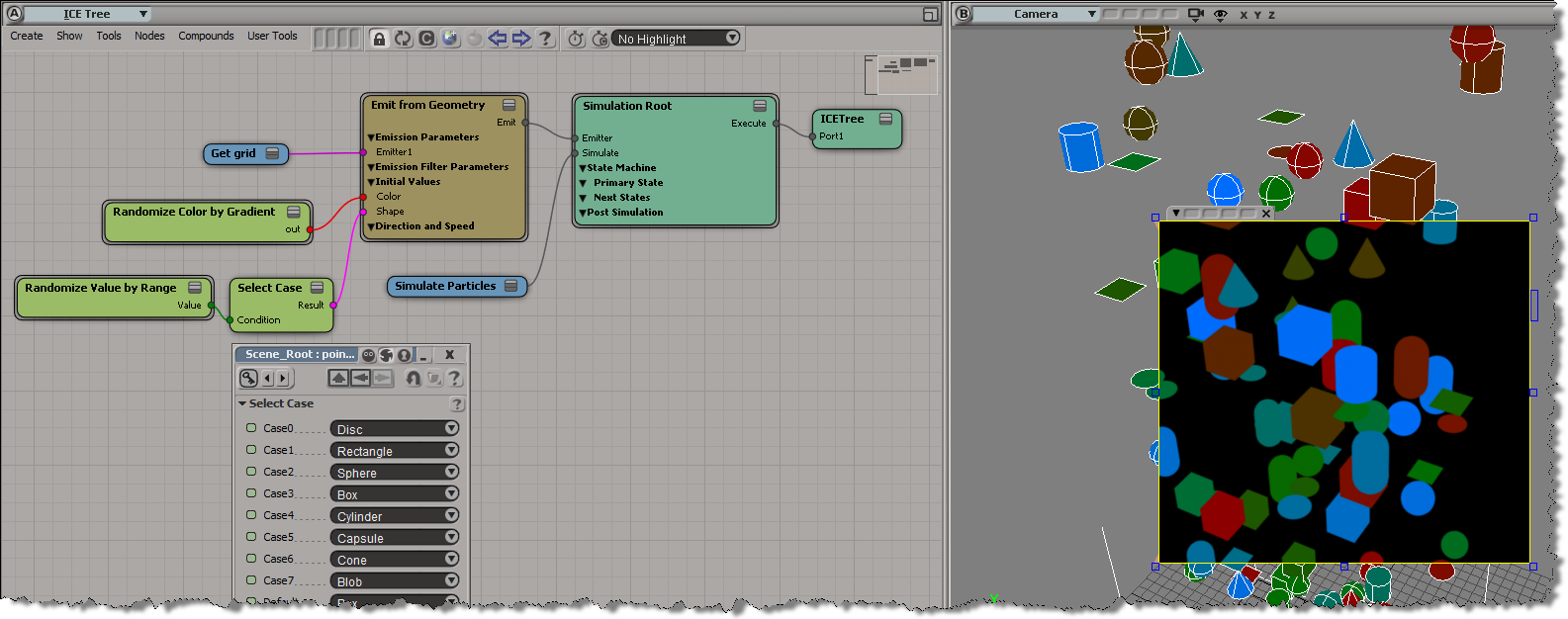
The primitive shapes (Point, Segment, Disc, Rectangle, and so on) are controlled by the Shape parameter, which is an integer parameter with 10 possible values. So you could just plug a Random Value node into the Shape port, set the mean to Box, and the variance to 4 or 5. Note that if the random value goes out of range, you get a point.

If you don’t want points or segments (or some other shape), you could just use a Randomized Value node to drive a Select Case node: