Checking whether Get Closest Location nodes use the cutoff distance


Here’s a little Python example that shows how to get all the Get Closest Location nodes in a scene and check whether Enable Cutoff Distance is enabled.

Location queries can be expensive, in terms of memory and performance, so you usually want to have some sort of cutoff distance.

si = Application
log = si.LogMessage
nodes = Application.FindObjects( '', "{2E206DD7-DC51-49F7-92BD-F6CD863125D3}" )
for o in nodes:
	log( '%s : Enable Cutoff Distance=%s' % (o, str(o.InputPorts('enablecutoffdistance').Value) ) )
	#Application.InspectObj( o )
	log( '%s : %s' % (o.Parent, si.ClassName(o.Parent) ) )
	
# pointcloud.pointcloud.flock_SIM.State_0.GetClosestLocationNode : Enable Cutoff Distance=True
# pointcloud.pointcloud.flock_SIM.CompoundNode.GetClosestLocationNode : Enable Cutoff Distance=False
# pointcloud.pointcloud.flock_SIM.State_3.Get_Closest_Location_on_Geometry.GetClosestLocationNode : Enable Cutoff Distance=True
# pointcloud.pointcloud.flock_SIM.State_10.Get_Closest_Location_on_Geometry.GetClosestLocationNode : Enable Cutoff Distance=False
# pointcloud.pointcloud.flock_SIM.State_10.GetClosestLocationNode : Enable Cutoff Distance=True
# pointcloud.pointcloud.flock_SIM.State_0.flock_CurveDirection.GetClosestLocationNode : Enable Cutoff Distance=True
# pointcloud.pointcloud.flock_SIM.State_10.Surface_Force.Get_Closest_Location_on_Geometry.GetClosestLocationNode : Enable Cutoff Distance=None
# pointcloud.pointcloud.flock_SIM.ExecuteInAllStates.Flow_Around_Surface.GetClosestLocationNode : Enable Cutoff Distance=None
# pointcloud.pointcloud.flock_SIM.State_2.Flow_Around_Surface.GetClosestLocationNode : Enable Cutoff Distance=None
# pointcloud.pointcloud.flock_SIM.State_1.Surface_Force.Get_Closest_Location_on_Geometry.GetClosestLocationNode : Enable Cutoff Distance=None
# pointcloud.pointcloud.flock_SIM.CompoundNode[1].GetClosestLocation.GetClosestLocationNode : Enable Cutoff Distance=True
# pointcloud.pointcloud.flock_SIM.State_9.GetClosestLocation.GetClosestLocationNode : Enable Cutoff Distance=False


#
#nodeAddress = "pointcloud.pointcloud.flock_SIM.State_0"
#Application.SelectObj(nodeAddress)
#Application.OpenView("ICE Tree")

The Enable Cutoff Distance=None results mean that the cutoff distance is an exposed port in a compound. If you wanted to get that setting, it would take a bit more scripting…exercise left to the reader.

Checking if a material is being used by somebody anybody


If you want to know whether a material is used by any objects in the scene, you can check the UsedBy property.

Here’s a Python snippet that finds unused materials in the current material library:

from siutils import si

if Application.Version().split('.')[0]>= "11":
	si = si()					# win32com.client.Dispatch('XSI.Application')

from siutils import log		# LogMessage
from siutils import disp	# win32com.client.Dispatch
from siutils import C		# win32com.client.constants


matlib = si.ActiveProject.ActiveScene.ActiveMaterialLibrary
for mat in matlib.Items:
	if mat.UsedBy.Count == 0:
		log( '%s <Not used>' % mat.Name )

Checking the version used to create a scene


If you can live with the flash of a command prompt window, you can use subprocess.Popen to get the scene file version from printver.

import subprocess

scn = 'C:\\Softimage\\XSI-EXP_3.0\\Data\\XSI_SAMPLES\\Scenes\\dog.scn'
p = subprocess.Popen( 'printver %s' % scn, stdout=subprocess.PIPE )
stdout = p.stdout.readlines()
print stdout[-1].split(':')[1].lstrip().rstrip()
# 3.0.2002.0715


#scn = 'C:\\Softimage\\XSI_7.01_x64\\Data\\XSI_SAMPLES\\Scenes\\ICE\\Particle_Basic_Fire.scn'
# 7.0.2008.0708

Python print statement in Softimage 2013


If you’re using an external install of Python, you’ll probably notice that the print statement doesn’t work in Softimage 2013. That’s because Softimage 2013 was compiled with Visual C++ 2010, and Python wasn’t.

We recompiled the built-in Python that ships with Softimage 2012, so if you use that Python, the print statement works.

Workaround courtesy of Jo benayoun:

import sys
class STDOutHook(object):
	def __init__(self):
		pass
	def write(self, data):
		# py engine adds a newline at the end of the data except if
		# the statement was ended by a comma.
		data = "" if data == "\n" else data

		if data != "":
			Application.LogMessage(data)
		return None

sys.stdout = STDOutHook()

print "Hello"
print "\n"       # wont work due to the workaround
print "World",

I found this same workaround by googling “python print redirect stdout”. For example, here.

Softimage 2013 Python shortcuts gotcha


Softimage 2013 includes some changes to the Python shortcuts:

from siutils import si
si = si()					# win32com.client.Dispatch('XSI.Application')
from siutils import log		# LogMessage
from siutils import disp	# win32com.client.Dispatch
from siutils import C		# win32com.client.constants

The big difference is that si shortcut is now a function that returns the Application object. We had to make this change to fix some weird memory leak (the si object was out of scope in the module where it was created, and the Python parser could not properly delete it upon exit).

Here’s a suggested workaround from the Dev team to maintain backward-compatibility:

# ---python code begin ---
from siutils import si

if Application.Version().split('.')[0]>= "11":
	si = si()					# win32com.client.Dispatch('XSI.Application')

from siutils import log		# LogMessage
from siutils import disp	# win32com.client.Dispatch
from siutils import C		# win32com.client.constants
# --- python code end ---

The if block executes only if the current Softimage version is later than 11, which corresponds to 2013 or later.

hat tip: SS

ObjectIDs and objects that don’t exist


As noted by iamVFX on si-community, the new Python method Application.GetObjectFromID2 doesn’t deal well with IDs that don’t match an object that exists in the scene (in fact, it crashes Softimage). The JScript version, Application.GetObjectFromID simply returns null in that situation.

So, it is probably best to use DataRepository.HasData to check if the ID represents a real object.

Note that Dictionary.GetObject can also be used to get objects by ID.

from siutils import si
si = si()					# win32com.client.Dispatch('XSI.Application')
from siutils import log		# LogMessage
from siutils import disp	# win32com.client.Dispatch
from siutils import C		# win32com.client.constants


MAX_IDS = 2000

for i in range(0,MAX_IDS):
	if XSIUtils.DataRepository.HasData( i ):
		try:
			o =  si.GetObjectFromID2( i )
			log( "%s : %s" % (str(i), o.FullName) )
		except:
			o = Application.Dictionary.GetObject( "object<%s>" % str(i) )
			s = "%s : GetObjectFromID2 failed. Dictionary.GetObject found %s (%s)" % (str(i), o.Name, si.ClassName(o))
			log( s )
	else:
		log( "%s : No object with this ID exists" % str(i) )

A new, blank Softimage 2013 scene has 757 objects. For your reading pleasure, the full list is below the fold.
Continue reading

The case of the missing crowd


Our first CrowdFX-related case in Product Support!

A customer reported that CrowdFX wasn’t working. When he opened a sample CrowdFX scene, he got all these “plug-in is not installed” errors [Hey, that’s the same error I blogged about yesteday, but this time it’s something different–Steve]

// ERROR : 2356 - This plug-in is not installed: CrowdFX_RigProxy
// ERROR : 2356 - This plug-in is not installed: CrowdFX_SkeletonsCloud
// ERROR : 2356 - This plug-in is not installed: CrowdFX_ActorProxy
// ERROR : 2356 - This plug-in is not installed: CrowdFX_ActorsProxies
// ERROR : 2356 - This plug-in is not installed: CrowdFX
OpenScene("C:\\Program Files\\Autodesk\\Softimage 2013\\Data\\XSI_SAMPLES\\Scenes\\ICE\\CrowdFX_Walk_Along_Paths.scn", null, null);

The real clue was an error logged at startup:

// ERROR : Traceback (most recent call last):
// File "<Script Block 2>", line 55, in XSILoadPlugin
// in_reg.RegisterMenu(C.siMenuTbICECrowdFXActorsID,"Actors_Menu",False,True)
// File "C:\Python26\lib\site-packages\win32com\client\__init__.py", line 168, in __getattr__
// raise AttributeError, a
// AttributeError: siMenuTbICECrowdFXActorsID
// - [line 54 in C:\Program Files\Autodesk\Softimage 2013\Addons\CrowdFX\Application\Plugins\CrowdFX_Plugin.py]

First, this shows the customer is using the version of Python 2.6 installed on the system (not the version shipped with Softimage). More importantly, it shows that the CrowdFX constants, like siMenuTbICECrowdFXActorsID, are missing.

For Python, all the Softimage constants like siMenuTbICECrowdFXActorsID are cached in the Python install folder. For example, the Softimage constants are cached in the folder C:\Python26\Lib\site-packages\win32com\gen_py\269C4D8C-E32D-11D3-811D-00A0C9AC19A9x0x1x0\__init__.py

The solution in this case was to zap (delete) the gen_py folder, forcing Softimage to regenerate the generated type info cache.

New Python methods in 2013


A few people have asked me about the new “Python-specific” methods added in the Softimage 2013 SDK.

Basically, these new “Python-specific” methods are wrappers for the existing methods. What the new, Python-specific versions do is make sure you get back an object that supports all the advertised methods and properties of the class hierarchy.

For example, Menu is a subclass of MenuItem, and Menu adds new methods like AddCommandItem().

Menu.AddItem() returns a Menu object that supports all the MenuItem methods and properties, but doesn’t support the Menu methods and properties, such as Menu.AddCommandItem().

Menu.AddItem2() , on the other hand, returns an object that supports all the MenuItem and Menu methods and properties.

I blogged about the Menu.AddItem() problem awhile back.

Python-specific methods

  • Clip.AddProperty2 – Creates and adds a UserDataBlob or CustomProperty to a Clip object. This method is specific to the python language.
  • Layout.CreateViewFromDefinitionFile2 – Creates a new View object given the path to its definition on disk. This method is similar to Layout.CreateViewFromDefinitionFile but specific to the python language.
  • Layout.FindView2 – Finds an existing View object given a name in this layout. This method is similar to Layout.FindView but specific to the python language.
  • Menu.AddItem2 – Adds a menu item at to end of the menu. This method is similar to Menu.AddItem but specific to the python language.
  • Menu.AddCommandItem2 – Adds a menu item at the end of the menu and attaches a command. This method is similar to Menu.AddCommandItem but specific to the python language.
  • Menu.AddCallbackItem2 – Adds a menu item to the end of the menu and attaches a callback function. This method is similar to Menu.AddCallbackItem but specific to the python language.
  • ICENode.GetPortFromName2 – Returns the ICENodePort object that matches a specific port name. This method is similar to ICENode.GetPortFromName but specific to the python language.
  • ICENode.GetPortFromIndex2 – Returns the ICENodePort object specified by a port index, group index and group instance index. This method is similar to ICENode.GetPortFromIndex but specific to the python language.
  • Operator.GetPort3 – Returns the specified Port object for the operator. This method is similar to Operator.GetPort2 but specific to the python language.
  • Override.AddParameterEntry2 – Adds a new entry to override the input parameter and returns the new overriding parameter. This method is similar to Override.AddParameterEntry but specific to the python language.
  • Primitive.GetGeometry3 – Returns a Geometry object containing the object’s geometry. This method is similar to Primitive.GetGeometry2 but specific to the python language.
  • SceneItem.GetPropertyFromName2 – Returns a property, given its scripting name. This method is similar to SceneItem.GetPropertyFromName but specific to the python language.
  • SceneItem.GetLocalPropertyFromName2 – Returns a local property, given its scripting name. This method is similar to SceneItem.GetLocalPropertyFromName but specific to the python language.
  • ShaderArrayParamDef.ItemDef2 – Returns the underlying ShaderParamDef or ShaderStructParamDef object for this array item. This method is similar to ShaderArrayParamDef.ItemDef but specific to the Python language.
  • ShaderArrayParameter.Item2 – Returns the specified ShaderParameter item in this array. This method is similar to ShaderArrayParameter.Item but specific to the Python language.
  • ShaderParamDefContainer.AddParamDef2 – This method is similar to ShaderParamDefContainer.AddParamDef but specific to the Python language.
  • ShaderParamDefContainer.GetParamDefByName2 – Returns the ShaderParamDef that matches the specified name from this container. This method is similar to ShaderParamDefContainer.GetParamDefByName but specific to the Python language.
  • ShaderParameter.Definition2 – Returns the shader parameter definition as a ShaderParamDef object. This method is similar to ShaderParameter.Definition but specific to the Python language.
  • View.FindView2 – Finds an existing View object given a name. This method is similar to View.FindView but specific to the Python language.
  • X3DObject.GetActivePrimitive3 – Returns the 3D object’s active Primitive for a given frame. This method is similar to X3DObject.GetActivePrimitive2 but specific to the Python language.
  • XSIApplication.ActiveProject3 – Returns or sets the active XSIProject object. This method is similar to XSIApplication.ActiveProject2 but specific to the Python language.
  • XSIApplication.GetObjectFromID2 – Returns the object matching the specified ID. This method is similar to XSIApplication.GetObjectFromID but specific to the python language.
  • XSIFactory.CreateObjectFromPreset2 – Creates an object from a preset and optional preset family name. This method is similar to XSIFactory.CreateObjectFromPreset but specific to the Python language.

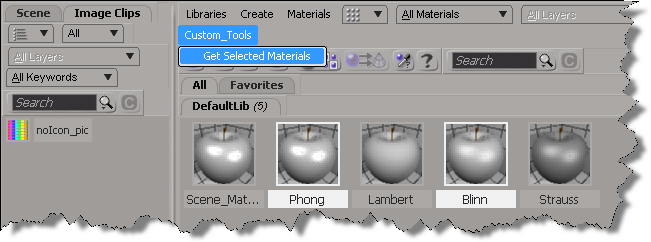
New in Softimage 2013: Getting the selected materials in the Material Manager


In 2013, you can use the selection view attribute to get the materials that are selected in the Material Manager.

Here’s a python custom menu item that shows how to do it. In summary, you do this:

  • Add a custom menu in the Manager Manager
  • Use a callback item, so you can get the view from the context
  • Use selection view attribute to get the names of the selected materials
import win32com.client
from win32com.client import constants

null = None
false = 0
true = 1

def XSILoadPlugin( in_reg ):
	in_reg.Author = "blairs"
	in_reg.Name = "MaterialsManagerPlugin"
	in_reg.Major = 1
	in_reg.Minor = 0

	in_reg.RegisterMenu(constants.siMenuMaterialManagerTopLevelID,"Custom_Tools",false,false)
	#RegistrationInsertionPoint - do not remove this line

	return true

def XSIUnloadPlugin( in_reg ):
	strPluginName = in_reg.Name
	Application.LogMessage(str(strPluginName) + str(" has been unloaded."),constants.siVerbose)
	return true

def Custom_Tools_Init( in_ctxt ):
	oMenu = in_ctxt.Source
	oMenu.AddCallbackItem("Get Selected Materials","OnGetSelected")
	return true

def OnGetSelected( c ):
	view = c.GetAttribute( "Target" )
	Application.LogMessage( view )
	
	Application.LogMessage( view.GetAttributeValue( "selection" ) )
	for mat in view.GetAttributeValue( "selection" ).split(","):
		Application.LogMessage(  mat )

	return true

New in Softimage 2013: Script the codec for viewport captures


In Softimage 2013, you can use the ViewportCapture.DSCodec parameter to set the codec for your viewport captures.

http://vimeo.com/39630053

DSCodec is an string that encodes the codec ID and parameters. To get the DSCodec value, do a viewport capture and set the Codec. Softimage will log the DSCodec value in the script history:

# INFO : ViewportCapture.DSCodec: AAAAFnNwdGxycHphAAAAAAAQAAACAAAAABR0cHJsAAACAAAeAAAAAAAYAAAAGGRyYXQAAAAAAAAAUwAAAQAAAAEAAAAACW1wc28AAAAADG1mcmEAAAAAAAAADHBzZnIAAAAAAAAACWJmcmEAAAAACm1wZXMAAAAAABxoYXJkAAAAAAAAAAAAAAAAAAAAAAAAAAAAAAAKc2RuZQAAAAAADGNtZnJhcHBsAAAAAA==

Here’s a Python snippet that shows how to set the DSCodec parameter:

from siutils import si
si = si()					# win32com.client.Dispatch('XSI.Application')
from siutils import log		# LogMessage
from siutils import disp	# win32com.client.Dispatch
from siutils import C		# win32com.client.constants

def dispFix( badDispatch ):
	    import win32com.client.dynamic
	    # Re-Wraps a bad dispatch into a working one:
	    return win32com.client.dynamic.Dispatch(badDispatch)

oViewportCapture = dispFix(si.Dictionary.GetObject( "ViewportCapture" ))
oViewportCapture.NestedObjects("File Name").Value = "C:\\test.mov";

oDSCodec = oViewportCapture.NestedObjects("DSCodec")

#log( oDSCodec.Value )
# INFO : ViewportCapture.DSCodec: AAAAFnNwdGxycHphAAAAAAAQAAACAAAAABR0cHJsAAACAAAeAAAAAAAYAAAAGGRyYXQAAAAAAAAAUwAAAQAAAAEAAAAACW1wc28AAAAADG1mcmEAAAAAAAAADHBzZnIAAAAAAAAACWJmcmEAAAAACm1wZXMAAAAAABxoYXJkAAAAAAAAAAAAAAAAAAAAAAAAAAAAAAAKc2RuZQAAAAAADGNtZnJhcHBsAAAAAA==

oDSCodec.Value = "AAAAFnNwdGxycHphAAAAAAAQAAACAAAAABR0cHJsAAACAAAeAAAAAAAYAAAAGGRyYXQAAAAAAAAAUwAAAQAAAAEAAAAACW1wc28AAAAADG1mcmEAAAAAAAAADHBzZnIAAAAAAAAACWJmcmEAAAAACm1wZXMAAAAAABxoYXJkAAAAAAAAAAAAAAAAAAAAAAAAAAAAAAAKc2RuZQAAAAAADGNtZnJhcHBsAAAAAA=="