Keyboard shortcuts for adding nodes to ICE trees


A customer recently asked me how to write a command that adds a node to an ICE tree. His ultimate goal was to assign a keyboard shortcut to the command, so that he could quickly insert commonly-used nodes.

Unlike menus, which can easily get the current ICE tree view, commands have to do a bit more work. A command has to find the ICE tree view in the active desktop layout (and there’s no way the command can figure which view is the “active” view).

So, here’s a Python snippet that finds an ICE Tree view and adds a Get Data node. If you make this into a command, then you can assign a shortcut key to it. I look first for a docked ICE Tree view, and if I don’t find that, I look for a floating view.

si = Application
views = si.Desktop.ActiveLayout.Views

# Find docked ICE Tree views
oICETreeViews = views.Filter( "View Manager" )(0).Views.Filter( "ICE Tree" )

# If no docked ICE Tree view, then look for floating
if oICETreeViews.Count == 0:
    oICETreeViews = views.Filter( "ICE Tree" )

if oICETreeViews.Count > 0:
    # Get the ICE tree that is loaded into the view
    sICETree = oICETreeViews(0).GetAttributeValue( "container" )

    si.AddICENode("$XSI_DSPRESETS\\ICENodes\\GetDataNode.Preset", sICETree )

Disabling command logging in the script editor


If you run both these lines in the script editor, you’ll see scripting.cmdlog=false is logged.

Preferences.SetPreferenceValue( "scripting.cmdlog", false );
LogMessage( "scripting.cmdlog="+Preferences.GetPreferenceValue( "scripting.cmdlog" ) );

So you might think that command logging is disabled. But as soon as your script finishes executing that last LogMessage line, Softimage will turn command logging back on.

Try running this script several times in the script editor:

LogMessage( "scripting.cmdlog="+Preferences.GetPreferenceValue( "scripting.cmdlog" ) );
Preferences.SetPreferenceValue( "scripting.cmdlog", false );

Every time, it will log // INFO : scripting.cmdlog=true.

Softimage always resets scripting.cmdlog, because we can’t let any script just leave command logging disabled. Over the years, it’s been the cause of too many support calls and complaints. So, you can disable command logging for the duration of your script, but not permanently.

Python – Getting the Softimage version numbers from the registry


This Python snippet will get the version numbers for the different versions of Softimage installed on the local system.

#http://docs.python.org/library/_winreg.html
from _winreg import *
t = OpenKey(HKEY_LOCAL_MACHINE, r"SOFTWARE\Softimage\CoExistence", 0, KEY_READ )

try:
    count = 0
    while 1:
		name = EnumKey(t, count)
		sKey = "SOFTWARE\Softimage\CoExistence\%s" % name
		t1 = OpenKey( t, name, 0, KEY_READ )
		value = QueryValueEx(t1, "AppVersion" )
		Application.LogMessage( "%s: %s" % (name.rsplit('|',3)[1], value[0]) )
		count = count + 1
except WindowsError:
    pass

On my machine, the script output looks like this:

# INFO : Softimage 2011 SP1: 9.1.91.0
# INFO : Softimage 2011 SP2: 9.2.102.0
# INFO : Softimage 2011 Subscription Advantage Pack SP1: 9.6.194.0
# INFO : Softimage 2011: 9.0.243.0
# INFO : Softimage 2012.SAP: 10.5.98.0
# INFO : Softimage 2012: 10.0.422.0
# INFO : Softimage 2013 SP1: 11.1.1.0
# INFO : Softimage 2013: 11.0.525.0
# INFO : Softimage_2010_SP1_x64: 8.0.249.0
# INFO : Softimage_2010_x64: 8.0.201.0
# INFO : Softimage_7.5_x64: 7.5.191.0
# INFO : XSI_7.01_x64: 7.01.698.0

Getting actor data from CrowdFX


Update: oops, it looks like my script below works only in simple cases where you just one actor proxy. The ActorID seems to be a constant (perhaps unused???) and it looks like you have to take the point ID and then look up the corresponding entry in the CrowdFX_Actor_Indices array.

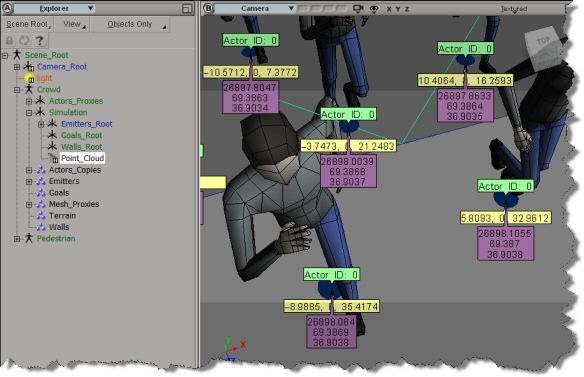
If you need to get info like the actor ID, the X and Z positions, and the animation frame from CrowdFX, you can get it from the Simulation Cloud.
In the screenshot below, I used three Attribute Display properties to display the following:

  • Actor ID (I have only one actor)
  • PointPosition
  • CrowdFX_Actor_CurrentFrameInCycle (an array for each action aka pose on the actor)
Here’s a little Python snippet that logs a comma-separated string that contains the Actor ID, X, and Z positions, PoseID, and CurrentFrameInPose.

Note the use of the logf function from the sipyutils.

#
# SOFTIMAGE 2013
#
from sipyutils import si			# win32com.client.Dispatch('XSI.Application')
from sipyutils import siut		# win32com.client.Dispatch('XSI.Utils')
from sipyutils import siui		# win32com.client.Dispatch('XSI.UIToolkit')
from sipyutils import simath	# win32com.client.Dispatch('XSI.Math')
from sipyutils import log		# LogMessage
from sipyutils import disp		# win32com.client.Dispatch
from sipyutils import C			# win32com.client.constants

from sipyutils import logf

si = si()

pc = si.Dictionary.GetObject( "Crowd.Point_Cloud" ).ActivePrimitive
aPtPos = pc.ICEAttributes("PointPosition")
log( len(aPtPos.DataArray) )

pos = pc.ICEAttributes("PointPosition").DataArray
ids = pc.ICEAttributes("CrowdFX_Actor_ID").DataArray
poses = pc.ICEAttributes("CrowdFX_PoseState_ID").DataArray
frames = pc.ICEAttributes("CrowdFX_Actor_CurrentFrameInCycle").DataArray2D

# ID, X, Y, Z, PoseState, CurrentFrameInCycle
for i in range( len(pos) ):
	logf( "%d, %f, %f, %d, %d", ids[i], pos[i].X, pos[i].Z, poses[i], frames[i][poses[i]] )

The output of this script for frame 126 of the CrowdFX_FooFighters sample scene looks like this:

# INFO : 0, -100.000000, 0.000000, 8.531111, 2, 154
# INFO : 0, -85.714279, 0.000000, 6.684280, 1, 111
# INFO : 0, -71.428574, 0.000000, 7.442898, 2, 131
# INFO : 0, -57.142853, 0.000000, -2.251395, 2, 132
# INFO : 0, -42.857143, 0.000000, 11.363565, 2, 97
# INFO : 0, -28.571426, 0.000000, 7.302890, 2, 149
# INFO : 0, -14.285706, 0.000000, 13.759472, 5, 217
# INFO : 0, 0.000000, 0.000000, 11.584186, 5, 186
# INFO : 0, 14.285721, 0.000000, 9.853815, 3, 167
# INFO : 0, 28.571442, 0.000000, 8.366404, 2, 141
# INFO : 0, 42.857147, 0.000000, 21.238329, 5, 163
# INFO : 0, 57.142868, 0.000000, 6.831881, 5, 222
# INFO : 0, 71.428589, 0.000000, -2.667232, 2, 201
# INFO : 0, 85.714294, 0.000000, 16.321472, 3, 236
# INFO : 0, 100.000000, 0.000000, 10.077105, 2, 93
# INFO : 0, -100.000000, 0.000000, -10.505310, 2, 154
# INFO : 0, -85.714279, 0.000000, -17.066412, 1, 83
# INFO : 0, -71.428574, 0.000000, -11.711117, 5, 152
# INFO : 0, -57.142853, 0.000000, -22.719725, 2, 142
# INFO : 0, -42.857143, 0.000000, -7.311695, 5, 127
# INFO : 0, -28.571426, 0.000000, -11.755372, 2, 151
# INFO : 0, -14.285706, 0.000000, -3.648053, 5, 191
# INFO : 0, 0.000000, 0.000000, -6.797891, 5, 177
# INFO : 0, 14.285721, 0.000000, -8.881895, 5, 101
# INFO : 0, 28.571442, 0.000000, -10.384384, 5, 158
# INFO : 0, 42.857147, 0.000000, 4.351840, 5, 166
# INFO : 0, 57.142868, 0.000000, -11.661755, 2, 178
# INFO : 0, 71.428589, 0.000000, -22.718691, 2, 171
# INFO : 0, 85.714294, 0.000000, -1.260182, 5, 127
# INFO : 0, 100.000000, 0.000000, -8.947992, 5, 123

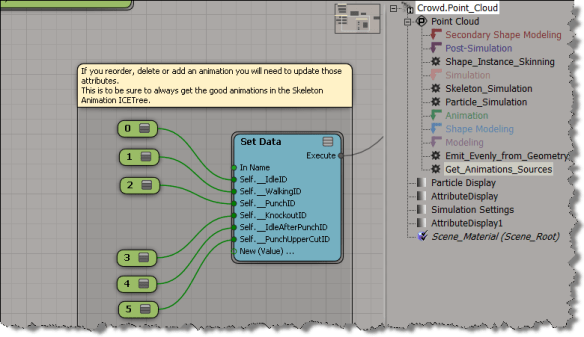
The Foo Fighter pose state IDs are set here (there are actually eight Action Sources in the ActorProxy property, but not all of them are used).
BTW, is it just me, or do the Attribute Display properties not work with the sample CrowdFX scenes? I was using the Foo Fighters sample at first, but I wasn’t able to show any attribute values, which made it a little harder to figure out what info was where.

Custom wire colors in the palette revisited


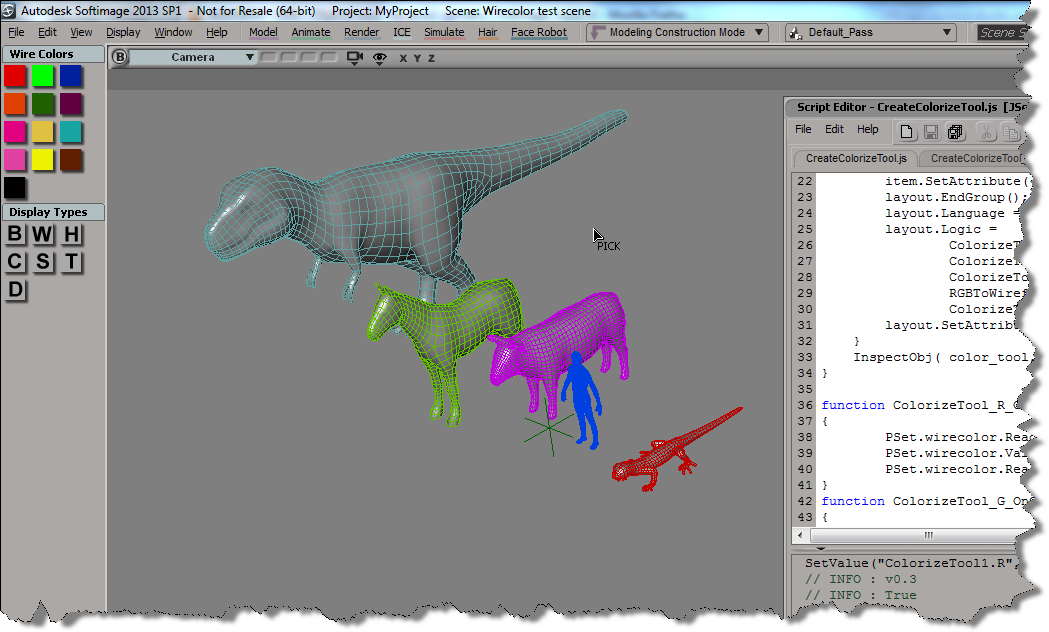
Here’s some updates to the wire frame color script I posted last week. See that post for info on how to add a button to the color palette.

First, I wanted to be able to pick multiple objects, one after the other. So I simplified the script by replacing most of the code with a single call to ColorizeObject, which does let you pick a sequence of objects.

CreateColorizeTool();
function CreateColorizeTool()
{
		var color_tool = XSIFactory.CreateObject( "CustomProperty" )
        if (color_tool)
        {
			var r = color_tool.AddParameter( "R", siDouble );
			var g = color_tool.AddParameter( "G", siDouble );
			var b = color_tool.AddParameter( "B", siDouble );
			var a = color_tool.AddParameter( "A", siDouble );
			
			var layout = color_tool.PPGLayout ;

			layout.AddGroup( "Color" );
			item = layout.AddColor( "R", "",true );
			item.SetAttribute( "NoLabel", true );
			layout.EndGroup();

			layout.AddRow();
			layout.AddButton( "ColorizeObject", "Colorize object" );
			layout.EndRow();

			layout.Language = "JScript" ;
			layout.Logic = ColorizeTool_ColorizeObject_OnClicked.toString();

			layout.SetAttribute( "LogicPrefix", "ColorizeTool_" ) ;
        }
        InspectObj( color_tool, "Colorize Tool", "", siLock ); 
}
function ColorizeTool_ColorizeObject_OnClicked()
{
		LogMessage( "v0.5" );
		ColorizeObject( PSet.R.Value,PSet.G.Value,PSet.B.Value );
}			

But this code doesn’t let you change the color in-between picks. So I modified the original example script and put a while loop around the call to PickObject (line 62), and I changed the script to get the colors directly from the color widget (line 78). That way, you can set the wire color, pick an object to apply the wire color, set another wire color, pick another object, and so on…

CreateColorizeTool();
function CreateColorizeTool()
{
	var color_tool = XSIFactory.CreateObject( "CustomProperty" )
    if (color_tool)
    {
		var color_tool = ActiveSceneRoot.AddCustomProperty( "ColorizeTool" );
		var wirecolor = color_tool.AddParameter( "wirecolor", siInt4 );
		wirecolor.ReadOnly = true;
		var r = color_tool.AddParameter( "R", siDouble );
		var g = color_tool.AddParameter( "G", siDouble );
		var b = color_tool.AddParameter( "B", siDouble );
		var a = color_tool.AddParameter( "A", siDouble );
		var layout = color_tool.PPGLayout ;
		layout.AddRow();
		var item = layout.AddItem( "wirecolor", "wirecolor" );
		item.SetAttribute( "NoSlider", true );
		layout.AddButton( "ColorizeObject", "Colorize object" );
		layout.EndRow();
		layout.AddGroup( "Color" );
		item = layout.AddColor( "R", "",true );
		item.SetAttribute( "NoLabel", true );
		layout.EndGroup();
		layout.Language = "JScript" ;
		layout.Logic = 
				ColorizeTool_R_OnChanged.toString() + 
				ColorizeTool_G_OnChanged.toString() + 
				ColorizeTool_B_OnChanged.toString() + 
				RGBToWireframeColor.toString() + 
				ColorizeTool_ColorizeObject_OnClicked.toString();
		layout.SetAttribute( "LogicPrefix", "ColorizeTool_" ) ;
	}
	InspectObj( color_tool, "Colorize Tool", "", siLock ); 
}

function ColorizeTool_R_OnChanged()
{
        PSet.wirecolor.ReadOnly = false;
        PSet.wirecolor.Value = RGBToWireframeColor(PSet.R.Value,PSet.G.Value,PSet.B.Value);
        PSet.wirecolor.ReadOnly = true;
}
function ColorizeTool_G_OnChanged()
{
        PSet.wirecolor.ReadOnly = false;
        PSet.wirecolor.Value = RGBToWireframeColor(PSet.R.Value,PSet.G.Value,PSet.B.Value);
        PSet.wirecolor.ReadOnly = true;
}
function ColorizeTool_B_OnChanged()
{
        PSet.wirecolor.ReadOnly = false;
        PSet.wirecolor.Value = RGBToWireframeColor(PSet.R.Value,PSet.G.Value,PSet.B.Value);
        PSet.wirecolor.ReadOnly = true;
		PSet.Refresh();
}
function ColorizeTool_ColorizeObject_OnClicked()
{
		LogMessage( "v0.3" );
        var color = PSet.wirecolor.Value;
        var o = null;
        var siRMB = 0;
        var button = -1, modifier;
        while (button != siRMB )
        {
				LogMessage( button != siRMB );
                Application.StatusBar ="Pick object to colorize";
                var rtn = PickObject( "Select object", "");
				button = rtn.Value("ButtonPressed");
				modifier = rtn.Value("ModifierPressed");
				o = rtn.Value("PickedElement");
				
				if ( o != null )
				{
					var display = o.Properties("Display");
					if (display.isa(siSharedPSet))
					{
							display = MakeLocal( display, siNodePropagation )(0);
					}
					display.wirecol.Value = RGBToWireframeColor(PSet.R.Value,PSet.G.Value,PSet.B.Value);
				}
        }
        if ( button == siRMB )
                return;

        return color;
}
// Convert wireframe color index to double-precision RGB color
function WireframeColorToRGB(lWireframeColor)
{
        var aColor = new Array(3);
        aColor[0] = ((lWireframeColor >>> 1) & 0x7)/7;
        aColor[1] = ((lWireframeColor >>> 4) & 0x7)/7;
        aColor[2] = ((lWireframeColor >>> 7) & 0x7)/7;
        return aColor;
}
// Convert double-precision RGB color to wireframe color index
function RGBToWireframeColor(dR,dG,dB)
{
        // Convert RGB to wirecolor
        var wirecolR, wirecolG, wirecolB;
        wirecolR = (Math.round(dR * 7)) << 1
        wirecolG = (Math.round(dG * 7)) << 4
        wirecolB = (Math.round(dB * 7)) << 7
        return wirecolR | wirecolG | wirecolB;
}

Checking if an optional panel is open


The View > Optional Panels menu lists the optional panels of the current layout. In the default layout, this includes the main command panel (MCP), the timeline, time range slider, and the Main Shelf.

To check if a panel is open, get the panel from the ActiveLayout.Views collection and check whether it’s visible:

LogMessage( Application.Desktop.ActiveLayout.Views("main_shelf").Visible );

Creating XSI objects in Netview


If you want to use objects like XSIApplication, XSIMath, XSIUtils, and XSIFactory in NetView scripts, you need to know the [mostly undocumented] progIDs of those objects.

window.onload = onLoadHandler;

//-------------------------------------------
// OnLoadHandler for any HTML page 
// that includes this .js file
//-------------------------------------------
function onLoadHandler() {

	//-------------------------------------------
	// Create instances of Softimage objects.
	//-------------------------------------------

	try {
		var Application = new ActiveXObject('XSI.Application');
		var XSIUtils = new ActiveXObject('XSI.Utils');
		var XSIMath = new ActiveXObject('XSI.Math');
		var XSIFactory = new ActiveXObject('XSI.Factory');
	} catch ( e ) {
		alert( e );
	}
}

Here’s a script that uses WMI to find the progIDs of XSI COM automation objects:

var sComputer = XSIUtils.Environment("COMPUTERNAME");

ListCOM( sComputer );

function ListCOM( computer )
{ 
	var wmistr = "winmgmts:{impersonationLevel=impersonate}!\\\\"; 
	wmistr += computer + "\\root\\cimv2";
	var wmi = GetObject( wmistr );
	var query = "SELECT * FROM Win32_ClassicCOMClassSetting";
	var com = wmi.ExecQuery( query );
	var ecom = new Enumerator( com );
	for( ; !ecom.atEnd(); ecom.moveNext() )
	{
		var icom = ecom.item();  
		if ( icom.Caption != null && icom.Caption.indexOf( "XSI" ) > -1 && icom.VersionIndependentProgId != null)
		{
			LogMessage( "name   : " + icom.Caption );
			LogMessage( "progid : " + icom.VersionIndependentProgId );
			LogMessage( "" );   
		}
	} 
}

And here’s the script output on my machine:

// INFO : name   : XSIDialog Class
// INFO : progid : XSIDial.XSIDialog
// INFO : 
// INFO : name   : XSI Framebuffer List Widget Class
// INFO : progid : FramebufferListWidget.FramebufferListWidget
// INFO : 
// INFO : name   : XSI Factory Object
// INFO : progid : XSI.Factory
// INFO : 
// INFO : name   : XSI Scripting Environment Object
// INFO : progid : Scripting.Environment
// INFO : 
// INFO : name   : XSI Utility Object
// INFO : progid : XSI.Utils
// INFO : 
// INFO : name   : XSI Plugin Helper Object
// INFO : progid : XSI.PluginHelper
// INFO : 
// INFO : name   : XSIFileConverter Object
// INFO : progid : XSI.XSIFileConverter
// INFO : 
// INFO : name   : XSIFileService Object
// INFO : progid : XSI.XSIFileService
// INFO : 
// INFO : name   : XSI UIToolkit Object
// INFO : progid : XSI.UIToolkit
// INFO : 
// INFO : name   : XSI Application Object
// INFO : progid : XSI.Application
// INFO : 
// INFO : name   : XSI Math Module
// INFO : progid : XSI.Math
// INFO : 
// INFO : name   : XSI Render Channel List Widget Class
// INFO : progid : RenderChannelListWidget.RenderChannelListWidget
// INFO : 
// INFO : name   : XSIFileFormat Object
// INFO : progid : XSI.XSIFileFormat
// INFO : 
// INFO : name   : XSI Image Format Chooser Class
// INFO : progid : ImageFormatChooser.ImageFormatChooser
// INFO : 

Selecting the object master for a clone


Here’s a little addon that adds a Select Clone Object Master command to the viewport context menu for 3d objects.


The addon is a single self-installed plugin that includes a command, a menu, and a filter:

  • The menu item calls the command.
  • The filter controls whether or not the menu item is enabled…so that the Select Clone Object Master command is enabled only when you ALT+right click a clone.
# SelectCloneMasterObjectPlugin
# Initial code generated by Softimage SDK Wizard
# Executed Thu Jun 7 10:55:31 EDT 2012 by blairs
# 
# Tip: To add a command to this plug-in, right-click in the 
# script editor and choose Tools > Add Command.
import win32com.client
from win32com.client import constants

null = None
false = 0
true = 1

def XSILoadPlugin( in_reg ):
	in_reg.Author = "blairs"
	in_reg.Name = "SelectCloneMasterObjectPlugin"
	in_reg.Major = 1
	in_reg.Minor = 0

	in_reg.RegisterCommand("SelectCloneMasterObject","SelectCloneMasterObject")
	in_reg.RegisterFilter("Clone",constants.siFilter3DObject)
	in_reg.RegisterMenu(constants.siMenu3DViewObjectSelectContextID,"SelectCloneMasterObject_Menu",false,false)
	#RegistrationInsertionPoint - do not remove this line

	return true

def XSIUnloadPlugin( in_reg ):
	strPluginName = in_reg.Name
	Application.LogMessage(str(strPluginName) + str(" has been unloaded."),constants.siVerbose)
	return true


# Match callback for the CloneFilter custom filter.
def Clone_Match( in_ctxt ):
	Application.LogMessage("Clone_Match called",constants.siVerbose)
	o = in_ctxt.GetAttribute( "Input" )
	c = win32com.client.Dispatch( "XSI.Collection" )
	c.Items = '%s.%s' % (o.ActivePrimitive.FullName, 'CopyOp')
	return c.Count > 0
# 	Return value indicates if the input object matches the filter criterias.


def SelectCloneMasterObject_Init( in_ctxt ):
	oCmd = in_ctxt.Source
	oCmd.Description = ""
	oCmd.ReturnValue = true

	oArgs = oCmd.Arguments
#	oArgs.AddWithHandler("Arg0","Collection")
	oArgs.AddWithHandler("Arg1","SingleObj")
	return true

def SelectCloneMasterObject_Execute( Arg1 ):

	Application.LogMessage("SelectCloneMasterObject_Execute called",constants.siVerbose)
	Application.Selection.Clear()

# by Vladimir Jankijevic
# https://groups.google.com/forum/?fromgroups#!searchin/xsi_list/Finding$20the$20source$20mesh$20of$20a$20clone/xsi_list/cyUYARDMooA/J3JVxc6jJtIJ
	copyop = Arg1.ActivePrimitive.ConstructionHistory[0]
	Application.Selection.Add(copyop.InputPorts[0].Target2.Parent3DObject)

	# 
	# TODO: Put your command implementation here.
	# 
	return true

def SelectCloneMasterObject_Menu_Init( in_ctxt ):
	oMenu = in_ctxt.Source
	oMenu.AddCommandItem("Select Clone Master Object","SelectCloneMasterObject")
	oMenu.Filter = "Clone"
	return true

Finding the camera used by a texture projection Part II


Part I

Another way to get the cameras for the camera projections on the selected object. This time with no loops (well, except for the list comprehension on line 22).

from siutils import si
if Application.Version().split('.')[0]>= "11":
	    si = si()                   # win32com.client.Dispatch('XSI.Application')
from siutils import log		# LogMessage
from siutils import disp	# win32com.client.Dispatch
from siutils import C		# win32com.client.constants

# Get all CameraTxt operators
ops = si.FindObjects2( C.siOperatorID ).Filter( "CameraTxt" )

# Filter function to get the CameraTxt ops under the selected object
def f(x):
	o = si.Selection(0)
	return o.IsEqualTo( x.Parent3DObject )

# Get list of cameras
cams = [ x.InputPorts(2).Target2.Parent3DObject for x in filter( f, ops ) ]

if len(cams) > 0:
	print 'Projection cameras for %s:' % si.Selection(0)
	for c in cams:
		print '   %s' % c.Name

This script is based on the observation that you can get the camera from an input port on the CameraTxt operator.