Python example constraining nulls to components


Just a little example that uses the Object Model to create a null and a ObjectToCluster constraint for each selected component (point, edge, polygon, …).
Note line 13. I can use CollectionItem.SubElements to get the indices of the selected components.

from win32com.client import constants as C
si = Application
log = si.LogMessage


if si.Selection.Count > 0 and si.ClassName(si.Selection(0)) == 'CollectionItem' and si.Selection(0).SubComponent is not None:

	# pnt, poly, edge, ...
	clusterType = si.Selection(0).Type.replace( 'SubComponent','' )
	o = si.Selection(0).SubComponent.Parent3DObject
	
	for i in si.Selection(0).SubElements:
		c = o.ActivePrimitive.Geometry.AddCluster( clusterType, "", [i] )
		n = si.ActiveSceneRoot.AddNull()
		n.Kinematics.AddConstraint( "ObjectToCluster", c )

Changing the default startup layout


To have Softimage start up with a certain layout, you don’t really have to do anything. When you exit Softimage, it writes the current layout to your preferences file, so that the next time you start Softimage it starts up with that same layout.

For example, if I change to the Tools Development Environment layout and exit Softimage, then my %XSI_USERHOME%\Data\Preferences\default.xsipref file will include this line:

xsiprivate.UI_LAYOUT_DEFAULT	= Tools Development Environment

So when I start Softimage again, it will start up in the Tools Development Environment.

Here’s how to access that preference in scripting:

# Python
from win32com.client import Dispatch as disp
from win32com.client import constants as C
si = disp('XSI.Application' )
log = si.LogMessage


log( C.siUILayoutDefault )
log( si.GetUserPref( C.siUILayoutDefault ) )
log( si.Preferences.GetPreferenceValue( "xsiprivate.UI_LAYOUT_DEFAULT" ) )

# INFO : UI_LAYOUT_DEFAULT
# INFO : Compositing

OO AddPointToNull in Python


Someone posted Olivier Ozoux’s 11-year-old AddNulltoPoints script to xisbase the other day. You can see from the install instructions that this script is old-school.

'################################################################################
'NAME: Add Null To Point v2.0
'AUTHOR: Olivier Ozoux <oliviero@softimage.com>
'LAST MODIFIED: 2001-05-22
'
'v2.0 is a complete rewrite using the Object Model where possible
'
'INSTALL
'
'1. Copy the SPDL file:
'	{5CD342AD-2FB1-4646-9D14-3E82C805177D}.spdl
'	to the spdl directory of XSI (for example):
'	C:\Softimage\XSI_1.5\Application\spdl
'
'2. Copy the Preset file:
'	AddNullToPointDialog.Preset
'	to the Preset Property directory of XSI (for example):
'	D:\Softimage\XSI_1.5\DSPresets\Properties
'
'3. Restart XSI
'
'4. Run the Script or Create a Command/Button on a toolbar
'	
'
'This tool will create a single Null for each point of the selected object(s).
'(you can also select a point cluster, or tag points). Then based on the dialog
'choice, it will either Constrain the Null to the Point using Object to Cluster
'constraint, or Deform the point to the Null with a Cluster Center operator.
'
'-Olivier Ozoux
'###############################################################################

To get rid of the SPDL and preset, I took a few minutes and updated it to Python.

#
# Softimage 2013 and later
#
from sipyutils import si			# win32com.client.Dispatch('XSI.Application')
from sipyutils import log		# LogMessage
from sipyutils import C			# win32com.client.constants
si = si()


#
# Softimage 2012
#
#from siutils import si		# Application
#from siutils import log		# LogMessage
#from siutils import disp	# win32com.client.Dispatch
#from siutils import C		# win32com.client.constants

#
# For Softimage 2011
# 
#from win32com.client import Dispatch as disp
#from win32com.client import constants as C
#si = disp('XSI.Application')
#log = si.LogMessage

def CreateUIDialog():

	oDialog = si.ActiveSceneRoot.Properties( 'AddNullToPoint' )
	
	if oDialog is None:
		oDialog = si.ActiveSceneRoot.AddProperty( 'CustomProperty', False, 'AddNullToPoint' )
		oDialog.AddParameter2("CnsType",C.siInt4,0,0,100,0,100,C.siClassifUnknown,C.siPersistable + C.siKeyable)
		oDialog.AddParameter2("NullName",C.siString,"",None,None,None,None,C.siClassifUnknown,C.siPersistable + C.siKeyable)
		oDialog.AddParameter2("ParentObj",C.siBool,True,None,None,None,None,C.siClassifUnknown,C.siPersistable + C.siKeyable)

		oLayout = oDialog.PPGLayout
		oLayout.Clear()
		oLayout.AddEnumControl( 'CnsType', [ 'Null to Point (Object to Cluster)', 0, 'Point to Null (Cluster Center)', 1 ], 'Constraint Type', C.siControlRadio )
		oLayout.AddGroup( 'Options' )
		oLayout.AddItem( 'NullName' )
		oLayout.AddItem( 'ParentObj' )
		oLayout.EndGroup()
		
		oDialog.Parameters( 'NullName' ).Value = '<obj>_pnt'
	
	return oDialog
	

def addNullToPoint( oSel, Mode, Name, Parent ):
	oRoot = si.ActiveSceneRoot
	if oSel.Type in [ 'polymsh', 'crvlist', 'surfmsh' ]:
		aIndex = [x for x in range( oSel.ActivePrimitive.Geometry.Points.Count ) ]
		oGeom = oSel.ActivePrimitive.Geometry
		oPoints = oGeom.Points
	elif oSel.Type == 'pntSubComponent':
		aIndex = oSel.SubElements
		oSel = oSel.SubComponent.Parent3DObject
		if oSel.Type in [ 'polymsh', 'crvlist', 'surfmsh' ]:
			oGeom = oSel.ActivePrimitive.Geometry
			oPoints = oGeom.Points
		else:
			log( 'Not a geometric object' )
			return
	elif oSel.Type == 'pnt':
		aIndex = oSel.Elements.Array
		oGeom = oSel.Parent
		oPoints = oGeom.Points
		oSel = oSel.Parent3DObject
	else:
		log( 'Not a geometric object' )
		return

	pntName = Name.replace( '<obj>', oSel.Name )

	for i in aIndex:
		oCls = oGeom.AddCluster( 'pnt', 'pnt' + str( i ), [i] )
		oNull = oSel.AddNull( 'pntName' + str( i ) )
		#TODO

		if Mode == 0:
			# Constrain the Null to the Cluster
			oNull.Kinematics.AddConstraint( "ObjectToCluster", oCls, False )
		elif Mode == 1:
			#Move the Null in position
			oNull.Kinematics.Local.Parameters("posx").Value = oPoints(i).Position.X
			oNull.Kinematics.Local.Parameters("posy").Value = oPoints(i).Position.Y
			oNull.Kinematics.Local.Parameters("posz").Value = oPoints(i).Position.Z

			# Create ClusterCenter
			si.ApplyOperator( "ClusterCenter", str(oCls) + ";" + str(oNull), 0 )

		#Cut The Null if needed
		if Parent == False:
			si.CutObj( oNull )

def AddNullToPointProc():
	oDialog = CreateUIDialog()
	retval = si.InspectObj( oDialog, "", "", C.siModal )

	mode = oDialog.Parameters("CnsType").Value
	name = oDialog.Parameters("NullName").Value
	parent = oDialog.Parameters("ParentObj").Value
	
	for oSel in si.Selection:
			addNullToPoint( oSel, mode, name, parent )


AddNullToPointProc()

Scripting – Getting the target in a context menu callback


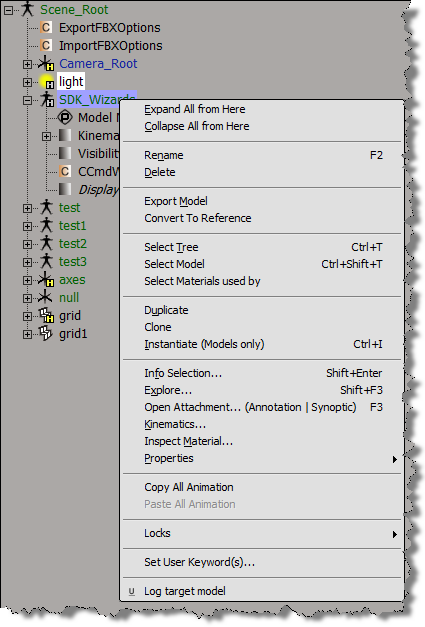
If you use AddCallbackItem to implement a contextual menu, then you can get the objects to which the context menu applies. A menu item callback gets a Context object from Softimage, and that Context contains a Target context attribute. Target specifies the selected objects, or the object under the mouse:

  • If more than one object is selected, then the Target attribute is a collection of all selected objects.
  • Otherwise, the Target attribute is a collection that contains just the object under the mouse.

Here’s a Python example of a context menu implemented with AddCallbackItem.

import win32com.client
from win32com.client import constants

null = None
false = 0
true = 1

def XSILoadPlugin( in_reg ):
	in_reg.Author = "blairs"
	in_reg.Name = "Test_CommandPlugin"
	in_reg.Major = 1
	in_reg.Minor = 0

	in_reg.RegisterCommand("Test_Command","Test_Command")
	in_reg.RegisterMenu(constants.siMenuSEModelContextID,"Model_Context_Menu",false,false)
	in_reg.RegisterMenu(constants.siMenuSEObjectContextID,"Object_Context_Menu",false,false)
	#RegistrationInsertionPoint - do not remove this line

	return true

def XSIUnloadPlugin( in_reg ):
	strPluginName = in_reg.Name
	Application.LogMessage(str(strPluginName) + str(" has been unloaded."),constants.siVerbose)
	return true

def Model_Context_Menu_Init( in_ctxt ):
	oMenu = in_ctxt.Source
	oMenu.AddCallbackItem( "Log target model", "SE_ContextCallback" )
	return true

def Object_Context_Menu_Init( in_ctxt ):
	oMenu = in_ctxt.Source
	oMenu.AddCallbackItem( "Log target object", "SE_ContextCallback" )
	return true
#
# Menu item callback
#
def SE_ContextCallback( in_ctxt ):
	target = in_ctxt.GetAttribute("Target")

	# Target attribute returns an XSICollection
	for o in target:
		Application.LogMessage( o.FullName )

Overriding SPDL defaults


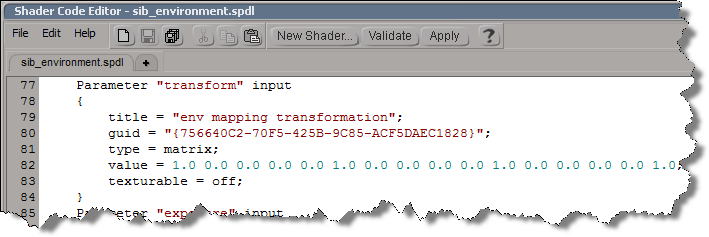
In the old days, if you didn’t like some default shader parameter setting, you had to edit a SPDL file and generate a new preset. As of 2011, you can use the ObjectModel (OM) to dynamically update the shader definition.

For example, if you run this Python snippet in the script editor, then the next time you create an Environment shader, it will have some different defaults:

  • Environment Mode will default to Cylinder
  • Transformation will have a connection icon
  • Background Intensity will default to 0.5
from siutils import si		# Application
from siutils import log		# LogMessage
from siutils import disp	# win32com.client.Dispatch
from siutils import C		# win32com.client.constants

# Get ShaderDef for the Environment shader
sProgID = "Softimage.sib_environment.1.0"
oDef = si.GetShaderDef( "Softimage.sib_environment.1.0" )

# Get ShaderParamDef for the Tranformation parameter
oTransform = oDef.InputParamDefs.GetParamDefByName( "transform" )

# Make it texturable so it has a connection icon
oTransform.Texturable = True


# Make Cylinder the default Environment mode
oParam = oDef.InputParamDefs.GetParamDefByName( "mode" )
oParam.DefaultValue = 1

# Change the default background intensity to 0.5
oParam = oDef.InputParamDefs.GetParamDefByName( "background_intensity" )
oParam.DefaultValue = 0.5

So, that’s how you update a shader definition. Now, all you have to do is stick that code into a siOnCreateShaderDef event plugin, and every time you create an Environment shader, it will have the defaults you want

import win32com.client
from win32com.client import constants

null = None
false = 0
true = 1

def XSILoadPlugin( in_reg ):
	in_reg.Author = "blairs"
	in_reg.Name = "ShaderDef Plug-in"
	in_reg.Major = 1
	in_reg.Minor = 0

	in_reg.RegisterEvent("CreateShaderDef",constants.siOnCreateShaderDef)

	return true

def XSIUnloadPlugin( in_reg ):
	strPluginName = in_reg.Name
	return true

# Callback for the CreateShaderDef event.
def CreateShaderDef_OnEvent( in_ctxt ):
	oDef = in_ctxt.GetAttribute("ShaderDef")
	sProgID = str(in_ctxt.GetAttribute("ProgID"))
	if "Softimage.sib_environment.1.0" in sProgID:
		oDef.InputParamDefs.GetParamDefByName( "transform" ).Texturable = True

# 	Return value is ignored as this event can not be aborted.
	return true

Tip: Use the SDK Explorer (CTRL+SHIFT+4) to get the ProgID of a shader.

Scripting the output file format for viewport captures


Here’s how to set the default value for the FormatType list in the Capture Viewport dialog box.

from siutils import si		# Application
from siutils import log		# LogMessage
from siutils import disp	# win32com.client.Dispatch
from siutils import C		# win32com.client.constants

# Set the capture options
oViewportCapture = si.Dictionary.GetObject("ViewportCapture")
paramFormatType = si.Dictionary.GetObject( "ViewportCapture.FormatType" )

# Set default to JPEG
paramFormatType.Value = 5

# Display Viewport Capture dialog
si.CaptureViewport( 2, True )


# FormatType values
# -----------------
# 0 Alias
# 1 AVI
# 2 BMP
# 3 Cineon (DPX)
# 4 Cineon (FIDO)
# 5 JPEG
# 6 Memory mapped
# 7 mental ray color
# 8 OpenEXR
# 9 PGM
# 10 Photoshop PSD
# 11 Pict
# 12 PNG
# 13 PPM
# 14 Quicktime
# 15 SGI
# 16 Softimage .pic
# 17 Son Playstation2 TIM2/CLUT2
# 18 Targa
# 19 Tiff
# 20 Valve
# 21 Wavefront
# 22 YUV

If you are scripting a non-interactive viewport capture, you don’t use FormatType. Instead, the output file format is determined by the file extension of the output file name.
Here’s a Python version of the example on the CaptureViewport reference page.

from siutils import si		# Application
from siutils import log		# LogMessage
from siutils import disp	# win32com.client.Dispatch
from siutils import C		# win32com.client.constants
import win32com.client.dynamic

# Get the current frame
fc = si.ActiveProject.Properties("Play Control").Parameters("Current").Value

# Set the capture options
oViewportCapture = si.Dictionary.GetObject("ViewportCapture")

# Capture a 1-frame sequence 
start = oViewportCapture.NestedObjects("Start Frame")
win32com.client.dynamic.Dispatch(start).Value = fc

end = oViewportCapture.NestedObjects("End Frame")       
win32com.client.dynamic.Dispatch(end).Value = fc

# Specify the output file name
# For scripted captures, the output file format is determined by the extension
name = oViewportCapture.NestedObjects("File Name")
win32com.client.dynamic.Dispatch(name).Value = "C:\\test.jpg"

# No dialog
si.CaptureViewport( 2, False );

Scripting – Getting reference model Resolutions


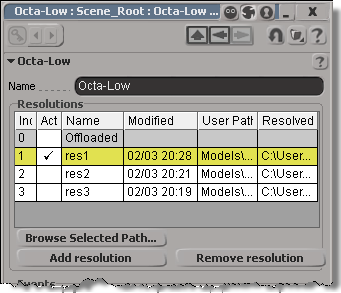
You can get at the Resolutions through scripting (via NestedObjects or Dictionary.GetObject), but you can get the resolution name and file only.

from siutils import si		# Application
from siutils import sidict	# Dictionary
from siutils import sisel	# Selection
from siutils import log		# LogMessage

def getResolutionFileName( m, res ):
	if ( m.Type == "#model" and m.Parameters("referenced_model").Value==True):
		return sidict.GetObject( m.FullName + ".resolutions." + res + ".file" ).Value
		
log( getResolutionFileName( sisel(0), 'res1' ) )
log( getResolutionFileName( sisel(0), 'res2' ) )
log( getResolutionFileName( sisel(0), 'res3' ) )
		
# INFO : Models\Octa-Low.emdl
# INFO : Models\Octa-Med.emdl
# INFO : Models\Octa-High.emdl

Going through NestedObjects is a bit more of a hassle:

from siutils import si		# Application
from siutils import sidict	# Dictionary
from siutils import sisel	# Selection
from siutils import log		# LogMessage

import win32com.client.dynamic

def getResolutions( m ):
	if ( m.Type == "#model" and m.Parameters("referenced_model").Value==True):
		return m.NestedObjects( "Resolutions" ).NestedObjects

resolutions = getResolutions( sisel(0) )

for r in resolutions:
	name = sidict.GetObject( r.FullName + ".name" ).Value
	file = sidict.GetObject( r.FullName + ".file" ).Value
	log( name )
	log( file )

	# This errors out with the dynamic dispatch fix:
	name = r.NestedObjects( "name" )
	log( si.ClassName( name ) )
	log( win32com.client.dynamic.Dispatch(name).Value )

Moving the timeline pointer back to frame 1 with xsibatch


UPDATE: In the comments, Vladimir suggests a better way to do this: use the scntoc. That way, the scene will always open at frame 1.
Use a text editor to add Application.SetValue(“PlayControl.Current”, 1) to the onload script. This script will run when you open the scene, and move the timeline pointer back to frame 1 to avoid the re-simulation.

   <PostLoadScript>
      <Language>Python</Language>
      <Function>postLoad</Function>
      <Script_Content>
	<![CDATA[
Application.SetValue("PlayControl.Current", 1)
	]]></Script_Content>
   </PostLoadScript>

After you save the scene, Softimage will write out the scntoc without the CDATA section (Softimage will replace special characters like < and ” with entities).

   <PostLoadScript>
      <Language>Python</Language>
      <Function></Function>
      <Script_Content>
	
Application.SetValue(&quot;PlayControl.Current&quot;, 1)</Script_Content>
   </PostLoadScript>


So you have a heavy simulation, and you saved the scene with the timeline pointer at frame 1000. Now when you open the scene, you have to sit and wait while the scene re-simulates.

You can fix this by using xsibatch to move the timeline pointer back to frame 1.

It’s probably a good idea to save heavy sim scenes with the timeline pointer at frame 1 😉

  • Save this JScript in a .js file.
    var sScene = "C:\\Users\\blairs\\Support\\Scenes\\Test.scn"
    OpenScene(sScene, null, null);
    SetValue("PlayControl.Current", 1, null);
    SaveScene();
    
  • In a command prompt, use xsibatch -processing -script to run the script:
    xsibatch -processing -script C:\Users\blairs\Documents\resetPlayControlCurrent.js
    

Now you can open your scene without it resimulating.

Selection filter for objects with ICE trees


Here’s a custom filter for selecting objects with ICE trees: psCustomFilters.xsiaddon. The filter appears as Obj_w_ICETree in the filter list of the Select panel in the MCP:

You can use this filter in the MCP Select panel (choose the filter and then press Ctrl+A to select all objects with an ICE tree).

Or you could make a toolbar button with these snippets:

// JScript
SelectAllUsingFilter("Obj_w_ICETree", siCheckComponentVisibility, null, null);
#Python
from siutils import C		# win32com.client.constants
Application.SelectAllUsingFilter("Obj_w_ICETree", C.siCheckComponentVisibility, "", "")