Running batch files from inside Softimage


You can use the System command:

var sCommandLine = "C:\\users\\blairs\\test.bat";  
System( sCommandLine );

You can also use WScript.Shell:

// Use XSIFactory.CreateActiveXObject if in NetView
var wsh = new ActiveXObject("WScript.Shell");
wsh.run ("c:\\temp\\_SI.bat" )

If you want to use XSIUtils.LaunchProcess, you will have to do something like

XSIUtils.LaunchProcess( "cmd /C start C:\\test.bat" );

LaunchProcess is like the Win32 CreateProcess() api. You have to start a command interpreter session to run your batch file.

Disabling command logging temporarily


From the curiosity drawer. This python snippet uses “v1.5 command” functionality from back in the day to disable command logging for a specific command invocation.

from siutils import si		# Application
from siutils import log		# LogMessage
from siutils import disp	# win32com.client.Dispatch
from siutils import C		# win32com.client.constants


sClassID = "{19085F81-CDD6-471C-9CA1-7C7F4F2A0166}"

# This command is logged
si.FindObjects( "", sClassID )

log( "--------------------------" )
# Get the command and disable logging
oCmd = si.Commands("Find Objects")
oCmd.SetFlag( C.siNoLogging, True )
 
# Not allowed to update existing commands with Update()
# so we have to manually set arguments and execute the command
oCmd.Arguments(0).Value = ""
oCmd.Arguments(1).Value = sClassID

oICETrees = oCmd.Execute();    # Execute - nothing logged
for t in oICETrees:
	log( t.FullName )
log( "--------------------------" )
 
# This still is logged, no need to reset flag because we never updated the command
si.FindObjects( "", sClassID )

The typical way to [temporarily] disable command logging is by setting the cmdlog preference:

Application.Preferences.SetPreferenceValue( "scripting.cmdlog", False )
Application.CreatePrim("Cone", "MeshSurface", "", "")

Softimage resets the pref automatically.

You could use a Python decorator to do this.

Finding and deleting ICETrees on an object


Here’s a JScript snippet for deleting ICE trees from the objects in a group.

Note that the Primitive.ICETrees property returns all ICE trees that write to the object, including ICE trees on different objects (such as the italicized ICE tree in the screenshot below).

var o = Selection(0);
delICETrees(o, false );

function delICETrees( oGroup, bDelAll )
{

	var bFlag = ( bDelAll == null ) ? false : bDelAll;
	logmessage(bFlag);

	if ( oGroup != null && oGroup.type == "#Group" )
	{
		oGroupEnum = new Enumerator( oGroup.Members ) ;
		for (;!oGroupEnum.atEnd();oGroupEnum.moveNext() )
		{
			var o = oGroupEnum.item() ;
			var p = o.ActivePrimitive;

			oICETreeEnum = new Enumerator( p.ICETrees ) ;
			for (;!oICETreeEnum.atEnd();oICETreeEnum.moveNext() )
			{
				var oICETree = oICETreeEnum.item() ;
				if ( bFlag || oICETree.Parent3DObject.IsEqualTo( o ) )
				{
					LogMessage( oICETree.fullname );
					// DeleteObj( oICETree );
				}
			}
		}
	}
	else
	{
		LogMessage("Select a group" );
	}
}

Filtering object selection by volume


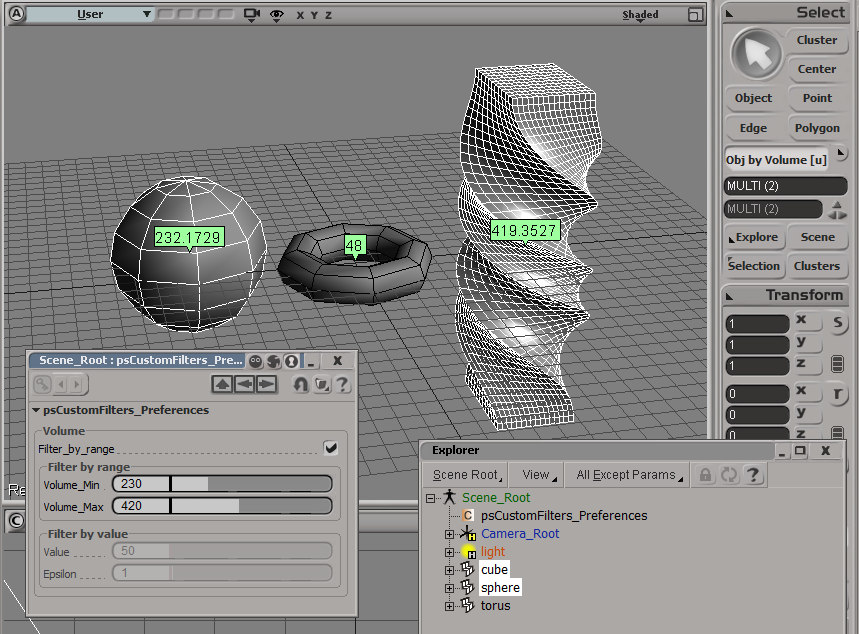
Here’s an addon that uses the ICE Volume attribute to filter object selections. The Volume attribute is always defined (so you don’t need to Show Values or anything for this filter to work).

Note that you have to freeze scaling to get the right volume for an object.

For simplicity, I’m using a custom property (on the scene root) to hold the preferences for the filter.

The filter itself is simple. It just gets the Volume attribute value and compares it to the range of values specified in the PPG.

# Match callback for the psCustomFilters custom filter.
def ObjbyVolume_Match( in_ctxt ):
	Application.LogMessage("ObjbyVolume_Match called",constants.siVerbose)

	in_object = in_ctxt.GetAttribute( "Input" );

	obj = Get3DObject( in_object );
	if ( Application.ClassName(obj) != "X3DObject" ):
		return false;
	
	v = obj.ActivePrimitive.ICEAttributes("Volume").DataArray[0]

	filterProp = GetFilterProp( )
	if filterProp.Filter_by_range.Value == True:
		bMatch = filterProp.Volume_Min.Value <= v <= filterProp.Volume_Max.Value
	else: # Filter by value with an epsilon
		min = filterProp.Value.Value - filterProp.Epsilon.Value
		max = filterProp.Value.Value + filterProp.Epsilon.Value
		bMatch = min <= v <= max
		
	return bMatch

Scripting – Applying an ICE compound to multiple objects


UPDATE: Script updated to work in 2013

Here’s a script for applying an ICE compound to many objects in one go.

The script pops up a browser where you select a compound, and then the selected compound is applied to all selected objects (or, if a group is selected, to all members of the group.

I posted something similar before, but that was part of an add-on that adds new menu commands for applying ICE operators.


from siutils import si		# Application
if Application.Version().split('.')[0]>= "11":
	    si = si()                   # win32com.client.Dispatch('XSI.Application')

from siutils import log		# LogMessage
from siutils import C		# win32com.client.constants
from siutils import disp	# win32com.client.Dispatch

siut = disp('XSI.Utils')
sifact = disp('XSI.Factory')
siuitk = disp('XSI.UIToolkit')
sisel = si.Selection


#
# Pop up a browser to select a compound
#
def getCompound():
	initialDir = siut.BuildPath( si.InstallationPath( C.siUserPath ), "Data", "Compounds" )

	oFileBrowser = siuitk.FileBrowser
	oFileBrowser.DialogTitle = "Select compound to apply"
	oFileBrowser.InitialDirectory = initialDir
	oFileBrowser.Filter = "All Files (*.*)|*.*||"
	oFileBrowser.ShowOpen()

	return oFileBrowser.FilePathName

#
# Apply op to 
# - the selected objects
# OR
# - the members of a selected group
#
def getTargetObjects():
	objects = disp( "XSI.Collection" )

	if sisel.Count == 0:
		log( "Please select either some objects or a group" )
	elif sisel(0).IsClassOf( C.siGroupID ):
		objects = sisel(0).Members
	else:
		objects = sisel

	return objects

#
# Do it...
#
objects = getTargetObjects()	
sCompound = getCompound()

if sCompound != "" and objects.Count > 0:
	for o in objects:
		si.ApplyICEOp( sCompound, o.FullName )

Tip: Inspecting compounds in a PPG


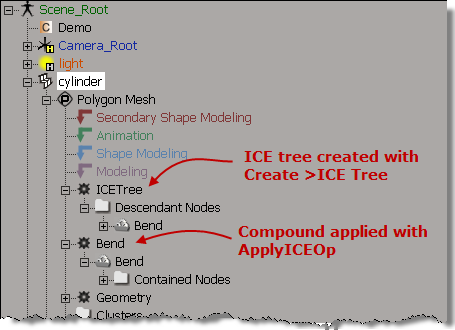
If you use ApplyICEOp to apply a compound, then you can open the compound PPG by clicking the ICE tree operator icon in the explorer. For example, in this screenshot, clicking the Bend operator icon opens the Bend PPG (Bend is an ICE compound).

If you create the ICE tree yourself and hook up the compound, you don’t get this behavior. That’s because ApplyICEOp knows what compound is being applied, so it can nest the compound node directly under the ICE operator node, and the operator PPG can inspect the compound parameters.

Beware of ICE optimizations


It seemed like such a nice, simple way to filter polygons:

  • Use ICE to check the polygon area and then set a boolean attribute.
  • Write a custom subcomponent filter to filter based on that ICE attribute.

With ICE, it’s pretty easy to check if the PolygonArea is within a certain range:
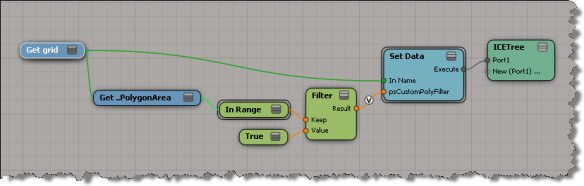
But, beware of ICE optimizations!

Because that ICE attribute isn’t used anywhere else in the scene, ICE doesn’t evaluate that tree, so my boolean attribute is never defined, and my custom filter therefore fails. I have to do something like Show Values to force evaluation:

Note: In Show Values, I used Show Values for Tagged Components Only to cut down the visual clutter.

FWIW, here’s a Python example of a custom subcomponent filter:

# psCustomFilter Plug-in
# Initial code generated by Softimage SDK Wizard
# Executed Wed Nov 23 11:31:56 EST 2011 by blairs
# 
# Tip: To add a command to this plug-in, right-click in the 
# script editor and choose Tools > Add Command.
import win32com.client
from win32com.client import constants

from siutils import si		# Application
from siutils import sidesk	# Desktop
from siutils import sidict	# Dictionary
from siutils import sifact	# XSIFactory
from siutils import simath	# XSIMath
from siutils import siproj	# ActiveProject2
from siutils import sisel	# Selection
from siutils import siuitk	# XSIUIToolkit
from siutils import siut	# XSIUtils
from siutils import log		# LogMessage
from siutils import disp	# win32com.client.Dispatch
from siutils import C		# win32com.client.constants


null = None
false = 0
true = 1

def XSILoadPlugin( in_reg ):
	in_reg.Author = "blairs"
	in_reg.Name = "psCustomFilter Plug-in"
	in_reg.Major = 1
	in_reg.Minor = 0

	in_reg.RegisterFilter("psCustomFilter",constants.siFilterSubComponentPolygon)
	#RegistrationInsertionPoint - do not remove this line

	return true

def XSIUnloadPlugin( in_reg ):
	strPluginName = in_reg.Name
	Application.LogMessage(str(strPluginName) + str(" has been unloaded."),constants.siVerbose)
	return true

# Match callback for the psCustomFilter custom filter.
def psCustomFilter_Match( in_ctxt ):
	Application.LogMessage("psCustomFilter_Match called",constants.siVerbose)

# 	Return value indicates if the input object matches the filter criterias.
	return true

# Subset callback for the psCustomFilter custom filter.
def psCustomFilter_Subset( in_ctxt ):
	log("psCustomFilter_Subset called",constants.siVerbose)

	out_coll = disp( "XSI.Collection" )
	
	in_coll = in_ctxt.GetAttribute( "Input" )
	for item in in_coll:
		log( item )
		polys = []
		for p in item.SubComponent.ComponentCollection:
			log( p.Index )

			attr = p.Parent.ICEAttributes("psCustomPolyFilter")
			if not attr.IsDefined:
				log( "Cannot apply filter. psCustomPolyFilter attribute is not defined" )
			if attr.IsDefined and attr.DataArray[ p.Index ] == -1:
				#log( "%d : %s" % ( p.Index, attr.DataArray[ p.Index ] ) )
				polys.append( p.Index )

		if len(polys) > 0:
			out_coll.Add( item.SubComponent.Parent3DObject.ActivePrimitive.Geometry.CreateSubComponent(C.siPolygonCluster, polys ) )


	in_ctxt.SetAttribute( "Output", out_coll )

# 	Return value indicates if a subset of the input objects matches the filter criterias.
	return true

Scripting – Importing models without popping up PPGs


The ImportModel command pops up a PPG when it imports a model.

Since there is no OM equivalent of ImportModel, if you don’t want the pop-up PPG, you have to either turn off autoinspect in your script, or use the undocumented SIImportModel command. (SOme commands have a “SI” equivalent that doesn’t require any UI interaction or pop up any PPGs.)

If you want more info on SIImportModel (like what are the arguments), run this Python in the script editor:

Application.EditCommand("SIImportMOdel")

Here’s a way to turn off autoinspect using a Python decorator:

def no_autoinspect(func):
	def wrapper(*arg):
		Application.Preferences.SetPreferenceValue("Interaction.autoinspect", False)
		res = func(*arg)
		return res
	return wrapper


@no_autoinspect
def importmodels():
	Application.ImportModel("C:\\Users\\blairs\\Documents\\MyProject\\Models\\dodecahedron.emdl", "", "", "", "", "", "")

importmodels()

More about decorators:
https://xsisupport.wordpress.com/2011/01/27/python-decorators/
http://www.xsiblog.com/archives/357

Scripting: Finding comment nodes in ICE compounds


Unless I missed something in the docs, you have to go through the old NestedObjects routine to do it.
Here’s a JScript version. Python to follow soon…

var n = Selection(0);

oEnum = new Enumerator( get_comments(n) ) ;
for (;!oEnum.atEnd();oEnum.moveNext() )
{
	var oComment = oEnum.item() ;
	LogMessage( oComment.Parameters("Text").Value );
}

//--------------------------------------
// Find comments
// Works with an ICENode or a compound
//--------------------------------------
function get_comments( node )
{
	var oComments = new ActiveXObject( "XSI.Collection" );
	if ( ClassName(node) == "ICENode" )
	{
		var oComment = node.NestedObjects("ICE Comment");
		if ( oComment != null ) oComments.Add( oComment );
	}
	else if ( ClassName(node) == "ICECompoundNode" )
	{
		var nested = Dictionary.GetObject( node.FullName + ".ContainedNodes" ).NestedObjects;
		oEnum = new Enumerator( nested ) ;
		for (;!oEnum.atEnd();oEnum.moveNext() )
		{
			var oItem = oEnum.item() ;
			if ( oItem.Type == "ICETreeComment" )
			{
				oComments.Add( oItem );
			}
		}
		
	}
	return oComments;
}
from siutils import si		# Application
from siutils import sidict	# Dictionary
from siutils import sisel	# Selection
from siutils import log		# LogMessage
from siutils import disp	# win32com.client.Dispatch
from siutils import C		# win32com.client.constants

def get_comments( node ):
	oComments = disp( "XSI.Collection" )
	
	if si.ClassName(node) == "ICENode":
		oComment = node.NestedObjects("ICE Comment")
		if ( oComment != None ):
			oComments.Add( oComment );

	elif si.ClassName(node) == "ICECompoundNode":
		nested = sidict.GetObject( node.FullName + ".ContainedNodes" ).NestedObjects
		for o in nested:
			if o.Type == "ICETreeComment":
				oComments.Add( o )

	return oComments
	
	
n = sisel(0)

# Get comments and print out the text
for c in get_comments(n):
	log( c.Parameters("Text").Value )

The case of the missing anchors


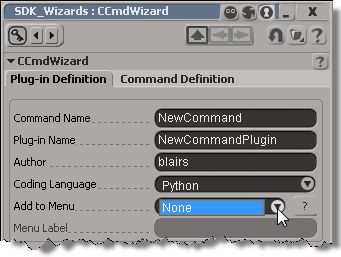
In this case, a customer reported that the Add to Menu list in the Command Wizard was empty. Normally, Add to Menu lists all anchor points for menus where you can add a custom command, but now it had just one entry: None.

The SDK wizards are JScript plugins, so it wasn’t hard to track down where things were going wrong. The Add to Menu list is built by parsing a header file (xsi_decl.h):

var oFSO = new ActiveXObject( "Scripting.FileSystemObject" ) ;
strFactoryPath = Application.InstallationPath( siFactoryPath ) ;
strDeclFile = XSIUtils.BuildPath(XSIUtils.Environment("XSISDK_ROOT"),"include","xsi_decl.h") ;

Based on this, it didn’t take to long to figure out the problem: the customer was starting Softimage with a shortcut to XSI.exe, so setenv.bat was never called, and XSISDK_ROOT was never set.

XSI.bat is the way to start Softimage. XSI.bat calls setenv.bat to set all the required environment variable, and then starts XSI.exe.