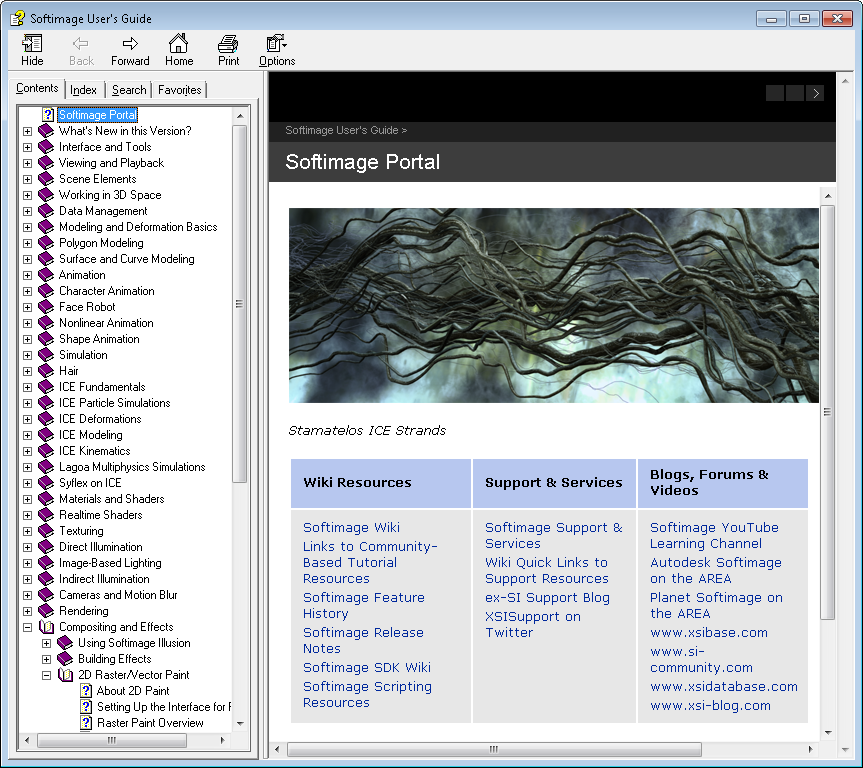
CHM version of Softimage 2012 User Guide


If you’re jonesing for the CHM version of the Softimage User Guide, it’s available as a documentation extra on the wiki.

Here’s the direct download link.

Softimage won’t use this version, but you can use it for your reading and browsing pleasure.

To open the CHM from scripting:

# Python
import subprocess
sCHM = "C:\\Users\\blairs\\Downloads\\xsidocs_2012\\xsidocs_2012.chm";
subprocess.Popen( "hh.exe " + sCHM )
// JScript
var oShell = new ActiveXObject("WScript.Shell");
var sCHM = "C:\\Users\\blairs\\Downloads\\xsidocs_2012\\xsidocs_2012.chm";
oShell.run( "hh.exe " + sCHM );
' VBScript
set oShell = CreateObject("WScript.Shell")
oShell.run "hh.exe C:\\Users\\blairs\\Downloads\\xsidocs_2012\\xsidocs_2012.chm" 

ShaderOp.com | Using wxPython with Autodesk Softimage


Using wxPython with Autodesk Softimage

“Here’s the issue as far as I understand it: On Windows operating systems, every process that has a window (i.e. any none-console application) also has a message loop, and each process can only have one message loop. The problem with PyQT and wxPython is that they will try to create their own message loops inside the Softimage process, which somehow leads to the whole process shutting down. I don’t know Linux that well, but the same issue should arise there.

It turns out that the solution to this is to run wxPython or PyQT on their own separate threads, so that both message loops will run in isolation from each other.

Apparently Houdini 9.5 had the same thing happening with PyQT, and its documentation contains a code sample that addresses this issue. All I had to do was repackage it inside a Softimage plug-in, although I used wxPython instead of PyQT because I’m more familiar with it. But it should be trivial to change the code to use PyQT instead.”

–ShaderOp

Python PolygonMesh.Set example


This simple example shows how to pass in the vertex and polygon data in Python.

Application.CreatePrim("Cube", "MeshSurface", "", "")
oCube = Application.Selection(0)

# tuple of tuples
# one tuple for the X coordinate, one for the Y, and one for the Z
verts = ((-0.5, 0.5, -0.5, 0.5, -0.5, 0.5, -0.5, 5.0), (-0.5, -0.5, 0.5, 0.5, -0.5, -0.5, 0.5, 0.0), (-0.5, -0.5, -0.5, -0.5, 0.5, 0.5, 0.5, -18.0))

# tuple of polygon data
polys = (4, 0, 2, 3, 1, 4, 0, 1, 5, 4, 4, 0, 4, 6, 2, 4, 1, 3, 7, 5, 4, 2, 6, 7, 3, 4, 4, 5, 7, 6)

Application.FreezeObj(oCube)

oCube.ActivePrimitive.Geometry.Set(verts,polys)

To help understand the vertex and polyon data, consider this simple polygon mesh:

Given the above polygon mesh, this snippet:

oCube = Application.Selection(0)

data = oCube.ActivePrimitive.Geometry.Get2()
verts = data[0]
polys = data[1]

print verts
print polys

would print this:

#  ((-3.0, 4.0, 1.0, -2.0), (0.0, -4.0, 0.0, 0.0), (1.0, -4.0, 5.0, 3.0))
# (4, 0, 1, 2, 3)

Finding point clouds


Point clouds are a type of X3DObject, so you can use FindChild and FindChildren to find point clouds.

BUT watch out, the SDK docs list the wrong type constant: siCloudPrimType.
That type was for the old, obsolete particle system.
For ICE point clouds, use the constant siPointCloudPrimType (“PointCloud”).

from win32com.client import constants as c

PointClouds = Application.ActiveSceneRoot.FindChildren2("*", c.siPointCloudPrimType ) 
for pointCloud in PointClouds :
    Application.LogMessage(pointCloud.FullName )

Getting the selected ICE nodes


The context for custom menu callbacks gives you access to the current view instance, so you can use the selection view attribute to get the selected ICE nodes. See line 35 in the example.

import win32com.client
from win32com.client import constants

null = None
false = 0
true = 1

def XSILoadPlugin( in_reg ):
	in_reg.Author = "blairs"
	in_reg.Name = "My_ICETreeUserTool_Plugin"
	in_reg.Major = 1
	in_reg.Minor = 0

	in_reg.RegisterMenu(constants.siMenuICEViewToolsID,"My_ICETreeUserTool_Menu",false,false)
	#RegistrationInsertionPoint - do not remove this line

	return true

def XSIUnloadPlugin( in_reg ):
	strPluginName = in_reg.Name
	Application.LogMessage(str(strPluginName) + str(" has been unloaded."),constants.siVerbose)
	return true

def My_ICETreeUserTool_Menu_Init( in_ctxt ):
	oMenu = in_ctxt.Source
	oMenu.AddCallbackItem("My ICE Tree User Tool","OnMyICETreeUserTool")
	return true

def OnMyICETreeUserTool( in_ctxt ):
	itv = in_ctxt.GetAttribute("Target")
	
	LogMessage( 'View: ' + itv.Name )
	
	# get the selected nodes
	nodes = itv.GetAttributeValue('selection')
	LogMessage( 'Selected nodes: ' + nodes )
		

Getting the contents of docked views


I was recently asked whether it’s possible to find docked FxTree views and figure out 1) what specific tree is loaded, and 2) what nodes are selected in the Fx tree.

You can find docked Fx Tree views, but unfortunately there’s no way to find out what’s in that view.
Here’s a Python snippet that finds docked Fx Tree views:

# Find docked Fx Tree views
oVM = Application.Desktop.ActiveLayout.Views.Filter( "View Manager" )
oFxTreeViews = oVM(0).Views.Filter( "Fx Tree" )

for view in oFxTreeViews:
    Application.LogMessage(view.Name+": "+view.Type)

In the XSI SDK, you use attributes to access the contents of a view, and there are no attributes defined for Fx Tree views.

For example, here’s how it works for an ICE Tree view:

# Find docked ICE Tree views
oVM = Application.Desktop.ActiveLayout.Views.Filter( "View Manager" )
oICETreeViews = oVM(0).Views.Filter( "ICE Tree" )

# Get the ICE tree that is loaded into the view
Application.LogMessage( oICETreeViews(0).GetAttributeValue( "container" ) );

# Get the selected nodes in the ICE tree
Application.LogMessage( oICETreeViews(0).GetAttributeValue( "selection" ) );

Getting the screen resolution


This snippet uses WMI to get the screen resolution.

GetMonitorResolution();

function GetMonitorResolution()
{
       var wbemFlagReturnImmediately = 0x10;

       var Mode        = wbemFlagReturnImmediately;
       var Query       = "Select * from Win32_VideoController";
       var oWMIService = GetObject( "winmgmts:\\\\.\\root\\cimv2" );
       var oCollection = oWMIService.ExecQuery( Query, "WQL", Mode );

       var oItems = new Enumerator( oCollection );

       for ( ; !oItems.atEnd(); oItems.moveNext() ) {

               var oItem = oItems.item();

               // dump info
               LogMessage( "Resolution [x,y]: " +
				oItem.CurrentHorizontalResolution + ", " +
				oItem.CurrentVerticalResolution );
       }

       return;
}

For me, this script outputs the resolution of both monitors:

// INFO : Resolution [x,y]: 1280, 1024
// INFO : Resolution [x,y]: 1920, 1200

Credit: Matt Lind, on the XSI mailing list

Checking for ICE trees in the construction history


You can use the ActivePrimitive.ConstructionHistory to find out where an ICETree is in the construction stack.

var o = Dictionary.GetObject( "someobject" );
var sMarker;

oEnum = new Enumerator( o.ActivePrimitive.ConstructionHistory );
for (;!oEnum.atEnd();oEnum.moveNext())           
{
	if( oEnum.item().BelongsTo( "MarkerOperators" ) )
	{
		sMarker = oEnum.item().type;
	}
	else if (oEnum.item().IsClassOf( siICETreeID  ) == true )
	{
		LogMessage( sMarker + " -> " + oEnum.item().name );
	}
}
// INFO : simulationmarker -> ICETree1
// INFO : modelingmarker -> ICETree

And here’s a Python version courtesy of Alan Fregtman of the Softimage mailing list.
How to tell if a given ICETree object is simulated or not

# ---------------------------------
xsi = Application

obj = xsi.Selection(0)
markers = ["secondaryshapemarker","postsimulationmarker","simulationmarker","animationmarker","shapemarker","modelingmarker"]
opstack = obj.ActivePrimitive.ConstructionHistory

for op in opstack:
	if any([op.FullName.endswith("."+marker) for marker in markers]):
		lastMarker = op.FullName

	if xsi.ClassName(op) == "ICETree":
		print op.FullName+" is under marker: "+lastMarker.split(".")[-1]

Python gotcha – Forgetting the parentheses after a method name


Technically, I suppose this is not really a gotcha. But for someone like me who has to switch between scripting languages frequently, it’s a potential “gotcha”.

In Python, functions and methods are legitimate objects. That’s why you can do this:

App = Application
LogMsg = App.LogMessage
ClassName = App.ClassName

but sometimes you might forget the parentheses after a name, and unlike JScript, you won’t get a syntax error (at least not for the missing parentheses). For example, this little snippet will give you a “# AttributeError: ‘NoneType’ object has no attribute ‘AddKey'” error:

param = Application.Dictionary.GetObject( "null.kine.local.rotx" )

if str(param.Source) == 'None':
    param.AddFcurve
    fcurve = param.Source
    fcurve.AddKey( 10, 90 )
    fcurve.AddKey( 20, 45 )

In JScript, you’d get a syntax error for the missing parentheses. I’m not saying that that is better 😉 it’s just a difference you have to be aware of.

param = Dictionary.GetObject( "null.kine.local.rotx" )
param.AddFcurve
// ERROR : Object doesn't support this property or method - [line 3]

Some related links:

Running EXEs from JScript in XSI


To run programs from JScript, you can use XSIUtils.LaunchProcess.

Here’s a simple example that does a dir on C:\Program Files, redirects the output to a text file, and then uses Notepad to open the text file:

var sPath = XSIUtils.Environment("TEMP");
XSIUtils.LaunchProcess( 'cmd /C "dir > ' + sPath + '\\dir222.txt"', false, "C:\\Program Files" );
XSIUtils.LaunchProcess( 'notepad ' + sPath + '\\dir222.txt', false, "C:\\" );

The third argument to LaunchProcess will be the current working directory of the launched process. So in the above example, I’m doing a dir of C:\Program Files (because cmd opens with C:\Program Files as its current directory).

If the exe is not in the system PATH, then you need to specify the full location:

var sCommandLine = "C:\\Program Files (x86)\\Microsoft Visual Studio 9.0\\Common7\\IDE\\devenv.exe";
var sStartupDirectory = Application.InstallationPath( siWorkgroupPath );
XSIUtils.LaunchProcess( sCommandLine, false, sStartupDirectory );

In the above example, I’m using my workgroup location as the current directory, so when I do File > Open in Visual Studio, by default I will be looking in my workgroup location.