Was that there in previous versions? I never noticed it. I was quite happy this morning when I restarted Softimage and it restored my unsaved script 😉
Softimage 2011 restores unsaved script changes after a crash
1

Was that there in previous versions? I never noticed it. I was quite happy this morning when I restarted Softimage and it restored my unsaved script 😉
The script editor now has tabs. Just click the plus sign (+) or press CTRL+T to open a new tab.
Some other tab-related features:

Want to use Python to implement an RV_Init callback in an .xsivw file? Here’s how:
<script language="Python"><![CDATA[
def RV_Init( in_rv ):
	Application.LogMessage( "RV_Init" )

	# COM programming ( in_rv is pointer to IUnknown )
	import pythoncom
	oRV = in_rv.QueryInterface( pythoncom.IID_IDispatch )

	import win32com.client.dynamic
	oRV = win32com.client.dynamic.Dispatch( oRV )

	Application.LogMessage( Application.Classname(oRV) )

	for i in range(0,oRV.Views.Count):
		oView = oRV.Views(i)
		Application.LogMessage( oView.Name + " " + oView.type 	)

]]></script>
Notes
Three easy steps:
You can get the 64-bit versions (Linux and Windows) of Python for Softimage here.
The most recent install of pywin32 determines which version of Python is available in Softimage. If your version of pywin32 doesn’t match up to an installed version of Python, then Python won’t show up in Softimage.
To get this script to work in 2011 and later, you need to do this to find the Blinn shaders:
// Get a collection of all Blinn nodes
var sProgID = "Softimage.material-blinn.1.0"
var oShaderDef = Application.GetShaderDef( sProgID ) ;

var oBlinnCollection =  oShaderDef.ShaderInstances ;
if (debug) LogMessage( "Found " + oBlinnCollection.Count + " Blinn shaders" );
The rest of the script can stay the same.
Note: I split the script into two parts below, for the purposes of this blog post. Just combine them to get the full script.
Here’s a script that shows how to replace every Blinn shader in a scene with a Phong shader.
There’s other ways to do it, but I used the connection stack.
var debug = 0;
// Class ID of the Blinn shader in XSI
var sClassID = "{8FAC63AC-E392-11D1-804C-00A0C906835D}";
SetValue("preferences.scripting.cmdlog", false, null);
// Get a collection of all Blinn nodes
var oBlinnCollection = FindObjects( null, sClassID );
if (debug) LogMessage( "Found " + oBlinnCollection.Count + " Blinn shaders" );
// Loop over the Blinn collection and replace all Blinn nodes with Phongs
var s = new Date();
oEnum = new Enumerator( oBlinnCollection ) ;
for (;!oEnum.atEnd();oEnum.moveNext() )
{
var oBlinn = oEnum.item() ;
// try catch will skip over any TransientObjectContainer.Blinn shaders we find
try
{
var oMaterial = oBlinn.Owners(0);
}
catch(e)
{
LogMessage( "Skipping " + oBlinn );
continue;
}
LogMessage( "Replacing " + oBlinn );
blinn2phong( oMaterial, oBlinn );
}
var e = new Date();
LogMessage( "Finished replacing Blinn shaders. Elapsed time: " + (e-s)/1000 + "s" );
function blinn2phong( oMaterial, oBlinn )
{
// Create a new Phong node
var oPhong = CreateShaderFromPreset("$XSI_DSPRESETS\\Shaders\\Material\\Phong.Preset", oMaterial, null);
// Get the node connections from the ConnectionStack
// And then insert the Phong node
var oDR = XSIUtils.DataRepository ;
var strOpInfo = oDR.GetConnectionStackInfo( oBlinn );
var oTopNode = ParseXML( strOpInfo ) ;
var oConnections = oTopNode.childNodes ;
if ( oConnections.length == 0 )
{
LogMessage( "Cannot replace the Blinn node " + oBlinn + " .It has no connections." );
}
else
{
for ( var i = 0 ; i < oConnections.length ; i++ )
{
var oConnection = oConnections(i) ;
strtype = SafeGetNodeValue( oConnection, "type", "Unknown" ) ;
strobj = SafeGetNodeValue( oConnection, "object", "Not Connected" ) ;
localparam = SafeGetNodeValue( oConnection, "localparameter", " " ) ;
destparam = SafeGetNodeValue( oConnection, "remoteparameter", " " ) ;
if ( strtype == "in" )
{
var oParam = oPhong.Parameters( localparam );
if ( oParam == null )
{
LogMessage( "Cannot connect " + strobj + " to Phong." + localparam + ". That parameter does not exist.", siWarning );
}
else
{
//SIConnectShaderToCnxPoint("Sources.Materials.Proteus_Body_MatLib_Proteus.MAT_Brass11.Image5", oPhong + ".ambient", false);
SIConnectShaderToCnxPoint( strobj, oParam );
if( debug ) LogMessage( "IN: " + strobj + ", " + oParam );
}
}
if ( strtype == "out" )
{
var oTarget = Dictionary.GetObject( strobj );
var oParam = oTarget.Parameters( destparam );
//SIConnectShaderToCnxPoint("Sources.Materials.Proteus_Body_MatLib_Proteus.MAT_Brass11.Phong1", "Sources.Materials.Proteus_Body_MatLib_Proteus.MAT_Brass11.Mix_2colors.base_color", false);
SIConnectShaderToCnxPoint( oPhong, oParam );
if( debug ) LogMessage( "OUT: " + oPhong + ", " + oParam );
}
}
}
}
The bling2phong() function is based on the code that builds this HTML page in the SDK Explorer:

Notice how the Connection Stack Details give you everything you need to replace a Blinn node with some other node in the render tree:
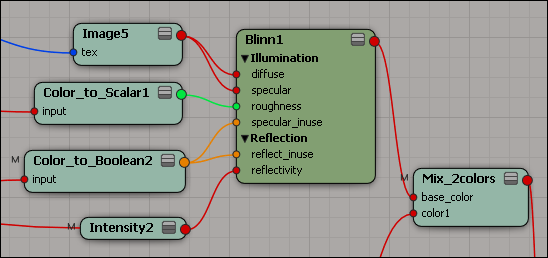
See below the cut for the code for the helper functions ParseXML() and SafeGetNodeValue().
Continue reading
This is a beginner-level walkthrough of a VBScript snippet.
set oColl = CreateObject( "XSI.Collection" )
oColl.Items = "*_face_crv?"

for each oObj in oColl
	LogMessage oObj.fullname
next
Line 01: We use the VBScript function CreateObject to create an instance of the ActiveX object XSICollection. XSICollection is a part of the XSI SDK, and is available only inside Softimage.
Line 02: Softimage uses string expressions to reference scene elements. For example, the expression “*_face_crv?” expands to “lf_face_crv1,lf_face_crv2,rf_face_crv1,rf_face_crv2” if you have objects with those names in the scene. The [undocumented] XSICollection.Items property takes a string expression and puts the corresponding objects into the XSICollection.
Line 04: We use the VBScript for each nextstatement to loop over the XSICollection.
Line 05: LogMessage is a method of the Application object, which is part the XSI SDK. FullName is a property available on most objects in Softimage.
Here’s the JScript equivalent, with an additional line of code that uses regex to update the object names.
var oColl = new ActiveXObject( "XSI.Collection" );
oColl.Items = "*_face_crv";

oEnum = new Enumerator( oColl ) ;
for (;!oEnum.atEnd();oEnum.moveNext() )
{
	var oSelItem = oEnum.item() ;
	LogMessage( oSelItem.fullname );
	oSelItem.Name = oSelItem.Name.replace( /crv/, "loc" );
	LogMessage( oSelItem.fullname );

}
Further reading:
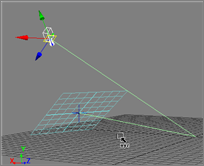
Camera looking at a reference plane
You can use Ref mode to quickly set up the camera so that it is looking straight down at a reference plane.
Here’s a script that does this for you. The script works with a default Softimage camera rig: just select some part of the camera rig and the script will figure out the rest.
var o = ( Selection(0).IsClassOf( siX3DObjectID ) ? Selection(0) : Selection(0).Parent3DObject );

var c = null;
var ci = null;
switch ( o.type ) {
	case "camera" :
		c = o;
		ci = c.Interest;
		break;
	case "CameraInterest" :
		c = o.Parent3DObject.Camera;
		ci = o;
		break;
	case "CameraRoot" :
		c = o.Camera;
		ci = c.Interest;
		break;
	default :
		LogMessage( "Cannot find the camera and camera interest. Please select part of a camera rig." );
}

if ( c != null & ci != null )
{
	// Translate Camera Interest
	Translate(ci, 0, 0, 0, siAbsolute, siObjCtr, siObj, siX, null, null, null, null, null, null, null, null, null, 0, null);
	Translate(ci, 0, 0, 0, siAbsolute, siObjCtr, siObj, siY, null, null, null, null, null, null, null, null, null, 0, null);
	Translate(ci, 0, 0, 0, siAbsolute, siObjCtr, siObj, siZ, null, null, null, null, null, null, null, null, null, 0, null);

	// Translate Camera
	Translate(c, 0, 0, 0, siAbsolute, siObjCtr, siObj, siX, null, null, null, null, null, null, null, null, null, 0, null);
	Translate(c, 0, 20, 0, siAbsolute, siObjCtr, siObj, siY, null, null, null, null, null, null, null, null, null, 0, null);
	Translate(c, 0, 0, 0, siAbsolute, siObjCtr, siObj, siZ, null, null, null, null, null, null, null, null, null, 0, null);
}
.
Custom properties don’t have built-in support for versioning. After you create an instance of a property, the Define callback is never called again. So if you update your custom property with new parameters, you won’t see those new parameters in existing instances of the property.
If you want to support versioning, you can build it into the OnInit callback.
Add a Version parameter to the custom property. Then in the OnInit, you can compare this Version parameter against the current version of the custom property. If the property was created by an older version of the plugin, then you can update the property by adding parameters or by calling EditParameterDefinition to modify an existing parameter. But you cannot cannot remove parameters (instead, hide them).
If you have custom properties that don’t a Version parameter, then the most you can do is check for the existence of the Version parameter. If it is not there, then you know the property is older and needs to be updated.
Finally, you need to rebuild the PPG layout whenever OnInit is called. The typical way to do this is to get rid of the DefineLayout function and implement your own “RebuildLayout” function.
Here’s an example plugin that shows how to update an existing instance of a property:
Continue reading
A couple of weeks ago, I posted about adding a password field to a PPG with the ES_PASSWORD edit style (from winuser.h).
Here’s a couple of other edit styles you can use; just run this script in the Softimage script editor.
/ Create CustomProperty
var oCustomProperty = XSIFactory.CreateObject( "CustomProperty" );

// Add Parameter(s) to the custom property
oCustomProperty.AddParameter( "password", siString, siClassifUnknown, siSilent, "", "", "", "", 0, 1, 0, 1 );
oCustomProperty.AddParameter( "lowercase", siString, siClassifUnknown, siSilent, "", "", "", "", 0, 1, 0, 1 );
oCustomProperty.AddParameter( "UPPERCASE", siString, siClassifUnknown, siSilent, "", "", "", "", 0, 1, 0, 1 );

// PPG Layout
oLayout = oCustomProperty.PPGLayout;
oLayout.Clear();
var oItem = oLayout.AddItem( "password", "Password", siControlEdit );
oItem.SetAttribute( siUIStyle, 32 ); // ES_PASSWORD

var oItem = oLayout.AddItem( "lowercase", "lowercase", siControlEdit );
oItem.SetAttribute( siUIStyle, 16 ); // ES_LOWERCASE

var oItem = oLayout.AddItem( "UPPERCASE", "UPPERCASE", siControlEdit );
oItem.SetAttribute( siUIStyle, 8 ); // UPPERCASE


InspectObj( oCustomProperty );
The other week I posted a KB article that showed how to run a VBScript snippet to get the ID of a new edge added by the AddEdge command. I did it that way because the new edge ID is an output argument to AddEdge, and JScript and Python don’t support output arguments.
Now, however, I found a way to get the new edge ID directly from the AddEdgeOp:
// Get the AddEdgeOp
var oOp = Dictionary.GetObject( "grid.polymsh.addedgeop[2]" );

// Now get the new Edge ID and the new Point ID
var sNewptid = GetValue(oOp + ".newptid") ;
var sNewedgeid = GetValue(oOp + ".newedgeid") ;

LogMessage( "Edge["+sNewedgeid+"] : PointID=" + sNewptid );
 eX-SI
eX-SI 