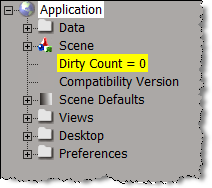
The dirty count


You can read more about the dirty count in the Softimage KB article Scripting – Understanding the dirty count parameter.

This example JScript uses the dirty count to determine whether or not the current scene has been saved.

function IsSceneSaved()
{
	var dirtycount = Dictionary.GetObject( "Project.dirtycount" ).Value;
	var models = FindObjects( null, "{0496EAB0-0ECF-11d1-ABF1-00A02485CECB}" )
	 
	oEnum = new Enumerator( models ) ;
	for (;!oEnum.atEnd();oEnum.moveNext() )
	{
		var model = oEnum.item() ;
		dirtycount += Dictionary.GetObject( model.FullName + ".dirty_count" ).Value
	}

	LogMessage( dirtycount );
	return( dirtycount );
}
LogMessage( IsSceneSaved() == 0 ? "Scene is clean" : "Scene is dirty" );
Adding a password field to a PPG


You can use the Edit styles defined in WinUser.h with siUIStyle to get a password-entry text box. The ES_PASSWORD style displays all characters typed by the user as asterisks (*).

var oCustomProperty = XSIFactory.CreateObject( "CustomProperty" );
oCustomProperty.AddParameter( "password", siString, siClassifUnknown, siSilent, "", "", "", "", 0, 1, 0, 1 );

oLayout = oCustomProperty.PPGLayout;
oLayout.Clear();

var oItem = oLayout.AddItem( "password", "Password", siControlEdit );
oItem.SetAttribute( siUIStyle, 32 ); // #define ES_PASSWORD         0x0020L

InspectObj( oCustomProperty );

On the XSI list, see the thread PPG with star password input?

Finding hidden ICE attributes


In ICE, hidden attributes have names that start with two underscores (__). Hidden attributes don’t show up in the attribute explorers, but you can use scripting to find the hidden attributes:

var pc = Dictionary.GetObject( “PointCloud” );
var oPointCloudGeometry = pc.ActivePrimitive.Geometry;

oEnum = new Enumerator( oPointCloudGeometry.ICEAttributes.Filter( “”, “”, “__*” ) ) ;
for (;!oEnum.atEnd();oEnum.moveNext() )
{
var oSelItem = oEnum.item() ;
LogMessage( oSelItem.fullname );
}

Bookmarking in the script editor


It’s documented in the SDK guide, but not in the User’s guide, so you may not know that the script editor supports bookmarks.

You can use Ctrl+F2 to set bookmarks in the script editor, and F2 and Shift+F2 to go to the next/previous bookmark. Ctrl+Shift+F2 clears all bookmarks.

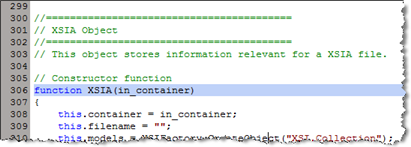
By default, bookmarked lines are highlighted in the editing pane:

If the Selection Margin preference is set, then bookmarked lines are indicated by an icon in the margin:

HT: Chinny

Editing a Character Key Set PPG


I was asked the other day “how to change the labels on a character key set PPG”.

A Character Key Set PPG is a custom property and some proxy parameters. So you can edit the proxy parameter definition:

  1. Open the character key set PPG.
  2. Mark a parameter.
  3. In the Animation panel, click Animation > Parameters > Edit Parameter Definition.
  4. Change the name of the parameter and click Ok.

Tip: Character key sets are implemented in %XSI_HOME%\Application\DSScripts\CharacterKeySets.vbs.

Getting the selected nodes in an ICE Tree


You can get the selected ICE nodes through the selection view attribute.

First, you have to get the ICE Tree view. You could try to get the view by name:

var oLayout = Application.Desktop.ActiveLayout;
var oICETreeView = oLayout.Views( "ICE Tree" );

but if the ICE Tree view is part of a layout (like the ICE layout) that won’t work, because the view has a different name (for example, in the ICE layout, the view name is “lower_panel”). To be sure you get the ICE Tree view, whether it is floating or embedded, filter by the Views by type.

// Get the ICE Tree views
var oLayout = Application.Desktop.ActiveLayout;
var oICETreeViews = oLayout.Views.Filter( "ICE Tree" );

// Now get the selected nodes 
// and log the names of the selected nodes
var x = oICETreeViews(0);
var a = x.GetAttributeValue( "selection" ).split(",");
LogMessage( a.length );

for ( var i in a )
{
	var oNode = Dictionary.GetObject( a[i] );
//	LogMessage( classname(oNode) );
	LogMessage( oNode.Name );
}

Getting ICE attributes through scripting


You can get at the ICE attributes of a point cloud through PointCloudGeometry.ICEAttributes or PointCloudGeometry.GetICEAttributeFromName.

To get the attribute values for every point in a point cloud, you get the DataArray of the attribute.

Here’s some sample JScript that shows how to get ICE attributes. Run it once, and then randomize the initial shapes of the particles and run the script again. See the difference? (Look at the difference in IsConstant and the contents of DataArray for the Shape attribute).

Remember that in the script editor you can double-click a method or property name (like “DataArray”) and press F1 to go to the SDK reference page.

var pc = Dictionary.GetObject( "PointCloud" );
var oPointCloudGeometry = pc.ActivePrimitive.Geometry;

// Get the NbPoints attribute
var oIceAttrib = oPointCloudGeometry.GetICEAttributeFromName( "NbPoints" );
logAttributeInfo( oIceAttrib );
logDataArray( oIceAttrib.DataArray );

// Get the Shape attribute
var oIceAttrib = oPointCloudGeometry.GetICEAttributeFromName( "Shape" );
logAttributeInfo( oIceAttrib );
logDataArray( oIceAttrib.DataArray );

// Utility functions
function logAttributeInfo( oIceAttrib )
{
    LogMessage( oIceAttrib.Name + "ICE attribute");
    LogMessage( "\tIsConstant=" + oIceAttrib.IsConstant );
    LogMessage( "\tContextType=" + oIceAttrib.ContextType );
    LogMessage( "\tDataType=" + oIceAttrib.DataType );
}

function logDataArray( dataArray )
{
    // DataArray is a safe array
    // So, convert it to a JScript array
    var a = new VBArray( dataArray ).toArray();
    LogMessage( "\tDataArray.length=" + a.length );
    for ( var i in a )
    {
        if ( typeof(a[i])=="object" )
        {
            LogMessage( "\tDataArray["+i+"].Type=" + a[i].Type );
			LogMessage( ClassName( a[i] ) );	// Shape
        }
        else
        {
            LogMessage( "\tDataArray["+i+"]=" + a[i] );
        }
    }
}

Passing a safe array into a method from JScript


In the XSI SDK, when a method or command returns an array, it returns a safe array.
So, in JScript, you have to use VBArray.toArray() to convert the safe array to a JScript array.

When you go in the other direction, and pass in an array, the XSI SDK automatically converts the JScript array to a safe array. That’s good, because you can’t build safe arrays in JScript, or convert JScript arrays to safe arrays.

Unfortunately for me, a customer came across a case where PPGItem.SetAttribute wouldn’t work with a JScript. Sure, it was with an undocumented attribute, but still…

I knew the JScript attribute was the problem because I could set the attribute in VBScript, but not JScript.

So I came up with a hack to get a safe array in JScript. I used ExecuteScriptCode to call a VBScript function that returned a safe array, which I could then pass to SetAttribute.

var s = "function a( val )\n" + 
	"a = Array( val )\n" +
	"end function";

var sa = Application.ExecuteScriptCode( 
			s, "VBScript", "a", val );

Another way to get a safe array in JScript is to use the Scripting.Dictionary. The Items method returns a safe array:

d = new ActiveXObject("Scripting.Dictionary"); 
d.Add( 0, val )
var sa = d.Items();

Checking for Character Key Sets part 3


We’ve already seen two ways to get at the IsCharacterKeySet parameter: 1) using the GetValue command, and 2) using XSICollection.Items.

Now, here’s a third way, using Dictionary.GetObject(). Dictionary.GetObject takes a string name and returns the corresponding object:

var oProp = Selection(0);
var oParam = Dictionary.GetObject( oProp + ".IsCharacterKeySet" );
LogMessage( oParam.Value );

So what’s the best way to get IsCharacterKeySet? One thing to consider is that GetValue and Dictionary.GetObject both fail if the string does not resolve to an object. XSICollection.Items, on the other hand, won’t fail; you just have to check the .Count property after to see whether you got the parameter.

Using WScript.Shell to get environment variables


The docs say that XSIUtils.Environment gets system environment variables, but I think it is more accurate to say that it returns env vars of the XSI.exe process.

WScript.Shell is another way to get at the environment variables. The WshShell object’s Environment property is a collection of environment variables. For example, this snippet shows how to create a WScript.Shell object, and then check the value of the TEMP environment variable. Note that XSI.exe creates its own folder under the location pointed to by the User TEMP environment variable.

// Get WshShell object.
var oWshShell = new ActiveXObject ("WScript.Shell");

var oEnv = oWshShell.Environment("Process");
LogMessage( oEnv("TEMP") );

// INFO : C:\Users\blairs\AppData\Local\Temp\XSI_Temp_17480

var oEnv = oWshShell.Environment("User");
LogMessage( oEnv("TEMP") );
LogMessage( oWshShell.ExpandEnvironmentStrings("%USERPROFILE%") );

// INFO : %USERPROFILE%\AppData\Local\Temp
// INFO : C:\Users\blairs

You can also loop over the collection:

var oEnv = oWshShell.Environment("System");
logenv( oEnv );

function logenv( o )
{
	oEnum = new Enumerator( o ) ;
	for (;!oEnum.atEnd();oEnum.moveNext() )
	{
		var oSelItem = oEnum.item() ;
		LogMessage( oSelItem  );
	}
}