Scripting – Writing the DataArray of an ICE attribute


Here’s a little Python snippet that shows how to write to the DataArray of an ICE attribute.

from siutils import si
si = si()					# win32com.client.Dispatch('XSI.Application')
from siutils import log		# LogMessage
from siutils import disp	# win32com.client.Dispatch
from siutils import C		# win32com.client.constants

pc = si.GetPrim("PointCloud", "", "", "")
a = pc.ActivePrimitive.AddICEAttribute("MyScalarArray", C.siICENodeDataFloat, C.siICENodeStructureArray, C.siICENodeContextSingleton  )
a.DataArray = [[ 0.03, 3.33, 2.22, 3.333 ]]

a = pc.ActivePrimitive.AddICEAttribute("MyLong", C.siICENodeDataLong, C.siICENodeStructureSingle, C.siICENodeContextSingleton  )
a.DataArray = [3.1416*1000]

a = pc.ActivePrimitive.AddICEAttribute("MyScalar", C.siICENodeDataFloat, C.siICENodeStructureSingle, C.siICENodeContextSingleton  )
a.DataArray = [3.1416]

#
# Add some Attribute Display properties
# to show the attribute values
#

p = pc.AddProperty( "AttributeDisplay", False, "" )
p.Parameters( "attrname" ).Value = "MyScalar"

p = pc.AddProperty( "AttributeDisplay", False, "" )
p.Parameters( "attrname" ).Value = "MyLong"
p.Parameters( "offsety" ).Value = 16

p = pc.AddProperty( "AttributeDisplay", False, "" )
p.Parameters( "attrname" ).Value = "MyScalarArray"
p.Parameters( "offsety" ).Value = 32

I tried to do the same thing in JScript, but I couldn’t get it to work for arrays. Very frustrating.

pc = GetPrim("PointCloud", "", "", "");

a = pc.ActivePrimitive.AddICEAttribute("MyScalarArray", siICENodeDataFloat, siICENodeStructureArray, siICENodeContextSingleton  )

a.DataArray = [[ 0.03, 3.33, 2.22, 3.333 ]]
// WARNING : 3390 - This ICEAttribute doesn't refer to a 2D array: <Attribute: MyScalarArray>
//

a.DataArray = [ 0.03, 3.33, 2.22, 3.333 ]
// WARNING : 3392 - Invalid offset specified while extracting data from this attribute: <Attribute: MyScalarArray>
// <Offset: 108384008>
// 


// But this does works
a = pc.ActivePrimitive.AddICEAttribute("MyLong", siICENodeDataLong, siICENodeStructureSingle, siICENodeContextSingleton  )
a.DataArray = [3000]

PS You can find some usage of DataArray in the CrowdFX plugin (in the Softimage install dir).
Saturday snippet: XSICollection has no class


Calling Application.ClassName() on an XSICollection object returns “Object”, not the class name. Remember this when you’re using ClassName() to check what type of object is being handled in some piece of script.

# See http://docs.python.org/2/tutorial/errors.html#handling-exceptions
try:
	from win32com.client import Dispatch as disp
	from win32com.client import constants as C
	log = disp('XSI.Application').LogMessage
except ImportError: # pywin not installed
	pass
	
si = disp('XSI.Application') 
x = disp( "XSI.Collection" )

log( si.ClassName( x ) )

# INFO : Object

A long time ago, it was decided not to fix this, because the fix would break existing scripts. Back in those old days, the VBScript function TypeName() was used instead of Application.ClassName(), so you had a fair amount of VBScript that was checking whether TypeName() returned “Object”. (Calling TypeName() on most Softimage objects returns the class name)

You can see an example of this type [haha!] of thing in Application\DSScripts\animation.vbs:

        if TypeName( oObjectList ) = "Object" then
            set out_objs = oObjectList.Item(0)
        else
            set out_objs = oObjectList
        end if
 

Saturday Snippet: Finding the Python and PyWin version


Courtesy of Eric Thivierge:

import sys
import os
import distutils
import distutils.sysconfig
site_packages = distutils.sysconfig.get_python_lib(plat_specific=1)
build_no = open(os.path.join(site_packages, "pywin32.version.txt")).read().strip()
print "Python version:   " + sys.version
print "PyWin32 version:  " + build_no

See also Supported versions of Python and PyWin

Supported versions of Python


The “officially” supported versions of Python are the versions that ship with Softimage.

  • On Windows:

    Python 2.6.4 & PyWin 212
    We didn’t go with 2.7 because of a bug in PyWin 214.

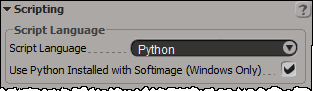
    You can use Python 2.7 if you have it installed on your system: just disable the internal Python in the scripting preferences.

    Softimage won’t work with Python 3.x

  • On Linux:

    Python 2.5
    Softimage ships with Python 2.5 because we needed to compile [and distribute] the pywin32 module for a specific Python version on Linux.

Saturday snippet: short-circuit evaluation


If you’re new[ish] to scripting, here’s a Python snippet that illustrates short-circuit evaluation of boolean expressions.

In this snippet, short-circuit evaluation is used to avoid errors. For example, if there is no such ICE attribute (nb is not None) then there is no attempt to try and use the ICE attribute methods like IsDefined.

The expression in the print statement also relies on operator precedence (not has higher precedence than and, so everything works as expected).

# Assume a polymesh is selected...
o = Application.Selection(0)

# Check the intrinsic ICE attribute
nb =  o.ActivePrimitive.ICEAttributes("NbPoints")
print nb is not None and nb.IsDefined and nb.DataArray[0] <= 0

The above snippet also relies on operator precedence (not has higher precedence than and, so everything works as expected).

Since or has higher precedence than and, you could write something like this:

nb.IsDefined and nb.DataArray[0] <= 0 or o.ActivePrimitive.Geometry.Polygons.Count <= 0

But I’d probably put in the parentheses just to be clear:

(nb.IsDefined and nb.DataArray[0] <= 0) or o.ActivePrimitive.Geometry.Polygons.Count <= 0

Finding empty polygon meshes


Now that there are intrinsic ICE attributes like NbPoints and NbPolygons, there a couple of ways you can check for an empty mesh:

# Assume a polymesh is selected...
o = Application.Selection(0)

# Check the intrinsic ICE attribute
nb =  o.ActivePrimitive.ICEAttributes("NbPoints")
print nb.IsDefined and nb.DataArray[0] <= 0

# Check using the object model
print o.ActivePrimitive.Geometry.Points.Count <= 0

The typical way to package this up for users it to define a filter. Then a user just has to select the filter and press CTRL+A. Here’s the Match callback for a filter that finds empty polygon meshes. Note that I switched to checking the number of polygons. That way, if somehow there was something weird like a mesh with just one point, you’d still find it.

The intrinsic attribute NbPolygons should always exist, but just to be sure I check IsDefined, and if that is False, I fall back to checking Geometry.Polygons.Count.

# Match callback for the EmptyPolygonMesh custom filter.
def EmptyPolygonMesh_Match( in_ctxt ):
	Application.LogMessage("EmptyPolygonMesh_Match called",constants.siVerbose)

	o = in_ctxt.GetAttribute( 'Input' )
	if o.type == 'polymsh':
		nb =  o.ActivePrimitive.ICEAttributes("NbPolygons")
		return (nb.IsDefined and nb.DataArray[0] <= 0) or o.ActivePrimitive.Geometry.Polygons.Count <= 0
	else:
		return False

I packaged the filter as an addon. Get it here.

Importing multiple FBX files with drag-and-drop


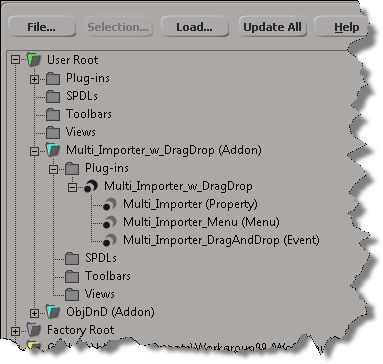
As an exercise, I updated Tim Crowson’s Multi_ImporterPPG addon with a DragAndDrop event, so you can import multiple files with a single drag-and-drop. You can download the modified version here.

Here’s the DragAndDrop event handler. The doit() function is also used by the Import menu command; I just had to generalize it a bit to work in either case (menu or drag-and-drop).

def Multi_Importer_DragAndDrop_OnEvent( in_ctxt ):

	action = in_ctxt.GetAttribute( "DragAndDropAction" )
	source = in_ctxt.GetAttribute( "DragSource" )

	if action == constants.siSourceDragAction:
		if re.search( r"\obj$", source, re.I ):
			in_ctxt.SetAttribute( "DragSourceSupported", True )
		elif re.search( r"fbx$", source, re.I ): 
			in_ctxt.SetAttribute( "DragSourceSupported", True )
		elif re.search( r"emdl$", source, re.I ): 
			in_ctxt.SetAttribute( "DragSourceSupported", True )
		elif re.search( r"lwo$", source, re.I ): 
			in_ctxt.SetAttribute( "DragSourceSupported", True )
		else:
			in_ctxt.SetAttribute( "DragSourceSupported", False )
		
	
	if action == constants.siSourceDropAction:

		Application.SetValue('preferences.Interaction.autoinspect', False, '')

		if not Application.ActiveSceneRoot.Properties( 'Multi_Importer' ):
			vtcol = Application.AddProp('Multi_Importer','Scene_Root')
			p = Application.Dictionary.GetObject( vtcol.Value("Value") )

			# Set the flag that hides certain parts of the PPG layout
			p.Parameters("bMenuCommand").Value = False

			# Inspect the PPG in modal mode
			Application.InspectObj( vtcol.Value("Value"), "", "", 4 )

			p.Parameters("bMenuCommand").Value = True
			
		p = Application.ActiveSceneRoot.Properties('Multi_Importer')

		options = { 
			'OBJgrouping' : p.Parameters('importOBJgrouping').Value,
			'OBJhrc' : p.Parameters('importOBJhrc').Value,
			'importOBJnormals' : p.Parameters('importOBJNormals').Value,
			'includeOBJmat' : p.Parameters('includeOBJMaterial').Value,
			'includeOBJuv' : p.Parameters('includeOBJUV').Value,
			'includeOBJwrap' : p.Parameters('includeOBJUVWrap').Value,
			'fbxScale' : p.Parameters('fbxScale').Value,
			'importEMDLasRef' : p.Parameters('importEMDLasRef').Value,
			'lwoScaleFactor' : p.Parameters('lwoScaleFactor').Value
			}
		
		doit( source, options )
	
	return True

Saturday Snippet: Getting a list of properties and methods with Python introspection


If you’ve ever wanted to get a list of properties and methods support by an object, here’s how.
Copied from the Softimage wiki

def GetFunctions( dynDisp ):
	"""returns a sorted and unique list of all functions defined in a dynamic dispatch"""
	dict = {}
	try:
		for iTI in xrange(0,dynDisp._oleobj_.GetTypeInfoCount()):
			typeInfo = dynDisp._oleobj_.GetTypeInfo(iTI)
			typeAttr = typeInfo.GetTypeAttr()
			for iFun in xrange(0,typeAttr.cFuncs):
				funDesc = typeInfo.GetFuncDesc(iFun)
				name = typeInfo.GetNames(funDesc.memid)[0]
				dict[name] = 1
	except:
		pass # Object is not the dynamic dispatch I knew
	ret = dict.keys()
	ret.sort()
	return ret

import pprint

funcs = GetFunctions(Application)
Application.LogMessage(pprint.pformat(funcs))

funcs = GetFunctions(Application.ActiveSceneRoot)
Application.LogMessage(pprint.pformat(funcs))

Saturday snippet: Using the connection stack to find all expressions driven by a given parameter


#
# Softimage 2013 SP1 Python snippet
#
from sipyutils import si			# win32com.client.Dispatch('XSI.Application')
from sipyutils import siut		# win32com.client.Dispatch('XSI.Utils')
from sipyutils import siui		# win32com.client.Dispatch('XSI.UIToolkit')
from sipyutils import simath	# win32com.client.Dispatch('XSI.Math')
from sipyutils import log		# LogMessage
from sipyutils import disp		# win32com.client.Dispatch
from sipyutils import C			# win32com.client.constants

si=si()
siut=siut()
from xml.etree import ElementTree as ET

def getExpressionsDrivenByLocalParameter( obj, param="posx" ):
	stack = siut.DataRepository.GetConnectionStackInfo( obj.Parameters(param) )
#	print stack

	expressions = XSIFactory.CreateObject("XSI.Collection")
	expressions.Unique = True
	xmlRoot = ET.fromstring(stack)
	for xmlCnx in xmlRoot.findall('connection'):
		if xmlCnx.find('type').text == 'out' and xmlCnx.find('localparameter') is not None and xmlCnx.find('localparameter').text == param:
			item = xmlCnx.find('object').text
			if item.endswith('.Expression'):
				expressions.AddItems(item)

	return expressions


# Create an expression where the Scene Material diffuse red drives the diffuse red of a Lambert shader
Application.SetExpr("Sources.Materials.DefaultLib.Lambert.Lambert.diffuse.red", "Sources.Materials.DefaultLib.Scene_Material.Phong.diffuse.red") 

x = getExpressionsDrivenByLocalParameter( si.Dictionary.GetObject("Sources.Materials.DefaultLib.Scene_Material.Phong.diffuse"), param="red" )
log( x )
# INFO : Sources.Materials.DefaultLib.Lambert.Lambert.diffuse.red.Expression

Reference and credits:

Finding phantom passes created with Duplicate


As I mentioned last year around this time, it is possible to end up with passes that don’t show up in the explorer. This happens when you Duplicate a pass, and the Hierarchy option “preferences.duplicate.hierarchy” is set to None. So your new pass has no parent, and is disconnected from the rest of the scene (aka floating).

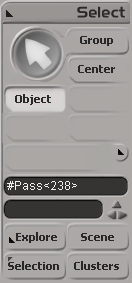
These phantom passes have names like “#Pass”, and you can select them if you know how.

Here’s how, in Python, with the 2013 SP1 Python shortcuts.

from sipyutils import si			# win32com.client.Dispatch('XSI.Application')
from sipyutils import siut		# win32com.client.Dispatch('XSI.Utils')
from sipyutils import siui		# win32com.client.Dispatch('XSI.UIToolkit')
from sipyutils import simath	# win32com.client.Dispatch('XSI.Math')
from sipyutils import log		# LogMessage
from sipyutils import disp		# win32com.client.Dispatch
from sipyutils import C			# win32com.client.constants

si=si()

sClassID = siut().DataRepository.GetIdentifier( si.ActiveProject.ActiveScene.Passes(0), C.siObjectCLSID )
passes = si.FindObjects( None, sClassID ).Filter( "", None, "#Pass*" )
print passes.Count
print passes.GetAsText()

#
# The following don't work! At least not all the time 😦
#
si.DeleteObj( passes )

#si.ParentObj( "FloatingPasses.Passes", "#Pass<61>" )
#si.CopyPaste( passes(0), "", si.Dictionary.GetObject("FloatingPasses.Passes") )

si.SelectObj( passes )

When I was testing this, sometimes I was able to delete those phantom passes, and sometimes I wasn’t.
Sometimes those passes disappeared when I saved the scene, did New Scene, and then reloaded the scene. Sometimes they didn’t (disappear that is).

When DeleteObj didn’t work, I’d use the explorer to view the phantom passes (since I called SelectObj on them, I could just show selected in the explorer).