This is a very simple walkthrough of how to use nCache to move a point cloud from Softimage to Maya without using ICEFlow (for example, suppose Softimage and Maya were on different computers).

This is a very simple walkthrough of how to use nCache to move a point cloud from Softimage to Maya without using ICEFlow (for example, suppose Softimage and Maya were on different computers).
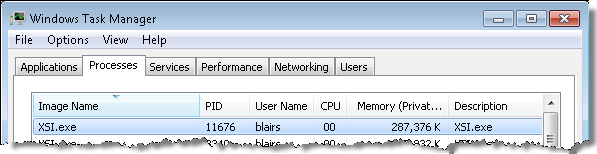
While Softimage is running, %TEMP% is adjusted to point to a folder that looks like %TEMP%\XSI_Temp_11676:
LogMessage( XSIUtils.Environment("TEMP") );
// INFO : C:\Users\Stephen\AppData\Local\Temp\XSI_Temp_11676
11676 is the process identifier of the XSI.exe process. To show the process identifier (PID) in the Task Manager, click View > Select Columns and click the PID (Process Identifier) check box.
BTW, Process Explorer is handy for checking out the environment (and other properties) of running processes:

When you’re working on a plugin UI, you often need to refresh your PPG to show your latest changes to your layout, and run your latest changes to your callback code.
Screencast version (higher resolution)
Sometimes you may be forced to zap your standalone licenses so you can start over with a clean slate. For example, you might not be able to activate your new license because somehow the licenses were corrupted. Or maybe you had a blue-screen crash during installation and then you used a reg cleaner to further muddy the waters. Or maybe the software asks you for activation every time you start the product.
In those types of scenarios, as a last resort, you can reset your standalone licenses by zapping the adskflex_00691b00_tsf.data and adskflex_00691b00_tsf.data.backup files.
I suggest you rename the file or move it, rather than simply deleting it.
However, you will have to re-activate all standalone Autodesk products installed on the computer.
On Vista or Windows 7:
C:\ProgramData\FLEXnet\adskflex_00691b00_tsf.data
C:\ProgramData\FLEXnet\adskflex_00691b00_tsf.data.backup
On Windows XP:
C:\Documents and Settings\All Users\Application Data\FLEXnet\adskflex_00691b00_tsf.data
C:\Documents and Settings\All Users\Application Data\FLEXnet\adskflex_00691b00_tsf.data.backup
I include the _tsf.data.backup file because your Autodesk software will reuse that file if it cannot find the _tsf.data file. And if that backup file is corrupted too, well then…
 Click Start.
Type %TEMP%\Auto and you’ll see a list of Autodesk log files in your TEMP folder.
Or type %TEMP% and press ENTER to open your TEMP folder in Explorer.
Setting the XSI_UNSUPPORTED_METASL environment variable should enable the MSL parser, so MetaSL shaders will show up in the Preset Manager. I believe you have to re-register mentalray.dll too.
So, in a Softimage command prompt:
set XSI_UNSUPPORTED_METASL=1
cmdreg mentalray.dll
xsi
I haven’t tested this myself, so no promises 😉

I’ve been very happy with Windows Search since I upgraded to Windows 7. Just one click and I can search all my e-mail archives, as well the files and documents on my computer.
I have extensive Outlook e-mail archives, so the ability to search them all from one place has come in very handy. For example, an xsibase user recently posted about a problem creating submenus in Python. This jogged something in my memory, so I clicked the Windows Start button, typed in “menu AddItem”, and in a few minutes I had tracked down the answer (again).
And just this morning, I used Windows Search to track down some code snippet I had written five years ago and emailed to somebody.
Getting started with Windows Search
Windows search tips and tricks
Problem Errors at startup
	Error: Invalid preset argument. Cannot load camera.
	Error: Argument 0 (presetObj) is invalid
Solution Run runonce.bat to re-register the Softimage DLLs and SPDLs.
The presets for factory objects like cameras are generated from their SPDL files, so if a SPDL is not registered properly…
You can use scriptXSI.bat in %XSI_HOME%\Application\bin to create a desktop shortcut for batch rendering. When you drag and drop a scene file on that batch file, that starts a batch render.
To create a desktop shortcut, right-click scriptXSI.bat and click Send To > Desktop (create shortcut).
If you want to drag and drop multiple scenes:
@echo off
call "C:\Program Files\Autodesk\Softimage 2011 Subscription Advantage Pack\Application\bin\setenv.bat"
:next
if "%1"=="" goto end
set SCN=%1
"C:\Program Files\Autodesk\Softimage 2011 Subscription Advantage Pack\Application\bin\XSIBatch.exe" -render %SCN%
shift
goto next
:end
We still get the occasional support request about importing SOFTIMAGE|3D scenes (.dsc) and models (.hrc) into Softimage 2011.
The SOFTIMAGE|3D importer was removed in the Softimage 2011 release. From the What’s New section of the documentation:
SI3D Loader Is Gone
The SOFTIMAGE|3D importer, also known as the SI3D Loader, has been removed from Softimage. The workaround is to import your SOFTIMAGE|3D scene or model into Softimage as dotXSI (*.xsi).
As suggested in the documentation, you could use export dotXSI 3.0 from SOFTIMAGE|3D and then import that into Softimage 2011.
Or you could use 32-bit Softimage 2010, which includes the Import > SI|3D Scene/Model command. If you’re on Subscription, your Softimage 2011 license will run Softimage 2010, and you can download Softimage 2010 from the Subscription Center.
If you have a lot of hrc/dsc files to import, you can write a script to automate the process.
Here’s a relatively crude example (JScript):
var fso = new ActiveXObject( "Scripting.FileSystemObject" );

var sSourceDir = "C:\\Softimage\\SOFT3D_4.0\\3D\\rsrc\\";
var sTargetDir = "C:\\Documents and Settings\\blairs\\Local Settings\\Temp\\HRC\\Scenes\\";

var srcFolder = fso.GetFolder( sSourceDir );

var files = new Enumerator( srcFolder.files );
// Loop through files

var re = /\.hrc$/;
for(; !files.atEnd(); files.moveNext() )
{
	var sName = files.item().Name;

	if ( sName.match(re) )
	{
		NewScene(null, null);

		//LogMessage( "Importing " + sSourceDir + sName );
		ImportFromSI3D( sSourceDir + sName, null, null);

		// Strip off the ".hrc"
		var sTmp = sName.substr(0,sName.lastIndexOf( "." ));

		//LogMessage( "Saving " + sTargetDir + sTmp + ".scn" );
		SaveSceneAs( sTargetDir + sTmp + ".scn" );

	}
}
 eX-SI
eX-SI 