Autodesk Softimage Hardware Certification FAQ


From the Autodesk Softimage Hardware Certification FAQ:

Q: What version of Linux does Autodesk use in the Softimage graphics certification process?
A: Autodesk Softimage 2012 graphics certification testing was performed using Fedora Core 14.

OS: Fedora 14 64bit OS
Kernel Version: 2.6.35.11-83.fc14.x86_64
Xorg Version: 1.9.4-1.fc14.x86_64
Glibc Version: 2.13-1.x86_64

The glibc version is missing from the FAQ page, but it’s a safe bet that it’s the same version used for the Maya certification.

What’s a polynode?


The definition of a polynode is not indexed, but you can find it by searching the Softimage User’s Guide. Here’s what I found in the 2011 User Guide (I still tend to use the CHM for searching 😉

“…polynodes (also known as polygon nodes or texture sample points). There is one polynode for every corner of a polygon. At a vertex, there are as many polynodes as there are adjacent polygons.”
–Softimage User’s Guide, About User Normals

“There is one polynode for each polygon attached to a point.”
–Softimage User’s Guide, Displaying Polynode Bisectors

Every polygon has a polynode for each of its corners, so at a given vertex there are as many polynodes as there are polygons that share that vertex.
–Softimage User’s Guide, About Vertex Colors

“Each UV pair in a set of coordinates associates a location on an object, called a “sample point”, to a location on an image. On a polygon object, the sample points are polygon nodes, or polynodes. There is one polynode for each polygon corner. ”
–Softimage User’s Guide, About Texturing in Softimage

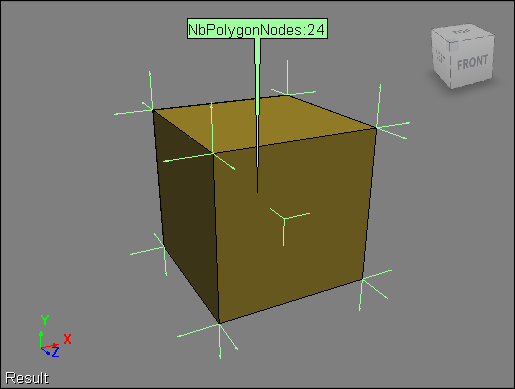
Here’s a default cube with the NbPolygonNodes and NodeNormal attributes displayed. Each of the eight vertices in the cube is shared by three polygons, so there are 8×3=24 polynodes.
Tips for searching the new online help


Wildcards
You can use the wildcards * and ?.
* matches one or more characters, and ? matches a single character.

Special Characters Ignored
The following special characters are ignored and treated as white-space:
[ ] ^ $ . | + ( ) ` ~ ! # % & – = { } ; ‘” ,

Stop words
Common words like “a”, “an”, “the”, and “get” and “set” are filtered out of searches, even if you do a phrase search.

Note that searches like “g?t s?t sum” won’t find the ICE node “Get Set Sum”.

Breakup an object by polygon


Here’s one way to take a mesh and turn every polygon into a separate object.

First, download and install the JP_Separate plugin (requires an AREA logon). See below the fold for install instructions.

Then, do this:

  1. Select all polygons.
  2. Click Modify > Poly Mesh > Disconnect Components, and select the Explode check box.
  3. Select the sphere.
  4. Click Modify > Poly Mesh > JP_Separate to make each polygon a separate object.

Hat Tip: Grahame Fuller on the mailing list.

Here’s an example. After breaking up a default sphere into 64 new objects (one per polygon), I used “Transform Objects by Particles” to create this simple effect:

Continue reading

Connecting FX Tree nodes with the FX Operator Selector


Here’s a quick how to video.

Like it says on softimageblog.com:

p.s. : Cool people add fxtree operators by clicking them in the Operator Selector, and then middle-clicking several times in the fxtree to chose the 1) first input 2) second input 3) output (if necessary) and finnally middle click in the background to set the insert location. The Fx operator selector shows which connection is currently being selected. Select any optionnal inputs you want to pick by first clicking the checkbox next to it in the Operator Selector

Importing, exporting, and restoring preferences


You can create a backup copy of your preferences by exporting them: just click File > Preferences, right-click Preferences (Application) and click Export. You can then restore your personalized settings by importing the backup copy (for example, if someone else sits at your desk can changes everything, you can easily get back your settings).

Or, if you suspect that some preference setting is causing Softimage to mis-behave, you can export your current settings before you restore the defaults.

Note that you can also import, export, and restore defaults for specific categories:

Setting the default browser for online help


On Windows, Softimage uses the default Web browser to display help.
On Linux, the default is Mozilla, and if that is not available, then Firefox.

You can use the SI_HELP_PROGRAM_ENV environment variable to override the default help browser.

If the folder containing the executable program is not in your system PATH environment variable, you must include the full path to the executable in this variable.

Why does the Edit menu in the Animation Editor take so long sometimes?


Some users have noticed that when you open the Animation Editor for the very first time, and click the Edit menu, it takes a little while for the Edit menu to appear.

That’s because the Animation Editor loads plugins when you click the Edit menu (for the very first time).

What happens is that when you open the Edit menu for the very first time, the Animation Editor scans the custom command maps looking for any commands in the siFcurve command category (the AE uses a custom command instead of menu anchor points–see the FCurveEditor object in the SDK docs for more information).

This scan causes the plugins to be reloaded, but this happens only once per Softimage session.

Softimage Blog » Work-Around to Problems with Tablets and Softimage


Softimage now disables tablet pressure support to prevent problems with tablets.

There is strange user interface lag that affects Softimage XSI when you use a Wacom tablet. With heavy scenes or simulation, you may never be able to stop playback. Other users have reported problems with the render region.The best work-around is to disable tablet support in Softimage any version. This will not affect any other program.

via Softimage Blog » Blog Archive » Work-Around to Problems with Tablets and Softimage.