Using LUT files in Softimage 2012


There seems to be a bit of UI glitch in the Color Management preferences PPG. If you choose From LUT File in the Source list, you cannot select a LUT file from the Filename list. In fact, the Filename list just lists No LUT.

Here’s a couple of workarounds:

  • Set the LUT file through scripting:
    Application.SetValue("preferences.Display.color_management_source", 1, "")
    Application.SetValue("preferences.Display.color_management_lut_filename", "sRGB_10bits.lut", "")
    
  • Use this modified factory SPDL:
    $XSI_HOME/Application/spdl/C3DPrefsDisplay.spdl
    I tested this on my own install, but still, “use at your own risk”.

BTW, this issue is already logged and fixed internally.

Notes from here and there on the frontline


Misc notes from frontline support…

  • Shaders disconnecting when you open scene
    Ack! This gave me a scare initially, but it turned out to be something else (not the dreaded “disconnected shaders” problem).
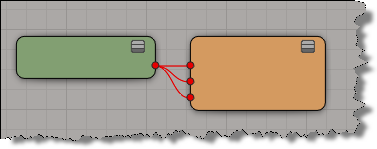
    The reported problem was that the Particle_Renderer node was losing its connection to the Volume port on the material.

    The actual problem was the Constant node. Nodes like Constant and Blinn are material type shaders, not textures.
    The parameters in a shader (like Color) are designed to work with texture-type shaders. That’s why plugging a material node like Constant into the Particle Renderer doesn’t work.

  • too many literal bytes for texture
    For a specific TIF texture, mental ray standalone was giving an error that looked like this:

    API 0.0 error 301098: c:\test.72.mi, line 1484: too many literal bytes for texture (null)
    

    xsibatch didn’t complain, btw.

    The only previous reports of that error that I could find were from 10 years ago.

    The customer converted the image to another format to get around the error.

  • Disappearing point clouds when you remove the initial state
    A customer sent in a scene where, if you removed the initial state, all the particles disappeared.
    I did find a workaround: go into the Emit from Curve compound, open the Generate Points PPG, and change the Seed value. That would force the particles to emit again.

  • Empty nodes in the render and ICE trees
    This was reported by a customer running on Linux: no text in the render tree and ICE tree nodes.

    We tried the following with no success:
    – Run cmdreg -f XSICOMDLLs.lst (the Linux version of runonce.bat)
    – Run mwcleanup
    – Remove ~/Autodesk/Softimage_2012 and /var/tmp/Mw_{username}
    A graphic card or display driver issue is my best guess; I didn’t hear back from the customer so eventually I had to close the case “unconfirmed”.

  • Combining a Syflex simulation and shape animation
    Can’t be done. The Cluster Shape Combiner is lower in the stack, so it won’t be evaluated each frame of the simulation (just once right before the simulation starts). Even if you remove the Syflex ICE tree, the shape animation won’t happen as long as the Simulation stack is there.

Registry cleaners, Softimage, and runonce.bat


If you use a registry cleaner, you’re most likely going to have to run runonce.bat to restore the Softimage registry entries. For example, see here and here.

A recent thread on xsibase touched upon whether or not registry cleaners are necessary. Personally, I doubt it. I recently googled “registry cleaners” and went through the first 20 pages of results. Most of the hits were sites selling registry cleaners, and most of the URLs had “registry cleaner” in them. In those 20 pages of google hits, I found only a handful of pages that had a substantive dicussion of registry cleaners, and I didn’t find any performance metrics or results.

Customer Error Reports (CER)


Sometimes customers ask questions like this about the error reports:

Is there a way we can subscribe to the CER reports? like if i enabled it could we get reports that mean something to us? or is it always going to be low-level debug info for developers only?

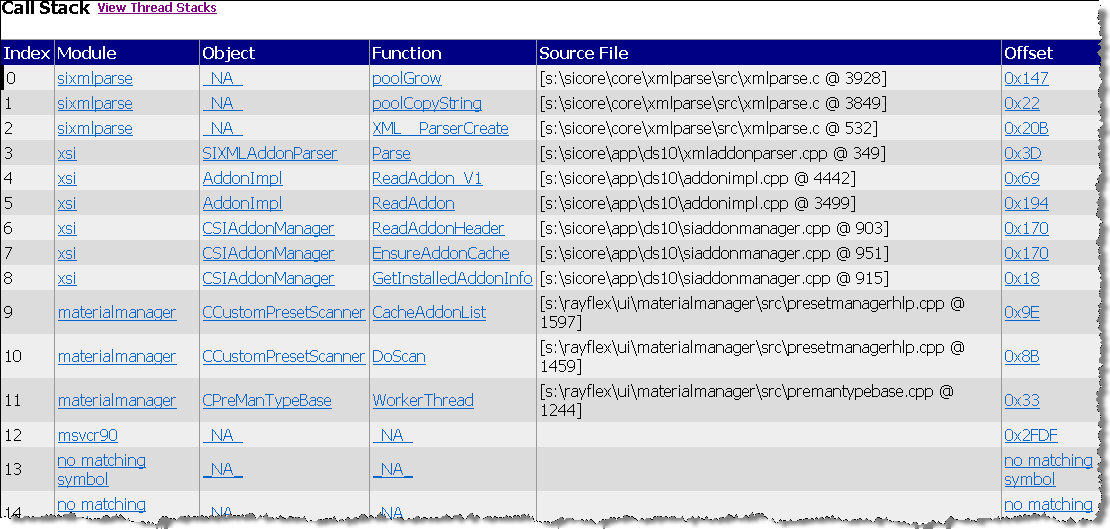
Well, the CER reports are mostly low-level details, like call and thread stacks, that are useful only to our developers. But sometimes these can provide an obvious clue (for example, Softimage is crashing while parsing an addon XML file). Other times they don’t tell a non-developer like me [or maybe you] much.

Call stack

Thread stack

CER reports are basically call stacks (like the one I sent before) and crash dump files (which are saved in the user folder after a crash). The reports do also include some info about the OS and the graphics card, which can be useful to the support agent.

Our internal CER tools do some grouping of crash reports based on the area of the code where the crash happened, which can be useful as an aggregate measure. You can read more about CER here.

If you want to view the CER files, you can do that before you send or cancel the report. Just click View Report Details. You can even grab the report files if you want: some are in your Softimage user folder, and others are in the %TEMP% folder (in a XSI_Temp subfolder that is removed when XSI.exe exits).

Another Error 1092 when trying to start raysat service


This one is pretty annoying. I remember once spending a lot of time on one case before I figured it out.

If you add an entry like to the end of the C:\windows\system32\drivers\etc\services file:

mi-raysatsi2012_3_9_1_44	7024/tcp

where there is no line break after the “tcp”, then the raysat service won’t start and will report “Error 1092”.

But if you add a line break after the “tcp”, or add a # comment like this, then you can start the raysat service:

mi-raysatsi2012_3_9_1_44    7024/tcp        #

Aaaargh.

Scene debugging tips


Here’s some tips on what to do when Softimage crashes while loading a scene.
http://vimeo.com/24287233

To debug scene load problems:

  1. Create a new scene.
  2. Set a viewport to Explorer or Netview, and maximize the viewport.
  3. In the Data Management preferences, enable the scene debugging preferences:
  4. Disable all geometry operators on load
  5. Detect corrupted polygon meshes and clusters upon load/freeze
  6. Skip loading of floating objects
  7. Merge the scene. If you still cannot load the scene, then the scene is probably corrupted. Check the Backups folder in your project: by default, Softimage keeps the last four versions of your scene in the Backup folder of the project.
  8. If the scene loads, you try to isolate the problem. For example, delete half the scene elements and save the scene. Then try to open this new scene. If that scene crashes, merge it into a new scene again, delete half the scene elements, and save the reduced scene. Repeat until you find the problem.

Tip An alternative to the “maximizing the explorer and merging the scene” trick is to simply mute your viewports and then open the scene. Either way, you prevent Softimage from trying to update the OpenGL viewports, which prevents Softimage from evaluating operators.

Service packs and disconnected shaders


This post is about the latest 2011 service packs:

  • Softimage 2011 SP2
  • Softimage 2011 Subscription Advantage Pack SP1

and the “disconnected shader” issue.

How do I use the Service Pack to fix shader corruption?

The Service Pack repairs corrupted shaders, but it cannot re-connect shaders, so you will still have disconnected shaders. But the shader corruption will be removed.

To repair corrupted shaders:

  1. Open a scene or import a model.
    If a scene or model is already corrupted, you may see warnings in the history log when you open the asset. Softimage repairs the corruption while loading the asset.
  2. Save the asset to remove any corruption.
    If a scene/model is corrupted, you’ll see warnings in the history log when you save it.
    Softimage repairs the corruption while saving the asset.
  3. Load the asset again. The corruption is removed, and you can work with the scene as usual.
    Now you need to repair the disconnected render trees.
    Watch for any errors or warnings when you save the scene again.

IMPORTANT: If problems still occur when working with external material libraries, change them to be internal.

What causes the problem, and when can it happen?

  • The problem can occur anytime you do anything that requires Softimage to create a shaderdef (the internal master definition of a shader).
    For example, when you load a scene, import a model, import a mat lib, load a preset, and so on. Any action that creates a shader.
  • Shader corruption can happen in Softimage 2011 and Softimage 2011.5 (SAP) problem.
    It won’t happen in 2010 (or in 2012, 2011 SP2, or 2011.5 SAP SP1).
  • It doesn’t matter what version of Softimage was used to create the asset. The problem can happen when the asset is loaded into 2011 or 2011.5.

What does the Service Pack fix?

The Service Pack repairs corrupted shaders, but it does not re-connect shaders in render trees.

In some situations, corrupted shaders may not be repaired.

For example, if the shader definition is unknown (for example, an Arnold shader) or if the shaderdef was not persisted for the shader (can happen through the loading and saving of a scene with a corrupted shader—at some point you could have a scene that contains the shader but no shaderdef).

To remove these corrupted shaders, you can use shift-delete if delete is not working.

The case of the capture viewport that was in the wrong place


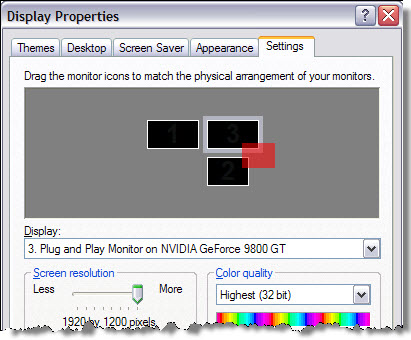
In this case, the customer reported that when he did a viewport capture, the capture area wasn’t in the right place. In this screenshot of his display properties, the red area is where the viewport capture happened:

There’s no way to set the position of the viewport capture window (it is all done automatically), so these kinds of problems are most likely a problem with the monitor setup configuration. The customer disabled his third monitor, and the capture viewport worked. So he then lined up all three monitors in a row, and then the viewport capture worked.

ERROR : RCMP 0.4 error: cannot open temporary map file “mrmap0_tmp.a08740” for writing


This is an issue that we recently discovered. When final gathering is enabled, mental ray writes temporary files (such as mrmap0_tmp.a08740) to the Softimage installation folder:

C:\Program Files\Autodesk\Softimage 2012\Application\bin

To workaround this issue, either Run As Administrator (on Vista and Windows 7), or make sure that XSI.exe and xsibatch.exe have write permissions in the Application\bin folder.

In Maya 2012, the file is written in a project folder.
C:\Users\stseve\Documents\maya\projects\default\renderData\mentalray\mrmap1_tmp.a04936