Bookmarking in the script editor


It’s documented in the SDK guide, but not in the User’s guide, so you may not know that the script editor supports bookmarks.

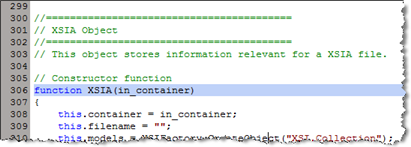
You can use Ctrl+F2 to set bookmarks in the script editor, and F2 and Shift+F2 to go to the next/previous bookmark. Ctrl+Shift+F2 clears all bookmarks.

By default, bookmarked lines are highlighted in the editing pane:

If the Selection Margin preference is set, then bookmarked lines are indicated by an icon in the margin:

HT: Chinny

Passing data from ICE into a scene


You can use Set Data to write ICE attribute values to custom parameters (and Get Data to go the other way).

For example, you can use ICE to get the length of a curve and then store the length in a custom parameter.

Note: This didn’t work when I used the name “curve_length” for my custom parameter. The custom parameter value never changed.

Softimage and Windows 7


Softimage and the FLEXnet license server seem to work fine on Windows 7. Here are the most common issues we see here in support:

  • The folder C:\Program Files\Autodesk Network License Manager is read-only. This prevents the license server from running, because it cannot write to the log file.

    Solution: Make the folder read-write.

  • Ports 2080 and 27000-27009 are blocked by the firewall

    Solution: Add exceptions for the ports.

  • Access denied errors when you try to save changes to setenv.bat

    Solution: When you open a Softimage command prompt or start UserTools, right-click the shortcut and click Run as Administrator.

Editing a Character Key Set PPG


I was asked the other day “how to change the labels on a character key set PPG”.

A Character Key Set PPG is a custom property and some proxy parameters. So you can edit the proxy parameter definition:

  1. Open the character key set PPG.
  2. Mark a parameter.
  3. In the Animation panel, click Animation > Parameters > Edit Parameter Definition.
  4. Change the name of the parameter and click Ok.

Tip: Character key sets are implemented in %XSI_HOME%\Application\DSScripts\CharacterKeySets.vbs.

Recent Webex cases…


Last week I used Webex to resolve a number of licensing/startup cases. I find Webex a handly tool, because I don’t have to get my information second hand 😉 I can see it with my own eyes.

License Manager won’t start
This was on Windows 7. The folder C:\Program Files\Autodesk Network License Manager folder was read-only, so LMTOOLS could not write the log file. Unfortunately, the license server won’t start if the log is not writeable. The strange thing was that the customer had been able to save the .lic file in the folder, and LMTOOLS had written to the log file before. But now the folder was read-only, so somehow the permissions changed.

Ping general failure
Everything seemed set up properly, until I tried to ping the local machine and got “General Failure”. Not good. We could ping the outside world, but not the local machine. I tried resetting winsock and the TCP/IP stack, booting in Safe Mode, Safe Mode with Networking, to no avail.

Unable To Locate Component
At startup, XSI.exe reported “This application has failed to start because adlmint.dll was not found”. Sure enough, adlmint.dll was missing from Application\bin. This was a bit surprising, because all required files should be installed no matter what licensing method you choose during Setup. So I had to reinstall Softimage for the customer.

The preset(s) could not be applied to this selection


After reinstalling his OS and Softimage, a user could no longer apply textures with Texture > Image. He kept getting “The preset(s) could not be applied to this selection”.

The solution: rename the User folder, which forces Softimage to use the factory-default preferences.

See the Softimage KB for more info:

  • TS14104789 Resetting user preferences and customizations