Since I left Autodesk, I’ve been asked a few times whether there’s a secret way to reset expired trials 🙂 The short answer is No. Even for Autodesk employees, that’s how it is. Zero-filling your hard drive is pretty much the only way to reset a trial license.
Screenshots of the week
Storing lights in a channel
by kosyan

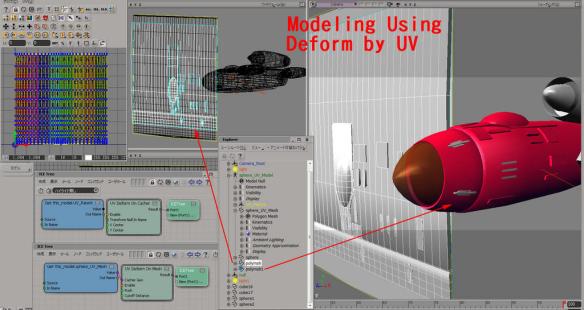
Modeling using Deform by UV
by SI_UserNotes

related video:
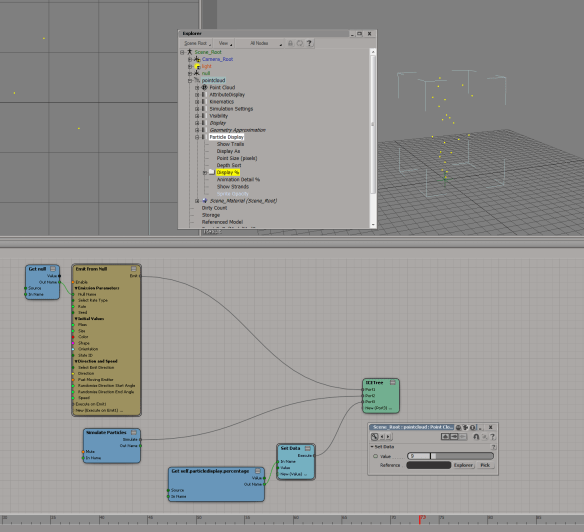
Particle display percentage
by Mr Core

EMFluid as a 2D emitter
Softimage key reducter
by moxmotion

Saturday snippet – Getting local properties of scene items
This snippet gets the local properties of anything in the selection list that has local properties.
from win32com.client import constants as C for o in Application.Selection: localProps = (o.LocalProperties if o.IsClassOf( C.siSceneItemID ) else None) if localProps != None: for p in localProps: print p
LocalProperties is a property of any SceneItem, so all you have to do is check whether the selected object implements the SceneItem interface.
Friday Flashback #96
Softimage network licenses explained…visually with ICE
A couple of weeks ago on si-community, there was a discussion of Softimage licensing and someone wished there was a graphic that explained Softimage licensing…
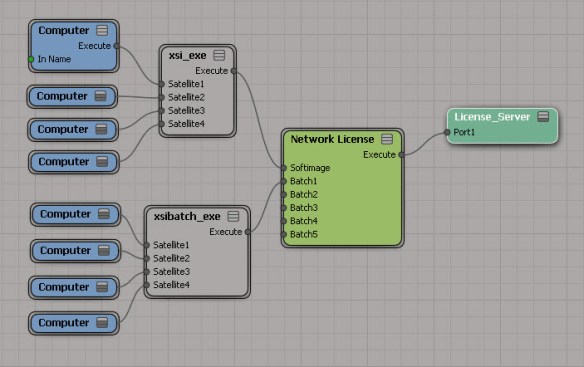
A network license includes one Softimage license, and five Batch licenses.
- The Softimage license is the “interactive” license: it allows you to run xsi.exe on one computer.
- The Batch licenses run xsibatch, and are used for command-line rendering on render nodes. One Batch license = one render node.
Each instance of xsi.exe and xsibatch.exe can use up to four satellite computers for satellite rendering.

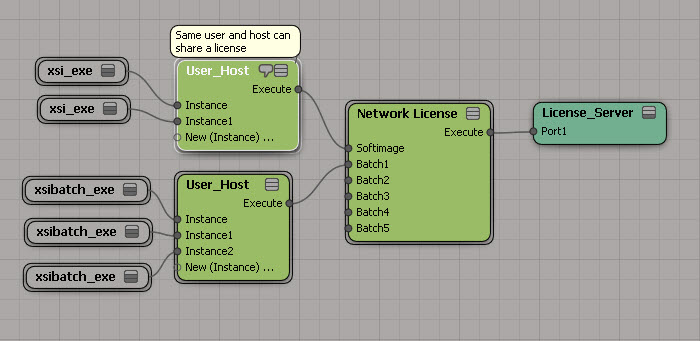
You can run multiple copies of xsi.exe or xsibatch.exe on the same computer. A license is shared as long as processes are running under the same user account and on the same host (aka computer).

You can run an unlimited number of xsibatch -processing jobs. With xsibatch -processing, you can do anything except render. Typically you use it to run script jobs on scene files.

And finally, you can also use the Softimage license to run xsibatch.

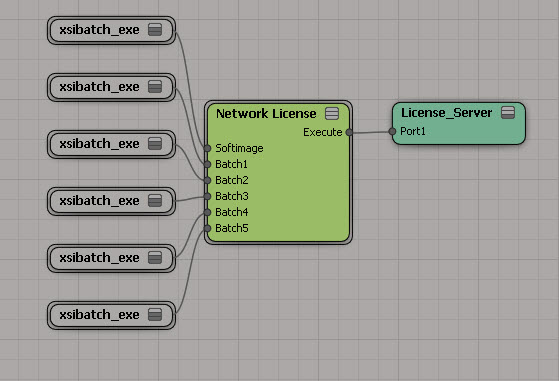
Update: As requested in the comments, here’s six render nodes, each using four satellite computers:

Getting the ICE tree view from a menu callback
How do you get the ICE Tree view in a menu callback? For example, if you add a menu item to the ICE Tree > User Tools, how does the menu item callback get the ICE Tree view?
The answer is actually in code I posted before, but that was in a blog post titled Getting the selected ICE nodes. So, with that title, you wouldn’t necessarily think to look there.
So what’s the answer? Uses Context.GetAttribute( “Target” ). For custom menus in the views like the ICE Tree view, the Fcurve Editor, and the Material Manager, the Target attribute is the View object. And once you have the View object, you can get the View attributes.
#
# Callback added to the menu item with Menu.AddCallbackItem
#
def My_menuItem_Callback( in_ctxt ):
# Get the ICE Tree view
oView = in_ctxt.GetAttribute("Target")
#
LogMessage( 'View: ' + oView.Name )
# get the selected nodes
nodes = oView.GetAttributeValue('selection')
LogMessage( 'Selected nodes: ' + nodes )
Soapbox alert…
This post illustrates why indexes are a good thing…with them, you can find information no matter what page or heading contains the information.
For ICE trees, you’d have index entries something like this:
- ICE tree
- view attributes
- target
- container
- selected nodes, getting
- view, getting
- ICETree node, getting
- view attributes
Error – The segment is not in a valid project
Advanced troubleshooting for shader DLL dependencies
Screenshots of the week
How to make a DDS cube map with the FXTree and OpenEXR
by SI_UserNotes

Multi-strand clumps with ICE
Random colour on polygon islands
by Mathaeus

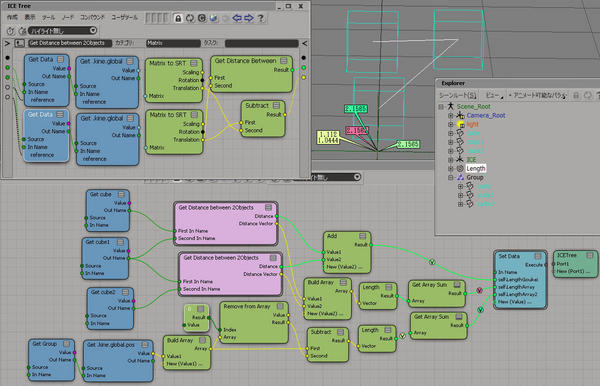
Total distance of three points
by SI_UserNotes

Saturday Snippet – Hiding the Name parameter on a dynamic PPG
var oCustomProperty = Selection(0).AddCustomProperty("whatever");
// add parameters
oCustomProperty.AddParameter( "number", siFloat, siClassifUnknown, siPersistable, "", "", "", 0.5, 0, 1, 0, 1 );
// hide Name
p = oCustomProperty.Parameters("Name")
p.SetCapabilityFlag( siNotInspectable, true );