About the Selection Change Command


In the Selection preferences, there’s a Selection Change Command text box where you can type in a command to run when the selection changes.

Here are two important points about the Selection Change Command:

  1. Use the VBScript syntax to enter the command. It doesn’t matter what the current scripting language is, the preference expects VBScript (so something like Application.LogMessage( “Hello %s” % Application.Selection(0) ) will end up logging an error when you select something).
  2. The Selection Change Command is triggered when you select something in a 3D viewport. The command isn’t triggered when you select an object in the explorer.

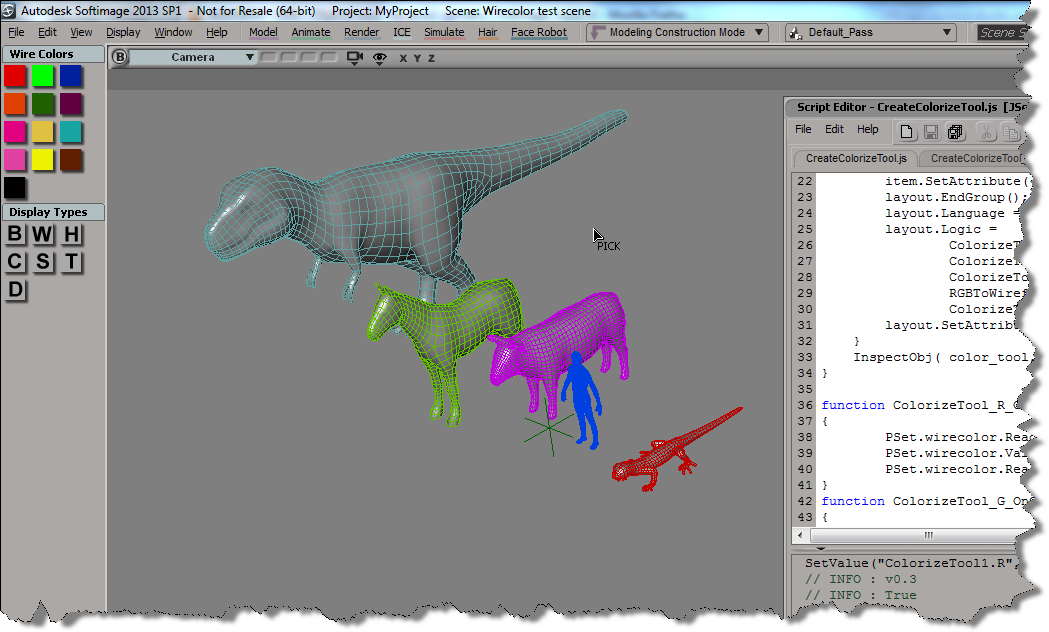
Custom wire colors in the palette revisited


Here’s some updates to the wire frame color script I posted last week. See that post for info on how to add a button to the color palette.

First, I wanted to be able to pick multiple objects, one after the other. So I simplified the script by replacing most of the code with a single call to ColorizeObject, which does let you pick a sequence of objects.

CreateColorizeTool();
function CreateColorizeTool()
{
		var color_tool = XSIFactory.CreateObject( "CustomProperty" )
        if (color_tool)
        {
			var r = color_tool.AddParameter( "R", siDouble );
			var g = color_tool.AddParameter( "G", siDouble );
			var b = color_tool.AddParameter( "B", siDouble );
			var a = color_tool.AddParameter( "A", siDouble );
			
			var layout = color_tool.PPGLayout ;

			layout.AddGroup( "Color" );
			item = layout.AddColor( "R", "",true );
			item.SetAttribute( "NoLabel", true );
			layout.EndGroup();

			layout.AddRow();
			layout.AddButton( "ColorizeObject", "Colorize object" );
			layout.EndRow();

			layout.Language = "JScript" ;
			layout.Logic = ColorizeTool_ColorizeObject_OnClicked.toString();

			layout.SetAttribute( "LogicPrefix", "ColorizeTool_" ) ;
        }
        InspectObj( color_tool, "Colorize Tool", "", siLock ); 
}
function ColorizeTool_ColorizeObject_OnClicked()
{
		LogMessage( "v0.5" );
		ColorizeObject( PSet.R.Value,PSet.G.Value,PSet.B.Value );
}			

But this code doesn’t let you change the color in-between picks. So I modified the original example script and put a while loop around the call to PickObject (line 62), and I changed the script to get the colors directly from the color widget (line 78). That way, you can set the wire color, pick an object to apply the wire color, set another wire color, pick another object, and so on…

CreateColorizeTool();
function CreateColorizeTool()
{
	var color_tool = XSIFactory.CreateObject( "CustomProperty" )
    if (color_tool)
    {
		var color_tool = ActiveSceneRoot.AddCustomProperty( "ColorizeTool" );
		var wirecolor = color_tool.AddParameter( "wirecolor", siInt4 );
		wirecolor.ReadOnly = true;
		var r = color_tool.AddParameter( "R", siDouble );
		var g = color_tool.AddParameter( "G", siDouble );
		var b = color_tool.AddParameter( "B", siDouble );
		var a = color_tool.AddParameter( "A", siDouble );
		var layout = color_tool.PPGLayout ;
		layout.AddRow();
		var item = layout.AddItem( "wirecolor", "wirecolor" );
		item.SetAttribute( "NoSlider", true );
		layout.AddButton( "ColorizeObject", "Colorize object" );
		layout.EndRow();
		layout.AddGroup( "Color" );
		item = layout.AddColor( "R", "",true );
		item.SetAttribute( "NoLabel", true );
		layout.EndGroup();
		layout.Language = "JScript" ;
		layout.Logic = 
				ColorizeTool_R_OnChanged.toString() + 
				ColorizeTool_G_OnChanged.toString() + 
				ColorizeTool_B_OnChanged.toString() + 
				RGBToWireframeColor.toString() + 
				ColorizeTool_ColorizeObject_OnClicked.toString();
		layout.SetAttribute( "LogicPrefix", "ColorizeTool_" ) ;
	}
	InspectObj( color_tool, "Colorize Tool", "", siLock ); 
}

function ColorizeTool_R_OnChanged()
{
        PSet.wirecolor.ReadOnly = false;
        PSet.wirecolor.Value = RGBToWireframeColor(PSet.R.Value,PSet.G.Value,PSet.B.Value);
        PSet.wirecolor.ReadOnly = true;
}
function ColorizeTool_G_OnChanged()
{
        PSet.wirecolor.ReadOnly = false;
        PSet.wirecolor.Value = RGBToWireframeColor(PSet.R.Value,PSet.G.Value,PSet.B.Value);
        PSet.wirecolor.ReadOnly = true;
}
function ColorizeTool_B_OnChanged()
{
        PSet.wirecolor.ReadOnly = false;
        PSet.wirecolor.Value = RGBToWireframeColor(PSet.R.Value,PSet.G.Value,PSet.B.Value);
        PSet.wirecolor.ReadOnly = true;
		PSet.Refresh();
}
function ColorizeTool_ColorizeObject_OnClicked()
{
		LogMessage( "v0.3" );
        var color = PSet.wirecolor.Value;
        var o = null;
        var siRMB = 0;
        var button = -1, modifier;
        while (button != siRMB )
        {
				LogMessage( button != siRMB );
                Application.StatusBar ="Pick object to colorize";
                var rtn = PickObject( "Select object", "");
				button = rtn.Value("ButtonPressed");
				modifier = rtn.Value("ModifierPressed");
				o = rtn.Value("PickedElement");
				
				if ( o != null )
				{
					var display = o.Properties("Display");
					if (display.isa(siSharedPSet))
					{
							display = MakeLocal( display, siNodePropagation )(0);
					}
					display.wirecol.Value = RGBToWireframeColor(PSet.R.Value,PSet.G.Value,PSet.B.Value);
				}
        }
        if ( button == siRMB )
                return;

        return color;
}
// Convert wireframe color index to double-precision RGB color
function WireframeColorToRGB(lWireframeColor)
{
        var aColor = new Array(3);
        aColor[0] = ((lWireframeColor >>> 1) & 0x7)/7;
        aColor[1] = ((lWireframeColor >>> 4) & 0x7)/7;
        aColor[2] = ((lWireframeColor >>> 7) & 0x7)/7;
        return aColor;
}
// Convert double-precision RGB color to wireframe color index
function RGBToWireframeColor(dR,dG,dB)
{
        // Convert RGB to wirecolor
        var wirecolR, wirecolG, wirecolB;
        wirecolR = (Math.round(dR * 7)) << 1
        wirecolG = (Math.round(dG * 7)) << 4
        wirecolB = (Math.round(dB * 7)) << 7
        return wirecolR | wirecolG | wirecolB;
}

#include statement in JScript


JScript doesn’t include anything like the #include statement, or like modules in Python.

But what you can do is read the contents of a file into a string, and then eval() the string. For example:

var fso = ActiveXObject("Scripting.FileSystemObject");
var f = fso.OpenTextFile( "//server/scripts/toinclude.js", ForReading );
var s = f.ReadAll();
eval(s);
s.Close();

Note that if there’s any errors in the included code, you won’t get the right line numbers in the error messages.

In JScript, another approach would be to create a custom object that has all the helper functions as methods. For an example of that kind of thing, check out the WizardHelperObj object in

%XSI_HOME%\Addons\sdkui\Application\Plugins\SDKWizards.js

Then you just provide one custom command that returns an instance of the custom object to whatever code needs to use the helper functions.

More on getting the version of Softimage used to create a scene


Whenever you open a scene, you’ll see a message like this logged to the script history:

# INFO : 4034 - Loaded scene was created with build number: 10.5.98.0 - compatibility version: 1000
Application.OpenScene("C:\\Users\\blairs\\MyProject\\Scenes\\2012SAP_Scene.scn", "", "")

# INFO : 4034 - Loaded scene was created with build number: 10.1.62.0 - compatibility version: 1000
Application.OpenScene("C:\\Users\\blairs\\MyProject\\Scenes\\2012SP1_Scene.scn", "", "")

If you want to know the version of Softimage that was used to create the scene, you need to check the specific build number (and there’s a couple of ways to do that, we’ll get to that in a second…).

The compatibility version is more a property of Softimage itself than of the scene. You can get the value of the project.CompatibilityVersion parameter, but it’s always going to be the compatibilty version of the current Softimage instance, not of the loaded scene.

p = Application.Dictionary.GetObject( "project.CompatibilityVersion" )
print Application.ClassName(p)
print p.Value

# OR

print Application.GetValue( "project.CompatibilityVersion" )

To find out the version of Softimage used to “build” a scene, you can use the printver utility, or look in the scntoc file. In this context, “build” means the version of Softimage that was last used to save the scene. I note that just opening a scene and saving it isn’t enough to bump up the build version. You need to do something to the scene, or at least do something and then undo it.

From Jeremie Passerin on the Softimage mailing list, here’s a Python snippet that reads the version from the scntoc:

# Python Code
import xml.etree.ElementTree as etree

ext = 'scntoc'
scn = 'C:\\Users\\blairs\\Project\\Scenes\\Test.%s' % ext

tree = etree.parse( scn )
root = tree.getroot()
version = root.get("xsi_version")

LogMessage(version)

Here’s a JScript snippet that reads the version from the scntoc:

var dom = new ActiveXObject("msxml2.DOMDocument.6.0");
dom.async = false;
dom.resolveExternals = false;

ext = 'scntoc';
scntoc = 'C:\\Users\\blairs\\Project\\Scenes\\Test.' + ext;

dom.load( scntoc );
var oNode = dom.selectSingleNode("xsi_file");
LogMessage( oNode.getAttribute( "xsi_version" ) );

If you don’t want to rely on the existence of a scntoc, you could use the printver.exe utility that ships with Softimage. Given a scene file, printver prints a message that looks like “This Scene was built with version: 11.0.525.0”.

Here’s a JScript snippet that runs printver and gets the version number from STDOUT:

// JScript
var WshShell = new ActiveXObject("WScript.Shell");

scn = "\\\\server\\Project\\Scenes\\Whatever.scn"

sExec = "printver " + scn

var oExec    = WshShell.Exec( sExec );

while ( !oExec.StdOut.AtEndOfStream )
{
	s = oExec.StdOut.ReadLine();
	if ( s.indexOf("This Scene was built with version") != -1 )
	{
		var version = s.split(":")[1].replace(/^\s\s*/, '').replace(/\s\s*$/, '');
	}
}

LogMessage( version )

And here’s a Python snippet:

import subprocess

scn = 'C:\\Users\\blairs\\Documents\\Support\\Project\\Scenes\\MySphere.scn'
p = subprocess.Popen( 'printver -l %s' % scn, stdout=subprocess.PIPE )
stdout = p.stdout.readlines()
print stdout
print stdout[-1].split(':')[1].lstrip().rstrip()

See the thread on the Softimage mailing list, which includes a VBScript snippet for getting the build version.

Checking the version used to create a scene


If you can live with the flash of a command prompt window, you can use subprocess.Popen to get the scene file version from printver.

import subprocess

scn = 'C:\\Softimage\\XSI-EXP_3.0\\Data\\XSI_SAMPLES\\Scenes\\dog.scn'
p = subprocess.Popen( 'printver %s' % scn, stdout=subprocess.PIPE )
stdout = p.stdout.readlines()
print stdout[-1].split(':')[1].lstrip().rstrip()
# 3.0.2002.0715


#scn = 'C:\\Softimage\\XSI_7.01_x64\\Data\\XSI_SAMPLES\\Scenes\\ICE\\Particle_Basic_Fire.scn'
# 7.0.2008.0708

Python print statement in Softimage 2013


If you’re using an external install of Python, you’ll probably notice that the print statement doesn’t work in Softimage 2013. That’s because Softimage 2013 was compiled with Visual C++ 2010, and Python wasn’t.

We recompiled the built-in Python that ships with Softimage 2012, so if you use that Python, the print statement works.

Workaround courtesy of Jo benayoun:

import sys
class STDOutHook(object):
	def __init__(self):
		pass
	def write(self, data):
		# py engine adds a newline at the end of the data except if
		# the statement was ended by a comma.
		data = "" if data == "\n" else data

		if data != "":
			Application.LogMessage(data)
		return None

sys.stdout = STDOutHook()

print "Hello"
print "\n"       # wont work due to the workaround
print "World",

I found this same workaround by googling “python print redirect stdout”. For example, here.

New Python methods in 2013


A few people have asked me about the new “Python-specific” methods added in the Softimage 2013 SDK.

Basically, these new “Python-specific” methods are wrappers for the existing methods. What the new, Python-specific versions do is make sure you get back an object that supports all the advertised methods and properties of the class hierarchy.

For example, Menu is a subclass of MenuItem, and Menu adds new methods like AddCommandItem().

Menu.AddItem() returns a Menu object that supports all the MenuItem methods and properties, but doesn’t support the Menu methods and properties, such as Menu.AddCommandItem().

Menu.AddItem2() , on the other hand, returns an object that supports all the MenuItem and Menu methods and properties.

I blogged about the Menu.AddItem() problem awhile back.

Python-specific methods

  • Clip.AddProperty2 – Creates and adds a UserDataBlob or CustomProperty to a Clip object. This method is specific to the python language.
  • Layout.CreateViewFromDefinitionFile2 – Creates a new View object given the path to its definition on disk. This method is similar to Layout.CreateViewFromDefinitionFile but specific to the python language.
  • Layout.FindView2 – Finds an existing View object given a name in this layout. This method is similar to Layout.FindView but specific to the python language.
  • Menu.AddItem2 – Adds a menu item at to end of the menu. This method is similar to Menu.AddItem but specific to the python language.
  • Menu.AddCommandItem2 – Adds a menu item at the end of the menu and attaches a command. This method is similar to Menu.AddCommandItem but specific to the python language.
  • Menu.AddCallbackItem2 – Adds a menu item to the end of the menu and attaches a callback function. This method is similar to Menu.AddCallbackItem but specific to the python language.
  • ICENode.GetPortFromName2 – Returns the ICENodePort object that matches a specific port name. This method is similar to ICENode.GetPortFromName but specific to the python language.
  • ICENode.GetPortFromIndex2 – Returns the ICENodePort object specified by a port index, group index and group instance index. This method is similar to ICENode.GetPortFromIndex but specific to the python language.
  • Operator.GetPort3 – Returns the specified Port object for the operator. This method is similar to Operator.GetPort2 but specific to the python language.
  • Override.AddParameterEntry2 – Adds a new entry to override the input parameter and returns the new overriding parameter. This method is similar to Override.AddParameterEntry but specific to the python language.
  • Primitive.GetGeometry3 – Returns a Geometry object containing the object’s geometry. This method is similar to Primitive.GetGeometry2 but specific to the python language.
  • SceneItem.GetPropertyFromName2 – Returns a property, given its scripting name. This method is similar to SceneItem.GetPropertyFromName but specific to the python language.
  • SceneItem.GetLocalPropertyFromName2 – Returns a local property, given its scripting name. This method is similar to SceneItem.GetLocalPropertyFromName but specific to the python language.
  • ShaderArrayParamDef.ItemDef2 – Returns the underlying ShaderParamDef or ShaderStructParamDef object for this array item. This method is similar to ShaderArrayParamDef.ItemDef but specific to the Python language.
  • ShaderArrayParameter.Item2 – Returns the specified ShaderParameter item in this array. This method is similar to ShaderArrayParameter.Item but specific to the Python language.
  • ShaderParamDefContainer.AddParamDef2 – This method is similar to ShaderParamDefContainer.AddParamDef but specific to the Python language.
  • ShaderParamDefContainer.GetParamDefByName2 – Returns the ShaderParamDef that matches the specified name from this container. This method is similar to ShaderParamDefContainer.GetParamDefByName but specific to the Python language.
  • ShaderParameter.Definition2 – Returns the shader parameter definition as a ShaderParamDef object. This method is similar to ShaderParameter.Definition but specific to the Python language.
  • View.FindView2 – Finds an existing View object given a name. This method is similar to View.FindView but specific to the Python language.
  • X3DObject.GetActivePrimitive3 – Returns the 3D object’s active Primitive for a given frame. This method is similar to X3DObject.GetActivePrimitive2 but specific to the Python language.
  • XSIApplication.ActiveProject3 – Returns or sets the active XSIProject object. This method is similar to XSIApplication.ActiveProject2 but specific to the Python language.
  • XSIApplication.GetObjectFromID2 – Returns the object matching the specified ID. This method is similar to XSIApplication.GetObjectFromID but specific to the python language.
  • XSIFactory.CreateObjectFromPreset2 – Creates an object from a preset and optional preset family name. This method is similar to XSIFactory.CreateObjectFromPreset but specific to the Python language.

Scripting – Finding all cameras in a scene


In scripting, there’s several ways to find all the cameras in a scene.

I put together a little script to do some timing of the different ways of finding cameras.
Here’s a quick summary (using a scene with about 10k 3d objects). YMMV.

See this related thread on the XSI list. If you need to find scenes cameras frequently, then one suggestion (from Matt Lind) was to tag the scene cameras with a custom property, and then use FindObjects/FindObjects2 on that.

import time
si = Application
log = si.LogMessage
from win32com.client import constants as C

import win32com.client
oCameraColl = win32com.client.Dispatch( "XSI.Collection" )

si.SetValue("preferences.scripting.cmdlog", False, "")

#
# From http://www.softimageblog.com/archives/357
#
def timeExecution(func):
    def closure(*args, **kwargs):
        startTime = time.time()
        try:
            ret = func(*args, **kwargs)
        except Exception, e:
            delta = time.time() - startTime
            log('Failed in %f seconds' % delta)
            raise
        delta = time.time() - startTime
        log('%s finished in %f seconds' % (func.__name__, delta))
        return ret
    return closure 

@timeExecution
def getCameras_Application_FindObjects2():
	c = si.FindObjects2( C.siCameraID )
	return c.Count

@timeExecution
def getCameras_Application_FindObjects2_w_Filter():
	cams = si.FindObjects2( C.siCameraID )
	oCameraColl.Items = cams
	oCameraColl.RemoveItems( cams.Filter( "", "", "CopyPaste*" ) )
	oCameraColl.RemoveItems( cams.Filter( "", "", "View*" ) )

	return oCameraColl.Count


@timeExecution
def getCameras_FindChildren2():
	cams = si.ActiveSceneRoot.FindChildren2("", "camera")
	return cams.Count

@timeExecution
def getCameras_SelectAllUsingFilter():
	cams = si.SelectAllUsingFilter("Camera", "siIgnoreComponentVisibility", False, "")
	return cams.Count

@timeExecution
def getCameras_FindObjects():
	cams = Application.FindObjects( "", "{5FC0CCAE-3DC8-11D0-9449-00AA006D3165}" )

	# That GUID returns lots of other objects besides cameras
	cams = si.SIFilter( cams, 'camera' )

	# Unfortunately, XSICollection doesn't have a Filter method
#	oCameraColl.Items = cams
#	oCameraColl.RemoveItems( cams.Filter( "", "", "CopyPaste*" ) )
#	oCameraColl.RemoveItems( cams.Filter( "", "", "View*" ) )
	return cams.Count

# This finds cameras directly under a model only
@timeExecution
def getCameras_Model_FindObjects():
	cams = si.ActiveSceneRoot.FindObjects( C.siCameraID )
	return cams.Count


log( 'Found %d cameras' % getCameras_FindObjects() )
log( 'Found %d cameras' % getCameras_Application_FindObjects2() )
log( 'Found %d cameras' % getCameras_Application_FindObjects2_w_Filter() )
log( 'Found %d cameras' % getCameras_FindChildren2() )
log( 'Found %d cameras' % getCameras_SelectAllUsingFilter() )

Here’s some numbers from a scene with 9857 objects

# INFO : getCameras_FindObjects finished in 0.034000 seconds
# INFO : Found 68 cameras

# INFO : getCameras_FindObjects2 finished in 0.002000 seconds
# INFO : Found 68 cameras

# INFO : getCameras_FindObjects2_w_Filter finished in 0.005000 seconds
# INFO : Found 24 cameras

# INFO : getCameras_FindChildren2 finished in 0.153000 seconds
# INFO : Found 24 cameras

# INFO : getCameras_SelectAllUsingFilter finished in 0.034000 seconds
# INFO : Found 24 cameras

OO AddPointToNull in Python


Someone posted Olivier Ozoux’s 11-year-old AddNulltoPoints script to xisbase the other day. You can see from the install instructions that this script is old-school.

'################################################################################
'NAME: Add Null To Point v2.0
'AUTHOR: Olivier Ozoux <oliviero@softimage.com>
'LAST MODIFIED: 2001-05-22
'
'v2.0 is a complete rewrite using the Object Model where possible
'
'INSTALL
'
'1. Copy the SPDL file:
'	{5CD342AD-2FB1-4646-9D14-3E82C805177D}.spdl
'	to the spdl directory of XSI (for example):
'	C:\Softimage\XSI_1.5\Application\spdl
'
'2. Copy the Preset file:
'	AddNullToPointDialog.Preset
'	to the Preset Property directory of XSI (for example):
'	D:\Softimage\XSI_1.5\DSPresets\Properties
'
'3. Restart XSI
'
'4. Run the Script or Create a Command/Button on a toolbar
'	
'
'This tool will create a single Null for each point of the selected object(s).
'(you can also select a point cluster, or tag points). Then based on the dialog
'choice, it will either Constrain the Null to the Point using Object to Cluster
'constraint, or Deform the point to the Null with a Cluster Center operator.
'
'-Olivier Ozoux
'###############################################################################

To get rid of the SPDL and preset, I took a few minutes and updated it to Python.

#
# Softimage 2013 and later
#
from sipyutils import si			# win32com.client.Dispatch('XSI.Application')
from sipyutils import log		# LogMessage
from sipyutils import C			# win32com.client.constants
si = si()


#
# Softimage 2012
#
#from siutils import si		# Application
#from siutils import log		# LogMessage
#from siutils import disp	# win32com.client.Dispatch
#from siutils import C		# win32com.client.constants

#
# For Softimage 2011
# 
#from win32com.client import Dispatch as disp
#from win32com.client import constants as C
#si = disp('XSI.Application')
#log = si.LogMessage

def CreateUIDialog():

	oDialog = si.ActiveSceneRoot.Properties( 'AddNullToPoint' )
	
	if oDialog is None:
		oDialog = si.ActiveSceneRoot.AddProperty( 'CustomProperty', False, 'AddNullToPoint' )
		oDialog.AddParameter2("CnsType",C.siInt4,0,0,100,0,100,C.siClassifUnknown,C.siPersistable + C.siKeyable)
		oDialog.AddParameter2("NullName",C.siString,"",None,None,None,None,C.siClassifUnknown,C.siPersistable + C.siKeyable)
		oDialog.AddParameter2("ParentObj",C.siBool,True,None,None,None,None,C.siClassifUnknown,C.siPersistable + C.siKeyable)

		oLayout = oDialog.PPGLayout
		oLayout.Clear()
		oLayout.AddEnumControl( 'CnsType', [ 'Null to Point (Object to Cluster)', 0, 'Point to Null (Cluster Center)', 1 ], 'Constraint Type', C.siControlRadio )
		oLayout.AddGroup( 'Options' )
		oLayout.AddItem( 'NullName' )
		oLayout.AddItem( 'ParentObj' )
		oLayout.EndGroup()
		
		oDialog.Parameters( 'NullName' ).Value = '<obj>_pnt'
	
	return oDialog
	

def addNullToPoint( oSel, Mode, Name, Parent ):
	oRoot = si.ActiveSceneRoot
	if oSel.Type in [ 'polymsh', 'crvlist', 'surfmsh' ]:
		aIndex = [x for x in range( oSel.ActivePrimitive.Geometry.Points.Count ) ]
		oGeom = oSel.ActivePrimitive.Geometry
		oPoints = oGeom.Points
	elif oSel.Type == 'pntSubComponent':
		aIndex = oSel.SubElements
		oSel = oSel.SubComponent.Parent3DObject
		if oSel.Type in [ 'polymsh', 'crvlist', 'surfmsh' ]:
			oGeom = oSel.ActivePrimitive.Geometry
			oPoints = oGeom.Points
		else:
			log( 'Not a geometric object' )
			return
	elif oSel.Type == 'pnt':
		aIndex = oSel.Elements.Array
		oGeom = oSel.Parent
		oPoints = oGeom.Points
		oSel = oSel.Parent3DObject
	else:
		log( 'Not a geometric object' )
		return

	pntName = Name.replace( '<obj>', oSel.Name )

	for i in aIndex:
		oCls = oGeom.AddCluster( 'pnt', 'pnt' + str( i ), [i] )
		oNull = oSel.AddNull( 'pntName' + str( i ) )
		#TODO

		if Mode == 0:
			# Constrain the Null to the Cluster
			oNull.Kinematics.AddConstraint( "ObjectToCluster", oCls, False )
		elif Mode == 1:
			#Move the Null in position
			oNull.Kinematics.Local.Parameters("posx").Value = oPoints(i).Position.X
			oNull.Kinematics.Local.Parameters("posy").Value = oPoints(i).Position.Y
			oNull.Kinematics.Local.Parameters("posz").Value = oPoints(i).Position.Z

			# Create ClusterCenter
			si.ApplyOperator( "ClusterCenter", str(oCls) + ";" + str(oNull), 0 )

		#Cut The Null if needed
		if Parent == False:
			si.CutObj( oNull )

def AddNullToPointProc():
	oDialog = CreateUIDialog()
	retval = si.InspectObj( oDialog, "", "", C.siModal )

	mode = oDialog.Parameters("CnsType").Value
	name = oDialog.Parameters("NullName").Value
	parent = oDialog.Parameters("ParentObj").Value
	
	for oSel in si.Selection:
			addNullToPoint( oSel, mode, name, parent )


AddNullToPointProc()

Finding and deleting ICETrees on an object


Here’s a JScript snippet for deleting ICE trees from the objects in a group.

Note that the Primitive.ICETrees property returns all ICE trees that write to the object, including ICE trees on different objects (such as the italicized ICE tree in the screenshot below).

var o = Selection(0);
delICETrees(o, false );

function delICETrees( oGroup, bDelAll )
{

	var bFlag = ( bDelAll == null ) ? false : bDelAll;
	logmessage(bFlag);

	if ( oGroup != null && oGroup.type == "#Group" )
	{
		oGroupEnum = new Enumerator( oGroup.Members ) ;
		for (;!oGroupEnum.atEnd();oGroupEnum.moveNext() )
		{
			var o = oGroupEnum.item() ;
			var p = o.ActivePrimitive;

			oICETreeEnum = new Enumerator( p.ICETrees ) ;
			for (;!oICETreeEnum.atEnd();oICETreeEnum.moveNext() )
			{
				var oICETree = oICETreeEnum.item() ;
				if ( bFlag || oICETree.Parent3DObject.IsEqualTo( o ) )
				{
					LogMessage( oICETree.fullname );
					// DeleteObj( oICETree );
				}
			}
		}
	}
	else
	{
		LogMessage("Select a group" );
	}
}