Setting up Softimage for network rendering


I get asked this question from time to time. It’s actually pretty straightforward to set up…it’s managing the render jobs that may take more effort.

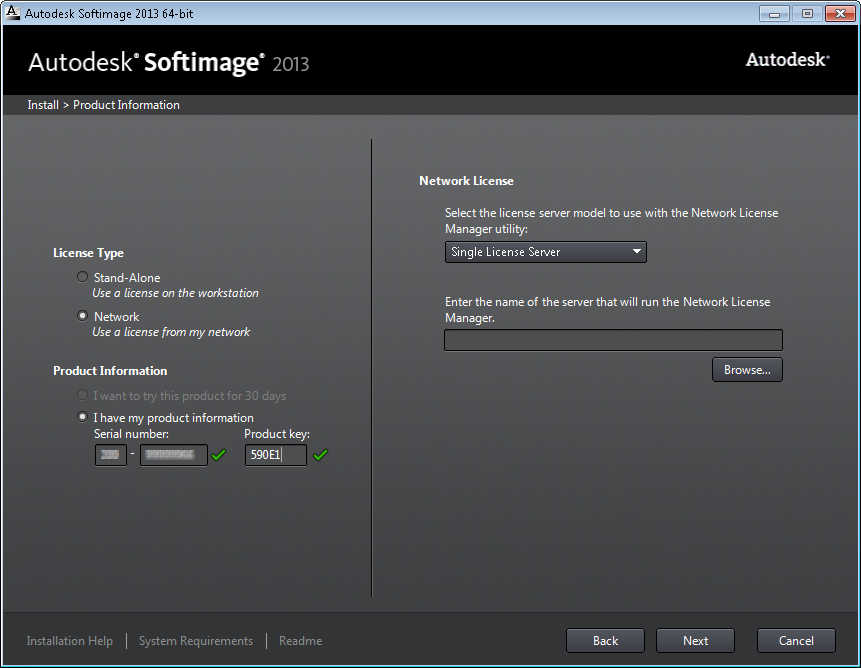
  1. On each render node, install a network-licensed version of Softimage.
  2. During the install, on the Product Information page:

    • Choose Network License.
    • Enter your serial number and the product key 590D1.
    • Enter the name of the license server computer.

Done. It’s all set up now, but there’s a few things you should check/consider:

  • Check that you can run xsibatch on the render nodes and get a license.
    If you have any problems, here’s some troubleshooting tips for xsibatch licensing.
  • Xsibatch needs to have read/write access to wherever you store your Softimage scene files and projects, and wherever you decided to output the rendered images.
    For example, you could have a separate file server for scenes and render output, or it could be the local workstation where you run Softimage.
  • Third-party addons, plugins, and shaders need to be available to the render nodes, either via a shared workstation or by installing them on the render node.
    Note that the user account used to run xsibatch will have a Softimage user folder on the render node.
  • You need a way to manage the render jobs that run on the render nodes. There are a range of possible ways to do this:
    • Manually starting xsibatch on each render node.
      You could either specify specific framesets to render, or use the –skip flag to tell xsibatch to skip frames that are already rendered [by other render nodes]
      For example:

      xsibatch –render “//server/project/scenes/Example.scn” –frames 1-10
      xsibatch –render “//server/project/scenes/Example.scn” –skip
    • Hand-rolling your own tools/scripts to start render jobs (for example, using pstools to start xsibatch jobs on the render nodes, or generating batch files to kick off render jobs)
    • Purchasing render management software (such as Royal Render—you may want to try the demo version)

Finding the menu commands added by a plugin


So you installed a plugin, but now you cannot find out how to access the plugin in Softimage.

If the plugin added a menu command, and it’s a scripted plugin, we can find it by checking the plugin code (in the Plugin Manager > Tree, right-click the plugin and click Edit).

Find the definition of XSILoadPlugin.
In the XSILoadPlugin function, look for any calls to RegisterMenu.

def XSILoadPlugin( in_reg ): #{{{
	in_reg.Author = "kim"
	in_reg.Name = "EPSexportPlugin"
	in_reg.Email = ""
	in_reg.URL = ""
	in_reg.Major = 1
	in_reg.Minor = 0

	in_reg.RegisterProperty("EPSexport")
	in_reg.RegisterMenu(constants.siMenuMainFileExportID,"EPSexport_Menu",false,false)

	# register the export command
	# 	KA_EpsExport( Application.Selection, OutputFile, CullBackFaces, doInnerLines, doBorderLines, InnerLineThickness, BorderLineThickness, AutoDiscontinuity, Xres )
	in_reg.RegisterCommand("KA_EpsExport","KA_EpsExport")

	return true

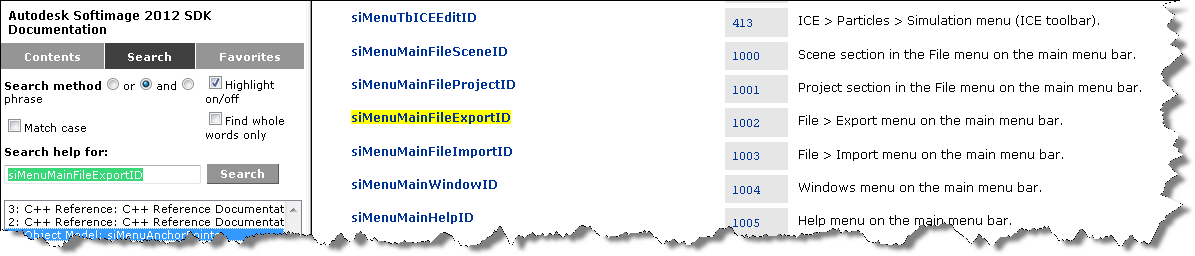
RegisterMenu uses what’s called a “menu anchor” to define a new menu command. In this example, the menu anchor is siMenuMainFileExportID.

Google the menu anchor or search the SDK docs, and you’ll find a page that describes the menu anchors:

Friday Flashback #60


The roots of Softimage go back to 1985 and the animated short Tony de Peltrie, which was one of the first (if not the very first) computer-animated films to have a human character with facial expressions. The artist working on Tony de Peltrie was Daniel Langlois, who would go on to start up Softimage, with the goal of creating computer animation software for artists and animators (not programmers 😉

Tony de Peltrie
In the mid 80’s, four kids barely out of school directed Tony de Peltrie, a computer-animated short that took the animation world by storm and revolutionized the film industry. Produced by Pierre Lachapelle, and directed by Lachapelle, Philippe Bergeron, Pierre Robidoux and Daniel Langlois, Tony de Peltrie premiered as the closing film of Siggraph’85 – the largest computer animation festival in the world.As the lights dimmed, and Tony’s wonderfully sad eyes first appeared on the screen, the stunned audience fell silent. They were witnessing history. For the first time, a computer-animated human character was expressing emotions. The following week, Time Magazine concluded a two-page article on the festival with these words:

“But the biggest ovations last week were reserved for. Tony de Peltrie. Created by a design team from the University of Montreal, it depicts a once famous musician. tickling the keys and tapping his white leather shoes to the beat of his memories. De Peltrie looks and acts human; his fingers and facial expressions are soft, lifelike and wonderfully appealing.

In creating De Peltrie, the Montreal team may have achieved a breakthrough: a digitized character with whom a human audience can identify.”

— Phillip Elmer-DeWitt, Time Magazine, August 5 th, 1985

John Lasseter, one of the festival’s judges and future director of Toy Story, Toy Story 2, and A Bug’s Life, declared: “Years from now Tony de Peltrie will be looked upon as the landmark piece, where real, fleshy characters were first animated by computer.” (Maclean’s, September 9 th, 1985)

The short went on to win over twenty international awards, and was featured in hundreds of magazines all over the world. Today, Tony de Peltrie is considered to be the godfather of CGI characters.

Daniel Langlois working on Tony de Peltrie (1984)

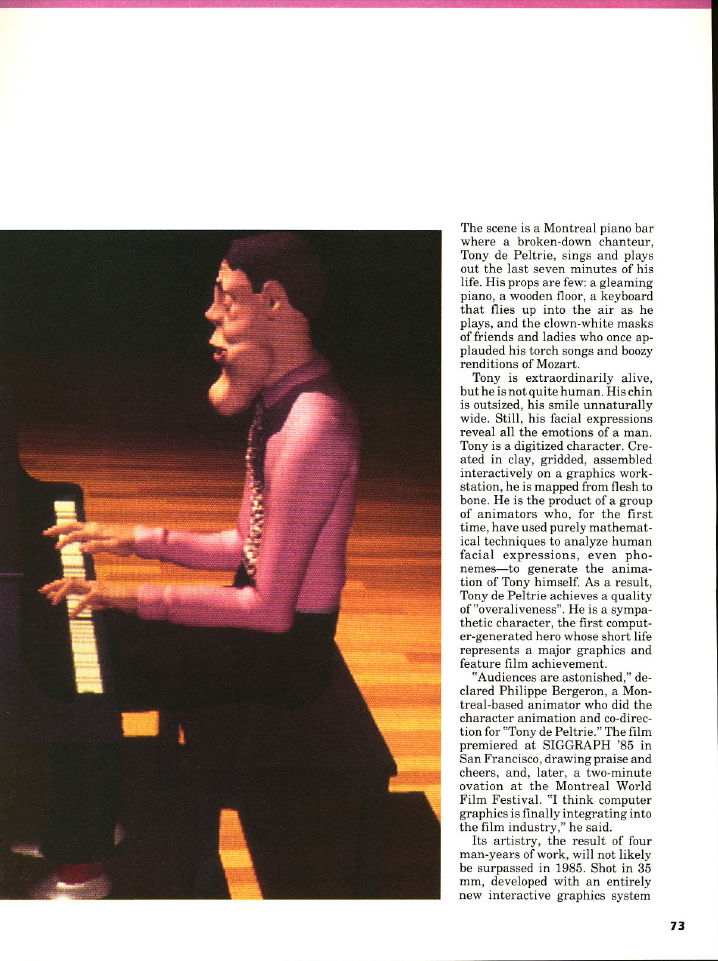
Computer Graphics World article from October 15:

Finally, here’s a textual description of the making of Tony de Peltrie:

Bergeron P. (1985) Controlling facial expressions and body movements in the computer-generated animated short “Tony de Peltrie”, tutorial, SIGGRAPH 1985. This paper was part of a tutorial on animation and outlines a method of doing character animation. The example is a very well known piece of animation, “Tony de Peltrie”, about a piano player who is recollecting his glory days. Tony is not all that life-like in apprearance, but the animation is so realistic that by the end of the short, you are really feeling for him.

The animation was done on a 3-D interactive graphics system, TAARNA, which has been designed for use by people with no computer background. To animate the character, there were two major things that had to be done. Firstly, the facial expressions need to be defined (muscle movements) and secondly, the body motions (skeletal movements) must be layed out.

To get the required realism in the facial expressions, the animators photographed a real person doing 28 different facial expressions. The model had a grid of dark lines drawn on his face to correspond with the control points which would be on the animated figure. Only 20 of the photographs were digitised as the difference between some expressions is to small to warrant the time it would take to put them in. An example is the similarity between facial positions for “m” and for “b”. A clay model was made of Tony and a control grid was drawn onto it. The model was then photographed and digitised. The animators manually went through and matched up corresponding control points. This was not a simple matter as the grid on Tony’s face had a lot more points than the human model so a one to many relationship between the points had to be created. This caused a few problems with the animation which had to be ironed out later on.

Bergeron used an algorithm by Kochanek (SIGGRAPH, 1984) for interpolating between keyframes. This gave the freedom to choose and combine expressions and reduce or exaggerate them for added effect. The speech sequence was recorded onto tape, then the timing for the speech was noted. The timings for the speech were copied onto dope sheets and then the synchronising of speech was done using techniques very similar to traditional cell animation.

For the other parts of the face, a similar approach was taken although there weren’t as many key positions to record. For the eyebrows there were three positions, and for the eyelids, there were four positions.

The body of Tony was modelled with clay and then digitised as had been done with his head. The skeletal data, the hierarchy of body parts and where they bend, was done through TAARNA. TAARNA has five commands for skeletal manipulation: bend, twist, pivot, stretch and rotate. For each of these commands, the limb, the point of movement, and the degree of movement need to be given. The animator has to check that the movements are valid as TAARNA doesn’t check for impossible movements. To animate the body, there were three stages to be worked through. These stages are: specifying the key positions, interpolating between the key positions, and fitting the 3D model on each interpolated skeleton. This fitting includes putting the clothes on Tony and making wrinkles in the clothes when the body moves.

Vector multiplication in ICE versus the Dot Product


In general, there isn’t a unique definition for the multiplication of one vector by another, but there are several common “vector products”, such as the dot product and the cross-product.

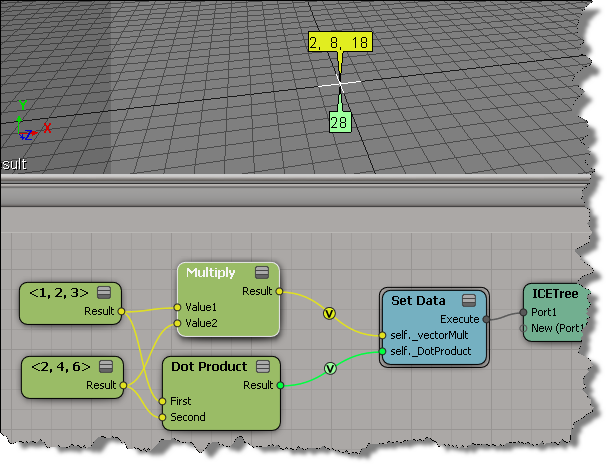
The dot product of the two vectors (x, y, z) and (a, b, c) is ax + by + cz.

I kinda assumed that in ICE, the Multiply node would give me the same result, but it turns out that Multiply gives (ax, by, cz):

Finding interior points with valence two


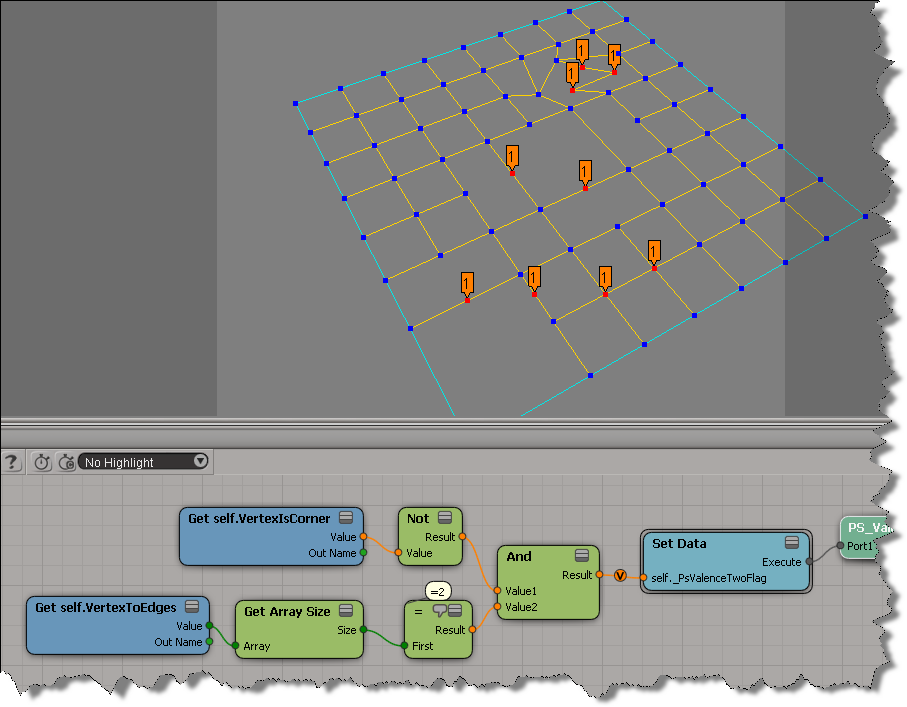
A point with “valence 2” is a point with two incident (neighbour) edges. You could write a script to find these points, but it’s even easier to do with ICE:

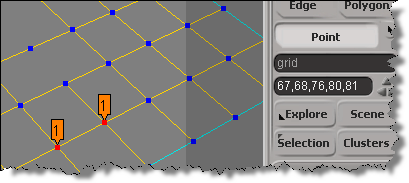
Notice that some of the tagged points look like they have more than 2 neighbour edges. What’s happening there is that there are several vertices on top of each other:

Here’s a Python script that builds the ICE tree and then uses it to select all the interior points with valence 2.
hat tip: Fabricio Chamon

I also did this as a custom filter, maybe I’ll post that later.

from siutils import si
from siutils import log		# LogMessage
from siutils import disp	# win32com.client.Dispatch
from siutils import C		# win32com.client.constants

#
# Build the ICE tree that finds the interior points with valence two
#
def BuildICETree( oObject ):
	oIceTree = si.ApplyOp("ICETree", oObject.FullName, C.siNode, "", "", 0)(0)
	oIceTree.Name = "PS_ValenceTwoFilter"

	oAnd = si.AddICENode("$XSI_DSPRESETS\\ICENodes\\CombineLogicNode.Preset", oIceTree )

	#
	# Get self.VertexIsCorner -> Not -> And
	#
	oNot = si.AddICENode("$XSI_DSPRESETS\\ICENodes\\NotNode.Preset", oIceTree )
	oGetVertexIsCorner = si.AddICENode("$XSI_DSPRESETS\\ICENodes\\GetDataNode.Preset", oIceTree )
	oGetVertexIsCorner.Parameters( "Reference" ).Value =  "self.VertexIsCorner"
	si.ConnectICENodes( oNot.InputPorts("Value"), oGetVertexIsCorner.OutputPorts( "value" ) )
	si.ConnectICENodes( oAnd.InputPorts( "Value1" ), oNot.OutputPorts("result") );

	#
	# Get self.VertexToEdges -> Get Array Size -> = -> And
	#
	oGetVertexToEdges = si.AddICENode("$XSI_DSPRESETS\\ICENodes\\GetDataNode.Preset", oIceTree )
	oGetVertexToEdges.Parameters( "Reference" ).Value =  "self.VertexToEdges"
	oArraySize = si.AddICENode("$XSI_DSPRESETS\\ICENodes\\GetArraySizeNode.Preset", oIceTree )
	oCompare = si.AddICENode("$XSI_DSPRESETS\\ICENodes\\CompareNode.Preset", oIceTree )

	si.ConnectICENodes( oArraySize.InputPorts("Array"), oGetVertexToEdges.OutputPorts("value") )
	si.ConnectICENodes( oCompare.InputPorts("first"), oArraySize.OutputPorts("size") )
	oCompare.InputPorts("second").Value = 2

	si.AddPortToICENode( oAnd.InputPorts("Value1"), "siNodePortDataInsertionLocationAfter")
	si.ConnectICENodes( oAnd.InputPorts("Value2"), oCompare.OutputPorts("result") )

	#
	# Set Data -> ICETree
	#
	oSetData = si.AddICECompoundNode("Set Data", oIceTree )
	si.SetValue( oSetData.FullName + ".Reference", "self._PsValenceTwoFlag", "")

	si.ConnectICENodes( oSetData.InputPorts("Value"), oAnd.OutputPorts( "result" ) )

	si.ConnectICENodes( oIceTree.InputPorts("port1"), oSetData.OutputPorts("Execute") )
	si.DisplayPortValues(oSetData.InputPorts( "Value" ), True, 0, True, "", 0, 0, 0, 1, False, True, 1, 0.5, 0, 1, False, 0, 10000, 1, False, False, 0, 10, False, True, False, 100)
	
	return oIceTree

#
# Select all points with the ICE attribute _PsValenceTwoFlag=True
#
def SelectInteriorPoints_with_ValenceTwo( oObject ):
	a = oObject.ActivePrimitive.ICEAttributes("_PsValenceTwoFlag")
	if a is not None:
		d = a.DataArray
		if len(d) > 0 and a.IsConstant == False:
			Application.SelectGeometryComponents( "%s.pnt[%s]" %( oObject.FullName, ",".join(["%s" %(ix) for ix in range(len(d)) if d[ix] == -1])  ) )


#--------------------------------------------------------------
# Select interior points with valence 2
#--------------------------------------------------------------


if si.Selection.Count > 0 and si.ClassName( si.Selection(0) ) != "CollectionItem" :
	oObject = si.Selection(0);
else:
	oObject = si.PickObject( "Pick object" )(2)

if oObject != None and oObject.IsClassOf( C.siX3DObjectID ):
	tree = BuildICETree( oObject )
	SelectInteriorPoints_with_ValenceTwo( oObject )
	si.DeleteObj( tree )

Scripting – Getting the target in a context menu callback


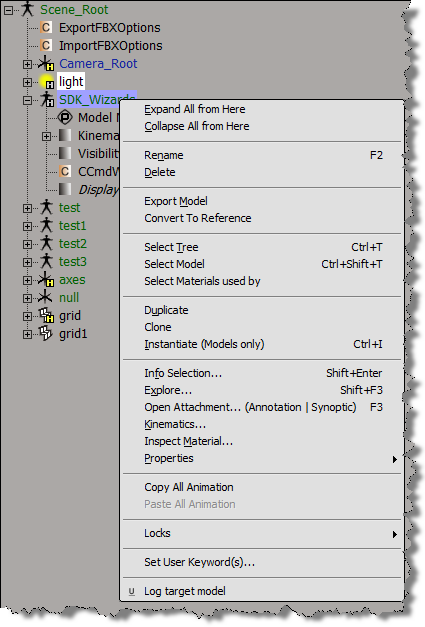
If you use AddCallbackItem to implement a contextual menu, then you can get the objects to which the context menu applies. A menu item callback gets a Context object from Softimage, and that Context contains a Target context attribute. Target specifies the selected objects, or the object under the mouse:

  • If more than one object is selected, then the Target attribute is a collection of all selected objects.
  • Otherwise, the Target attribute is a collection that contains just the object under the mouse.

Here’s a Python example of a context menu implemented with AddCallbackItem.

import win32com.client
from win32com.client import constants

null = None
false = 0
true = 1

def XSILoadPlugin( in_reg ):
	in_reg.Author = "blairs"
	in_reg.Name = "Test_CommandPlugin"
	in_reg.Major = 1
	in_reg.Minor = 0

	in_reg.RegisterCommand("Test_Command","Test_Command")
	in_reg.RegisterMenu(constants.siMenuSEModelContextID,"Model_Context_Menu",false,false)
	in_reg.RegisterMenu(constants.siMenuSEObjectContextID,"Object_Context_Menu",false,false)
	#RegistrationInsertionPoint - do not remove this line

	return true

def XSIUnloadPlugin( in_reg ):
	strPluginName = in_reg.Name
	Application.LogMessage(str(strPluginName) + str(" has been unloaded."),constants.siVerbose)
	return true

def Model_Context_Menu_Init( in_ctxt ):
	oMenu = in_ctxt.Source
	oMenu.AddCallbackItem( "Log target model", "SE_ContextCallback" )
	return true

def Object_Context_Menu_Init( in_ctxt ):
	oMenu = in_ctxt.Source
	oMenu.AddCallbackItem( "Log target object", "SE_ContextCallback" )
	return true
#
# Menu item callback
#
def SE_ContextCallback( in_ctxt ):
	target = in_ctxt.GetAttribute("Target")

	# Target attribute returns an XSICollection
	for o in target:
		Application.LogMessage( o.FullName )