Creating XSI objects in Netview


If you want to use objects like XSIApplication, XSIMath, XSIUtils, and XSIFactory in NetView scripts, you need to know the [mostly undocumented] progIDs of those objects.

window.onload = onLoadHandler;

//-------------------------------------------
// OnLoadHandler for any HTML page 
// that includes this .js file
//-------------------------------------------
function onLoadHandler() {

	//-------------------------------------------
	// Create instances of Softimage objects.
	//-------------------------------------------

	try {
		var Application = new ActiveXObject('XSI.Application');
		var XSIUtils = new ActiveXObject('XSI.Utils');
		var XSIMath = new ActiveXObject('XSI.Math');
		var XSIFactory = new ActiveXObject('XSI.Factory');
	} catch ( e ) {
		alert( e );
	}
}

Here’s a script that uses WMI to find the progIDs of XSI COM automation objects:

var sComputer = XSIUtils.Environment("COMPUTERNAME");

ListCOM( sComputer );

function ListCOM( computer )
{ 
	var wmistr = "winmgmts:{impersonationLevel=impersonate}!\\\\"; 
	wmistr += computer + "\\root\\cimv2";
	var wmi = GetObject( wmistr );
	var query = "SELECT * FROM Win32_ClassicCOMClassSetting";
	var com = wmi.ExecQuery( query );
	var ecom = new Enumerator( com );
	for( ; !ecom.atEnd(); ecom.moveNext() )
	{
		var icom = ecom.item();  
		if ( icom.Caption != null && icom.Caption.indexOf( "XSI" ) > -1 && icom.VersionIndependentProgId != null)
		{
			LogMessage( "name   : " + icom.Caption );
			LogMessage( "progid : " + icom.VersionIndependentProgId );
			LogMessage( "" );   
		}
	} 
}

And here’s the script output on my machine:

// INFO : name   : XSIDialog Class
// INFO : progid : XSIDial.XSIDialog
// INFO : 
// INFO : name   : XSI Framebuffer List Widget Class
// INFO : progid : FramebufferListWidget.FramebufferListWidget
// INFO : 
// INFO : name   : XSI Factory Object
// INFO : progid : XSI.Factory
// INFO : 
// INFO : name   : XSI Scripting Environment Object
// INFO : progid : Scripting.Environment
// INFO : 
// INFO : name   : XSI Utility Object
// INFO : progid : XSI.Utils
// INFO : 
// INFO : name   : XSI Plugin Helper Object
// INFO : progid : XSI.PluginHelper
// INFO : 
// INFO : name   : XSIFileConverter Object
// INFO : progid : XSI.XSIFileConverter
// INFO : 
// INFO : name   : XSIFileService Object
// INFO : progid : XSI.XSIFileService
// INFO : 
// INFO : name   : XSI UIToolkit Object
// INFO : progid : XSI.UIToolkit
// INFO : 
// INFO : name   : XSI Application Object
// INFO : progid : XSI.Application
// INFO : 
// INFO : name   : XSI Math Module
// INFO : progid : XSI.Math
// INFO : 
// INFO : name   : XSI Render Channel List Widget Class
// INFO : progid : RenderChannelListWidget.RenderChannelListWidget
// INFO : 
// INFO : name   : XSIFileFormat Object
// INFO : progid : XSI.XSIFileFormat
// INFO : 
// INFO : name   : XSI Image Format Chooser Class
// INFO : progid : ImageFormatChooser.ImageFormatChooser
// INFO : 

Unable to create object[CLSID\{A8BF89CA-1025-11D2-006094EB029C}] : %SUMATRAPATH%\moaudio.dll, Cleanup will be performed


After all these years, this one still pops up from time to time: most recently from an XSI 7.0 user who emailed the old Softimage Licensing inbox.

The solution: run runonce.bat. And, just don’t use registry cleaners unless you like having to run runonce.bat to fix up Softimage or XSI.

Randomize Values by Range and integers


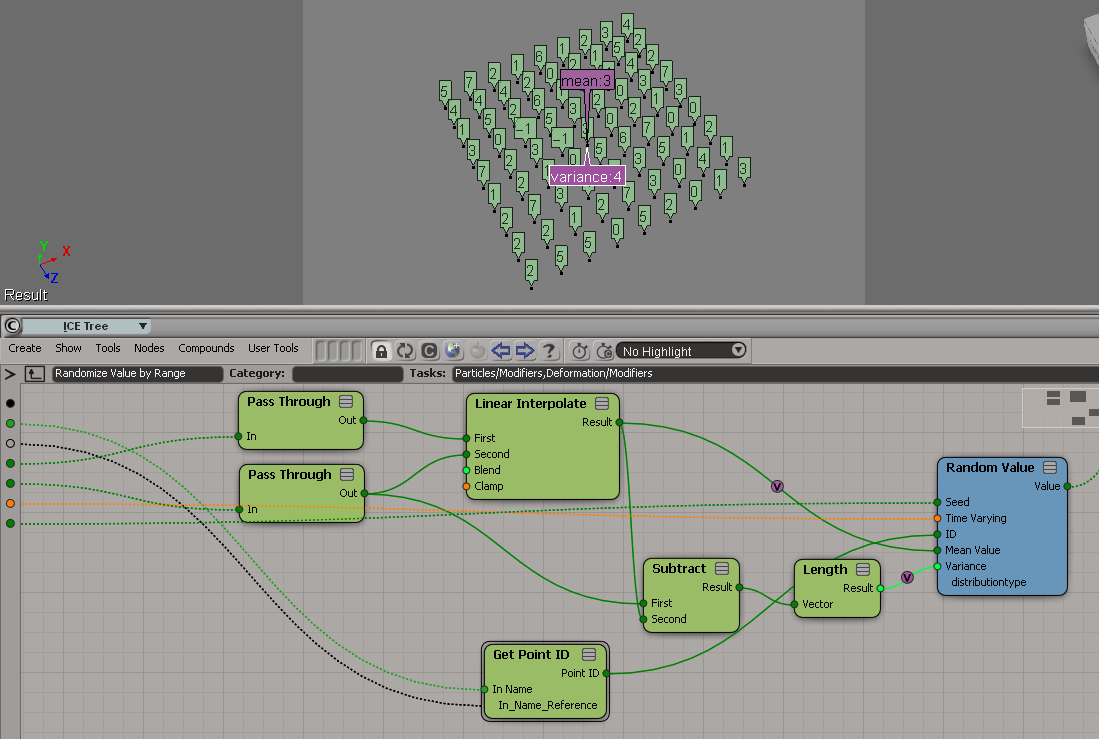
Randomize Value by Range doesn’t quite work with integers. Consider what happens when you try get a random integer between 0 and 7.

Randomize Value by Range was not designed to work with integers. By forcing it to integer type, you end up with a Random Value node that has a mean of 3 and a variance of 4 (hence the -1, which is the result of 3 – 4).

A Random Value node with a mean of 4 and a variance of 3.5 would give you an integer between 0 and 7 (because when you force the random value into an integer, ICE truncates the scalar, so 7.5 would be 7, 0.5 would be 0).

A better way may be to use Floor on the scalar output of Random Value. I know some users have done their own Randomize Integer by Range compounds.

Selecting the object master for a clone


Here’s a little addon that adds a Select Clone Object Master command to the viewport context menu for 3d objects.


The addon is a single self-installed plugin that includes a command, a menu, and a filter:

  • The menu item calls the command.
  • The filter controls whether or not the menu item is enabled…so that the Select Clone Object Master command is enabled only when you ALT+right click a clone.
# SelectCloneMasterObjectPlugin
# Initial code generated by Softimage SDK Wizard
# Executed Thu Jun 7 10:55:31 EDT 2012 by blairs
# 
# Tip: To add a command to this plug-in, right-click in the 
# script editor and choose Tools > Add Command.
import win32com.client
from win32com.client import constants

null = None
false = 0
true = 1

def XSILoadPlugin( in_reg ):
	in_reg.Author = "blairs"
	in_reg.Name = "SelectCloneMasterObjectPlugin"
	in_reg.Major = 1
	in_reg.Minor = 0

	in_reg.RegisterCommand("SelectCloneMasterObject","SelectCloneMasterObject")
	in_reg.RegisterFilter("Clone",constants.siFilter3DObject)
	in_reg.RegisterMenu(constants.siMenu3DViewObjectSelectContextID,"SelectCloneMasterObject_Menu",false,false)
	#RegistrationInsertionPoint - do not remove this line

	return true

def XSIUnloadPlugin( in_reg ):
	strPluginName = in_reg.Name
	Application.LogMessage(str(strPluginName) + str(" has been unloaded."),constants.siVerbose)
	return true


# Match callback for the CloneFilter custom filter.
def Clone_Match( in_ctxt ):
	Application.LogMessage("Clone_Match called",constants.siVerbose)
	o = in_ctxt.GetAttribute( "Input" )
	c = win32com.client.Dispatch( "XSI.Collection" )
	c.Items = '%s.%s' % (o.ActivePrimitive.FullName, 'CopyOp')
	return c.Count > 0
# 	Return value indicates if the input object matches the filter criterias.


def SelectCloneMasterObject_Init( in_ctxt ):
	oCmd = in_ctxt.Source
	oCmd.Description = ""
	oCmd.ReturnValue = true

	oArgs = oCmd.Arguments
#	oArgs.AddWithHandler("Arg0","Collection")
	oArgs.AddWithHandler("Arg1","SingleObj")
	return true

def SelectCloneMasterObject_Execute( Arg1 ):

	Application.LogMessage("SelectCloneMasterObject_Execute called",constants.siVerbose)
	Application.Selection.Clear()

# by Vladimir Jankijevic
# https://groups.google.com/forum/?fromgroups#!searchin/xsi_list/Finding$20the$20source$20mesh$20of$20a$20clone/xsi_list/cyUYARDMooA/J3JVxc6jJtIJ
	copyop = Arg1.ActivePrimitive.ConstructionHistory[0]
	Application.Selection.Add(copyop.InputPorts[0].Target2.Parent3DObject)

	# 
	# TODO: Put your command implementation here.
	# 
	return true

def SelectCloneMasterObject_Menu_Init( in_ctxt ):
	oMenu = in_ctxt.Source
	oMenu.AddCommandItem("Select Clone Master Object","SelectCloneMasterObject")
	oMenu.Filter = "Clone"
	return true

FBX Converter


The FBX Converter is a handy tool that not everyone knows about. From the download page:

FBX Converter
Transfer files from one file format to another quickly and easily with the FBX Converter. This utility enables you to convert OBJ, DXF™, DAE, and 3DS files to or from multiple versions of the FBX format. New tools are now available with the FBX Converter 2012.1. You can view FBX animation files in real time with the FBX Viewer, explore and compare FBX file contents with the FBX Explorer, and manage animation takes with the FBX Take Manager.