Extrude with random lengths
by iamVFX
Scale by Density
by Fabricio Chamon

by Rob Chapman


The FBX Converter is a handy tool that not everyone knows about. From the download page:
FBX Converter
Transfer files from one file format to another quickly and easily with the FBX Converter. This utility enables you to convert OBJ, DXF™, DAE, and 3DS files to or from multiple versions of the FBX format. New tools are now available with the FBX Converter 2012.1. You can view FBX animation files in real time with the FBX Viewer, explore and compare FBX file contents with the FBX Explorer, and manage animation takes with the FBX Take Manager.
A re-constructed customer story from 2007. I found the story images on a file server here, but I had to google up the story text.
Summary: Long-time animator and current film student, Bernhard Haux feels passionately about his work, creating great characters, and SOFTIMAGE|XSI.
A New Star for Animation
By Alexandra Pasian
Bernhard Haux is an animator who feels very strongly about his tools. He says that, “if there was some sort of ‘dating program’ based on personal interests and work methods that matched artists and animation packages, I would definitely be set up with XSI.” Clearly, Bernhard is excited about his work. His passion is character animation, and he has been, since a very early age, almost driven to succeed in the business.

Softimage’s Helge Mathee, a star in his own right, says that Haux is one of the best animators he has ever seen. “He combines creative and technical skills with original concepts,” according to Helge. And, his reasons for working with the SOFTIMAGE|XSI software are equally compelling.

Compatibility with SOFTIMAGE|XSI
Says Bernhard, “I don’t think a software package can make you creative. But, you should expect that it will not get in the way of your creativity either. XSI remains intuitive and responsive, and, since it does what I expect it to do, I can use it to take my humble imagination wherever it goes.”
Working with a software that responds consistently and accurately to his needs is extremely important to Bernhard. As he explains, “I like experimenting and consider myself a generalist with an emphasis on animation and rigging. Using XSI in my work means that I start with it, I work with it, and, in a short while, get what I intended to achieve.”
This responsiveness relates not only to the SOFTIMAGE|XSI software itself, but also to its rate of development. Says Bernhard, “I worked on a project where I needed to have a flexible construction history that would allow you to separate and order all operations in an efficient way. Amazingly, I got what I needed in the very next version of XSI.”

While Bernhard is consistently impressed by the way in which the SOFTIMAGE|XSI software keeps up with industry demands, often it is the unexpected advancements that really excite him. The addition of GATOR to the XSI toolset was a definite check in the compatibility column for Bernhard and XSI. According to Bernhard, “If you need a sign to know that you are working with the right software, it’s getting new tools that can do what you wished for – even before you are able to name it.”
Bernhard also appreciates the specific functionalities found in SOFTIAMGE|XSI. In particular, he makes extensive use of the various constraints. According to Bernhard, the constraints in XSI are “fast, reliable, powerful, and turned out to be the biggest blessing in character rigging. There are endless ways of combining them – and the ability to connect anything with anything else in XSI makes it impressively flexible.”

The Power of 3D
Bernhard interest in CG animation began at a very early age. When he was 10 years old, Bernhard and a friend snuck into an “Electronica” convention where they were rewarded with, as Bernhard describes it, “millions of electronic miracles and cheap giveaways.” One of the giveaways was a magazine with a 3D illustration that Bernhard found fascinating. This image, of a cyborg riding an ant, sparked Bernhard imagination and propelled him to take action.
Just 3 years after the Electronica convention, Bernhard walked into an office with a 3D Logo on the door. Bernhard brought with him his drawings with the intention of asking if the company could use his help with in their design department, and, to his surprise, he was hired. At the age of 13, he began creating rough 3D animated screen savers for the company’s clients.
Back to School

Eventually, Bernhard moved on to 3D work in commercials and television series. But, despite his early successes, Bernhard felt that a return to school would be in his best interest. Bernhard explains that “I realized that the best asset to have when working in CG productions is a knowledge of film, camera, script writing, and how to make characters connect with an audience. I felt that studying at the Filmakademie, with its renowned Film and Animation Institute, would be perfect for me.”
Bernhard began his film studies at Germany’s Filmakademie Baden-Württemberg in 2002. Studying animation at the Filmakademie has given Bernhard two years of basic film training and an additional two years of project studies at the Animation Institute.

According to Bernhard, “The biggest advantage to studying at the Akademie is that they allow students to grow and develop in any direction they choose. We have access to great equipment, and the faculty gives us a lot of support as we go.” The Filmakademie’s international network also gave him the opportunity to study traditional animation at “les Gobelins” in Paris.
Creating Characters Audiences Feel For
Bernhard’s most recent project was a short film entitled “Me and My Bike” in which the main character manages to cheat his way into the final stages of a bike race only to have his plans for instant fame and fortune ruined before he reaches the finish line. For the film, Bernhard was responsible for creating characters and props while director Markus Plinke focused on story and animation.
The pair chose to use SOFTIMAGE|XSI on “Me and My Bike” for two main reasons. First, Bernhard had just come off another project where he used XSI with great success, and, second, it gave them the features that they needed. Says Bernhard, “XSI gives us fast and powerful SubDivision modeling, good tools for rigging, native integration of mental ray, and a flexible workflow with render passes and partitions.”

The biggest challenge for Plinke and Bernhard on “Me and My Bike” was creating a devious character that would appeal to audiences. In order to get the audience to empathize with this morally questionable figure, Plinke and Bernhard felt that it was important to give him as much expression as possible. According to Bernhard, this meant that, “Although the designs were simple, the underlying character had to have powerful setups that enabled Markus to articulate and act out the physical comedy to the extreme.”
The fact that the team was using SOFTIMAGE|XSI meant that, while Plinke was held up working out storyboards in his apartment, Bernhard did not have to wait around for final designs. Instead, Bernhard was able to lay out the character meshes and set up the rigs in XSI ahead of time since any changes to the character’s mesh and rig-functionality could be implemented at any point of production.
Says Bernhard, “Thanks to referencing in XSI, I was able to continue improving the characters and adding features to the models while Markus was fine-tuning the animation. In the past, I have been very cautions about referencing, but this time it worked out fine.”

After Graduation
Bernhard will graduate in January of 2007, at which point he will move back into the job market full-time. Bernhard explains that, “for most of my life, animation has been my guide. Although I might try my hand at translating more traditional animation aesthetics into CG, my passion has always been character animation.”
Ultimately, says Bernhard, “since there are many things about a job more important than animation packages, I really can’t tell if XSI will be involved in my near future. But, given that it has an architecture that is built to last and as long as Softimage continues to develop the software as fast and innovatively as in the past, I’d be insane not to keep my hands on it.”
——————————————————————————–
You can see more of Bernhard’s work on his website: www.characteranimator.com
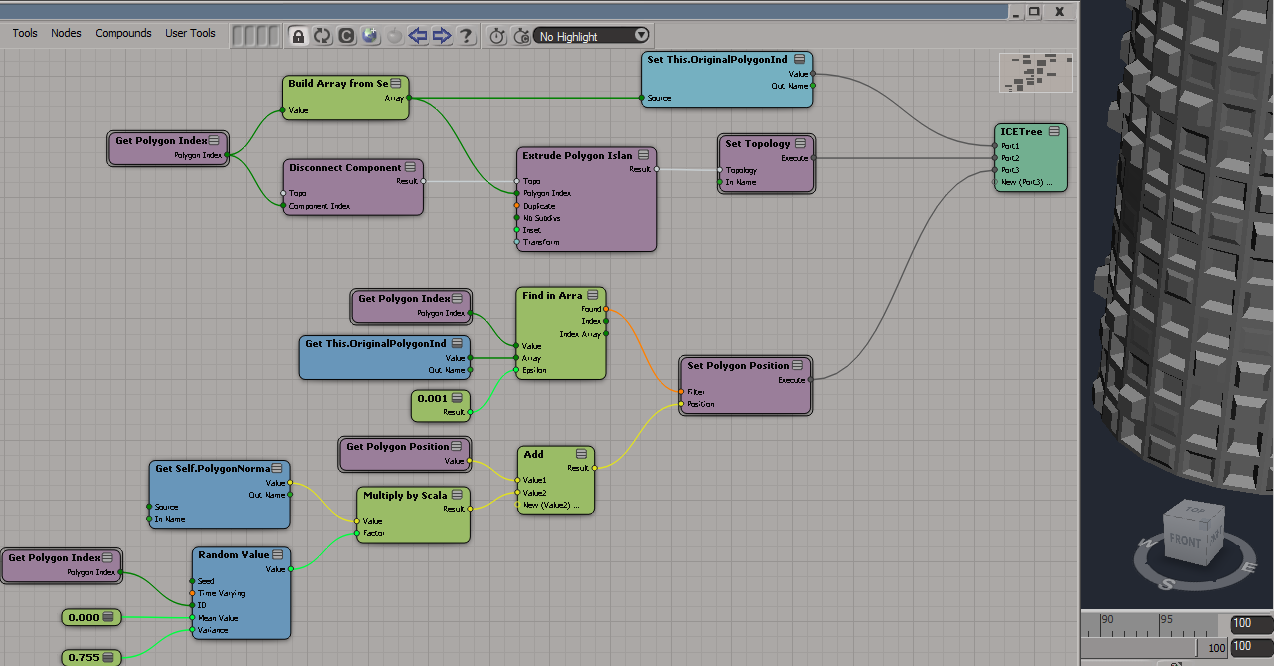
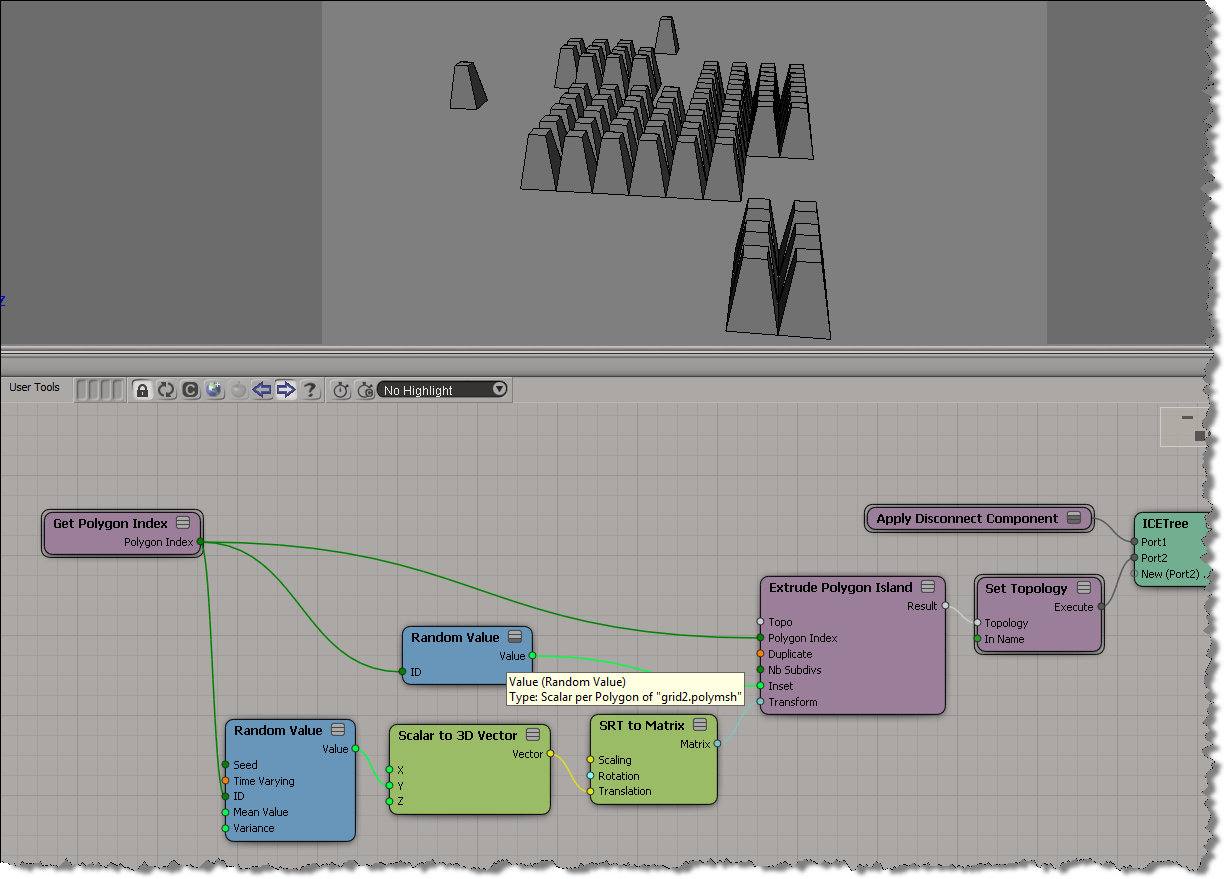
I didn’t look yet at the Random Extrusion compound Guillaume posted yesterday, because I wanted to work through the basics on my own (but do go get his compound, it’s sure to be pretty useful). Here’s a simple ICE tree that uses a different random length for each extruded polygon:
 .
.
You can’t get different extrusion lengths for different polygons without using the Repeat node. That’s because the length, inset, and transform are basically per-object, even though you can plug seemingly per-poly values into those ports.
Another way to get the cameras for the camera projections on the selected object. This time with no loops (well, except for the list comprehension on line 22).
from siutils import si
if Application.Version().split('.')[0]>= "11":
	    si = si()                   # win32com.client.Dispatch('XSI.Application')
from siutils import log		# LogMessage
from siutils import disp	# win32com.client.Dispatch
from siutils import C		# win32com.client.constants

# Get all CameraTxt operators
ops = si.FindObjects2( C.siOperatorID ).Filter( "CameraTxt" )

# Filter function to get the CameraTxt ops under the selected object
def f(x):
	o = si.Selection(0)
	return o.IsEqualTo( x.Parent3DObject )

# Get list of cameras
cams = [ x.InputPorts(2).Target2.Parent3DObject for x in filter( f, ops ) ]

if len(cams) > 0:
	print 'Projection cameras for %s:' % si.Selection(0)
	for c in cams:
		print '   %s' % c.Name
This script is based on the observation that you can get the camera from an input port on the CameraTxt operator.

When you export a compound, you can choose to embed internal compounds.
It turns out that if a compound has embedded compounds, then calling ApplyICEOp like this:
sFile = 'Test Compound'
Application.ApplyICEOp(sFile, "Sphere1", "", "siUnspecified")
will give you this error if the compound is not located in the Data\Compounds folder of your User location.
# ERROR : 21000-EDIT-PrivateGetCompoundConstructionMode - Unspecified failure - [line 720 in C:\Program Files\Autodesk\Softimage 2013\Application\DSScripts\operators.vbs]
Application.ApplyICEOp("Test compound", "Sphere1.sphere", "", "siUnspecified")
# ERROR : Traceback (most recent call last):
#   File "<Script Block >", line 58, in <module>
#     si.ApplyICEOp( sCompound, o.FullName )
#   File "<COMObject XSI.Application>", line 2, in ApplyICEOp
# COM Error: Unspecified error (0x-7fffbffb) - [line 58]
I noticed something was up when Softimage kept using the a version of the compound from my User location instead of the “bad” version I had in my Downloads folder. A quick check with Process Monitor showed that yep, Softimage was always looking for C:\Users\blairs\Autodesk\Softimage_2013\Data\Compounds\Test Compound.xsicompound, even though I had selected C:\Downloads\Test Compound.xsicompound as the compound to apply.
The workaround is to specify the full path:
sFile = 'C:\\Users\\blairs\\Documents\\Workgroup2\\Data\\Compounds\\Test compound.xsicompound'
Application.ApplyICEOp(sFile, "Sphere1", "", "siUnspecified")
I’ve updated my Applying an ICE compound to multiple objects script accordingly…
When you use camera projections, you end up with a data hierarchy like this.

So, given a 3d object, how do you find the cameras used by the projections? This post on xsibase shows how to do it with “nasty loops” (that’s not me saying that, it’s the person who posted the script). Here’s an alternative approach in Python. I’m still using loops, but I don’t think it looks as nasty 😉 To try and make it less nasty, I used filters on the different lists returned by the XSI SDK methods.
from siutils import si
si = si()					# win32com.client.Dispatch('XSI.Application')
from siutils import log		# LogMessage
from siutils import disp	# win32com.client.Dispatch
from siutils import C		# win32com.client.constants

#
# Filters
#
def fCameraTxt(x):
	return (not x.NestedObjects( 'CameraTxt' ) is None)

def fUvprojdef(x):
	return x.type == 'uvprojdef'

def fCamera(x):
	return x.type == 'camera'

#
# Get projection cameras for the selected object
#
cams = []
o = si.Selection(0)
if o.IsClassOf( C.siX3DObjectID ):
	for sample in o.ActivePrimitive.Geometry.Clusters.Filter( 'sample' ):
		for uvspace in filter( fCameraTxt, sample.LocalProperties.Filter( 'uvspace' ) ):
			for uvprojdef in filter(fUvprojdef, uvspace.NestedObjects):
				cams.append( filter(fCamera, uvprojdef.NestedObjects)[0] )


	if len(cams) > 0:
		print 'Projection cameras for {0}:'.format( si.Selection(0).Name )
		for c in cams:
			print '   {0}'.format( c.Name )
Here’s a little Python example that shows how to get all the Get Closest Location nodes in a scene and check whether Enable Cutoff Distance is enabled.
Location queries can be expensive, in terms of memory and performance, so you usually want to have some sort of cutoff distance.
si = Application
log = si.LogMessage
nodes = Application.FindObjects( '', "{2E206DD7-DC51-49F7-92BD-F6CD863125D3}" )
for o in nodes:
	log( '%s : Enable Cutoff Distance=%s' % (o, str(o.InputPorts('enablecutoffdistance').Value) ) )
	#Application.InspectObj( o )
	log( '%s : %s' % (o.Parent, si.ClassName(o.Parent) ) )

# pointcloud.pointcloud.flock_SIM.State_0.GetClosestLocationNode : Enable Cutoff Distance=True
# pointcloud.pointcloud.flock_SIM.CompoundNode.GetClosestLocationNode : Enable Cutoff Distance=False
# pointcloud.pointcloud.flock_SIM.State_3.Get_Closest_Location_on_Geometry.GetClosestLocationNode : Enable Cutoff Distance=True
# pointcloud.pointcloud.flock_SIM.State_10.Get_Closest_Location_on_Geometry.GetClosestLocationNode : Enable Cutoff Distance=False
# pointcloud.pointcloud.flock_SIM.State_10.GetClosestLocationNode : Enable Cutoff Distance=True
# pointcloud.pointcloud.flock_SIM.State_0.flock_CurveDirection.GetClosestLocationNode : Enable Cutoff Distance=True
# pointcloud.pointcloud.flock_SIM.State_10.Surface_Force.Get_Closest_Location_on_Geometry.GetClosestLocationNode : Enable Cutoff Distance=None
# pointcloud.pointcloud.flock_SIM.ExecuteInAllStates.Flow_Around_Surface.GetClosestLocationNode : Enable Cutoff Distance=None
# pointcloud.pointcloud.flock_SIM.State_2.Flow_Around_Surface.GetClosestLocationNode : Enable Cutoff Distance=None
# pointcloud.pointcloud.flock_SIM.State_1.Surface_Force.Get_Closest_Location_on_Geometry.GetClosestLocationNode : Enable Cutoff Distance=None
# pointcloud.pointcloud.flock_SIM.CompoundNode[1].GetClosestLocation.GetClosestLocationNode : Enable Cutoff Distance=True
# pointcloud.pointcloud.flock_SIM.State_9.GetClosestLocation.GetClosestLocationNode : Enable Cutoff Distance=False


#
#nodeAddress = "pointcloud.pointcloud.flock_SIM.State_0"
#Application.SelectObj(nodeAddress)
#Application.OpenView("ICE Tree")
The Enable Cutoff Distance=None results mean that the cutoff distance is an exposed port in a compound. If you wanted to get that setting, it would take a bit more scripting…exercise left to the reader.
Move…Creativity without limits…the first scalable, fully programmable crowd simulation and behavioral animation system…
From May 2003, here’s a brochure for SOFTIMAGE|Behavior 1.0.




 eX-SI
eX-SI 