Checking if you have the IPv6 version of the Autodesk Network License Manager


Most people don’t have the IPv6 version of the Autodesk Network License Manager (NLM), because the IPv4 is installed by default.

To check if you have the IPv6 version, start LMTOOLs and go to the System Settings tab. If you have the IPv6 version, you’ll see an IPv6 IP address like fe80::252d:8892:22e8:34d6. If you have the IPv4 NLM, you’ll see a regular IP address like 10.123.456.78.

You can download the IPv6 NLM from autodesk.com/softimage-support.

Sometimes running the IPv4 NLM in an IPv6 environment will work, sometimes it won’t. Other times, you may have intermittent problems. I don’t do so many licensing cases anymore, but checking IPv6 was always on my list of things to check.

Just the other day, a customer reported that his render nodes could no longer get licenses. It turned out that after some recent updates, IPv6 was enabled and that was the cause of the problem. Installing the IPv6 NLM (or disabling IPv6) was the solution.

hat tip: my colleague David Lau from the Up and Ready blog

The case of the MatchMover license problem


In this case, the customer was able to run the main application (Softimage), but MatchMover reported a fatal license problem:

License was not obtained
Tried ADLM 2011 (590D1 21012.0.0.F), error 43

License method:
environment variable MAYA_LICENSE_METHOD='network'

Product choice:
environment variable MAYA_LICENSE='adlm-590d1-2012.0.0f'

License method:
environment variable MAYA_ALT_EN is not set

In similar 3ds Max-related cases, the error looked like this:

License was not obtained
Tried ADLM 2011 (128D1 21012.0.0.F), error 43

License method:
environment variable MAYA_LICENSE_METHOD='standalone'

Product choice:
environment variable MAYA_LICENSE='adlm-128d1-2012.0.0f'

License method:
environment variable MAYA_ALT_EN is not set

In these kinds of cases, the first thing to try is setting the ADSK_MATCHMOVER_LICENSE environment variable. This environment variable can have the following values:

  • SOFTIMAGE
  • MAYA
  • 3DSMAX
  • 3DSMAXDESIGN

If that doesn’t work, then you’ll need to do some more troubleshooting.

If you create a c:\flexlm folder, MatchMover will create the log files adlm.log and MatchMoverLicense.log in the c:\flexlm folder.

adlm.log is the more useful of the two, and will contain log entries like this:

17200	2011/06/22	16:50:37	Reason=Fatal error
17200	2011/06/22	16:50:37	ComputerName=MTLEXAMPLE
17200	2011/06/22	16:50:37	OS=6.1.7600.
17200	2011/06/22	16:50:37	File=AdlmIntLicense.cpp,Line=612
17200	2011/06/22	16:50:37	VendorID=6 [ADLMPIT]
17200	2011/06/22	16:50:37	VendorError=12 [The root information in Product Information Table XML file is missing]
17200	2011/06/22	16:50:37	Reason=Fatal error
17200	2011/06/22	16:50:37	ComputerName=MTLEXAMPLE
17200	2011/06/22	16:50:37	OS=6.1.7600.
17200	2011/06/22	16:50:37	File=AdlmIntLicense.cpp,Line=613
17200	2011/06/22	16:50:37	AdlmIntError=25 [The product key was not found]

If you see the errors [The product key was not found] and [The root information in Product Information Table XML file is missing], then see this post for more information on fixing the problem.

MatchMoverLicense.log typically is just pretty much the same text that you saw in the popup message dialog boxes:

====== BEGIN MAYA LICENSE DIAGNOSTICS Wed Jun 22 16:50:37 2011 ======
623848 ::: 2
623905 
623911 
623907 
623909 
623801 ::: m2010.016 win64, built Mar  2 2011 00:27:42
623802 ::: links in AdLM but not Flint
623833 ::: 'adlm'
623858 ::: 'en_US'
623912 
623913 
623824 ::: MAYA_LICENSE_METHOD 'standalone'
623823 ::: MAYA_LICENSE 'adlm-128d1-2012.0.0.f'
623826 ::: MAYA_ALT_EN
623830 ::: MAYA_LOCATION 'C:/Program Files/Autodesk/MatchMover2012'
623866 ::: 'C:/Program Files/Autodesk/MatchMover2012/adlm/en_US'
623846 ::: AdLM 4.0.35.0 (A035) win64
623807 ::: standalone MA 128D1 2012.0.0.F
623109 --- MA 128D1 2012.0.0.F 25
623837 ::: 0
623834 ::: 0
623838 ::: 
623805 ::: 
====== END MAYA LICENSE DIAGNOSTICS Wed Jun 22 16:50:37 2011 ======

A note about those MAYA env vars. You cannot override them by setting them before you start MatchMover. MatchMover appears to set them itself. For example, with ADSK_MATCHMOVER_LICENSE=3DSMAX, MAYA_LICENSE_METHOD comes from the registry key HKEY_LOCAL_MACHINE\SOFTWARE\Autodesk\3dsMax\14.0\MAX-1:409\ADLM\Type, where Type=2 is Standalone and Type=1 is Network.

Finally, to get more diagnotics (like what license MatchMover is actually trying to use), open a Command Prompt and run these commands:

cd C:\Program Files\Autodesk\MatchMover2012
set FLEXLM_DIAGNOSTICS=3
MatchMover.exe

You’ll get some pop-up dialog boxes with messages like this:

---------------------------
FLEXible License Manager
---------------------------
FLEXnet Licensing checkout error: License server system does not support this feature.
Feature:       85700MAXDES_2012_0F
License path:  @127.0.0.1;mtl-gohabsgo;C:/Program Files/Autodesk/MatchMover2012\*.lic;c:/flexlm\maya.lic;
FLEXnet Licensing error:-18,147
For further information, refer to the FLEXnet Licensing documentation,
available at "www.flexerasoftware.com".
---------------------------
OK   
---------------------------

The baffling case of Softimage and the MYECSP license


“MYECSP” is, of course, “Maya Entertainment Creation Suite Premium” 😉

In this case, Softimage 2012 on Linux would not not run with a MYECSP license. But it would run with a regular SFTIM (Softimage) license.

/var/tmp/SoftimageLicense.log showed there was a “Server does not support this feature” error when Softimage 2012 tried to check out the MYECSP license.

On the license server (a Windows machine btw), the LMTOOLS debug log file didn’t show anything (sometimes there are “denied” log entries that can provide a clue).

I tried setting FLEXLM_DIAGNOSTICS to 3 before I started Softimage, but I didn’t get any diagnostics from that. But I did finally find the FLEXLM diagnostics in the strace logs:

17174 write(28, "FLEXnet Licensing checkout error"..., 323 <unfinished ...>
17182 <... read resumed> "F", 1)        = 1
17182 read(27, "L", 1)                  = 1
17182 read(27, "E", 1)                  = 1
17182 read(27, "X", 1)                  = 1
17182 read(27, "n", 1)                  = 1
17182 read(27, "e", 1)                  = 1
17182 read(27, "t", 1)                  = 1
17182 read(27, " ", 1)                  = 1
17182 read(27, "L", 1)                  = 1
17182 read(27, "i", 1)                  = 1
17182 read(27, "c", 1)                  = 1
17182 read(27, "e", 1)                  = 1
17182 read(27, "n", 1)                  = 1
17182 read(27, "s", 1)                  = 1
17182 read(27, "i", 1)                  = 1
17182 read(27, "n", 1)                  = 1
17182 read(27, "g", 1)                  = 1
17182 read(27, " ", 1)                  = 1
17182 read(27, "c", 1)                  = 1
17182 read(27, "h", 1)                  = 1
17182 read(27, "e", 1)                  = 1
17182 read(27, "c", 1)                  = 1
17182 read(27, "k", 1)                  = 1
17182 read(27, "o", 1)                  = 1
17182 read(27, "u", 1)                  = 1
17182 read(27, "t", 1)                  = 1
17182 read(27, " ", 1)                  = 1
17182 read(27, "e", 1)                  = 1
17182 read(27, "r", 1)                  = 1
17182 read(27, "o", 1)                  = 1
17182 read(27, "r", 1)                  = 1
17182 read(27, ":", 1)                  = 1
snip...

After I reformatted it, the diagnostic message looked like this:

FLEXnet Licensing checkout error: Clock difference too large between client and license server system.
Feature:       85718MYECSP_2012_0F
License path:  @mtl-example:@127.0.0.1:
FLEXnet Licensing error:-34,147

For further information, refer to the FLEXnet Licensing documentation,
available at www.flexerasoftware.com

License file(s): @mtl2ua0150cwy@127.0.0.1

It turned out that the system time on the workstation was off by two days (it was two days in the past).

Softimage wouldn’t use the MYESCP license because that license was from the future (it was a brand new license that had just been generated).

The SFTIM license had been generated weeks ago, so that license worked ok.

AAARGH! Licensing frustrations on Linux


As I’ve mentioned elsewhere, in support I’m often doing the opposite of what users do: I’m trying to break the licensing, because I’m testing something. And sometimes it can be really hard to do 😉

The other day I was trying to force Softimage (on Linux) to use a certain license server that didn’t have the right licenses, but no matter what I did, Softimage kept getting a license from somewhere else. After an extremely frustrating 30 minutes, I tracked it down to the ~/.flexlmrc file, which had a list of the license servers that Softimage has successfully used at some point:

ADSKFLEX_LICENSE_FILE=@mtl-blairs:@mtl-licserver

If Softimage can’t check out a license from the server specified in .xsi_2012, then it tries the servers listed in ~/.flexlmrc.

So all I had to do was remove the extra license servers and leave only the server specified in my .xsi_2012 resource file.

~/.flexlmrc is the Linux version of the HKEY_CURRENT_USER\Software\FLEXlm License Manager\ADSKFLEX_LICENSE_FILE registry key on Windows.

Software Retirement Notice for XSI 7.01 and earlier


From http://autodesk.com/softimagemanualactivation

Software Retirement Notice
In order to maintain a high level of support for our Autodesk® Softimage® software customers moving forward, please be advised that historical versions of Softimage products (versions prior to Autodesk Softimage 7.5) will be retired effective August 1, 2011. If you intend to move a historical version of Softimage from one workstation to another, please do so prior to the retirement date to make sure that you will be able to re-activate your license.

To learn more about getting current with Softimage, please visit: http://www.autodesk.com/softimage.

Student licenses for Softimage


The free three-year Student licenses that you can get at the Autodesk Education Community have some restrictions. First, you cannot use them for commercial purposes. If you try to load assets created with the Student version into the Commercial or Educational Institution version of Softimage, you’ll get this warning:

---------------------------
Autodesk® Softimage® 2012
---------------------------
This file was created using a Student Version of Softimage. Use of this data by an educational institution or for commercial purposes is a violation of your Softimage License Agreement.
---------------------------
OK   Cancel   
---------------------------

Also, you cannot batch render Student-version scenes:

// INFO : Student Version created file will not be loaded in batch mode
Failed to load :   Error code: 8004000C.
// ERROR : 2000 - Failed to load :   Error code: 8004000C.
//
// WARNING : 3030-FILE-OpenScene - Command was cancelled.
OpenScene(null, false, true);
Command failed, returned -2146827065
// FATAL : Could not load scene to render.

Tip – In a Softimage command prompt, you can use printver to check whether a scene was created with the Student version:

%XSI_BINDIR%\printver -l  C:\Users\Stephen\Documents\Test\Scenes\Scene_from_Student_version.scn

This Scene is a Student Version
This Scene was built with version: 9.5.184.0
History (from oldest to newest)
9.5.184.0::Regular Save
End of History

If you need to batch render assets from a Student version (for example, if students used the Student version at home to do their homework, and now want to batch render with the Educational Version), then try this:

  1. Start Softimage with a commercial or EDU Institution license.
  2. Load the scene (that was saved from the free Student version). You will get a warning:
    This file was created using a Student Version of Softimage. Use of this data by an educational institution or for commercial purposes is a violation of your Softimage License Agreement.
  3. Create a new model and move the assets under the new model.
  4. Export the model.
  5. File > New.
  6. Import the model.

The case of the Softimage 2011 that stopped working after Softimage 2012 was installed


In this case, after the customer installed Softimage 2012, he couldn’t start Softimage 2011 anymore, and he got the famous “No interactive network license available” error.

In general, installing one version of Softimage shouldn’t cause any problems with any other versions.
The Softimage installation doesn’t touch the license server, and it updates only the setenv.bat file of the version being installed (setenv.bat sets the licensing-related environment variables).
Also, for Subscription customers, Softimage 2012 licenses include 2011, 2010, and 7.5 licenses, so the new license file can still run older versions.

However, there are some common configuration files that can be corrupted and cause problems.
In this case, the answer was in %TEMP%\SoftimageLicense.log:

2848    2011/04/14    19:59:34    Reason=Fatal error
2848    2011/04/14    19:59:34    ComputerName=EXAMPLE
2848    2011/04/14    19:59:34    OS=5.2.3790.Service Pack 2
2848    2011/04/14    19:59:34    File=AdlmIntLicense.cpp,Line=614
2848    2011/04/14    19:59:34    AdlmIntError=25 [The product key was not found]
1792    2011/04/15    20:10:57    Reason=Fatal error
1792    2011/04/15    20:10:57    ComputerName=EXAMPLE
1792    2011/04/15    20:10:57    OS=5.2.3790.Service Pack 2
1792    2011/04/15    20:10:57    File=AdlmIntLicense.cpp,Line=613
1792    2011/04/15    20:10:57    VendorID=6 [ADLMPIT]
1792    2011/04/15    20:10:57    VendorError=12 [The root information in Product Information Table XML file is missing]
1792    2011/04/15    20:10:57    Reason=Fatal error
1792    2011/04/15    20:10:57    ComputerName=EXAMPLE
1792    2011/04/15    20:10:57    OS=5.2.3790.Service Pack 2
1792    2011/04/15    20:10:57    File=AdlmIntLicense.cpp,Line=614
1792    2011/04/15    20:10:57    AdlmIntError=25 [The product key was not found]

The errors [The product key was not found] and [The root information in Product Information Table XML file is missing] mean that the ProductInformation.pit file is missing information or corrupted. ProductInformation.pit contains information for every Autodesk product installed on the system. You can find ProductInformation.pit here:

Windows XP:
C:\Documents and settings\All Users\Application Data\Autodesk\AdlM

Windows Vista:
C:\ProgramData\Autodesk\AdlM

By default, the AdlM folder is hidden. In Explorer, click Tools > Folder Options, and go to the View tab. Select the Show hidden files and folders option. You should now be able to see that folder.

There are two ways to fix the ProductInformation.pit file.

The hard way:

  1. Remove all Autodesk products.
  2. Rename the AdlM folder (for example, rename Adlm to Backup)
  3. Reinstall your Autodesk products.

Note that when you install your Autodesk products, you may get the error “1: 5 2 adlmPITRemoveProductInformation failed 3: 12”.
That is another symptom of ProductInformation.pit problems.

The easy way:
Copy the ProductInformation.pit file from another system.
This works as long as the other system has the same Autodesk software installed.

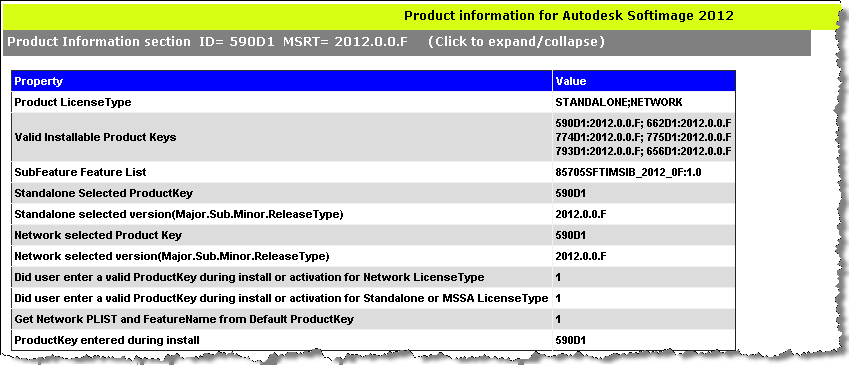
We have an internal PIT file viewer, which shows what product information is stored in a PIT file:

Standalone licenses, trusted storage, and the boot sector


Following up on my post the other day about resetting standalone licenses, here’s some more technical information I on dug up on standalone licenses. I did get some conflicting info from people, particularly about the boot sector.

One person told me that all standalone licenses were written to the boot sector, but a lot of the technical documentation I found said just that trial licenses went on the boot sector.

  • Standalone licenses are encrypted and stored in trusted storage. Trial licenses are standalone licenses that are located on the boot sector (track 0 of the hard drive).
  • Trusted Storage is an encrypted file created by FLEXnet when an application standalone license is activated or a trial license is created for the first time. By default, the trusted storage file is created in the following folder and will have a name similar to adskflex_00691b00_tsf.data.
  • Deleting the _tsf.data file file force system to re-create the trusted storage file.
  • The trial anchors can be removed from trusted storage by deleting the trusted storage file itself. The trial anchors can only be removed from the machine by reformatting the drive.

Resetting standalone license activations


Sometimes you may be forced to zap your standalone licenses so you can start over with a clean slate. For example, you might not be able to activate your new license because somehow the licenses were corrupted. Or maybe you had a blue-screen crash during installation and then you used a reg cleaner to further muddy the waters. Or maybe the software asks you for activation every time you start the product.

In those types of scenarios, as a last resort, you can reset your standalone licenses by zapping the adskflex_00691b00_tsf.data and adskflex_00691b00_tsf.data.backup files.

I suggest you rename the file or move it, rather than simply deleting it.
However, you will have to re-activate all standalone Autodesk products installed on the computer.

On Vista or Windows 7:

C:\ProgramData\FLEXnet\adskflex_00691b00_tsf.data
C:\ProgramData\FLEXnet\adskflex_00691b00_tsf.data.backup

On Windows XP:

C:\Documents and Settings\All Users\Application Data\FLEXnet\adskflex_00691b00_tsf.data
C:\Documents and Settings\All Users\Application Data\FLEXnet\adskflex_00691b00_tsf.data.backup

I include the _tsf.data.backup file because your Autodesk software will reuse that file if it cannot find the _tsf.data file. And if that backup file is corrupted too, well then…