Installing your new 2010 network license


To get your 2010 license, get your 2010 serial number and then go to http://registeronce.autodesk.com.

  1. Save your 2010 license file in C:\Program Files\Autodesk Network License Manager.
  2. Start LMTOOLS.
  3. On the Start/Stop/Reread tab, click Stop Server.
  4. On the Config Services tab, change the Path to license file to point to the 2010 license file.
  5. Click Save Service.
  6. On the Start/Stop/Reread tab, click Start Server.
  7. Now double-check that the 2010 license is installed. On the Server Status tab, click Perform Status Enquiry. Scroll down to the Feature usage info and look for 2010 features (84000SFTIM_2010_0F for Softimage 2010, 84100SFTIMASIB4_2010_0F for Softimage Advanced 2010)

Softimage 2010 licenses and previous versions


A network license for Softimage 2010 will allow you to run either 2010 or 7.5. To run 7.01 or 6.5, you still need to get an SPM license.

Here’s the license definition for a Softimage Advanced interactive license (the interactive license is the license that allows you to run an “interactive” session of XSI.exe). A Softimage Advanced license file will also contain similar PACKAGE and INCREMENT blocks for each of the 5 Batch licenses.

PACKAGE 78900SFTIMA_F adskflex 1.000 COMPONENTS="84100SFTIMA_2010_0F \
78800SFTIMA_7_5F
" OPTIONS=SUITE SUPERSEDE ISSUED=12-Aug-2009 \
SIGN="12B2 E17F D7D2 604D AF1E 76A4 688B 89CB 6DBD 5597 16B6 \
4116 E855 ABB0 D2F9 01AE EDB9 7B92 9BF8 D829 EF4D E6B7 0EBD \
F95A 7752 0C2F 95DB F9D9 0B9A 27CE" SIGN2="1276 FD9E A12B 86D7 \
B9E5 F193 9CB0 8528 21A6 101C 949F 4CAD 4666 0D72 6D9D 022F \
5EC7 5534 4E20 A90F B6CB D5D4 F4BF 5067 1E6A DCE5 77A2 5EF0 \
8F36 D066"
INCREMENT 78900SFTIMA_F adskflex 1.000 12-aug-2010 5 \
VENDOR_STRING=nfr:non-extendable SUPERSEDE DUP_GROUP=UH \
SUITE_DUP_GROUP=UHV ISSUED=12-Aug-2009 BORROW=4320 \
SN=123-12345678 SIGN="0D0A 0F72 76F6 9F14 54C3 AC05 86A4 5F12 \
F113 C64D 37B1 F513 A7EE 024E A81A 0C44 8B01 7A7C 08BB C3EE \
143A E9F6 BAD0 A736 B6AB 2A9F B258 3AFF 8C46 3758" SIGN2="1373 \
0191 3AE8 2D3C 68F4 DE7B 1536 7A16 D3EB 1AE1 8B4D 1F4B 2F6A \
7AA6 7017 0112 E9B6 67D7 3841 C05A 236B AA1F AE77 DA89 AD3D \
C208 9603 826B 7E0E 50D8"

Notice the highlighted components. Those are the actual licenses:

  • 84100SFTIMA_2010_0F is the Softimage 2010 license for XSI.exe
  • 78800SFTIMA_7_5F is the Softimage 7.5 license for XSI.exe

Unlimited xsibatch processing


As of Softimage 7.5, you get unlimited batch processing. Before, you got 8 Processing tokens with Advanced and 4 with Essentials.

Batch processing is where you run “xsibatch -processing -script”. Batch processing can includes things like exporting .mi2 files, exporting rib files, baking, committing, asset management, custom render management/submission, dynamics, … anything in a complex pipeline that requires automation and remote processing, but not rendering. (Ref: http://forums.cgsociety.org/showpost.php?p=4870718&postcount=10)

Getting Softimage 2010


For the 2010 release, you will get a 2010 serial number.

When Softimage 2010 is released, the download version will probably be available a couple of days before the physical shipments go out. So customers on Subscription can go to the Subscription Center to download 2010 and get their 2010 serial numbers.

When the physical shipments go out, you’ll get an e-mail notification that includes your 2010 serial number. The 2010 box will also include your serial number.

Getting your serial numbers from the Subscription Center


If you are on Subscription, you’ll be able to get your 2010 serial numbers from the Subscription Center.

  1. Log in to the Subscription Center.
  2. Click Contract Administration.
    Subscription Center main page

    Subscription Center main page

  3. On the Contract Administration page, click Coverage Report.
    Coverate Report

    Coverage Report

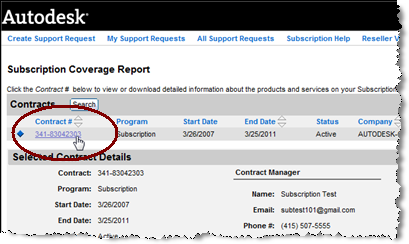
  4. On the Suscription Coverage Report page, click a Contract #.
    Subscription coverage report

    Subscription coverage report

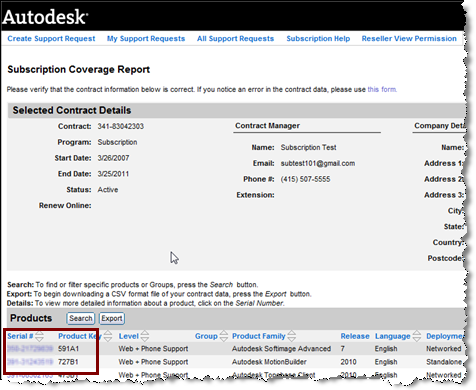
  5. Under the Products section of the Subscription Coverage Report, you’ll find your serial numbers.
    Serial numbers for a selected contract

    Serial numbers for a selected contract

Toxik 2009 standalone licenses on 64-bit Windows


Now that I’m part of Autodesk, all kinds of calls come through to my phone. For example, the other day I took a Toxik 2009 support call. The customer couldn’t get his license to work and I was the sixth person he had spoken to, so I helped him out.

The problem was that he was installing Toxik 2009 on 64-bit Windows:

  • Toxik 2009 standalone licensing does not work on 64-bit Windows. You need to contact your reseller or ABC and get a network license.
  • The LMTOOLS that ships with Toxik does not work on 64-bit Windows. Download the latest version of AdlM and use it instead.

Checking the status of remote license servers


One of the Maya support agents forwarded a case to me last Friday: installing the Softimage license server breaks the 3ds Max license server.

It turned out that the 3ds Max license server, which was on a physically separate computer, had gone down. The Softimage license server had nothing to do with it. It was just a coincidence (besides, installing a license server on machine A cannot break a license server running on machine B; the two license servers are completely separate).

Anyway, the 3ds Max license server was in a locked room, and the person with the key was on vacation. To check the status of the 3ds Max license server, we had to use the license manager installed on a another computer. The LMTOOLS GUI is kind of flakey, so it is better to use the command line.

To check whether the license server is up, you can run this command:

lmutil lmstat -c 27000@server
or
lmutil lmstat -c @server

To check the usage status of Softimage Advanced 7.5:

lmutil lmstat -c @server -f 78800SFTIMA_7_5F

To check the usage status of the Batch licenses:

lmutil lmstat -c @server -f 78800SFTIMASIB1_7_5F
lmutil lmstat -c @server -f 78800SFTIMASIB2_7_5F
lmutil lmstat -c @server -f 78800SFTIMASIB3_7_5F
lmutil lmstat -c @server -f 78800SFTIMASIB4_7_5F
lmutil lmstat -c @server -f 78800SFTIMASIB5_7_5F

Notes

  • The -c flag allows you to specify a “license file”, which for FLEXnet licensing is usually really port@host.
  • To check the status of a remote license server using the local LMTOOLS, I had to set the environment variable ADSKFLEX_LICENSE_FILE to point to the remote server before I started LMTOOLS.exe.
  • The Autodesk KB also suggests another way to use LMTOOLS to check the remote license server.

Virtual servers and the Autodesk network license manager


The Autodesk Network License Manager is not tested on virtual servers, and so virtual servers are not officially supported.

However, I know some customers are running their license servers on virtual servers. I believe that they hard code the MAC address of the virtual NIC to match the MAC address in the license file. That way the existing license file will work on the virtual server.

hat tip: TravisNave