Scripting – Getting reference model Resolutions


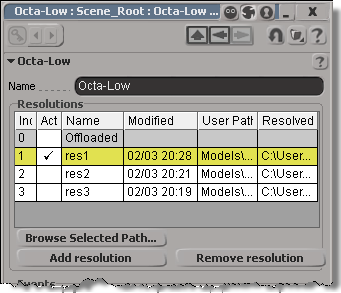
You can get at the Resolutions through scripting (via NestedObjects or Dictionary.GetObject), but you can get the resolution name and file only.

from siutils import si		# Application
from siutils import sidict	# Dictionary
from siutils import sisel	# Selection
from siutils import log		# LogMessage

def getResolutionFileName( m, res ):
	if ( m.Type == "#model" and m.Parameters("referenced_model").Value==True):
		return sidict.GetObject( m.FullName + ".resolutions." + res + ".file" ).Value
		
log( getResolutionFileName( sisel(0), 'res1' ) )
log( getResolutionFileName( sisel(0), 'res2' ) )
log( getResolutionFileName( sisel(0), 'res3' ) )
		
# INFO : Models\Octa-Low.emdl
# INFO : Models\Octa-Med.emdl
# INFO : Models\Octa-High.emdl

Going through NestedObjects is a bit more of a hassle:

from siutils import si		# Application
from siutils import sidict	# Dictionary
from siutils import sisel	# Selection
from siutils import log		# LogMessage

import win32com.client.dynamic

def getResolutions( m ):
	if ( m.Type == "#model" and m.Parameters("referenced_model").Value==True):
		return m.NestedObjects( "Resolutions" ).NestedObjects

resolutions = getResolutions( sisel(0) )

for r in resolutions:
	name = sidict.GetObject( r.FullName + ".name" ).Value
	file = sidict.GetObject( r.FullName + ".file" ).Value
	log( name )
	log( file )

	# This errors out with the dynamic dispatch fix:
	name = r.NestedObjects( "name" )
	log( si.ClassName( name ) )
	log( win32com.client.dynamic.Dispatch(name).Value )

Filtering object selection by volume


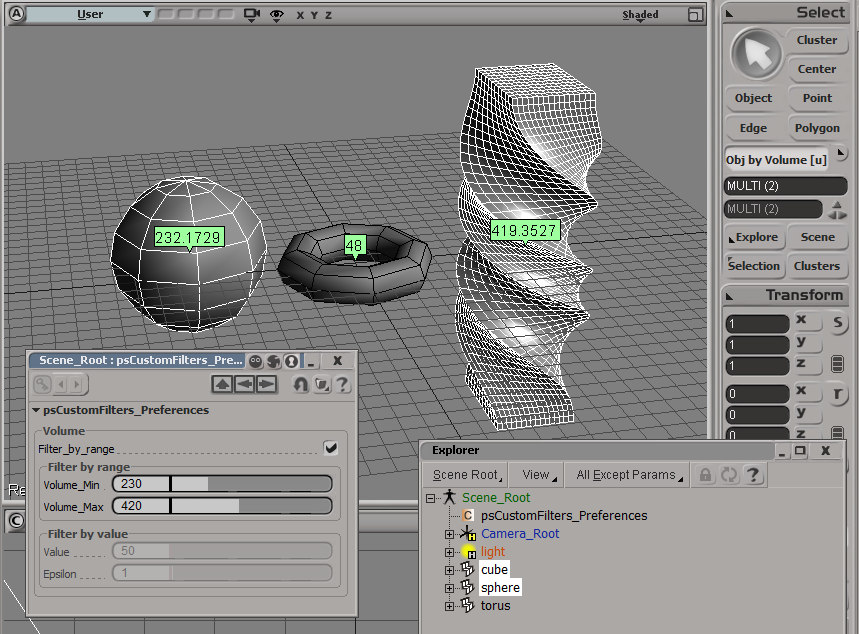
Here’s an addon that uses the ICE Volume attribute to filter object selections. The Volume attribute is always defined (so you don’t need to Show Values or anything for this filter to work).

Note that you have to freeze scaling to get the right volume for an object.

For simplicity, I’m using a custom property (on the scene root) to hold the preferences for the filter.

The filter itself is simple. It just gets the Volume attribute value and compares it to the range of values specified in the PPG.

# Match callback for the psCustomFilters custom filter.
def ObjbyVolume_Match( in_ctxt ):
	Application.LogMessage("ObjbyVolume_Match called",constants.siVerbose)

	in_object = in_ctxt.GetAttribute( "Input" );

	obj = Get3DObject( in_object );
	if ( Application.ClassName(obj) != "X3DObject" ):
		return false;
	
	v = obj.ActivePrimitive.ICEAttributes("Volume").DataArray[0]

	filterProp = GetFilterProp( )
	if filterProp.Filter_by_range.Value == True:
		bMatch = filterProp.Volume_Min.Value <= v <= filterProp.Volume_Max.Value
	else: # Filter by value with an epsilon
		min = filterProp.Value.Value - filterProp.Epsilon.Value
		max = filterProp.Value.Value + filterProp.Epsilon.Value
		bMatch = min <= v <= max
		
	return bMatch

Scripting – Applying an ICE compound to multiple objects


UPDATE: Script updated to work in 2013

Here’s a script for applying an ICE compound to many objects in one go.

The script pops up a browser where you select a compound, and then the selected compound is applied to all selected objects (or, if a group is selected, to all members of the group.

I posted something similar before, but that was part of an add-on that adds new menu commands for applying ICE operators.


from siutils import si		# Application
if Application.Version().split('.')[0]>= "11":
	    si = si()                   # win32com.client.Dispatch('XSI.Application')

from siutils import log		# LogMessage
from siutils import C		# win32com.client.constants
from siutils import disp	# win32com.client.Dispatch

siut = disp('XSI.Utils')
sifact = disp('XSI.Factory')
siuitk = disp('XSI.UIToolkit')
sisel = si.Selection


#
# Pop up a browser to select a compound
#
def getCompound():
	initialDir = siut.BuildPath( si.InstallationPath( C.siUserPath ), "Data", "Compounds" )

	oFileBrowser = siuitk.FileBrowser
	oFileBrowser.DialogTitle = "Select compound to apply"
	oFileBrowser.InitialDirectory = initialDir
	oFileBrowser.Filter = "All Files (*.*)|*.*||"
	oFileBrowser.ShowOpen()

	return oFileBrowser.FilePathName

#
# Apply op to 
# - the selected objects
# OR
# - the members of a selected group
#
def getTargetObjects():
	objects = disp( "XSI.Collection" )

	if sisel.Count == 0:
		log( "Please select either some objects or a group" )
	elif sisel(0).IsClassOf( C.siGroupID ):
		objects = sisel(0).Members
	else:
		objects = sisel

	return objects

#
# Do it...
#
objects = getTargetObjects()	
sCompound = getCompound()

if sCompound != "" and objects.Count > 0:
	for o in objects:
		si.ApplyICEOp( sCompound, o.FullName )

Beware of ICE optimizations


It seemed like such a nice, simple way to filter polygons:

  • Use ICE to check the polygon area and then set a boolean attribute.
  • Write a custom subcomponent filter to filter based on that ICE attribute.

With ICE, it’s pretty easy to check if the PolygonArea is within a certain range:

But, beware of ICE optimizations!

Because that ICE attribute isn’t used anywhere else in the scene, ICE doesn’t evaluate that tree, so my boolean attribute is never defined, and my custom filter therefore fails. I have to do something like Show Values to force evaluation:

Note: In Show Values, I used Show Values for Tagged Components Only to cut down the visual clutter.

FWIW, here’s a Python example of a custom subcomponent filter:

# psCustomFilter Plug-in
# Initial code generated by Softimage SDK Wizard
# Executed Wed Nov 23 11:31:56 EST 2011 by blairs
# 
# Tip: To add a command to this plug-in, right-click in the 
# script editor and choose Tools > Add Command.
import win32com.client
from win32com.client import constants

from siutils import si		# Application
from siutils import sidesk	# Desktop
from siutils import sidict	# Dictionary
from siutils import sifact	# XSIFactory
from siutils import simath	# XSIMath
from siutils import siproj	# ActiveProject2
from siutils import sisel	# Selection
from siutils import siuitk	# XSIUIToolkit
from siutils import siut	# XSIUtils
from siutils import log		# LogMessage
from siutils import disp	# win32com.client.Dispatch
from siutils import C		# win32com.client.constants


null = None
false = 0
true = 1

def XSILoadPlugin( in_reg ):
	in_reg.Author = "blairs"
	in_reg.Name = "psCustomFilter Plug-in"
	in_reg.Major = 1
	in_reg.Minor = 0

	in_reg.RegisterFilter("psCustomFilter",constants.siFilterSubComponentPolygon)
	#RegistrationInsertionPoint - do not remove this line

	return true

def XSIUnloadPlugin( in_reg ):
	strPluginName = in_reg.Name
	Application.LogMessage(str(strPluginName) + str(" has been unloaded."),constants.siVerbose)
	return true

# Match callback for the psCustomFilter custom filter.
def psCustomFilter_Match( in_ctxt ):
	Application.LogMessage("psCustomFilter_Match called",constants.siVerbose)

# 	Return value indicates if the input object matches the filter criterias.
	return true

# Subset callback for the psCustomFilter custom filter.
def psCustomFilter_Subset( in_ctxt ):
	log("psCustomFilter_Subset called",constants.siVerbose)

	out_coll = disp( "XSI.Collection" )
	
	in_coll = in_ctxt.GetAttribute( "Input" )
	for item in in_coll:
		log( item )
		polys = []
		for p in item.SubComponent.ComponentCollection:
			log( p.Index )

			attr = p.Parent.ICEAttributes("psCustomPolyFilter")
			if not attr.IsDefined:
				log( "Cannot apply filter. psCustomPolyFilter attribute is not defined" )
			if attr.IsDefined and attr.DataArray[ p.Index ] == -1:
				#log( "%d : %s" % ( p.Index, attr.DataArray[ p.Index ] ) )
				polys.append( p.Index )

		if len(polys) > 0:
			out_coll.Add( item.SubComponent.Parent3DObject.ActivePrimitive.Geometry.CreateSubComponent(C.siPolygonCluster, polys ) )


	in_ctxt.SetAttribute( "Output", out_coll )

# 	Return value indicates if a subset of the input objects matches the filter criterias.
	return true

Scripting – Importing models without popping up PPGs


The ImportModel command pops up a PPG when it imports a model.

Since there is no OM equivalent of ImportModel, if you don’t want the pop-up PPG, you have to either turn off autoinspect in your script, or use the undocumented SIImportModel command. (SOme commands have a “SI” equivalent that doesn’t require any UI interaction or pop up any PPGs.)

If you want more info on SIImportModel (like what are the arguments), run this Python in the script editor:

Application.EditCommand("SIImportMOdel")

Here’s a way to turn off autoinspect using a Python decorator:

def no_autoinspect(func):
	def wrapper(*arg):
		Application.Preferences.SetPreferenceValue("Interaction.autoinspect", False)
		res = func(*arg)
		return res
	return wrapper


@no_autoinspect
def importmodels():
	Application.ImportModel("C:\\Users\\blairs\\Documents\\MyProject\\Models\\dodecahedron.emdl", "", "", "", "", "", "")

importmodels()

More about decorators:
https://xsisupport.wordpress.com/2011/01/27/python-decorators/
http://www.xsiblog.com/archives/357

Using the PolygonArea ICE attribute to select similar polygons


After seeing this select similar post on xsibase, I wrote this Python example that uses the PolygonArea ICE attribute to find polygons with similar areas. I didn’t want to use a custom preference or any ppg, so this script looks for [more-or-less] equal areas rather than for a value range. It’d probably be more useful to look for areas within a certain range (but that would require user input).

To use this script, select a polygon and then run the script. It’ll select all polygons with the “same” area.

This ss_SelectSimilarPolys add-on uses a threshold to define an area range (and it uses PolygonArea too). RCTools also lets you specify an area range, along with a number of other things like number of edges and poly orientation, in its custom Polygon selection filter.

from siutils import si		# Application
from siutils import sidict	# Dictionary
from siutils import sisel	# Selection
from siutils import log		# LogMessage
from siutils import C		# win32com.client.constants

# Number of decimal places
# For example, do I match .776 or .78 ?
# With 2 decimal places, anything in the range (7.75, 7.85) will be caught by .78
gPrecision = 2

# Need this for .Polygons later...
def dispFix( badDispatch ):
	import win32com.client.dynamic
	# Re-Wraps a bad dispatch into a working one:
	return win32com.client.dynamic.Dispatch(badDispatch)


# Get selected polygons
polys = sisel(0).SubComponent.ComponentCollection

# Get index of first selected polygon
ix = polys(0).Index

# Get primitive of parent 3D object
prim = sisel(0).SubComponent.Parent3DObject.ActivePrimitive
prim = dispFix(prim)

# Get PolygonArea DataArray (which is a tuple)
attr = prim.GetICEAttributeFromName( "PolygonArea" )
areaData = attr.DataArray

# Round PolygonArea to the specified precision
roundedAreas = [round(x,gPrecision) for x in areaData]

# Get the area that you want to match
areaToMatch = roundedAreas[ ix ]

# Get all polys with a similar PolygonArea and select them
#
# Function findall from http://effbot.org/zone/python-list.htm
def findall(L, value, start=0):
        # generator version
        i = start - 1
        try:
			while 1:
				i = L.index(value, i+1)
				yield i
        except ValueError:
            pass
			
for ix in findall(roundedAreas, areaToMatch ):
	sisel.Add( prim.Geometry.Polygons( ix ) )

Checking .xsicompounds for no category and no tasks


As I posted yesterday, an ICE compound with no category and no task will not show up in the Preset Manager. Here’s a Python script that checks .xsicompound files and reports any that are missing both the category and tasks attributes.

I use ElementTree to parse the .xsicompound XML, and get the category and tasks attributes from the xsi_file element, which looks something like this:

<xsi_file type="CompoundNode" name="abScatter" author="Andreas Bystrom" url="http://www.wurp.net" formatversion="1.4" compoundversion="1.0" constructionmode="Modeling" backgroundcolor="7765887">

Here’s the script.

from siutils import si		# Application
from siutils import sidict	# Dictionary
from siutils import sisel	# Selection
from siutils import siuitk	# XSIUIToolkit
from siutils import siut	# XSIUtils
from siutils import log		# LogMessage
from siutils import disp	# win32com.client.Dispatch
from siutils import C		# win32com.client.constants

from xml.etree import ElementTree as ET
import os, fnmatch


#
# Generator function for finding files
#
def find_files(directory, pattern):
     for root, dirs, files in os.walk(directory):
         for basename in files:
             if fnmatch.fnmatch(basename, pattern):
                 filename = os.path.join(root, basename)
                 yield filename


#
# Check .xsicompound file for category and tasks attributes
#
def check_xsicompound( f ):
	try:
		tree = ET.parse( f )
	except Exception, inst:
		print "Unexpected error opening %s: %s" % (f, inst)

	# Get the xsi_file element
	xsi_file = tree.getroot()

#	name = xsi_file.attrib['name']

	# Check the category and task elements
	cat = False
	tasks = False 

	if 'category' in xsi_file.attrib and xsi_file.attrib['category'] != '':
		cat = True
		
	if 'tasks' in xsi_file.attrib and xsi_file.attrib['tasks'] != '':
		tasks = True

	# return False if both are blank
	return cat or tasks


#
#
#

# list of compounds with no category and no tasks
compounds = []

# check all compounds in all workgroups
for wg in si.Workgroups:
	d = siut.BuildPath( wg, "Data", "Compounds" );

	for filename in find_files(d, '*.xsicompound'):
		b = check_xsicompound( filename )
		if not b:
			compounds.append( filename )

log( "%d compounds found with no category and no tasks:" % (len(compounds)) )
for f in compounds:
	log( f )

Finding where an operator reads from the construction history


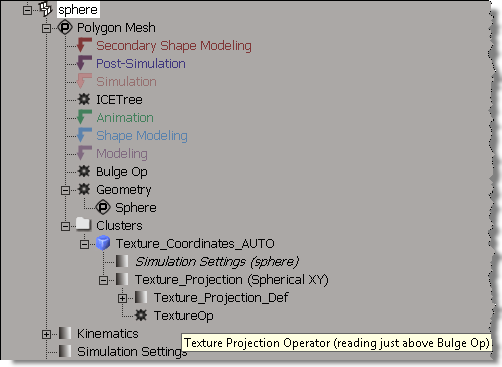
For example, suppose you want to know exactly where a TextureOp is located in the construction history (aka the operator stack).

A TextureOp object is nested under a cluster, not under the primitive, so you can’t use Primitive.ConstructionHistory.

Try it, and you’ll see that the TextureOp does not show up.

from siutils import sisel	# Selection
from siutils import log		# LogMessage

for x in sisel(0).ActivePrimitive.ConstructionHistory:
	if x.BelongsTo( "MarkerOperators" ):
		sMarker = x.type

	log( "%s -> %s" %(sMarker,x.name) )

Instead, you’ll have to use DataRepository.GetConnectionStackInfo, which returns an XML description of the operator stack. The XML looks something like this (note that I had to use <_object> to stop wordpress from removing the <object> tag in my XML):

<?xml version="1.0"?>
<connections>
 	<connection>
 		<datacopy>0x000000001D7B7330</datacopy>
 		<hidden>false</hidden>
 		<_object>sphere.polymsh.modelingmarker</_object>
 		<objectid>533</objectid>
 		<region>2</region>
 		<type>out</type>
 	</connection>
 	<connection>
 		<datacopy>0x000000001F4C9F40</datacopy>
 		<hidden>false</hidden>
 		<_object>sphere.polymsh.cls.sample.clslist.Texture_Coordinates_AUTO.localprops.ClsProp.Texture_Projection.TextureOp</_object>
 		<objectid>571</objectid>
 		<region>2</region>
 		<type>out</type>
 	</connection>
 	<connection>
 		<datacopy>0x000000001C215310</datacopy>
 		<hidden>false</hidden>
 		<_object>sphere.polymsh.bulgeop</_object>
 		<objectid>532</objectid>
 		<region>2</region>
 		<type>in</type>
 	</connection>
</connections>

Here’s a Python snippet that uses ElementTree to parse the connectionstack XML and then log the TextureOp tooltip that says where the op reads from the stack:

from siutils import si		# Application
from siutils import sidict	# Dictionary
from siutils import sisel	# Selection
from siutils import siuitk	# XSIUIToolkit
from siutils import siut	# XSIUtils
from siutils import log		# LogMessage
from siutils import disp	# win32com.client.Dispatch
from siutils import C		# win32com.client.constants

from xml.etree import ElementTree as ET

prim = sisel(0).ActivePrimitive if si.ClassName(sisel(0)) ==  'X3DObject' else sisel(0)


stackInfo = siut.DataRepository.GetConnectionStackInfo( prim )
#log( stackInfo )
connections = ET.XML(stackInfo)
currentMarker =''

#
# Read XML into a list of tuples that looks like this:
# ('sphere.polymsh.secondaryshapemarker', 'sphere.polymsh.secondaryshapemarker')
# ('sphere.polymsh.postsimulationmarker', 'sphere.polymsh.postsimulationmarker')
# ('sphere.polymsh.simulationmarker', 'sphere.polymsh.simulationmarker')
# ('sphere.polymsh.ICETree', 'sphere.polymsh.simulationmarker')
# ('sphere.polymsh.animationmarker', 'sphere.polymsh.animationmarker')
# ('sphere.polymsh.shapemarker', 'sphere.polymsh.shapemarker')
# ('sphere.polymsh.modelingmarker', 'sphere.polymsh.modelingmarker')
# ('sphere.polymsh.cls.sample.clslist.Texture_Coordinates_AUTO.localprops.ClsProp.Texture_Projection.TextureOp', 'sphere.polymsh.modelingmarker')
# ('sphere.polymsh.geom', 'sphere.polymsh.modelingmarker')
#
currentMarker = '%s.%s' %(prim.FullName, 'above-secondaryshapemarker')
ops = []
for connection in connections:
		o = connection.find('object').text
		bHidden = connection.find('hidden').text == 'true'
		
		if o == currentMarker or bHidden:
			continue
	
		if o.endswith('marker'):
			currentMarker = o

		ops.append( (o, currentMarker ) )
	
	
#
# Go through list of tuples and find 
# where TextureOp reads
#
for i in range( len(ops) ):
	oOp = sidict.GetObject( ops[i][0] )
	if oOp.type == 'TextureOp':
		print oOp.Name
		if i == len(ops):
			sRead = "(reading from bottom of primitive stack)"
		else:
			sRead = '(reading just above %s)' %(sidict.GetObject( ops[i+1][0] ).Name)
			
		print '%s %s' %(oOp.Name,sRead)
		# TextureOp (reading just above Bulge Op)

Adding your ICE operators to menus


The User Tools menu in an ICE Tree view has an Add Operator to Menu command that adds your compounds to menus, so you can apply them to the selected object. “Add Operators to Menu” is implemented in VBScript in %XSI_HOME%\Addons\ICEUserTools\Application\Plugins\ICEUserTools.vbs.

Unfortunately, this command wasn’t updated after 2011 Advantage Pack, so it doesn’t know about the new ICE toolbar and menu structure.

So, here’s a Python version that adds ICE operators to either the Particles > Create or Deform > Create menus in the ICE toolbar. When you apply the operators, they will be applied to all selected objects.

http://dl.dropbox.com/u/12898205/AddICEOperatorsToMenus.xsiaddon

The addon adds a “PSS Add Operators to Menu” command to the User Tools menu of the ICE Tree view, so it does add a bit of clutter (since I cannot programmatically remove the original Add Operators to Menu command).

To add operators to menus:

  1. Export your compound.
  2. In the ICE Tree view, click User Tools > PSS Add Operator to Menu.
  3. Type the name of the xsicompound file (without the .xsicompound extension).
  4. The next time you open the menu, it will be dynamically updated to include a command that applies your operator (with ApplyICEOp) to all selected objects.

See below the fold for the plugin code.
Continue reading