The case of Error 2000 Failed creating scripting engine XSI.SIPython.1


The guy sitting next to me kept getting this Python error at startup (which meant I had to either fix his install or continue taking all the CrowdFX cases 😉

' ERROR : 2000 - Failed creating scripting engine: XSI.SIPython.1.
' pythoncom error: PythonCOM Server - The 'win32com.server.policy' module could not be loaded.
' <type 'exceptions.ImportError'>: No module named win32com.server.policy
' pythoncom error: CPyFactory::CreateInstance failed to create instance. (80004005)

This happened only with the Python installed with Softimage. We did runonce.bat. We checked that Python was in the PATH. I scoured a Process Monitor log for several hours. But no luck. After a few days off, I came back and took another look at his Process Monitor log, and I noticed that at a certain point, Softimage switched over to reading files from the system Python install (in C:\Python26). And that was the clue.

It turns out that the environment variable PYTHONHOME was set to C:\Python26. Unsetting that environment variable was the solution.

Setting PYTHONPATH to C:\Python26 also causes the same error.

Getting a list of all shaders in a render tree


Here’s a Python snippet that gets all the shaders in the render tree for a specific material. As usual, I always feel that my Python snippet could be made more pythonic; for now, this will have to do…

PS The Shader reference page has a VBScript example, but that doesn’t work anymore because it was written before ShaderParameters were introduced.

from sipyutils import si		# win32com.client.Dispatch('XSI.Application')
si=si()

import win32com.client
coll = win32com.client.Dispatch( "XSI.Collection" )

def doit( s, coll ):

	for p in s.Parameters:
		if p.Source and p.Source.IsClassOf( C.siShaderParameterID ):
			print p.Source.Parent.Name
			coll.Add( p.Source.Parent )
			doit( p.Source.Parent, coll )
	
	for l in s.TextureLayers:
		for y in l.Parameters:
			if y.Source and y.Source.IsClassOf( C.siShaderParameterID ):
				print y.Source.Parent.Name
				coll.Add( y.Source.Parent )
				doit( y.Source.Parent, coll )

# Get a material or shader to use as a starting point
mat = si.Dictionary.GetObject("Sources.Materials.DefaultLib.Architectural")
doit( mat, coll )

coll.Unique = True
coll.Add( mat.AllImageClips.GetAsText() )

This snippet worked for this [nonsensical test] render tree:

Keyboard shortcuts for adding nodes to ICE trees


A customer recently asked me how to write a command that adds a node to an ICE tree. His ultimate goal was to assign a keyboard shortcut to the command, so that he could quickly insert commonly-used nodes.

Unlike menus, which can easily get the current ICE tree view, commands have to do a bit more work. A command has to find the ICE tree view in the active desktop layout (and there’s no way the command can figure which view is the “active” view).

So, here’s a Python snippet that finds an ICE Tree view and adds a Get Data node. If you make this into a command, then you can assign a shortcut key to it. I look first for a docked ICE Tree view, and if I don’t find that, I look for a floating view.

si = Application
views = si.Desktop.ActiveLayout.Views

# Find docked ICE Tree views
oICETreeViews = views.Filter( "View Manager" )(0).Views.Filter( "ICE Tree" )

# If no docked ICE Tree view, then look for floating
if oICETreeViews.Count == 0:
    oICETreeViews = views.Filter( "ICE Tree" )

if oICETreeViews.Count > 0:
    # Get the ICE tree that is loaded into the view
    sICETree = oICETreeViews(0).GetAttributeValue( "container" )

    si.AddICENode("$XSI_DSPRESETS\\ICENodes\\GetDataNode.Preset", sICETree )

Python – Getting the Softimage version numbers from the registry


This Python snippet will get the version numbers for the different versions of Softimage installed on the local system.

#http://docs.python.org/library/_winreg.html
from _winreg import *
t = OpenKey(HKEY_LOCAL_MACHINE, r"SOFTWARE\Softimage\CoExistence", 0, KEY_READ )

try:
    count = 0
    while 1:
		name = EnumKey(t, count)
		sKey = "SOFTWARE\Softimage\CoExistence\%s" % name
		t1 = OpenKey( t, name, 0, KEY_READ )
		value = QueryValueEx(t1, "AppVersion" )
		Application.LogMessage( "%s: %s" % (name.rsplit('|',3)[1], value[0]) )
		count = count + 1
except WindowsError:
    pass

On my machine, the script output looks like this:

# INFO : Softimage 2011 SP1: 9.1.91.0
# INFO : Softimage 2011 SP2: 9.2.102.0
# INFO : Softimage 2011 Subscription Advantage Pack SP1: 9.6.194.0
# INFO : Softimage 2011: 9.0.243.0
# INFO : Softimage 2012.SAP: 10.5.98.0
# INFO : Softimage 2012: 10.0.422.0
# INFO : Softimage 2013 SP1: 11.1.1.0
# INFO : Softimage 2013: 11.0.525.0
# INFO : Softimage_2010_SP1_x64: 8.0.249.0
# INFO : Softimage_2010_x64: 8.0.201.0
# INFO : Softimage_7.5_x64: 7.5.191.0
# INFO : XSI_7.01_x64: 7.01.698.0

Getting actor data from CrowdFX


Update: oops, it looks like my script below works only in simple cases where you just one actor proxy. The ActorID seems to be a constant (perhaps unused???) and it looks like you have to take the point ID and then look up the corresponding entry in the CrowdFX_Actor_Indices array.

If you need to get info like the actor ID, the X and Z positions, and the animation frame from CrowdFX, you can get it from the Simulation Cloud.
In the screenshot below, I used three Attribute Display properties to display the following:

  • Actor ID (I have only one actor)
  • PointPosition
  • CrowdFX_Actor_CurrentFrameInCycle (an array for each action aka pose on the actor)
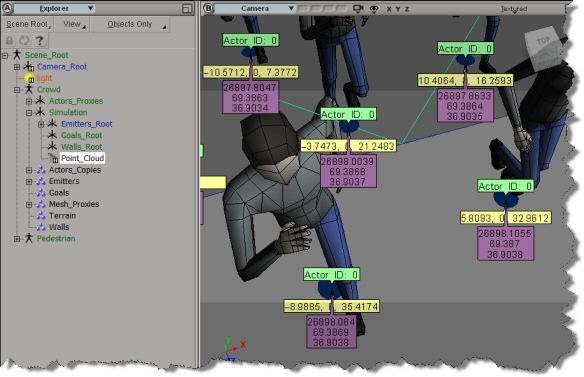
Here’s a little Python snippet that logs a comma-separated string that contains the Actor ID, X, and Z positions, PoseID, and CurrentFrameInPose.

Note the use of the logf function from the sipyutils.

#
# SOFTIMAGE 2013
#
from sipyutils import si			# win32com.client.Dispatch('XSI.Application')
from sipyutils import siut		# win32com.client.Dispatch('XSI.Utils')
from sipyutils import siui		# win32com.client.Dispatch('XSI.UIToolkit')
from sipyutils import simath	# win32com.client.Dispatch('XSI.Math')
from sipyutils import log		# LogMessage
from sipyutils import disp		# win32com.client.Dispatch
from sipyutils import C			# win32com.client.constants

from sipyutils import logf

si = si()

pc = si.Dictionary.GetObject( "Crowd.Point_Cloud" ).ActivePrimitive
aPtPos = pc.ICEAttributes("PointPosition")
log( len(aPtPos.DataArray) )

pos = pc.ICEAttributes("PointPosition").DataArray
ids = pc.ICEAttributes("CrowdFX_Actor_ID").DataArray
poses = pc.ICEAttributes("CrowdFX_PoseState_ID").DataArray
frames = pc.ICEAttributes("CrowdFX_Actor_CurrentFrameInCycle").DataArray2D

# ID, X, Y, Z, PoseState, CurrentFrameInCycle
for i in range( len(pos) ):
	logf( "%d, %f, %f, %d, %d", ids[i], pos[i].X, pos[i].Z, poses[i], frames[i][poses[i]] )

The output of this script for frame 126 of the CrowdFX_FooFighters sample scene looks like this:

# INFO : 0, -100.000000, 0.000000, 8.531111, 2, 154
# INFO : 0, -85.714279, 0.000000, 6.684280, 1, 111
# INFO : 0, -71.428574, 0.000000, 7.442898, 2, 131
# INFO : 0, -57.142853, 0.000000, -2.251395, 2, 132
# INFO : 0, -42.857143, 0.000000, 11.363565, 2, 97
# INFO : 0, -28.571426, 0.000000, 7.302890, 2, 149
# INFO : 0, -14.285706, 0.000000, 13.759472, 5, 217
# INFO : 0, 0.000000, 0.000000, 11.584186, 5, 186
# INFO : 0, 14.285721, 0.000000, 9.853815, 3, 167
# INFO : 0, 28.571442, 0.000000, 8.366404, 2, 141
# INFO : 0, 42.857147, 0.000000, 21.238329, 5, 163
# INFO : 0, 57.142868, 0.000000, 6.831881, 5, 222
# INFO : 0, 71.428589, 0.000000, -2.667232, 2, 201
# INFO : 0, 85.714294, 0.000000, 16.321472, 3, 236
# INFO : 0, 100.000000, 0.000000, 10.077105, 2, 93
# INFO : 0, -100.000000, 0.000000, -10.505310, 2, 154
# INFO : 0, -85.714279, 0.000000, -17.066412, 1, 83
# INFO : 0, -71.428574, 0.000000, -11.711117, 5, 152
# INFO : 0, -57.142853, 0.000000, -22.719725, 2, 142
# INFO : 0, -42.857143, 0.000000, -7.311695, 5, 127
# INFO : 0, -28.571426, 0.000000, -11.755372, 2, 151
# INFO : 0, -14.285706, 0.000000, -3.648053, 5, 191
# INFO : 0, 0.000000, 0.000000, -6.797891, 5, 177
# INFO : 0, 14.285721, 0.000000, -8.881895, 5, 101
# INFO : 0, 28.571442, 0.000000, -10.384384, 5, 158
# INFO : 0, 42.857147, 0.000000, 4.351840, 5, 166
# INFO : 0, 57.142868, 0.000000, -11.661755, 2, 178
# INFO : 0, 71.428589, 0.000000, -22.718691, 2, 171
# INFO : 0, 85.714294, 0.000000, -1.260182, 5, 127
# INFO : 0, 100.000000, 0.000000, -8.947992, 5, 123

The Foo Fighter pose state IDs are set here (there are actually eight Action Sources in the ActorProxy property, but not all of them are used).
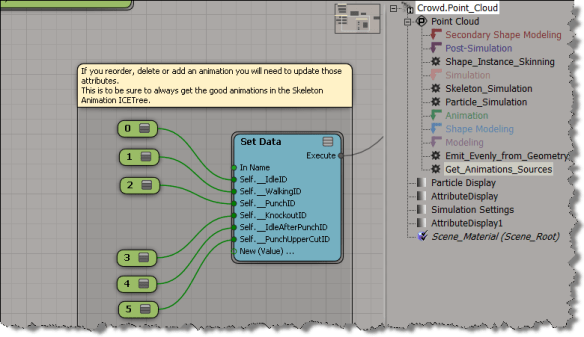
BTW, is it just me, or do the Attribute Display properties not work with the sample CrowdFX scenes? I was using the Foo Fighters sample at first, but I wasn’t able to show any attribute values, which made it a little harder to figure out what info was where.

Yet another change to the Python shortcuts


To fix it so that the 2012 Python shortcuts would work in 2013 SP1, we did an Undo on the changes to the siutils module. So now, scripts that use the 2012 siutils shortcuts will work unchanged in 2013 SP1.

We moved all the changes [which included some bug fixes] to a new module named sipyutils. When you use the Syntax Help in the 2013 SP1 script editor, you’ll get these shortcuts:

#
# Softimage 2013 SP1 shortcuts
#
from sipyutils import si		# win32com.client.Dispatch('XSI.Application')
from sipyutils import siut		# win32com.client.Dispatch('XSI.Utils')
from sipyutils import siui		# win32com.client.Dispatch('XSI.UIToolkit')
from sipyutils import simath	# win32com.client.Dispatch('XSI.Math')
from sipyutils import log		# LogMessage
from sipyutils import disp		# win32com.client.Dispatch
from sipyutils import C			# win32com.client.constants
from sipyutils import logf

si = si()
logf( "Version %s has %d commands", si.Version(), si.Commands.Count )

Note that you get an si shortcut that is a function, so you have to call it to get the actual XSIApplication object.

In summary:

  • 2012 shortcuts work unchanged in 2013 SP1
  • 2013 shortcuts won’t work in 2013 SP1. This line will give you an error:

    si = si()					# win32com.client.Dispatch('XSI.Application')
    

    You have to either comment that line out, or edit siutils and uncomment the definition of si(). Or just switch to using the new sipyutils shortcuts.

  • 2013 SP1 shortcuts come from the new sipyutils module. The si shortcut is a function, call the function and bind the result to an identifier eg si = si().

For reference, here’s the shortcuts from previous versions:

#
# 2013 shortcuts
#
from siutils import si
si = si()					# win32com.client.Dispatch('XSI.Application')
from siutils import log		# LogMessage
from siutils import disp	# win32com.client.Dispatch
from siutils import C		# win32com.client.constants
#
# 2012 shortcuts
#
from siutils import si		# Application
from siutils import sidesk	# Desktop
from siutils import sidict	# Dictionary
from siutils import sifact	# XSIFactory
from siutils import simath	# XSIMath
from siutils import siproj	# ActiveProject2
from siutils import sisel	# Selection
from siutils import siuitk	# XSIUIToolkit
from siutils import siut	# XSIUtils
from siutils import log		# LogMessage
from siutils import disp	# win32com.client.Dispatch
from siutils import C		# win32com.client.constants

Selecting the object master for a clone


Here’s a little addon that adds a Select Clone Object Master command to the viewport context menu for 3d objects.


The addon is a single self-installed plugin that includes a command, a menu, and a filter:

  • The menu item calls the command.
  • The filter controls whether or not the menu item is enabled…so that the Select Clone Object Master command is enabled only when you ALT+right click a clone.
# SelectCloneMasterObjectPlugin
# Initial code generated by Softimage SDK Wizard
# Executed Thu Jun 7 10:55:31 EDT 2012 by blairs
# 
# Tip: To add a command to this plug-in, right-click in the 
# script editor and choose Tools > Add Command.
import win32com.client
from win32com.client import constants

null = None
false = 0
true = 1

def XSILoadPlugin( in_reg ):
	in_reg.Author = "blairs"
	in_reg.Name = "SelectCloneMasterObjectPlugin"
	in_reg.Major = 1
	in_reg.Minor = 0

	in_reg.RegisterCommand("SelectCloneMasterObject","SelectCloneMasterObject")
	in_reg.RegisterFilter("Clone",constants.siFilter3DObject)
	in_reg.RegisterMenu(constants.siMenu3DViewObjectSelectContextID,"SelectCloneMasterObject_Menu",false,false)
	#RegistrationInsertionPoint - do not remove this line

	return true

def XSIUnloadPlugin( in_reg ):
	strPluginName = in_reg.Name
	Application.LogMessage(str(strPluginName) + str(" has been unloaded."),constants.siVerbose)
	return true


# Match callback for the CloneFilter custom filter.
def Clone_Match( in_ctxt ):
	Application.LogMessage("Clone_Match called",constants.siVerbose)
	o = in_ctxt.GetAttribute( "Input" )
	c = win32com.client.Dispatch( "XSI.Collection" )
	c.Items = '%s.%s' % (o.ActivePrimitive.FullName, 'CopyOp')
	return c.Count > 0
# 	Return value indicates if the input object matches the filter criterias.


def SelectCloneMasterObject_Init( in_ctxt ):
	oCmd = in_ctxt.Source
	oCmd.Description = ""
	oCmd.ReturnValue = true

	oArgs = oCmd.Arguments
#	oArgs.AddWithHandler("Arg0","Collection")
	oArgs.AddWithHandler("Arg1","SingleObj")
	return true

def SelectCloneMasterObject_Execute( Arg1 ):

	Application.LogMessage("SelectCloneMasterObject_Execute called",constants.siVerbose)
	Application.Selection.Clear()

# by Vladimir Jankijevic
# https://groups.google.com/forum/?fromgroups#!searchin/xsi_list/Finding$20the$20source$20mesh$20of$20a$20clone/xsi_list/cyUYARDMooA/J3JVxc6jJtIJ
	copyop = Arg1.ActivePrimitive.ConstructionHistory[0]
	Application.Selection.Add(copyop.InputPorts[0].Target2.Parent3DObject)

	# 
	# TODO: Put your command implementation here.
	# 
	return true

def SelectCloneMasterObject_Menu_Init( in_ctxt ):
	oMenu = in_ctxt.Source
	oMenu.AddCommandItem("Select Clone Master Object","SelectCloneMasterObject")
	oMenu.Filter = "Clone"
	return true

Finding the camera used by a texture projection Part II


Part I

Another way to get the cameras for the camera projections on the selected object. This time with no loops (well, except for the list comprehension on line 22).

from siutils import si
if Application.Version().split('.')[0]>= "11":
	    si = si()                   # win32com.client.Dispatch('XSI.Application')
from siutils import log		# LogMessage
from siutils import disp	# win32com.client.Dispatch
from siutils import C		# win32com.client.constants

# Get all CameraTxt operators
ops = si.FindObjects2( C.siOperatorID ).Filter( "CameraTxt" )

# Filter function to get the CameraTxt ops under the selected object
def f(x):
	o = si.Selection(0)
	return o.IsEqualTo( x.Parent3DObject )

# Get list of cameras
cams = [ x.InputPorts(2).Target2.Parent3DObject for x in filter( f, ops ) ]

if len(cams) > 0:
	print 'Projection cameras for %s:' % si.Selection(0)
	for c in cams:
		print '   %s' % c.Name

This script is based on the observation that you can get the camera from an input port on the CameraTxt operator.

Gotcha! ApplyICEOp and embedded compounds


When you export a compound, you can choose to embed internal compounds.

It turns out that if a compound has embedded compounds, then calling ApplyICEOp like this:

sFile = 'Test Compound'
Application.ApplyICEOp(sFile, "Sphere1", "", "siUnspecified")

will give you this error if the compound is not located in the Data\Compounds folder of your User location.

# ERROR : 21000-EDIT-PrivateGetCompoundConstructionMode - Unspecified failure - [line 720 in C:\Program Files\Autodesk\Softimage 2013\Application\DSScripts\operators.vbs]
Application.ApplyICEOp("Test compound", "Sphere1.sphere", "", "siUnspecified")
# ERROR : Traceback (most recent call last):
#   File "<Script Block >", line 58, in <module>
#     si.ApplyICEOp( sCompound, o.FullName )
#   File "<COMObject XSI.Application>", line 2, in ApplyICEOp
# COM Error: Unspecified error (0x-7fffbffb) - [line 58]

I noticed something was up when Softimage kept using the a version of the compound from my User location instead of the “bad” version I had in my Downloads folder. A quick check with Process Monitor showed that yep, Softimage was always looking for C:\Users\blairs\Autodesk\Softimage_2013\Data\Compounds\Test Compound.xsicompound, even though I had selected C:\Downloads\Test Compound.xsicompound as the compound to apply.

The workaround is to specify the full path:

sFile = 'C:\\Users\\blairs\\Documents\\Workgroup2\\Data\\Compounds\\Test compound.xsicompound'
Application.ApplyICEOp(sFile, "Sphere1", "", "siUnspecified")

I’ve updated my Applying an ICE compound to multiple objects script accordingly…

Finding the camera used by a texture projection


When you use camera projections, you end up with a data hierarchy like this.

So, given a 3d object, how do you find the cameras used by the projections? This post on xsibase shows how to do it with “nasty loops” (that’s not me saying that, it’s the person who posted the script). Here’s an alternative approach in Python. I’m still using loops, but I don’t think it looks as nasty 😉 To try and make it less nasty, I used filters on the different lists returned by the XSI SDK methods.

from siutils import si
si = si()					# win32com.client.Dispatch('XSI.Application')
from siutils import log		# LogMessage
from siutils import disp	# win32com.client.Dispatch
from siutils import C		# win32com.client.constants

#
# Filters
#
def fCameraTxt(x):
	return (not x.NestedObjects( 'CameraTxt' ) is None)

def fUvprojdef(x):
	return x.type == 'uvprojdef'

def fCamera(x):
	return x.type == 'camera'

#
# Get projection cameras for the selected object
#
cams = []
o = si.Selection(0)
if o.IsClassOf( C.siX3DObjectID ):
	for sample in o.ActivePrimitive.Geometry.Clusters.Filter( 'sample' ):
		for uvspace in filter( fCameraTxt, sample.LocalProperties.Filter( 'uvspace' ) ):
			for uvprojdef in filter(fUvprojdef, uvspace.NestedObjects):
				cams.append( filter(fCamera, uvprojdef.NestedObjects)[0] )


	if len(cams) > 0:
		print 'Projection cameras for {0}:'.format( si.Selection(0).Name )
		for c in cams:
			print '   {0}'.format( c.Name )