Tips for troubleshooting satellite rendering


So, you’ve set up your .ray3hosts file, got the raysat services running, and ping and telnet show that there’s no connection problems. But satellite still doesn’t seem to be working. What to do?

  • Check that the raysat service running on the master too. (it has to be running on both the master and the slaves)
  • Use the mental ray diagnostics to check whether the satellites are being used. In the mental ray renderer settings, click the Diagnostics tab, and select the Info and Progress checkboxes.
    If satellite is working, you should see something like this:

    // INFO : JOB  0.n  progr:    89.8%    rendered on MTL-SATELLITE:7020.6
    // INFO : JOB  0.13 progr:    90.9%    rendered on MTL-MASTER.13
    // INFO : JOB  0.6  progr:    91.9%    rendered on MTL-MASTER.6
    // INFO : JOB  0.n  progr:    92.9%    rendered on MTL-SATELLITE:7020.7
    // INFO : JOB  0.12 progr:    93.9%    rendered on MTL-MASTER.12
    // INFO : JOB  0.n  progr:    94.9%    rendered on MTL-SATELLITE:7020.2
    // INFO : JOB  0.n  progr:    95.9%    rendered on MTL-SATELLITE:7020.4
    // INFO : JOB  0.10 progr:    96.9%    rendered on MTL-MASTER.10
    // INFO : JOB  0.n  progr:    97.9%    rendered on MTL-SATELLITE:7020.0
    // INFO : JOB  0.n  progr:    98.9%    rendered on MTL-SATELLITE:7020.5
    
  • Use Process Monitor on the satellite machine to confirm that the master is actually connecting to the satellite.
  • On the master machine, in Softimage, open the script editor (ALT+4) and run this JScript:

    LogMessage( XSIUtils.Environment.Item("MI_RAY_HOSTSFILE") );
    

    This will log the .ray3hosts file that Softimage is using.
    Is this the same .ray3hosts file that you created?

    On Windows XP, UserTools creates the .ray3hosts file in the “wrong” location
    (UserTools puts it one place, but Softimage reads it from another place).
The case of the slow render, low CPU usage, and framebuffers


In this case, a customer reported low CPU usage and long render times for a pass that had many framebuffers.

After some investigation, we found that disabling On-Disk Framebuffers (mental ray settings, Framebuffer tab, under Advanced Settings) made a big difference:

// Disable On-Disk Framebuffers so framebuffers are stored in memory
SetValue("Passes.mentalray.VirtualFramebuffers", false, null);
OpenView("Render Preview", null);
// INFO : RC   0.4  info : wallclock  0:00:07.27 for rendering


// Enable On-Disk Framebuffers
// Slows down the render, and CPU usage is much lower on all cores
SetValue("Passes.mentalray.VirtualFramebuffers", true, null);
OpenView("Render Preview", null);
// INFO : RC   0.4  info : wallclock  0:01:15.31 for rendering

ERROR : 21000-REND-RegenerateMaps – Unspecified failure


Third-party renderers, like Arnold or Maxwell, don’t support rendermap so you’ll get this error if you try to do a rendermap. In a recent case, the customer told us that he figured out that “the Maxwell render add-on was causing a conflict. Any old models I made with the add-on installed were affected, but new models created without the add on will bake textures just fine.”

Using ICE color attributes to render instance geometry


This issue came across my desk several times recently:

I have a point cloud of instanced geometry, and I do a Color Attribute lookup in my point cloud material.
But the colors don’t show up in the render.

When you use instance geometry, you have to use the Color Attribute node in the material applied to the instance geometry, not the material applied to the point cloud.

Using Exclude Particles in the Particle Density shader


The Particle Density shader has a Visible in render boolean that can control visibility on a per-particle basis.

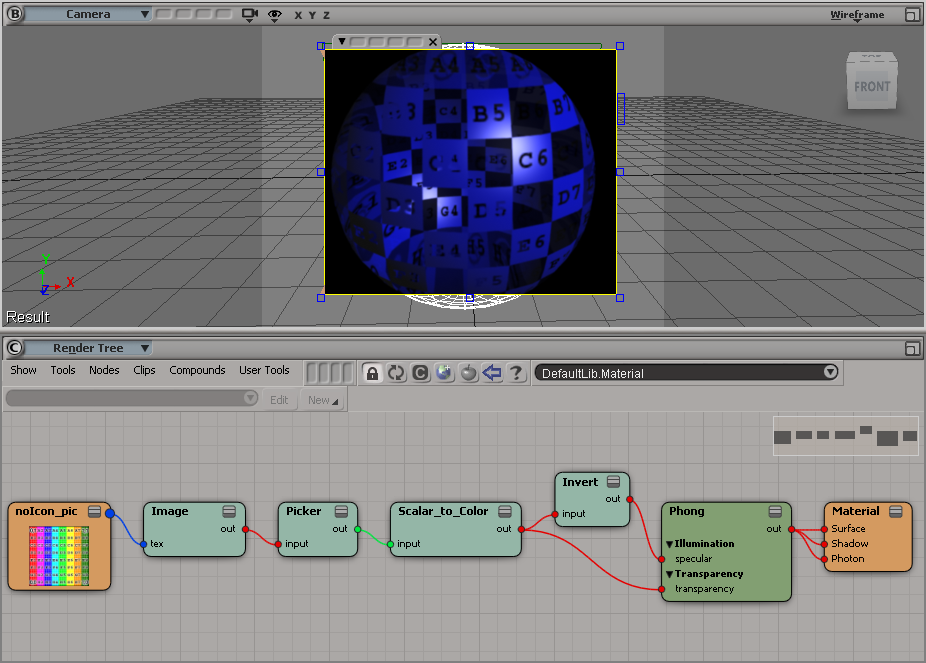
So how do you apply this setting on a per-particle basis? One way to access individual particles would be to use an attribute shader to look up a per-particle attribute, and then use that to set the Visible in render value. For example, I used a Color Attribute shader to get the particle color, plugged that into a Color Math Logic, and plugged that into the Visible in render port of the Particle Density shader. In the screenshots below, I’m simply testing whether the particle color is blue.