Raytraced soft shadows are not implemented for infinite lights.
Raytraced soft shadows and infinite lights in Softimage 2011
Reply

Raytraced soft shadows are not implemented for infinite lights.
The T2S_MentalRay addon includes copies of Softimage DLLs, such as sibase.dll, and that causes problems in Softimage 2011. I’ve had two cases of shader/workgroup problems that were resolved by removing this addon.
Update: As noted in the comments, the problem is older versions of SPDL files that contain GUIDs used by the Softimage factory shaders. Addon shaders are loaded first, so these SPDLs override the factory defaults and cause problems.
You may have noticed that the ray3.exe executable no longer ships with Softimage. That’s because mental ray standalone 2011 now supports 3ds Max, Maya, and Softimage, so there is one mental ray product that includes the shader libraries for all supported DCC products.
If you were using ray3 to check the version of mental ray, you can do the same thing with raysat -version.
 You can display sprites (an image sequence) on ICE particles.
Just set up a render tree on the point cloud that uses an image sequence, and then use an ICE attribute to drive the Time Source of the image sequence.
First, here’s a basic render tree for the point cloud:

In the ICE Tree for the point cloud, you can set up an attribute that will be used as the Time Source for the image sequence. For example, suppose you wanted to randomly display a sprite from a sequence. In the ICE Tree, you could put a random number in an attribute for each particle.

Then you could use that attribute to drive the Time Source of the image sequence:

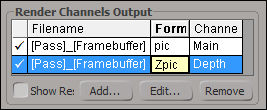 |
To render out zpic files, first you need a Main channel that outputs pic files, and then you have to add a Depth channel and change its output format from zt to zpic. Here’s a short video that shows how. |
Here’s the step-by-step:
See the wiki page Zpics and the FX Tree for more info zpic files.
None.
I get asked this kind of questions all the time. Advanced includes 5 Batch licenses, not mental ray licenses.
mental ray licenses are for running ray3 and rendering .mi files.
Batch licenses are for running xsibatch.exe and rendering .scn files, with either mental ray or a third-party renderer such as 3Delight.
If the Number of samples is set to 0 for the XSIAmbientOcclusion shader, Softimage 2010 memory usage will go through the roof as soon as Softimage has to render. This didn’t happen in 7.5, so it’s easy to load up an existing scene, open the Material Manager or Render Tree, and then see Softimage hang up while rendering a shaderball. That’s how this issue was originally discovered.
On a related note, here’s a JScript snippet that shows how to find all the XSIAmbientOcclusion shaders and check the samples values.
// XSIAmbientOcclusion Class ID
var sClassID = "{FF66A9F8-BB42-480D-834D-BC5FC6E3AD23}"
var oColl = FindObjects( null, sClassID ) ;

oEnum = new Enumerator( oColl ) ;
for (;!oEnum.atEnd();oEnum.moveNext() )
{
	var oAOShader = oEnum.item() ;
	LogMessage( oAOShader.Parameters("samples").Value );
//	LogMessage( oAOShader.samples.Value );
}
Occasionally I’m asked whether there is some way to limit XSI/xsibatch to just one CPU, so that while a rendering is going on, the user can use the other CPUs for something else.
XSI does have a -thread command-line switch that limits the number of threads created by mental ray for rendering.
For example, if you turn on Progress diagnostics for a scene and then render from the command line:
xsibatch -thread 1 -render "%XSI_HOME%\Data\XSI_SAMPLES\Scenes\red_jaiqua.scn" -verbose on -frames 1-3
Then you will see progress messages like this:
//..
// INFO : JOB  0.5  progr:    91.0%    rendered on EXAMPLE.3
// INFO : JOB  0.7  progr:    91.3%    rendered on EXAMPLE.3
// INFO : JOB  0.4  progr:    91.5%    rendered on EXAMPLE.3
// INFO : JOB  0.5  progr:    91.8%    rendered on EXAMPLE.3
// INFO : JOB  0.6  progr:    92.1%    rendered on EXAMPLE.3
//...
In those progress messages, EXAMPLE is the computer name, and 3 is the thread number. So you can see that the render is using just one thread.
If you were to use -thread 4, then four threads are created:
// INFO : JOB  0.5  progr:    91.0%    rendered on MTL-P1917.5
// INFO : JOB  0.7  progr:    91.3%    rendered on MTL-P1917.7
// INFO : JOB  0.4  progr:    91.5%    rendered on MTL-P1917.4
// INFO : JOB  0.5  progr:    91.8%    rendered on MTL-P1917.5
// INFO : JOB  0.6  progr:    92.1%    rendered on MTL-P1917.6
In Softimage, you can enable the diagnostics in the Render Manager, by going to the Diagnostics tab and selecting the Information and Progress check boxes. If you’re working on the command-line with xsibatch, you may not want to start up Softimage just to select those check boxes. So, here’s how to do from the command line: just add -script and -verbose “on” to the xsibatch command line.
xsibatch -render "\\server\project\Scenes\Example.scn" -frames 1 -script verbosity.js -verbose "on"
where verbosity.js is a script that looks like this:
// Information and Progress
Dictionary.GetObject("Passes.mentalray").Parameters("VerbosityLevel").Value = 60;
If you set the VerbosityLevel to 252, you will get the Basic and Detailed Debug log messages too.
The other day I happened upon this old tutorial (circa XSI 3.01) from Rob Wuster about “creating an alpha channel with an extra B/W image”. Here’s a quick update to make it work with a more recent version of XSI (eg Softimage 7.5).
You need to plug the Mix 2 Colors into an image layer. To create the image layer, I added the texture by clicking Modify > Texture > Add > Image.

Using Mix 2 Colors to fake an alpha channel
This will give you the same effect shown in the tutorial:

Black-and-white image stamped on a texture
 eX-SI
eX-SI 