Here’s a Python snippet that maximizes viewport B:
vm = Application.Desktop.ActiveLayout.Views( 'vm' )
vm.SetAttributeValue("layout","maximize:b")

Here’s a Python snippet that maximizes viewport B:
vm = Application.Desktop.ActiveLayout.Views( 'vm' )
vm.SetAttributeValue("layout","maximize:b")
The User Tools menu in an ICE Tree view has an Add Operator to Menu command that adds your compounds to menus, so you can apply them to the selected object. “Add Operators to Menu” is implemented in VBScript in %XSI_HOME%\Addons\ICEUserTools\Application\Plugins\ICEUserTools.vbs.

Unfortunately, this command wasn’t updated after 2011 Advantage Pack, so it doesn’t know about the new ICE toolbar and menu structure.
So, here’s a Python version that adds ICE operators to either the Particles > Create or Deform > Create menus in the ICE toolbar. When you apply the operators, they will be applied to all selected objects.
http://dl.dropbox.com/u/12898205/AddICEOperatorsToMenus.xsiaddon
The addon adds a “PSS Add Operators to Menu” command to the User Tools menu of the ICE Tree view, so it does add a bit of clutter (since I cannot programmatically remove the original Add Operators to Menu command).
To add operators to menus:
See below the fold for the plugin code.
Continue reading
Here’s a Python snippet that shows how to add a section to a menu like the ICE > Particles > Create menu:
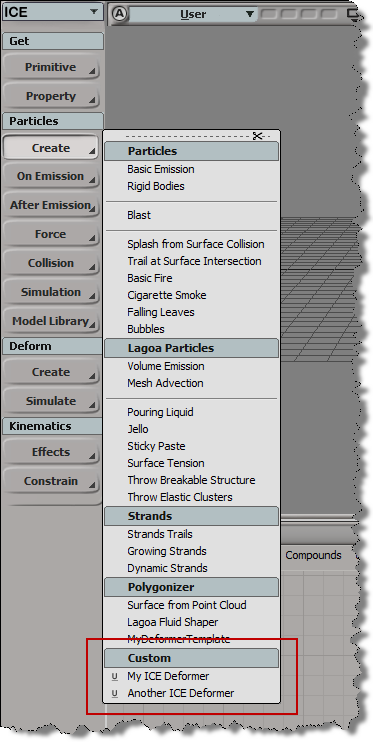
import win32com.client
from win32com.client import constants

null = None
false = 0
true = 1

def XSILoadPlugin( in_reg ):
	in_reg.Author = "blairs"
	in_reg.Name = "NewCommandPlugin"
	in_reg.Major = 1
	in_reg.Minor = 0

	in_reg.RegisterCommand("NewCommand","NewCommand")
	in_reg.RegisterMenu(constants.siMenuTbICEParticlesCreateID,"ICEParticlesCreateCustom_Menu",false,true)

	#RegistrationInsertionPoint - do not remove this line

	return true

def XSIUnloadPlugin( in_reg ):
	strPluginName = in_reg.Name
	return true

def ICEParticlesCreateCustom_Menu_Init( in_ctxt ):
	oMenu = in_ctxt.Source

	# Add section divider
	oItem = oMenu.AddItem( "Custom", constants.siMenuItemSection )
	oItem.SetBackgroundColor(178,191,194)

	# Add custom menu items
	oMenu.AddCommandItem("My ICE Deformer","NewCommand")
	oMenu.AddCommandItem("Another ICE Deformer","NewCommand1")
	return true
To get the .fx file for a realtime shader (RTShader), you go through the ShaderDef:
// Given a render tree node (shader), get the .fx file
var o = Dictionary.GetObject( "Sources.Materials.DefaultLib.Scene_Material.MrWiggle1" );
LogMessage( o.ShaderDef.DefinitionPath );


// Given a progID, get the .fx file
var sd = Application.GetShaderDef( "HLSLParser.MrWiggle.1.0" );
LogMessage( sd.DefinitionPath );

// INFO : C:\Program Files\Autodesk\Softimage 2012 SP1\Application\phenolib\HLSL\MrWiggle.fx
// INFO : C:\Program Files\Autodesk\Softimage 2012 SP1\Application\phenolib\HLSL\MrWiggle.fx
LogMessage(GetJScriptVersionInfo());

function GetJScriptVersionInfo()
{
    var s;
    s = ""; // Build string with necessary info.
    s += ScriptEngine() + " Version: ";
    s += ScriptEngineMajorVersion() + ".";
    s += ScriptEngineMinorVersion() + ".";
    s += ScriptEngineBuildVersion();
    return(s);
}

On Linux:

// INFO : JScript Engine Version: 5.1.4411

On Windows:

// INFO : JScript Version: 5.8.16762
Here’s a post I recovered from my old and now deleted XSI_Support_Blog page on the Softimage wiki.
XSI ships with over 23002600 commands. Not all of them are logged in the script editor, and not all of them are documented. Here’s a crude way to search for commands with certain strings in their names.
var c = Application.Commands;
LogMessage( c.Count );

oEnum = new Enumerator( c  ) ;

// Search for commands whose scripting name
// contains a specific string of characters.
// The search string is specified between the forward slashes.
//
var re = /SetGlobal/ig;

for (;!oEnum.atEnd();oEnum.moveNext() )
{
	var oSelItem = oEnum.item() ;
	if ( oSelItem.ScriptingName.match( re ) )
	{
			LogMessage( oSelItem.scriptingname );
			//EditCommand( oSelItem.scriptingname );

	}
}
Here’s a related post from the Softimage community forumAREA.
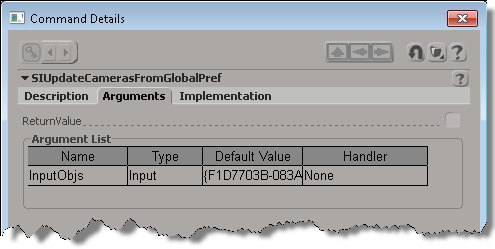
If you want to find out a little more about an undocumented command, uncomment the EditCommand call to pop up the Command Details dialog box.


You can quickly create a keyboard shortcut for a useful script.
All you have to do is drag the script to a toolbar to create a button.
If your button is a “Script Command (external file)”, then the command will be available in File > Keyboard Mapping, in in the Custom Script Command group.
One of the nice things about Python is the convenience of modules like CSV.
A point cloud is an X3DObject, so you could just get the point positions the same way you would for a mesh. But the recommended way to do it is with ICEAttribute.GetDataArrayChunk or, for small point clouds, ICEAttribute.DataArray.
import csv
from siutils import si		# Application
from siutils import sidict	# Dictionary
from siutils import log		# LogMessage


# Get a CSV writer object
# http://docs.python.org/release/2.5.2/lib/module-csv.html
csvWriter = csv.writer(open('cloud1.csv', 'wb'), delimiter=',', quotechar='|', quoting=csv.QUOTE_MINIMAL)


# PointCloud is an X3DObject, so you can simply get points at current frame
# For large point clouds, use the ICEAttribute object instead
points = sidict.GetObject( "pointcloud" ).ActivePrimitive.Geometry.Points;
for p in points:
	#print "(%s, %s, %s)" % ( p.Position.X, p.Position.Y, p.Position.Z )
	csvWriter.writerow([p.Position.X, p.Position.Y, p.Position.Z])


# Use the ICEAttribute.DataArray for PointPositions
# For large point clouds, use ICEAttribute.GetDataArrayChunk
points = sidict.GetObject( "pointcloud" ).ActivePrimitive.Geometry.ICEAttributes("PointPosition").DataArray
for p in points:
	log( "%s, %s, %s" % (p.X, p.Y, p.Z) )
	csvWriter.writerow([p.X, p.Y, p.Z])
Update: The above script will write the CSV file in %XSI_BINDIR%. Changing the output location is an exercise left to the reader 😉 as is using GetDataArrayChunck (but for that you can copy the example in the docs).
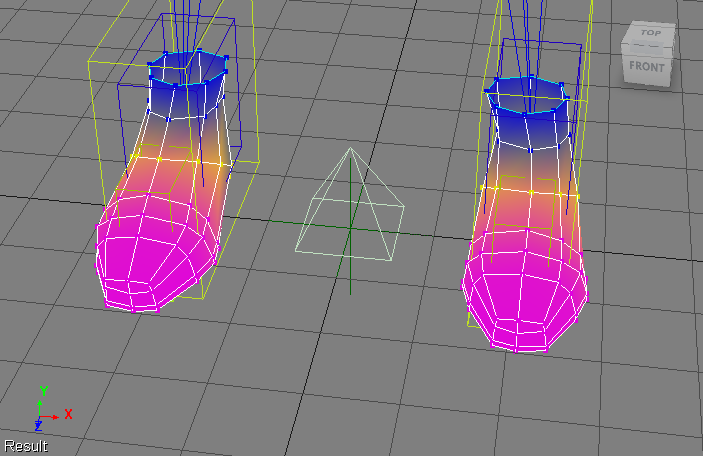
Simple brute force example that copies the envelope weights between two shoes.
I read on the XSI list that the Blur Tools have a skinpanel tool that can copy/paste weights.
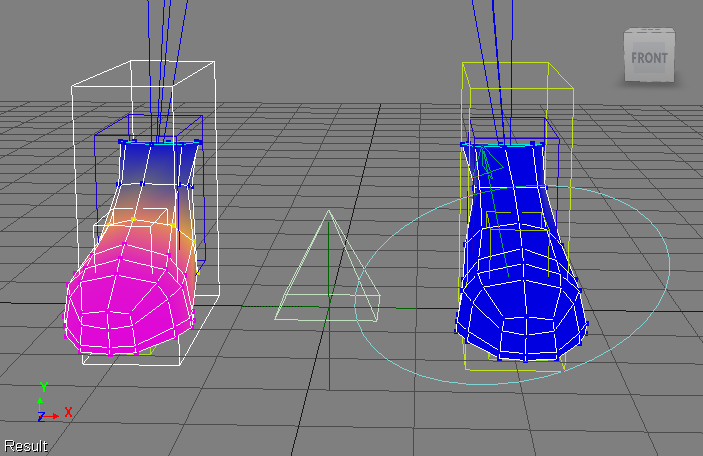
var oRShoe = Dictionary.GetObject( "Man.RShoe" );
var oLShoe = Dictionary.GetObject( "Man.LShoe" );

var oEnvelope = oRShoe.Envelopes(0);
oDeformerEnum = new Enumerator( oEnvelope.Deformers ) ;
for (;!oDeformerEnum.atEnd();oDeformerEnum.moveNext() )
{
	var oDeformer = oDeformerEnum.item() ;

	var vba = new VBArray( oEnvelope.GetDeformerWeights( oDeformer ) );
	var jsa = vba.toArray();

	var targetDeformer = oLShoe.Envelopes(0).Deformers( oDeformer.name.replace("R","L") );
	LogMessage( "Copy Env weights: "+ oDeformer.fullname + " -> " + targetDeformer );
	oLShoe.Envelopes(0).SetDeformerWeights( targetDeformer, jsa );
}

// INFO : Copy Env weights: Biped_Rig.RShin -> Biped_Rig.LShin
// INFO : Copy Env weights: Biped_Rig.RFootBone1 -> Biped_Rig.LFootBone1
// INFO : Copy Env weights: Biped_Rig.RFootBone2 -> Biped_Rig.LFootBone2
// INFO : Copy Env weights: Biped_Rig.RlegEff -> Biped_Rig.LlegEff
// INFO : Copy Env weights: Biped_Rig.RFootEff -> Biped_Rig.LFootEff

 eX-SI
eX-SI 