When you’re working on a plugin UI, you often need to refresh your PPG to show your latest changes to your layout, and run your latest changes to your callback code.
Screencast version (higher resolution)

When you’re working on a plugin UI, you often need to refresh your PPG to show your latest changes to your layout, and run your latest changes to your callback code.
Screencast version (higher resolution)
Here’s a basic Python example that shows how to:
import win32com.client
from win32com.client import constants

oProp = Application.ActiveSceneRoot.AddProperty( "CustomProperty", False, "GridWidgetDemo" )
oProp.AddParameter2("Row",constants.siInt4,1,1,20,0,100,constants.siClassifUnknown,constants.siPersistable + constants.siKeyable)

oParameter = oProp.AddGridParameter( "DemoGrid" )
oGridData = oParameter.Value
oGridData.ColumnCount = 3
oGridData.RowCount = 20

for i in range(0,oGridData.RowCount):
	for j in range(0,oGridData.ColumnCount):
		oGridData.SetCell( j, i, str(i) + "." + str(j) )

oPPGLayout = oProp.PPGLayout
oGridPPGItem = oPPGLayout.AddItem( "DemoGrid" )

oGridPPGItem.SetAttribute( constants.siUINoLabel, True )
oGridPPGItem.SetAttribute( constants.siUIGridSelectionMode, constants.siSelectionHeader )
oGridPPGItem.SetAttribute( constants.siUIGridColumnWidths, "25:100:75:100" )
oGridPPGItem.SetAttribute( constants.siUIGridReadOnlyColumns, "1" )

oPPGLayout.AddRow() ;
oPPGLayout.AddItem( "Row" )
oPPGLayout.AddButton( "SelectRow", "Select Row" )
oPPGLayout.EndRow()


oPPGLayout.Language = "Python"
oPPGLayout.Logic = '''
def SelectRow_OnClicked():
	Application.LogMessage( "Select Row" )
	oGridData = PPG.DemoGrid.Value
	oGridWidget = oGridData.GridWidget
	oGridWidget.ClearSelection()
	oGridWidget.AddToSelection( -1, PPG.Row.Value-1 )
'''


Application.InspectObj( oProp )
By default, buttons are left-aligned.
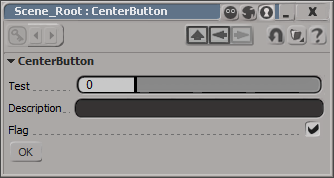
I don’t think there is any way to center a control on a layout. At least not one that I can find. You could set an X position, which will look centered until a user resizes the PPG.
item = oLayout.AddButton( L"MyButton", L"ddd" ) ;
item.PutAttribute( siUICX, <x position in pixels>)
Or you could use this hack, which uses group width percentages to approximate the centering a button.
var oGroup = oLayout.AddGroup("", false, 40);
oLayout.EndGroup();

// button is left-aligned within its group
// so the centering is not 'true'
var oGroup = oLayout.AddGroup("", false, 20);
var oButton = oLayout.AddButton( "OK" );
oLayout.EndGroup();

var oGroup = oLayout.AddGroup("", false, 30);
oLayout.EndGroup();

oLayout.EndRow();

Interesting thread on some of the problems people have encountered…
fickle events, and automated workgroup switching – Google Groups.
In previous versions of Softimage, you could use Parameter.Source to get the shader/texture connected to a material parameter such as the diffuse port.
As of 2011, Source returns a ShaderParameter. To get the connected shader, use ShaderParameter.Parent (in C++, GetSource().GetParent()).
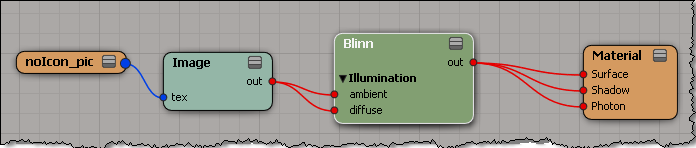
var m = Dictionary.GetObject( "Sources.Materials.DefaultLib.Material.Blinn" );
var p = m.Parameters("diffuse");
LogMessage( p.Source );
// INFO : Sources.Materials.DefaultLib.Material.Image.out

LogMessage( ClassName( p.Source ) );
// INFO : ShaderParameter

LogMessage( p.Source.Parent );
// INFO : Sources.Materials.DefaultLib.Material.Image

LogMessage( ClassName( p.Source.Parent ) );
// INFO : Texture
UPDATE: Please see the comment from Patrick for a tip. Thanks!
You can use Plugin.UserData to pass data into a plugin.
For example, from outside the plugin, you can store a list in the UserData:
p = Application.Plugins("MyTestPropertyPlugin")
p.UserData = ['a', 'b', 'mpilgrim', 'z', 'example']
In the plugin callbacks, you would access the UserData like this:
def MyTestProperty_Test_OnClicked( ):

    p = Application.Plugins("MyTestPropertyPlugin")

    if p.UserData == None:
        Application.LogMessage( "UserData is empty" )
    else:
        Application.LogMessage( p.UserData )
        Application.LogMessage( p.UserData[2] )
This will work with lists, but not with dictionaries.
Softimage cannot convert Python dictionaries into a COM Variant type. If you try to store a dict in User Data:
x = Application.Plugins("MyTestPropertyPlugin")
x.UserData = {"author":"blairs", "name":"testplugin"}
You’ll get this error:
# TypeError: Objects of type 'dict' can not be converted to a COM VARIANT
I’m afraid there’s no way around that error for Python dictionaries.
This also prevents you from saving dictionaries with SetGlobal or SetGlobalObject.
If you look up “UserData” in the index, you’ll see three different UserData properties that apply to a plugin.

Plugin.UserData is probably the most useful. It allows you to store global data that you can access from anywhere in the plugin code. You can use it to share data between external code and the plugin, between instances of the plugin, or between any callback (in a scripted plugin, not all callbacks get a context argument).
Context.UserData allows you to share data between callbacks (except for those callbacks that don’t get a context, like the OnClicked callbacks in a scripted plugin).
PluginRegistrar.UserData allows you to share data between XSILoadPlugin and XSIUnloadPlugin.
To update the contents of a combo box from a button OnClicked callback, you use the PPGItem.UIItems property.
Here’s a simple example that shows how:
import win32com.client
from win32com.client import constants

null = None
false = 0
true = 1

def XSILoadPlugin( in_reg ):
    in_reg.Author = "blairs"
    in_reg.Name = "ComboTestPlugin"
    in_reg.Major = 1
    in_reg.Minor = 0

    in_reg.RegisterProperty("ComboTest")

    return true

def XSIUnloadPlugin( in_reg ):
    strPluginName = in_reg.Name
    return true

def ComboTest_Define( in_ctxt ):
    oCustomProperty = in_ctxt.Source
    oCustomProperty.AddParameter2("List",constants.siInt4,0,0,100,0,100,constants.siClassifUnknown,constants.siPersistable + constants.siKeyable)
    return true

def ComboTest_DefineLayout( in_ctxt ):
    oLayout = in_ctxt.Source
    oLayout.Clear()
    oLayout.AddEnumControl("List", ("chocolate", 0, "vanilla", 1, "strawberry", 2), "Flavor", constants.siControlCombo )
    oLayout.AddButton("Update")

    return true

def ComboTest_Update_OnClicked( ):
    Application.LogMessage("ComboTest_Test_OnClicked called")
    x = ("Coffee Heath Bar Crunch", 0, "Cherry Garcia", 1, "Dulce Delux", 2 )
    PPG.PPGLayout.Item("List").UIItems = x
    Application.LogMessage( PPG.PPGLayout.Item("List").UIItems )
    PPG.Refresh()
Here’s a simple self-installing property that shows how to use a “hidden” parameter to store a collection as a comma-separated string. I say the parameter is “hidden” because it is not shown on the property page (PPG).
function XSILoadPlugin( in_reg )
{
	in_reg.Author = "blairs";
	in_reg.Name = "SaveCollectionPlugin";
	in_reg.Major = 1;
	in_reg.Minor = 0;

	in_reg.RegisterProperty("SaveCollection");

	return true;
}

function XSIUnloadPlugin( in_reg )
{
	var strPluginName;
	strPluginName = in_reg.Name;
	Application.LogMessage(strPluginName + " has been unloaded.",siVerbose);
	return true;
}

function SaveCollection_Define( in_ctxt )
{
	var oCustomProperty;
	oCustomProperty = in_ctxt.Source;

	// Used to store the list of passes as a comma-separated string
	oCustomProperty.AddParameter2("Passes",siString,"",null,null,null,null,siClassifUnknown,siPersistable | siKeyable);

	return true;
}

function SaveCollection_DefineLayout( in_ctxt )
{
	var oLayout,oItem;
	oLayout = in_ctxt.Source;
	oLayout.Clear();
	oLayout.AddButton("Set");
	oLayout.AddButton("Get");
	return true;
}

// Save a list of passes in the Passes parameter
function SaveCollection_Set_OnClicked( )
{
	Application.LogMessage("SaveCollection_Test_OnClicked called",siVerbose);
	PPG.Passes.Value = ActiveProject.ActiveScene.Passes.GetAsText();
}

// Get the list of passes from the Passes parameter
function SaveCollection_Get_OnClicked( )
{
	Application.LogMessage("SaveCollection_Test_OnClicked called",siVerbose);

	// Split the string into an array
	var x = PPG.Passes.Value.split(",");
	for ( var i = 0; i < x.length; i++ )
	{
		LogMessage( x[i] );
	}

}
In Python, use Menu.AddSubMenu to add a submenu.
def SubMenuTest_Menu_Init( in_ctxt ):
	oMenu = in_ctxt.Source
	subMnu = oMenu.AddSubMenu( "Test SubMenu" )
	subMnu.AddCommandItem("Test", "Test")
	return true
Don’t use AddItem, because in Python the derived class methods of the returned object are not resolved properly (it’s an issue with late binding). Basically, with AddItem you end up with a Menu object that supports just the MenuItem interface. So, methods like AddCommandItem, which belong to the derived Menu class, are not resolved and you get errors like this:
# ERROR : Traceback (most recent call last):
#   File "<Script Block 2>", line 55, in Test_Menu_Init
#     subMnu.AddCommandItem("Duplicate Single", "Duplicate Single")
#   File "C:\Program Files\Autodesk\Softimage 2011\Application\python\Lib\site-packages\win32com\client\__init__.py", line 454, in __getattr__
#     raise AttributeError, "'%s' object has no attribute '%s'" % (repr(self), attr)
# AttributeError: '<win32com.gen_py.Softimage|XSI Object Model Library v1.5.MenuItem instance at 0x517703560>' object has no attribute 'AddCommandItem'
Notice how it says that MenuItem instance has no attribute ‘AddCommandItem’.
AddCommandItem is defined by the derived Menu class.
Before the AddSubMenu method was added, you had to workaround this with win32com.client.Dispatch:
subMnu = win32com.client.Dispatch( oMenu.AddItem("Test SubMenu", constants.siMenuItemSubmenu ) )
 eX-SI
eX-SI 