Using a pop-up scene explorer in a property page


Here’s how to use a pop-up (transient) explorer to allow users to select multiple objects in the scene.
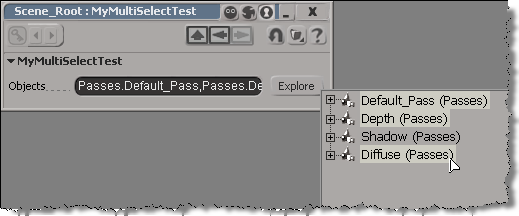
In this approach, you have a text box and a button.

The OnClicked callback for the button would use OpenTransientExplorer to pop up an explorer where the user can select multiple objects. OpenTransientExplorer returns a collection, so you can store that in a string parameter.

null = None
false = 0
true = 1

def XSILoadPlugin( in_reg ):
	in_reg.Author = "blairs"
	in_reg.Name = "MyMultiSelectTestPlugin"
	in_reg.Major = 1
	in_reg.Minor = 0

	in_reg.RegisterProperty("MyMultiSelectTest")
	#RegistrationInsertionPoint - do not remove this line

	return true

def XSIUnloadPlugin( in_reg ):
	strPluginName = in_reg.Name
	Application.LogMessage(str(strPluginName) + str(" has been unloaded."),constants.siVerbose)
	return true

def MyMultiSelectTest_Define( in_ctxt ):
	oCustomProperty = in_ctxt.Source
	oCustomProperty.AddParameter2("Objects",constants.siString,"",null,null,null,null,constants.siClassifUnknown,constants.siPersistable + constants.siKeyable)
	return true

# Tip: Use the "Refresh" option on the Property Page context menu to 
# reload your script changes and re-execute the DefineLayout callback.
def MyMultiSelectTest_DefineLayout( in_ctxt ):
	oLayout = in_ctxt.Source
	oLayout.Clear()
	oLayout.AddRow()
	oLayout.AddItem("Objects")
	oLayout.AddButton("Explore")
	oLayout.EndRow()
	return true

def MyMultiSelectTest_OnInit( ):
	Application.LogMessage("MyMultiSelectTest_OnInit called",constants.siVerbose)

def MyMultiSelectTest_OnClosed( ):
	Application.LogMessage("MyMultiSelectTest_OnClosed called",constants.siVerbose)

def MyMultiSelectTest_Param_OnChanged( ):
	Application.LogMessage("MyMultiSelectTest_Param_OnChanged called",constants.siVerbose)
	oParam = PPG.Param
	paramVal = oParam.Value
	Application.LogMessage(str("New value: ") + str(paramVal),constants.siVerbose)

def MyMultiSelectTest_Param1_OnChanged( ):
	Application.LogMessage("MyMultiSelectTest_Param1_OnChanged called",constants.siVerbose)
	oParam = PPG.Param1
	paramVal = oParam.Value
	Application.LogMessage(str("New value: ") + str(paramVal),constants.siVerbose)

def MyMultiSelectTest_Explore_OnClicked( ):
	Application.LogMessage("MyMultiSelectTest_Explore_OnClicked called",constants.siVerbose)
	sel = Application.OpenTransientExplorer( Application.ActiveProject.ActiveScene.Passes, constants.siSEFilterAllNodesNoParams, 0, False, True )
	PPG.Objects.Value = sel

For testing, I use the Plugin Tree (in the Plugin Manager) to create an instance of the property: just right-click the custom property and click Create.

That runs this command:

Application.SIAddProp("MyMultiSelectTest", "", "siDefaultPropagation", "", "")

Finding groups for an object


If you want to find the groups that contain an object, you have to look through the Owners collection. Look for owners of type = “#group”. Note that you can filter the Owners collection by type, but when you filter by “#group”, you’ll also get layers and partitions, because they are types of groups.

import win32com.client
oGroups = win32com.client.Dispatch( "XSI.Collection" )

o = Application.Selection(0)

oOwners = o.Owners.Filter( "#Group" )

for g in oOwners:
	if g.Type == "#Group":
		#Application.LogMessage( ''.join([g.FullName, ' ', g.Type] ) )
		oGroups.Add( g )

Application.LogMessage( oGroups.GetAsText() )

If you had a naming convention for your groups, you could use the third argument to Filter. For example, if all group names started with “grp”, then could do this:

from win32com.client import constants

object = Application.Selection(0)

# Filter by type and then by name
groups = object.Owners.Filter( "#Group", '', "grp*" )
print groups.GetAsText()

# OR filter by family and then by name
groups = object.Owners.Filter( '', constants.siGroupFamily, "grp*" )
print groups.GetAsText()

Passing arguments to xsibatch scripts


You can use xsibatch to execute a script:

	xsibatch -processing -script %TEMP%\test.js 

The -processing flag tells xsibatch to run without a license (you can do this for anything that does not involve rendering).
The -script flag specifies the full path the script file.

If the script file contains functions, you can specify the name of the function to execute with the -main flag. For example, if the .js file contained a function named “test”:

	xsibatch -processing -script %TEMP%\test1.js -main test 

If the main function takes arguments, you can specify them with the -args flag. For example, if the function is defined like this (in JScript)

	function test( sPath, sList, nValue )
	{
		// [body]
	}

then you would specify the arguments like this on the xsibatch command line:

	-args -sPath "%TEMP%" -sList "X,Y,Z" -nValue 22

Putting it all together, the xsibatch command line would look like this:

	xsibatch -processing -script %TEMP%\test1.js -main test -args -sPath "%TEMP%" -sList "X,Y,Z" -nValue 22

Argument values are passed in as strings, and any quotation marks are stripped off.

Here’s a simple example of a test.js:

function test( sPath, sList, nValue )
{
	LogMessage( sPath );
	LogMessage( sList );
	LogMessage( nValue );
	LogMessage( typeof(nValue) );
}

The xsibatch command:

xsibatch -processing -script %TEMP%\test1.js -main test -args -sPath "%TEMP%" -sList "X,Y,Z" -nValue 22

And the output:

=======================================================
 Autodesk Softimage 9.5.184.0
=======================================================

License information: using [Processing]
COMMAND: -processing -script C:\Users\blairs\AppData\Local\Temp\test.js -main test -args -sPath "C:\Users\blairs\AppData\Local\Temp" -sList "X,Y,Z" -nValue 22
// INFO : C:\Users\blairs\AppData\Local\Temp
// INFO : X,Y,Z
// INFO : 22
// INFO : string

Importing SOFTIMAGE|3D HRC and DSC files


We still get the occasional support request about importing SOFTIMAGE|3D scenes (.dsc) and models (.hrc) into Softimage 2011.

The SOFTIMAGE|3D importer was removed in the Softimage 2011 release. From the What’s New section of the documentation:

SI3D Loader Is Gone

The SOFTIMAGE|3D importer, also known as the SI3D Loader, has been removed from Softimage. The workaround is to import your SOFTIMAGE|3D scene or model into Softimage as dotXSI (*.xsi).

As suggested in the documentation, you could use export dotXSI 3.0 from SOFTIMAGE|3D and then import that into Softimage 2011.

Or you could use 32-bit Softimage 2010, which includes the Import > SI|3D Scene/Model command. If you’re on Subscription, your Softimage 2011 license will run Softimage 2010, and you can download Softimage 2010 from the Subscription Center.

If you have a lot of hrc/dsc files to import, you can write a script to automate the process.
Here’s a relatively crude example (JScript):

var fso = new ActiveXObject( "Scripting.FileSystemObject" );

var sSourceDir = "C:\\Softimage\\SOFT3D_4.0\\3D\\rsrc\\";
var sTargetDir = "C:\\Documents and Settings\\blairs\\Local Settings\\Temp\\HRC\\Scenes\\";

var srcFolder = fso.GetFolder( sSourceDir );

var files = new Enumerator( srcFolder.files );
// Loop through files  

var re = /\.hrc$/;
for(; !files.atEnd(); files.moveNext() )
{
	var sName = files.item().Name;
		
	if ( sName.match(re) )
	{
		NewScene(null, null);
		
		//LogMessage( "Importing " + sSourceDir + sName );
		ImportFromSI3D( sSourceDir + sName, null, null);
		
		// Strip off the ".hrc"
		var sTmp = sName.substr(0,sName.lastIndexOf( "." ));
		
		//LogMessage( "Saving " + sTargetDir + sTmp + ".scn" );
		SaveSceneAs( sTargetDir + sTmp + ".scn" );
		
	}
}

Scripting the Transform panel buttons


The state of the buttons on the Transform panel are saved in the 3D_TRANSFO_REFERENTIAL_CHANGED preference, which is a bitfield.

So, for example, to enable the Ref manipulation mode, you would do this:

SetUserPref(
	"3D_TRANSFO_REFERENTIAL_CHANGED",
	GetUserPref("3D_TRANSFO_REFERENTIAL_CHANGED") | 3 );

This would turn on the Ref mode, and leave the COG, Prop, and Sym options untouched.

If you simply did this:

SetUserPref( "3D_TRANSFO_REFERENTIAL_CHANGED", 3 );

that would reset the COG and Sym options.

Turn on COG:

SetUserPref(
 	"3D_TRANSFO_REFERENTIAL_CHANGED",
 	GetUserPref("3D_TRANSFO_REFERENTIAL_CHANGED") | 16 );

Turn off COG:

SetUserPref(
 	"3D_TRANSFO_REFERENTIAL_CHANGED",
 	GetUserPref("3D_TRANSFO_REFERENTIAL_CHANGED") & ~16 );

Another example:

// Turn off all
SetUserPref( "3D_TRANSFO_REFERENTIAL_CHANGED", 0 );

// Turn on Local and COG
SetUserPref(
 	"3D_TRANSFO_REFERENTIAL_CHANGED",
 	GetUserPref("3D_TRANSFO_REFERENTIAL_CHANGED") | (16 | 2) );

You can use Alt+NumPad numbers to see what gets logged when the different buttons are selected.
The SDK documentation also includes a page for the Manipulation Mode Values.

Finding shaders


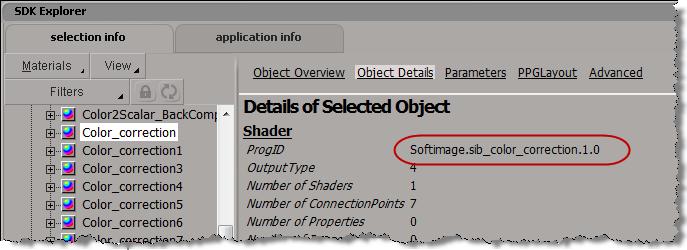
Before Softimage 2011, we used to use FindObjects() with a shader CLSID to find all instances of a shader. But as of Softimage 2011, all shaders have the same CLSID, so you have to use the ProgID to find all instances of a certain type of shader.

// Find all Color_correction shader nodes

var sProgID = "Softimage.sib_color_correction.1.0"

var oShaderDef = Application.GetShaderDef( sProgID ) ;
oEnum = new Enumerator( oShaderDef.ShaderInstances ) ;
for (;!oEnum.atEnd();oEnum.moveNext() )
{
	var oShaderInstance = oEnum.item() ;
	LogMessage( oShaderInstance.fullname );
}

You can find the ProgID of a shader using the SDK Explorer:

Object model methods for finding objects


The Softimage 2011 Subscription Advantage Pack includes new methods for finding objects.

These FindObjects methods are more efficient than X3DObject.FindChildren, because the FindObjects methods don’t go through the scene hierarchy (they go directly to an internal database of objects).

Model.FindObjects( siClassID )
Finds all objects under the model that match a specified class ID (for example, all shaders or all ICE Trees). For example:

 # Enumerate all shaders under the scene root.
 from win32com.client import constants as c
 shaders = Application.ActiveSceneRoot.FindObjects( c.siShaderID )
 for s in shaders:
 	LogMessage( s.ProgID )
 # INFO : Softimage.soft_light.1.0

Supported siClassIDs:
siCameraID | siClusterID | siClusterPropertyID | siConstraintID | siCustomOperatorID | siCustomPropertyID | siEnvelopeID | siEnvelopeWeightID | siExpressionID | siGeometryID | siGroupID | siICETreeID | siLightID | siMaterialID | siModelID | siNullID | siNurbsSurfaceMeshID | siNurbsCurveListID | siOperatorID | siPolygonMeshID | siPropertyID | siShaderID | siShapeKeyID | siX3DObjectID

Application.FindObjects( siClassID )
Finds all objects that match a specified class ID. For example:

from win32com.client import constants as c
oICETrees = Application.ActiveSceneRoot.FindObjects( c.siICETreeID )
for x in oICETrees:
 	LogMessage( x.Nodes.Count )

Supported siClassIDs:
siCameraID | siClusterID | siClusterPropertyID | siConstraintID | siCustomOperatorID | siCustomPropertyID | siEnvelopeID | siEnvelopeWeightID | siExpressionID | siGeometryID | siGroupID | siICETreeID | siImageClipID | siLayerID | siLightID | siMaterialID | siModelID | siNullID | siNurbsSurfaceMeshID | siNurbsCurveListID | siOperatorID | siPassID | siPolygonMeshID | siPropertyID | siShaderID | siShapeKeyID | siX3DObjectID

Model.FindObjectsFomCLSID( sCLSID )
Finds all objects that match a specified CLSID. You can determine the CLSID of an object using XSIUtils.DataRepository () or by inspecting Softimage objects with the SDK Explorer.

# Enumerate all visibility properties under the scene root.
 props = Application.ActiveSceneRoot.FindObjectsFromCLSID( "{11EBE301-A20C-11D0-8478-00A024C7919C}" )
 for vis in props:
 	LogMessage( vis.FullName )
 # INFO : Camera_Root.visibility
 # INFO : Views.ViewC.SpotCamera.visibility
 # INFO : Camera.visibility
 # INFO : Views.ViewB.SpotCamera.visibility
 # INFO : Camera_Interest.visibility
 # INFO : Views.ViewD.SpotCamera.visibility
 # INFO : Views.ViewA.SpotCamera.visibility
 # INFO : light.visibility

C++ versions:

Python: importing modules into plugins


New in the Softimage 2011 Subscription Advantage Pack

The siutils Python module makes it easier to import modules into your self-installing plugins. Just put your modules in the same location as your plugin file , and you can use the __sipath__ variable to specify the module location.

__sipath__ is always defined in the plugin namespace, so no matter where you put a plugin, you can simply use __sipath__ to specify the location.

Here’s a simple example that shows how to import a module into your plugin.

  • Line 04: Import the siutils module
  • Line 39: Use add_to_syspath() to add __sipath__ to the Python sys path.
    If the module was located in a subfolder of the plugin location, you could use siutils.add_subfolder_to_syspath( __sipath__, ‘mysubfolder’ )

  • Line 40: Import the module
import win32com.client
from win32com.client import constants

import siutils

null = None
false = 0
true = 1

def XSILoadPlugin( in_reg ):
	in_reg.Author = "blairs"
	in_reg.Name = "TestPlugin"
	in_reg.Major = 1
	in_reg.Minor = 0

	in_reg.RegisterCommand("Test","Test")
	#RegistrationInsertionPoint - do not remove this line

	return true

def XSIUnloadPlugin( in_reg ):
	strPluginName = in_reg.Name
	Application.LogMessage(str(strPluginName) + str(" has been unloaded."),constants.siVerbose)
	return true

def Test_Init( in_ctxt ):
	oCmd = in_ctxt.Source
	oCmd.Description = ""
	oCmd.ReturnValue = true

	return true

def Test_Execute(  ):

	Application.LogMessage("Test_Execute called",constants.siVerbose)

#	print __sipath__ 

	siutils.add_to_syspath( __sipath__ )
	import TestModule
	TestModule.test( "hello world" )

	return true