Saturday snippet: Getting at the Texture Projection Definition


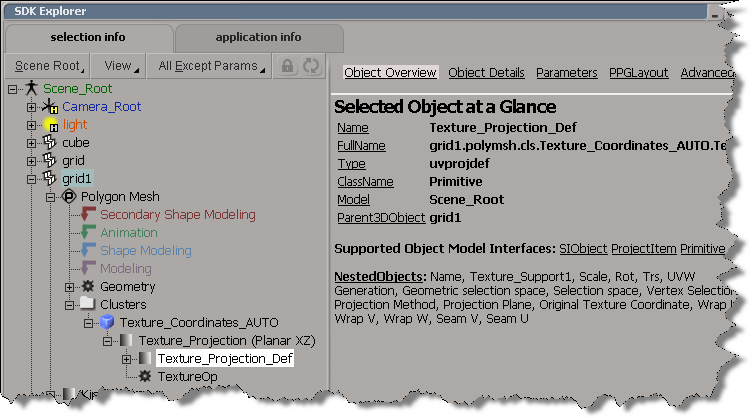
Here’s a simple Python snippet that shows how to traverse the object hierarchy to get at a Texture Projection Definition. Note that I’m not looping over any of the collections, I just get the first element with “(0)” on lines 25, 28, and 31.

#
# 2013 SP1 shortcuts
#
#from sipyutils import si			# win32com.client.Dispatch('XSI.Application')
#from sipyutils import siut		# win32com.client.Dispatch('XSI.Utils')
#from sipyutils import siui		# win32com.client.Dispatch('XSI.UIToolkit')
#from sipyutils import simath	# win32com.client.Dispatch('XSI.Math')
#from sipyutils import log		# LogMessage
#from sipyutils import disp		# win32com.client.Dispatch
#from sipyutils import C			# win32com.client.constants
#si=si()


si=Application
dict=si.Dictionary

def dispFix( badDispatch ):
	import win32com.client.dynamic
	# Re-Wraps a bad dispatch into a working one:
	return win32com.client.dynamic.Dispatch(badDispatch)

o = dict.GetObject( "grid1" )

# Get the texture coordinates (aka the Sample cluster)
c = o.ActivePrimitive.Geometry.Clusters.Filter( "sample" )(0)

# Get  the Texture Projection
uv = c.Properties.Filter( "uvspace" )(0)

# Get  the Texture Projection Definition
uvdef = uv.NestedObjects.Filter( "uvprojdef" )(0)
print si.ClassName(uvdef)

# Get a texture projection parameter (in this example, the U translation)
x = dispFix(uvdef)
projtrsu = x.Parameters("projtrsu")

print si.ClassName( projtrsu )
print projtrsu.FullName

Here’s what the hierarchy looks like in the SDK explorer:
Converting a wildcard expression to a object collection


The old-school way to do it for a single object is with GetValue.
To get a collection of objects, use the XSICollection.Items property.

# Python
from sipyutils import disp        # win32com.client.Dispatch

allColl = disp("XSI.Collection");
allColl.items = Obj.FullName + ".polymsh.cls.*.Material"
// JScript
var allColl = new ActiveXObject("XSI.Collection");
allColl.items = Obj.FullName + ".polymsh.cls.*.Material"

Copying the global transform into a 4×4 Matrix ICE node


I saw–via an email notification–the question “how do I use the Global Transform of an object to create a 4×4 Matrix” posted on xsibase (sorry, I don’t go to xsibase anymore because of the “attack site” and “malware” warnings).

One way to do this is to add a “Copy Global Transform” command to the ICE node context menu. After you install this plugin, right click a 4×4 matrix node in an ICE tree, and it will copy the Global Transform from the first object in the selection list.

Note: error checking and stuff like that is left as an exercise for the reader (or for another blog post).

Here’s the plugin code for 2013. For 2012 or earlier, you have to change the AddCallbackItem2 call to AddCallbackItem.

si = Application
import win32com.client
from win32com.client import constants as C

null = None
false = 0
true = 1

def XSILoadPlugin( in_reg ):
	in_reg.Author = "blairs"
	in_reg.Name = "CopyTransfo2MatrixNodePlugin"
	in_reg.Major = 1
	in_reg.Minor = 0

	in_reg.RegisterMenu(C.siMenuICENodeContextID,"CopyTransfo2MatrixNode_Menu",false,false)

	return true

def XSIUnloadPlugin( in_reg ):
	strPluginName = in_reg.Name
	Application.LogMessage(str(strPluginName) + str(" has been unloaded."),C.siVerbose)
	return true

def CopyTransfo2MatrixNode_Init( in_ctxt ):
	oCmd = in_ctxt.Source
	oCmd.Description = ""
	oCmd.ReturnValue = true

	oArgs = oCmd.Arguments
	oArgs.AddWithHandler("Arg0","Collection")
	return true

def CopyTransfo2MatrixNode_Menu_Init( in_ctxt ):
	oMenu = in_ctxt.Source
	oMenu.AddCallbackItem2("Copy Global Transform","CopyTransfo2MatrixNode")
	return true
	
def CopyTransfo2MatrixNode( in_ctxt ):
	oNodeName = in_ctxt.GetAttribute("Target")

	o = si.Selection(0)
	t = o.Kinematics.Global.GetTransform2( None )
	m = t.Matrix4.Get2()

	# Get a matrix node
	n = si.Dictionary.GetObject( oNodeName )
	
	n.Parameters( "value_00" ).Value = m[0]
	n.Parameters( "value_01" ).Value = m[1]
	n.Parameters( "value_02" ).Value = m[2]
	n.Parameters( "value_03" ).Value = m[3]

	n.Parameters( "value_10" ).Value = m[4]
	n.Parameters( "value_11" ).Value = m[5]
	n.Parameters( "value_12" ).Value = m[6]
	n.Parameters( "value_13" ).Value = m[7]

	n.Parameters( "value_20" ).Value = m[8]
	n.Parameters( "value_21" ).Value = m[9]
	n.Parameters( "value_22" ).Value = m[10]
	n.Parameters( "value_23" ).Value = m[11]

	n.Parameters( "value_30" ).Value = m[12]
	n.Parameters( "value_31" ).Value = m[13]
	n.Parameters( "value_32" ).Value = m[14]
	n.Parameters( "value_33" ).Value = m[15]

Scene names and .scn file names


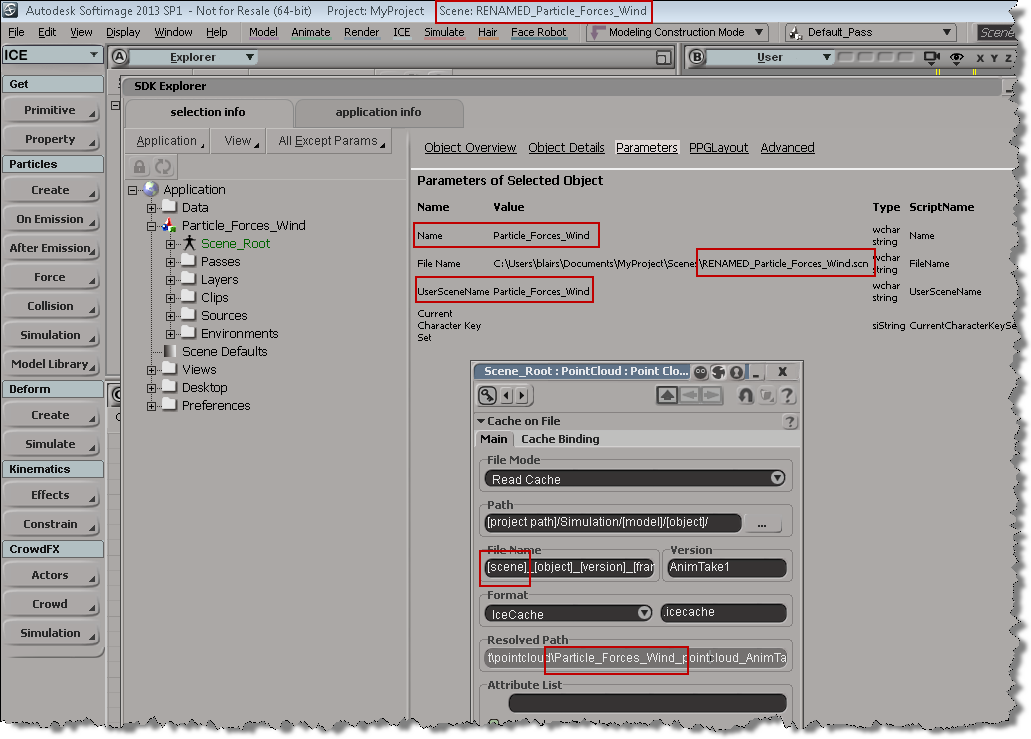
The scene name and the name of the .scn file are usually the same, but if you do something like rename the scene file in the file system, you’ll end up with something like this. Note that the [Scene] token isn’t resolving to the correct file name anymore.

# In the file system, I renamed "Particle_Forces_Wind" to "RENAMED_Particle_Forces_Wind"
# So, open RENAMED_Particle_Forces_Wind and run this:
scn = Application.ActiveProject.ActiveScene
scn.Parameters("Name").Value = "RENAMED_Particle_Forces_Wind"

Running the Python snippet above will fix the naming problem:

Scripting – How to get the active objects for component selection


When you’re in a component selection mode (such as Edge, Polygon, or Point), the active objects are highlighted in orange. The “active objects” are the objects that are “active for component selection”.

When Softimage is in a component selection mode, the Selection will either by empty or it will contain CollectionItems (one for each object with selected components).

So, how do you get the active objects? Here’s one way, using the little known, magical “.[obj].”:

# Python
import win32com.client
oActiveObjects = win32com.client.Dispatch( "XSI.Collection" )
oActiveObjects.Items = ".[obj]."
// JScript
var oActiveObjects = new ActiveXObject( "XSI.Collection" );
oActiveObjects.Items = ".[obj].";

Using wildcards and string expressions to find objects by name


From Ciaran on the XSI mailing list, here’s a good example of how to find all light nulls whose names contain “lamp” or “light”:

oLightNulls =  oModel.FindChildren2("{*light*,*lamp*}",c.siNullPrimType)

The curly brackets {} are used in a string expression to specify a list of objects.

That String Expressions page still looks pretty much the same as it did back in 1999, when I first wrote it!

About the Selection Change Command


In the Selection preferences, there’s a Selection Change Command text box where you can type in a command to run when the selection changes.

Here are two important points about the Selection Change Command:

  1. Use the VBScript syntax to enter the command. It doesn’t matter what the current scripting language is, the preference expects VBScript (so something like Application.LogMessage( “Hello %s” % Application.Selection(0) ) will end up logging an error when you select something).
  2. The Selection Change Command is triggered when you select something in a 3D viewport. The command isn’t triggered when you select an object in the explorer.

Whoops I guess Softimage did need that sitecustomize.py file…


Awhile back, I wrote a little script that used ElementTree to parse the XML returned by GetConnectionStackInfo. I posted the 2013sp1 version of the script here.

Anyway, I was a little surprised when I couldn’t get the script to run in 2012 SAP. I was sure that it used to work, but now it was giving me this error:

# ERROR : Traceback (most recent call last):
#   File "<Script Block >", line 17, in <module>
#     connections = ET.XML(stackInfo)
#   File "C:\Program Files\Autodesk\Softimage 2012.SAP\Application\python\Lib\xml\etree\ElementTree.py", line 962, in XML
#     parser = XMLTreeBuilder()
#   File "C:\Program Files\Autodesk\Softimage 2012.SAP\Application\python\Lib\xml\etree\ElementTree.py", line 1118, in __init__
#     "No module named expat; use SimpleXMLTreeBuilder instead"
# ImportError: No module named expat; use SimpleXMLTreeBuilder instead
#  - [line 17]

After digging into the problem a bit, I found that the Softimage install did indeed include expat, but Softimage wasn’t finding it…because I had deleted the Application\python\Lib\sitecustomize.py file!!! Doh.

I had deleted sitecustomize.py while investigating a problem report from a customer, and then I didn’t bother putting it back, because Python was still working in general.

sitecustomize.py adds paths like %XSI_HOME%\Application\python\DLLs to the sys.path, and pyexpat.pyd is in that DLLs folder.

Scripting the creation of text objects


Here’s a little Python snippet that creates a bunch of text objects, one for each item in a list. Note the handling of multiple lines (elements in triple quotes).

names = ["Test", """Coming
Soon""", "XSI",
"""one
two
THREE""", "SUMATRA"]

for n in names:
                text = Application.CreateMeshText("CurveListToSolidMeshForText", "siPersistentOperation")
                if n.find( "\n" ):
                                n = n.replace( "\n", "\\par\r\n" )
                                Application.SetValue(str(text) + ".crvlist.TextToCurveList.text.singleline", 0, "")
                                
                Application.SetValue(str(text) + ".crvlist.TextToCurveList.text.text", "%s%s%s" % ("_RTF_{\\rtf1\\ansi\\deff0{\\fonttbl{\\f0\\froman\\fcharset0 Arial;}}\r\n\\viewkind4\\uc1\\pard\\lang1033\\f0\\fs20 ", n, "\\par\r\n}\r\n"), "")
                Application.SetValue(str(text) + ".extrudelength", 1, "")

Getting a list of all shaders in a render tree


Here’s a Python snippet that gets all the shaders in the render tree for a specific material. As usual, I always feel that my Python snippet could be made more pythonic; for now, this will have to do…

PS The Shader reference page has a VBScript example, but that doesn’t work anymore because it was written before ShaderParameters were introduced.

from sipyutils import si		# win32com.client.Dispatch('XSI.Application')
si=si()

import win32com.client
coll = win32com.client.Dispatch( "XSI.Collection" )

def doit( s, coll ):

	for p in s.Parameters:
		if p.Source and p.Source.IsClassOf( C.siShaderParameterID ):
			print p.Source.Parent.Name
			coll.Add( p.Source.Parent )
			doit( p.Source.Parent, coll )
	
	for l in s.TextureLayers:
		for y in l.Parameters:
			if y.Source and y.Source.IsClassOf( C.siShaderParameterID ):
				print y.Source.Parent.Name
				coll.Add( y.Source.Parent )
				doit( y.Source.Parent, coll )

# Get a material or shader to use as a starting point
mat = si.Dictionary.GetObject("Sources.Materials.DefaultLib.Architectural")
doit( mat, coll )

coll.Unique = True
coll.Add( mat.AllImageClips.GetAsText() )

This snippet worked for this [nonsensical test] render tree: