Setting the active project


To set the active project, you use CreateProject to get an XSIProject object and then assign the XSIProject object to the XSIApplication.ActiveProject2 property.

Application.LogMessage( Application.ActiveProject2.Path ) 

# In this example, I use the path to an existing project
sPath = "C:\\Users\\blairs\\Documents\\Support\\Project" 
oProj = Application.CreateProject( sPath ) 

# ActiveProject2 is a property that takes an XSIProject object
Application.ActiveProject2 = oProj 

Application.LogMessage( Application.ActiveProject2.Path ) 

# INFO : C:\Program Files\Autodesk\Softimage 2011 Subscription Advantage Pack\Data\XSI_SAMPLES
# INFO : C:\Users\blairs\Documents\Support\Project

You can use CreateProject on an existing project, and you’ll get back the object for that project. However, CreateProject will re-create any of the missing default folders (like Actions, Audio, Backup, and so on). If you’re using a customized set of project folders, you can avoid this by using the deprecated ActiveProject property:

p1 = "C:\\Program Files\\Autodesk\\Softimage 2011 Subscription Advantage Pack\\Data\\XSI_SAMPLES"
Application.ActiveProject = p1
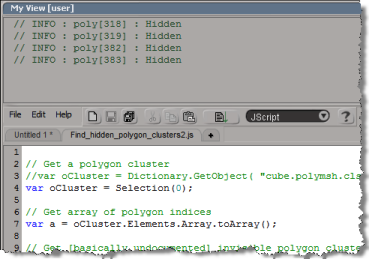
Putting the history log on top of the script editor


Commenter mindFreeArtists asks

Is there is a possibility to swap script editor window and history log window so that i have history log at the top of script editor like in previous versions?

Sure, but you can’t do it all through the UI. The Script History view is not listed by the relational view editor, so you have to create a view and then hand edit the .xsivw file. Here’s the .xsivw that goes with the screenshot in this post. Note the <frame name="log" type="Script History" part: that’s what adds the script history log.

<?xml version="1.0" encoding="iso-8859-1"?>
<xsi_file type="RelationalView" xsi_version="9.5.172.0" syntax_version="1.1">
	<relationalview clsid="{E968166E-F924-46F4-AD4D-452EEB963F84}" name="My View" height="521" width="479">
		<definition maxinstances="10000" acceptfocus="true" private="false" defaultsize="100,100,500,500" cmdmap="{00000000-0000-0000-0000-000000000000}" supportedtypes="6" category=""> </definition>
		<relations>
		</relations>
		<frameset orientation="vertical" name="Frameset1" buttonsize="80,30" splitter="movable" sizechild="200,*">
			<frame name="log" type="Script History" primary="true" toolbar="own"> </frame>
			<frame name="pane2" type="Text Editor" primary="false" toolbar="own"> </frame>
		</frameset>
	</relationalview>
</xsi_file>

PPG doesn’t pop up automatically when you create a null


A customer mentioned to me the other day that the PPG didn’t pop up when he created a null.

It turns out we never pop-up the PPG when you create a null. I just never noticed that.
To verify that, I checked the implementation of GetPrim, which is the script GetPrimProc in %XSI_HOME%\Application\DSScripts\primitives.vbs.

In GetPrimProc, you’ll see that we skip nulls when we call AutoInspect:

'--------------------------------------------------------------------
' Inspect the new object
'--------------------------------------------------------------------
if Not TypeName (out_primitive) = "Nothing" then
	if  Not out_primitive.type = "null" then
		AutoInspect GetPrimProc, ,, "General"
	end if
end if

The customer also had another problem: pressing ENTER didn’t open up the PPG either, or if it did, all he got was a numeric slider for setting the Icon. Restarting Softimage fixed this; my guess is that the cached PPG layout was corrupted somehow (Softimage caches PPG layout definitions–if you’ve spent any time coding custom properties you’ve probably noticed how the PPGs of existing properties don’t change when you change the layout code).

Crash when you open the render tree or Material Manager


Some users have reported crashes when they open the render tree or Material Manager. For some users, this happens after a period of extended usage; for others, it appears to be scene- or geometry-specific.

I’ve had users send me scenes with geometry that appeared to crash the render tree and Material Manager, but when I tried on my machine, everything worked fine. So, it’s a bit of a mystery.

There is a workaround however: open the render tree and Material Manager before you load your scene. After that, you can work normally.

You could use an OnStartup event to automatically open those views when Softimage starts. I believe you could just open and close them at startup, and then everything will be ok afterwards.

Softimage announcements


If you want to be updated about service pack releases and other important Softimage news, turn on the Check for Announcements and Updates preferences (File > Preferences > General).

Then every time you start Softimage, announcements and updates will be displayed in the default Netview page. If this option is off, you can still click a link in the default Netview page to display them. If this option is on but Launch Netview on Startup is off, high-priority messages will still force Netview to open on startup.

Alternatively, you can subscribe to the RSS feed at http://softimage.wiki.softimage.com/motd/rss_en.xml using an RSS-aware browser.