Not all numbers are exactly representable as floats


Representable numbers

The number of digits (or bits) of precision also limits the set of rational numbers that can be represented exactly. For example, the number 123456789 clearly cannot be exactly represented if only eight decimal digits of precision are available.

Inexactness

Floating-point arithmetic on digital computers is inherently inexact. The 24 bits (including the hidden bit) of mantissa in a 32-bit floating-point number represent approximately 7 significant decimal digits. Unlike the real number system, which is continuous, a floating-point system has gaps between each number. If a number is not exactly representable, then it must be approximated by one of the nearest representable values.

In Softimage, you can see the inexactness of floating point numbers with a floating point parameter on a PPG, or with the Scalar node in an ICE tree. In either case, try entering the value 123456789: you’ll end up with the value 123456792.

If you run this Python snippet in a script editor, you can try this out:

import win32com.client
from win32com.client import constants

xsi = Application

oCustomProperty = xsi.ActiveSceneRoot.AddProperty( "CustomProperty", False, "Test" )
oCustomProperty.AddParameter2("Int",constants.siInt4,0,None,None,0,None,constants.siClassifUnknown,constants.siPersistable + constants.siKeyable)
oCustomProperty.AddParameter2("Float",constants.siFloat,0,None,None,0,None,constants.siClassifUnknown,constants.siPersistable + constants.siKeyable)
oCustomProperty.AddParameter2("Double",constants.siDouble,0,None,None,0,None,constants.siClassifUnknown,constants.siPersistable + constants.siKeyable)

xsi.InspectObj( oCustomProperty )

xsi.SetValue("Test.Float", 123456789)
x = xsi.GetValue( "Test.Float" )

xsi.LogMessage( x )
# INFO : 123456792.0
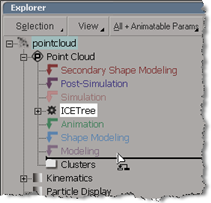
Finding the SoftimageLicense.log file


The SoftimageLicense.log file is located in the %TEMP% folder. To find or open the log file, you can simply type %TEMP% in the Windows Search box, in File > Open dialogs, or in the Windows Explorer address bar. The environment variable is automatically expanded to its full value (which is something like “C:\Users\blairs\AppData\Local\Temp”) when you press ENTER.

For example, click the Windows button, type %TEMP%\SoftimageLicense.log in the search box, and then press Enter (or click SoftimageLicense.log in the search results).

Deleting reference material libraries


How do you get rid of a reference material library when you don’t need it anymore in a scene? If you try to delete it, you just get this message “ERROR : Invalid procedure call or argument: ‘DeleteObj’ “.

To delete a reference material library, you have to unlock it first:

– Open the explorer.
– Change the scope to Materials.
– Right-click the reference material library, click Locks, and then click Unlock all levels.
– Now you can delete the reference material library.

Saving the size and position of the render tree


If you use a custom layout, you can save the size and position of floating views such as the Render Tree.
In the online User’s Guide, look up windows:setting default size and position.

You could also use a toolbar button to run a script that opens the render tree with the desired size and position. For example:

var layout = Application.Desktop.ActiveLayout;
var v = layout.CreateView( "Render Tree", "Render Tree" );
v.Move( 10, 10 );
v.Resize( 1000,1000 );

Crosswalk not available in Maya


You installed the latest Crosswalk, but you don’t see it anywhere in Maya when you try to export.

Usually, this is all you have to do to make Crosswalk available in Maya:

  1. In Maya, click Window > Settings/Preferences > Plug-in Manager.
  2. Find the dotXSISceneConverter plug-in and select the Loaded and Auto load check boxes.
  3. Now when you export, you will see the Autodesk Crosswalk Exporter (.xsi) option in the Files of Type list.

Yahoo pipe for aggregating Softimage RSS feeds


http://pipes.yahoo.com/softimage

I created a Yahoo pipe to aggregate the following feeds:

  • Posts on the product support blog
  • New KB articles at autodesk.com/softimage-support
  • AdskSoftimage tweets
  • New tutorials, tips, plugins, and scripts on the Area

You can go directly to the pipe here: http://pipes.yahoo.com/softimage/info. I prefer the List view myself.

You can even get an RSS feed for the pipe:
http://pipes.yahoo.com/pipes/pipe.run?_id=f262500e7930b67bb97e91f36c8dfbdc&_render=rss

Note: the pipe filters the RSS feeds from the Area looking for the keyword “Softimage” and “xsi” in the title and description. This works pretty well for tutorials, tips, and plugins, but not so well for scripts. Most of the scripts posted on the Area don’t use the words “Softimage” or “xsi” in either the title or description.