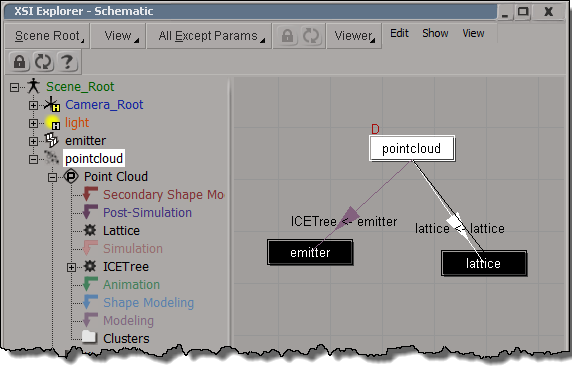
Here’s a handy way to navigate through a scene and show the selected object and its connections in the Schematic: use the XSI Explorer with Viewer set to Schematic.

hat tip: David Barosin
Category Archives: Tips
Getting the Softimage installation location from the registry
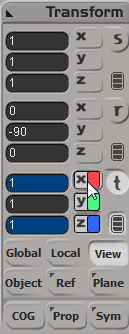
Tip: Entering the same value in multiple boxes of the Transform Panel
CHM version of Softimage 2014 User Guide
Click image to download

It’s not hard to do:
- Download and install the HTMLHelp Workshop.
- Download the local version of the Softimage User Guide.
- Generate hhp (project), hhc (toc), and hhk (index) files for the HTMLHelp Workshop, and then compile the project. You can even download a utility that does that for you (well, everything but the compiling part).
I used to do it with a few ad-hoc perl and python scripts, but that utility works great.
- Or you could just click that image at the top of the page.
Fun with PPG shortcut keys
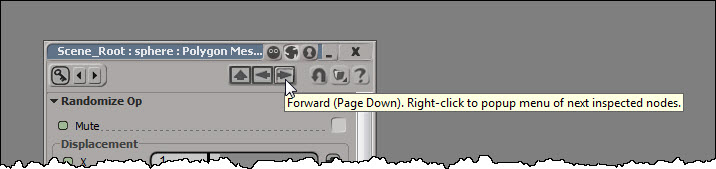
You can use the PageUp and PageDown keys to move back and forward through the history of recently inspected nodes.


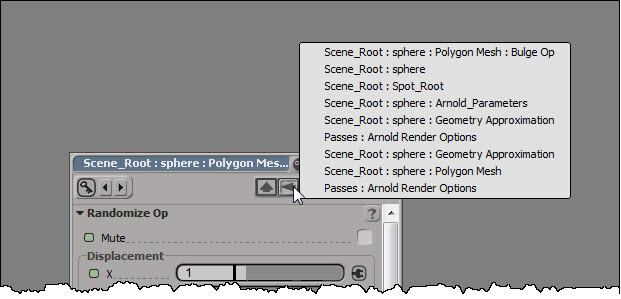
If you right-click one of those arrows, you can see the history list of inspected nodes, and select a specific node to inspect:

If there’s no property page open at the moment, pressing PageUp (or PageDown) will open a property page and load the most recently inspected node.
Here’s a related TD Survival video on PageUp (and some other handy shortcut keys):
Fit Subcomponent UVs To Image
When you click Fit Subcomponent UVs to Image in the Texture Projection property editor, you’ll get these ERRORs in the script history:
' ERROR : Object doesn't support this property or method: 'in_uvprops.IsClassOf' - [line 1842 in C:\Program Files\Autodesk\Softimage 2014\Application\DSScripts\Texture.vbs] ' ERROR : - [line 25] ' ERROR : Property Page Script Logic Error ' ERROR : [23] end if ' ERROR : [24] (null) ' ERROR : >[25] FitSubcomponentUVsToImage Pset.InspectedObjects, filtered ' ERROR : [26] End Sub
The fix for this requires that you edit $XSI_HOME\Application\DSScripts\Texture.vbs. You’ll probably need to edit the Permissions on Texture.vbs so that you have Full Control or Modify permissions.
Find line 1842 in Texture.vbs, and then replace the if..else..endif with this:
set coll = CreateObject("XSI.Collection")
if in_uvprops.Type = "XSICollection" then
set coll = in_uvprops
elseif in_uvprops.IsClassOf( siUVPropertyID ) = True then
coll.Add in_uvprops
end if
The fix I posted on the Softimage mailing list awhile ago was a one-liner that would enable you to use Fit Subcomponent UVs to Image on a single texture projection. This fix will work if you have multiple texture projections in the property editor.
Tip: Finding commands in the Keyboard Mapping editor
- Click View in Browser, press CTRL+F and search for the command. When you find it, scroll up until you see the name of the group that contains the command. For example, here’s the “XSI” group in a Key Map html page:
-
In the Keyboard Mapping editor, click that group in the Group box.
- Click in the Command box and start typing the name of the command you’re looking for.
Tip: Quickly explore any user, workgroup, or factory location
The default project
The default project is the active project at startup (the project whose name appears in the Softimage title bar).
When you first install Softimage, the default project is XSI_SAMPLES.
After that, as you open scenes and exit and restart Softimage, the default project becomes the project that contained the scene you last opened. This is saved in your Default.xsipref file like this:
data_management.last_sequence_dir = C:\Users\SOLIDANGLE\Projects\My Project\Scenes
But you can explicitly set a default project with the Project Manager, then that is saved in your Default.xsipref like this:
xsiprivate_unclassified.DS_SZ_LOAD_DEFAULT_PROJECT = #STRI#C:\Users\SOLIDANGLE\Projects\Support
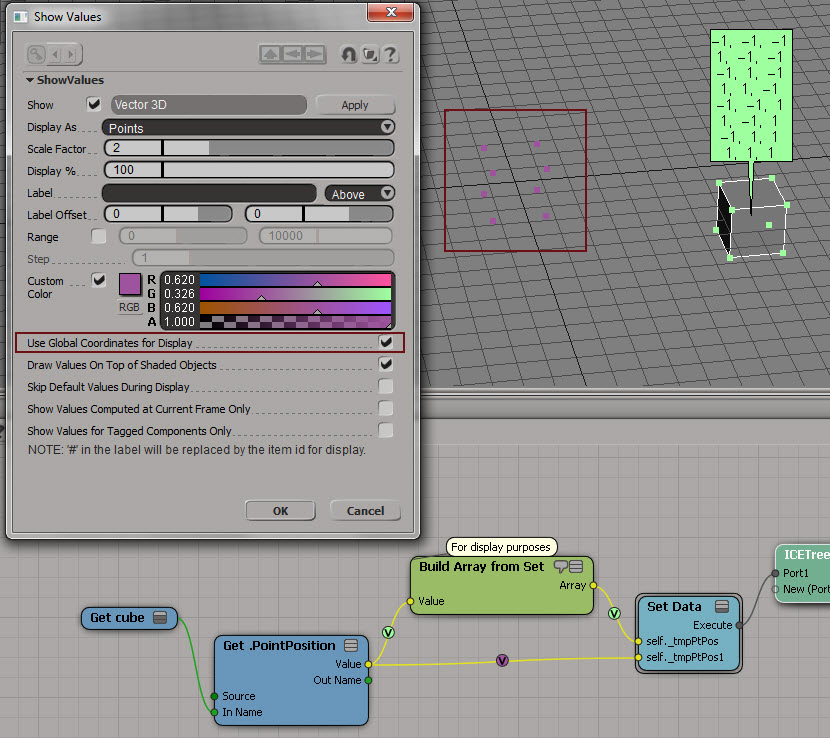
Use Global Coordinates for Display
Sometimes it can be useful to turn on Use Global Coordinates for Display. Because otherwise you’re going to be looking at points in local space, and that can mess up your thinking.
Here’s a simple example to show the difference. Purple is global, light green is local. As you can see, the purple points match up with the actual coordinates.

Now here’s a better example of the usefulness of Use Global Coordinates for Display. Red is local (and misleading). Yellow is global. Imagine you’re doing all kinds of coordinate system conversions in a complicated tree, and then you decide to show values as points. If you’re not careful, like me sometimes, you end up doubting everything you’ve done and pulling it all apart.