Tip – Using the * wildcard for filtering in the ICE preset manager


[see also this tip: Using the ? wildcard]

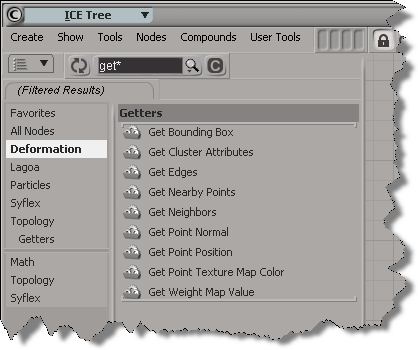
While typing part or all of a word is often enough to narrow down the possibilities, sometimes you may want to search for all compounds that start with one string and end with another. For that, you use the asterisk (*) regex wildcard.

After you use a wildcard once, there’s no more automatic partial word matching. “G*P” won’t find anything, you need to add another * at the end.

“G*P*” is a little broad, so you might want to be more specific:

Note that you can categories to further filter down the results. Here, I selected just one category (Deformation), but I could have CTRL selected two or more categories.
Scripting – How to get the active objects for component selection


When you’re in a component selection mode (such as Edge, Polygon, or Point), the active objects are highlighted in orange. The “active objects” are the objects that are “active for component selection”.

When Softimage is in a component selection mode, the Selection will either by empty or it will contain CollectionItems (one for each object with selected components).

So, how do you get the active objects? Here’s one way, using the little known, magical “.[obj].”:

# Python
import win32com.client
oActiveObjects = win32com.client.Dispatch( "XSI.Collection" )
oActiveObjects.Items = ".[obj]."
// JScript
var oActiveObjects = new ActiveXObject( "XSI.Collection" );
oActiveObjects.Items = ".[obj].";

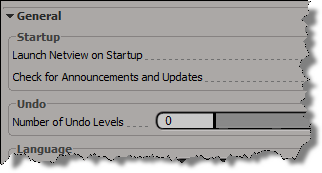
Number of Undo Levels reset to zero


If you’re having problems with your Undo Levels being reset to zer0, it could be a C++ plugin that’s doing it (or less likely, a NetView page). C++ plugins (and NetView pages) that set the Undo Levels to 0 and then don’t restore it, either by oversight or because of a crash/error, can leave you with your Undo Levels set to 0.

In constrast, we prevent scripts and script-based plugins from changing the Undo Level permanently: as soon as the script finishes execution, Softimage resets the General.undo preference to its default value.

For example, if you run this in the script editor:

Application.SetValue("preferences.General.undo", 0, "")

You’ll see this logged in the script history:

# VERBOSE : Restoring preference changed by script: General.undo

Searching the SDK docs


For the searching the current SDK documentation, I would install the SDK docs locally. The local docs use a different search that works better.

To download a single installer for both the User Guide and SDK Guide:
http://www.autodesk.com/softimage-documentation

Just the SDK:
http://images.autodesk.com/adsk/files/softimage-2013-sdk-doc0.zip

Local search results are much better than the online search:

FBX Converter


The FBX Converter is a handy tool that not everyone knows about. From the download page:

FBX Converter
Transfer files from one file format to another quickly and easily with the FBX Converter. This utility enables you to convert OBJ, DXF™, DAE, and 3DS files to or from multiple versions of the FBX format. New tools are now available with the FBX Converter 2012.1. You can view FBX animation files in real time with the FBX Viewer, explore and compare FBX file contents with the FBX Explorer, and manage animation takes with the FBX Take Manager.

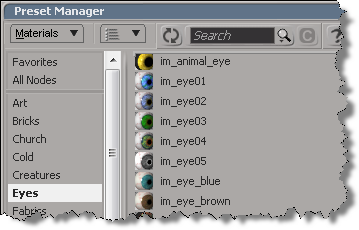
Preset Manager and custom material presets


Just in case you were wondering how to add new material presets to the Preset Manager, because I was and I spent a bunch of time trying…

The Preset Manager won’t pick up presets from anywhere else but the factory location (%XSI_HOME%\Data\DSPresets\Materials).

At first I thought I was doing something wrong. Then I used Process Manager to confirm that Softimage wasn’t loading presets from my User location. Then I checked for old bug reports/feature requests, and I double-checked the actual code for the preset manager.

There’s an environment variable XSI_DSPRESETS that specifies the location of the material presets, but you cannot use it to override the factory location. Even if you change that environment variable, Softimage reads only the factory Data\DSPresets\Materials folder.

Disabling Customer Error Reporting (CER)


In general, we’d prefer you didn’t disable the CER reports. But if you’re in the middle of debugging a plugin that constantly crashes, for example, you might want to temporarily disable the CERs.

To disable CER reporting, edit the Softimage setenv.bat file and add this:

SI_DISABLE_CER=1

Maya, and presumbably 3ds Max, work the same way.

MAYA_DISABLE_CER=1

Finding the menu commands added by a plugin


So you installed a plugin, but now you cannot find out how to access the plugin in Softimage.

If the plugin added a menu command, and it’s a scripted plugin, we can find it by checking the plugin code (in the Plugin Manager > Tree, right-click the plugin and click Edit).

Find the definition of XSILoadPlugin.
In the XSILoadPlugin function, look for any calls to RegisterMenu.

def XSILoadPlugin( in_reg ): #{{{
	in_reg.Author = "kim"
	in_reg.Name = "EPSexportPlugin"
	in_reg.Email = ""
	in_reg.URL = ""
	in_reg.Major = 1
	in_reg.Minor = 0

	in_reg.RegisterProperty("EPSexport")
	in_reg.RegisterMenu(constants.siMenuMainFileExportID,"EPSexport_Menu",false,false)

	# register the export command
	# 	KA_EpsExport( Application.Selection, OutputFile, CullBackFaces, doInnerLines, doBorderLines, InnerLineThickness, BorderLineThickness, AutoDiscontinuity, Xres )
	in_reg.RegisterCommand("KA_EpsExport","KA_EpsExport")

	return true

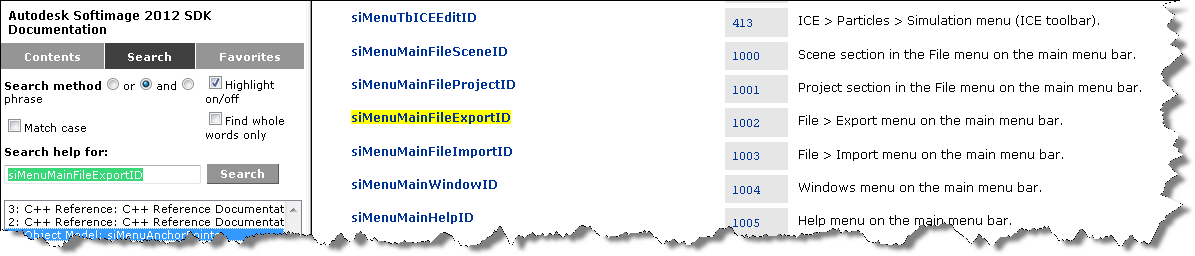
RegisterMenu uses what’s called a “menu anchor” to define a new menu command. In this example, the menu anchor is siMenuMainFileExportID.

Google the menu anchor or search the SDK docs, and you’ll find a page that describes the menu anchors: