Learning movies play in the wrong language


A customer in Germany reported that he couldn’t play the Softimage learning movies (aka Essential Skills movies) from NetView, and that when he used Windows Explorer to open the movies, they were playing in Japanese. I had a similar problem on my own machine, where the Maya learning movies played in Japanese instead of English.

First, the links in the NetView learning movies page just “run” the files using the default program for .mov files. If nothing happens when you click a link, check the default program registered for the .mov file type. If you cannot get the links to work, you can find the movies in the folder %XSI_HOME%\Data\NetView_Database\Movies.

The movie files contain multiple audio tracks. Here’s a video that shows how to change to the English audio track:

ERROR : 2004 – Invalid pointer – [line 2]


When you render with xsibatch, you get this error even though the frame does render successfully.

ERROR : 2004 – Invalid pointer – [line 2]

For example:

COMMAND: -render "C:\Users\blairs\Documents\Support\Project\Scenes\Sphere.scn" -
frames 2-4
>Loading: C:\Users\blairs\Documents\Support\Project\Scenes\Sphere.scn...
' ERROR : 2004 - Invalid pointer - [line 2]
' INFO : 4034 - Loaded scene was created with build number: 9.5.184.0 - compatibility version: 900
' ERROR : 2004 - Invalid pointer - [line 2]
OpenScene "C:\Users\blairs\Documents\Support\Project\Scenes\Sphere.scn", False,True
' INFO : Rendering all passes: Passes.Default_Pass
' INFO : Rendering frames '2-4'
' INFO : Rendering pass 'Default_Pass'...
' INFO : Rendering frame 2 (0.0% done)
' INFO : Rendering frame 3 (33.3% done)
RenderPasses "Passes.Default_Pass", , , , siRenderVerbosityDefault

If you running xsibatch from a render manager, this error may cause the render manager to quit the render job.

You can workaround this by renaming the ICEFlow plugin (Application\Plugins\ICEFlow.dll). This plugin manages the transfer of data between Softimage and Maya (the one-click ICE workflow).

Error 1304 Error writing to file when creating a network deployment


If you get an error that looks like this when you create a network deployment:

Error 1304.Error writing to file \\MTL-server01\PSSMedia\Softimage\Users\BLAIRS\Deployments\SAP
\AdminImage\Softimage\x64\program files\Autodesk\Softimage 2011 Subscription Advantage Pack\Addons\ICEFlowBuilder\Data\Compounds\Particles\Presets\Lagoa Setup Basic Emission from Null.1.0.xsicompound. Verify that you have access to that directory.

followed by this error:

Error 2350.FDI server error

it’s because the path name is too long. The maximum length for a Windows path name is 260 characters.

If the path name of your deployment location is up around 60 characters, you’re going to exceed the 260 character limit. Too bad the deployment tool doesn’t check when you enter the Administrative Image location and deployment name:

The strange case of MatchMover licensing


I installed the RTM (release to manufacturing) version of Softimage 2011 Subscription Advantage Pack, including MatchMover and Composite awhile ago, and I ran MatchMover a number of times with no problem.

Then the other day I re-installed 3ds Max 2011 to switch from Network to Standalone licensing, for a case I was working on. After that, when I tried to run MatchMover, I’d get a message about my 3ds Max license being expired:

But in C:\flexlm\MatchMoverLicense.log, I saw that MatchMover was logging Maya licensing information:

====== BEGIN MAYA LICENSE DIAGNOSTICS Wed Oct 20 08:43:37 2010 ======
623848 ::: 2
623905 
623911 
623907 
623909 
623801 ::: m2010.016 win64, built Mar 19 2010 04:05:31
623802 ::: links in AdLM but not Flint
623833 ::: 'adlm'
623858 ::: 'en_US'
623912 
623913 
623824 ::: MAYA_LICENSE_METHOD 'standalone'
623823 ::: MAYA_LICENSE 'adlm-128c1-2011.0.0.f'
623826 ::: MAYA_ALT_EN
623830 ::: MAYA_LOCATION 'C:/Program Files/Autodesk/MatchMover2011'
623866 ::: 'C:/Program Files/Autodesk/MatchMover2011/adlm/en_US'
623846 ::: AdLM 1.3.34.0 (D034) win64
623807 ::: standalone MA 128C1 2011.0.0.F
623109 --- MA 128C1 2011.0.0.F 19
623837 ::: 0
623834 ::: 0
623838 ::: 
623805 ::: 
====== END MAYA LICENSE DIAGNOSTICS Wed Oct 20 08:43:37 2010 ======

So, I opened a command prompt and did this:

cd "C:\Program Files\Autodesk\MatchMover 2011 Subscription Advantage Pack"
set ADSKFLEX_LICENSE_FILE=@my-license-server
MatchMoverApp.exe

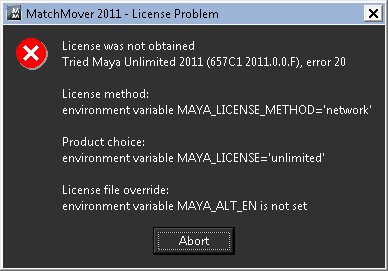
which gave me this Maya license error 20:

After poking around with Process Monitor for awhile, I opened the registry editor and renamed these these registry keys:

HKEY_LOCAL_MACHINE\SOFTWARE\Autodesk\Maya\2011\MAYA-1
HKEY_LOCAL_MACHINE\SOFTWARE\Autodesk\Maya\2011.5\MAYA-1

to something like “xxxMAYA-1”.

After that, MatchMover started and took Softimage license.

A few minutes later someone from Development sent me a much better workaround: set the ADSK_MATCHMOVER_LICENSE environment variable to Softimage.

MatchMover FBX export doesn’t work


When you try to import an FBX file into Softimage 2011 Subscription Advantage Pack (SAP) from MatchMover, you get an error:

The following error(s) occured while attempting to read the FBX file:
-Corrupted or invalid file.

That’s because MatchMover exports a REALVIZ XML file instead of actual FBX.

Try using the Softimage VB Script export instead. That gives you a VBScript you can run in Softimage 2011 SAP to set up the exported tracking data.

Switching material libraries


Here’s how to switch from one material library to another. This script could be useful when you have a corrupted material library (eg missing render tree connections), but you have a backup copy of the material library. For example, you could export a good version of the material library from a backup copy of the scene, and then import the matlib into the current version of the scene.


// Material Library with bad render trees (missing connections)
var oMatLib = Dictionary.GetObject( "Sources.Materials.DefaultLib" );

// Material Library with good render trees
var oMatLib1 = Dictionary.GetObject( "Sources.Materials.DefaultLib1" );


oEnum = new Enumerator( oMatLib.Items ) ;
for (;!oEnum.atEnd();oEnum.moveNext() )
{
        var oMat = oEnum.item() ;
        if ( oMat.UsedBy.Count > 0 )
        {
                var oMat1 = oMatLib1.Items(oMat.Name);
                if ( oMat1 == null )
                {
                        LogMessage( "Cannot find " + oMat.Name + " in " + oMatLib1.Name );
                }
                else
                {
                        LogMessage( "Repacing " + oMat.FullName + " with " + oMat1.FullName );
                        
                        // Groups
                        var g = oMat.Owners.Filter( "#Group" );
                        SIAssignMaterial( g.GetAsText(), oMat1 );

                        // Objects
                        SIAssignMaterial( oMat.UsedBy.GetAsText(), oMat1 );
                }
        }

}

T2S_MentalRay addon


The T2S_MentalRay addon includes copies of Softimage DLLs, such as sibase.dll, and that causes problems in Softimage 2011. I’ve had two cases of shader/workgroup problems that were resolved by removing this addon.

Update: As noted in the comments, the problem is older versions of SPDL files that contain GUIDs used by the Softimage factory shaders. Addon shaders are loaded first, so these SPDLs override the factory defaults and cause problems.

The case of the disappearing rig


On the AREA forums, a user reported that when he tagged a rig and then applied a .motor Motion file, the rig ended up thousands of units away from the global origin. If you looked only in the viewport, it would be like the rig disappeared.

It turned out to be the Windows Regional Settings: another case where having the comma as a decimal separator and the period as the digit grouping symbol caused problems with numeric calculations.