Given a 3D vector, can you get the X coordinate without using 3D Vector to Scalar or any other conversion node? (Not that there’s anything wrong with using a conversion node.)
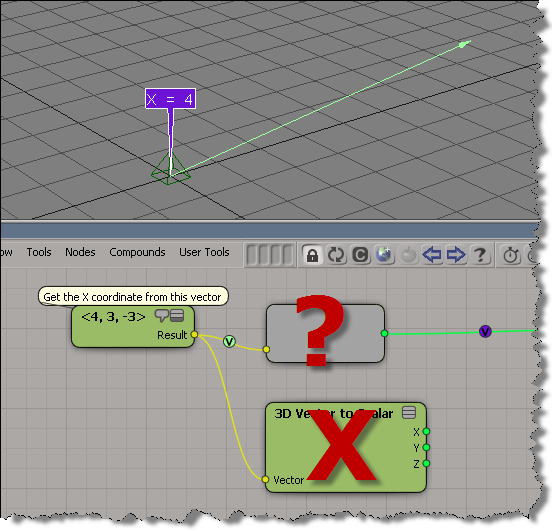
Hint: ||A||*||B||*adjacent/hypotenuse
Answer

Given a 3D vector, can you get the X coordinate without using 3D Vector to Scalar or any other conversion node? (Not that there’s anything wrong with using a conversion node.)
Hint: ||A||*||B||*adjacent/hypotenuse
Answer
From back in March 1997, a vision of a possible future that never did come to pass…

The docs don’t say whether the Trigonometry nodes like Cos and Sin work with degrees or radians, so you have to figure it out yourself. Fortunately, that’s pretty easy to do. You just check which of these returns -1: cos( 180 ) or cos( π) ?
I went a little overboard, but this shows that Cos and Sin expect angular measurements expressed in degrees.
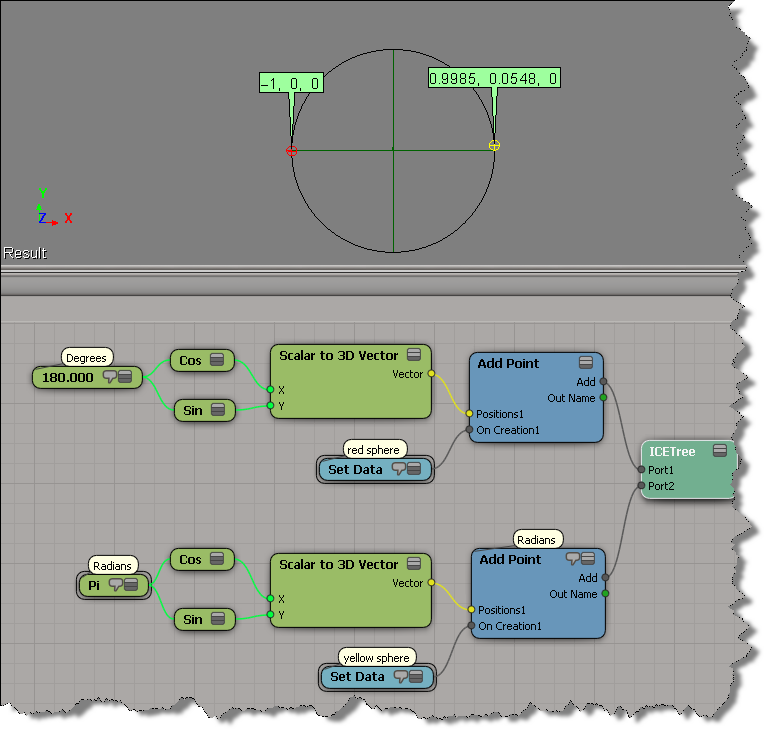
This is based on some basic trigonometry, which can be pretty handy when working with ICE:

Dealing with particle orientation and rotation can be frustrating, especially when you’re first learning.
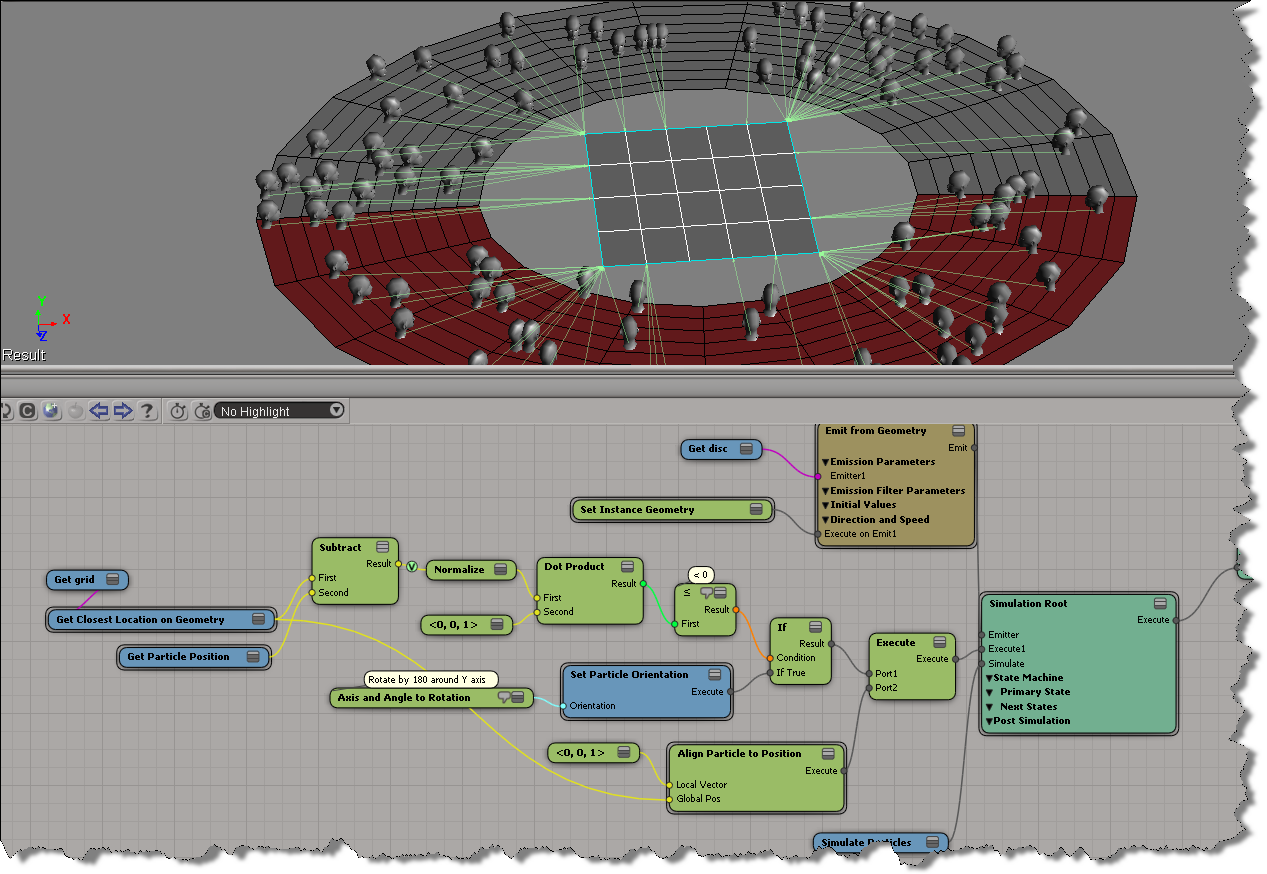
Here, I’ve got a bunch of faces instanced onto a disc, and I want all of them to to look the closest point on the grid that’s in the center of the disc. Because the initial local Z axis of some particles faces “away” from the grid, you get can some weird popping and flipping. Here’s an illustration of the problem from an earlier test, when I was aligning the faces to look at a specific point. Notice how only the instances on one side of the null have problems.

So, I use the dot product to determine whether the local Z axis faces “away” from the target grid, and if so, I make an adjustment of 180 degrees, and then the faces align nicely.
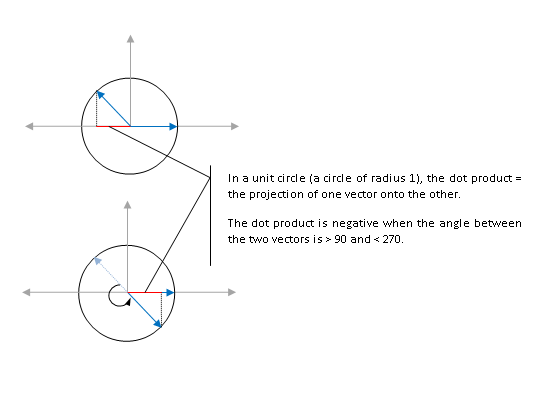
A negative dot product tells me that the angle between the local Z axis and the vector to the closest point on the grid is more than 90 and less than 270.
Given a particle emission, how do you make a null (or some other 3d object, for that matter) follow a specific particle?
The null is now constrained to particle 0. There’s an ICETree on the null where you can change the particle index, to constrain the null to a particle with a different ID.

For a more detailed, low-level look into this, see the video ICE Kine – Drive from particles by Eric T.
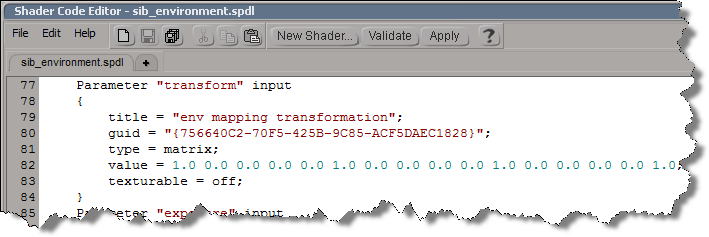
In the old days, if you didn’t like some default shader parameter setting, you had to edit a SPDL file and generate a new preset. As of 2011, you can use the ObjectModel (OM) to dynamically update the shader definition.
For example, if you run this Python snippet in the script editor, then the next time you create an Environment shader, it will have some different defaults:

from siutils import si		# Application
from siutils import log		# LogMessage
from siutils import disp	# win32com.client.Dispatch
from siutils import C		# win32com.client.constants

# Get ShaderDef for the Environment shader
sProgID = "Softimage.sib_environment.1.0"
oDef = si.GetShaderDef( "Softimage.sib_environment.1.0" )

# Get ShaderParamDef for the Tranformation parameter
oTransform = oDef.InputParamDefs.GetParamDefByName( "transform" )

# Make it texturable so it has a connection icon
oTransform.Texturable = True


# Make Cylinder the default Environment mode
oParam = oDef.InputParamDefs.GetParamDefByName( "mode" )
oParam.DefaultValue = 1

# Change the default background intensity to 0.5
oParam = oDef.InputParamDefs.GetParamDefByName( "background_intensity" )
oParam.DefaultValue = 0.5
So, that’s how you update a shader definition. Now, all you have to do is stick that code into a siOnCreateShaderDef event plugin, and every time you create an Environment shader, it will have the defaults you want
import win32com.client
from win32com.client import constants

null = None
false = 0
true = 1

def XSILoadPlugin( in_reg ):
	in_reg.Author = "blairs"
	in_reg.Name = "ShaderDef Plug-in"
	in_reg.Major = 1
	in_reg.Minor = 0

	in_reg.RegisterEvent("CreateShaderDef",constants.siOnCreateShaderDef)

	return true

def XSIUnloadPlugin( in_reg ):
	strPluginName = in_reg.Name
	return true

# Callback for the CreateShaderDef event.
def CreateShaderDef_OnEvent( in_ctxt ):
	oDef = in_ctxt.GetAttribute("ShaderDef")
	sProgID = str(in_ctxt.GetAttribute("ProgID"))
	if "Softimage.sib_environment.1.0" in sProgID:
		oDef.InputParamDefs.GetParamDefByName( "transform" ).Texturable = True

# 	Return value is ignored as this event can not be aborted.
	return true
Tip: Use the SDK Explorer (CTRL+SHIFT+4) to get the ProgID of a shader.

Custom rigging tools – Making of IGA – Odeur de Pain
by SHED Mtl


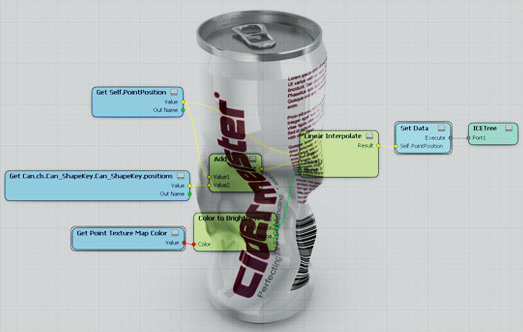
Shape blending with ICE using image sequences
by Ola Madsen
Raycast to weightmap
by EricTRocks

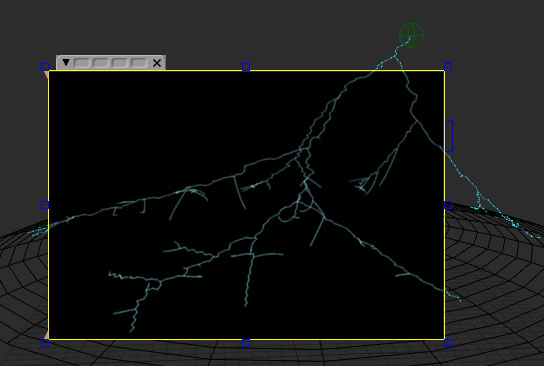
Simple electrical arcs
by Matic (follow link for downloads)
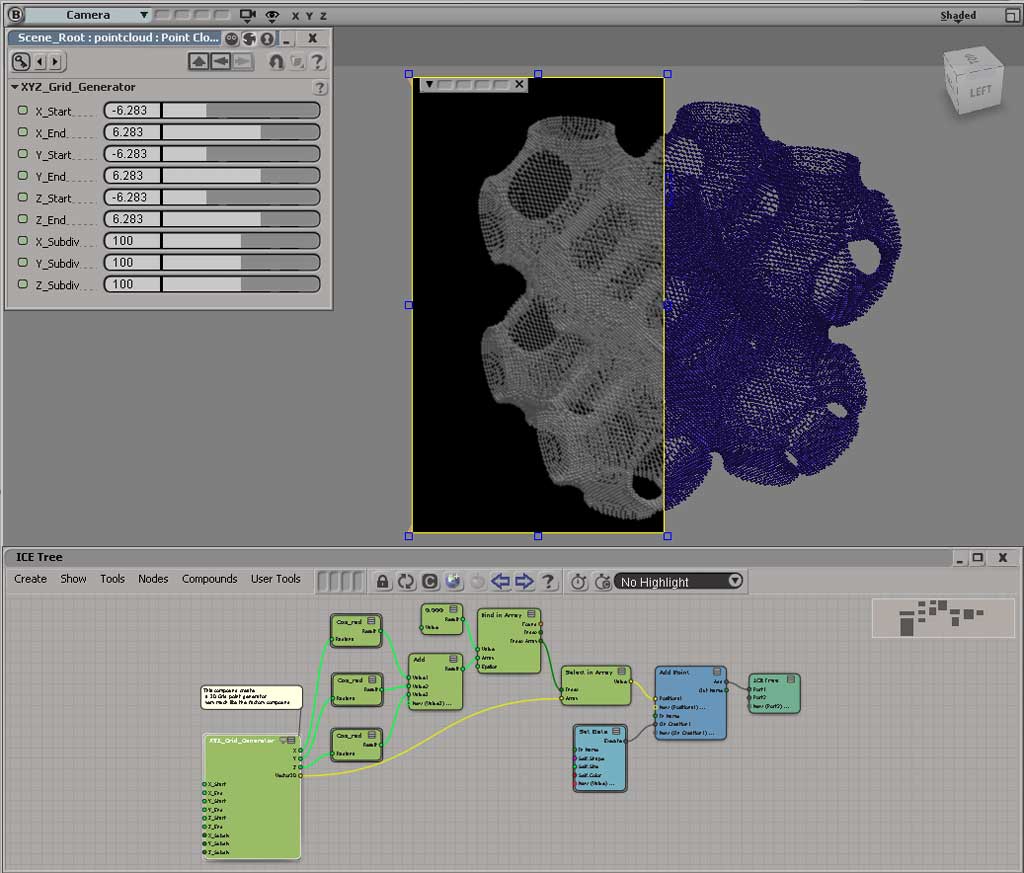
Instantiating a torus on every face of a dodecahedron
by piotrekm

Implicit cosine cloud
by Daniel Brassard
http://pic.twitter.com/LWbJtYvx

Logo motion
by twinsnakes007
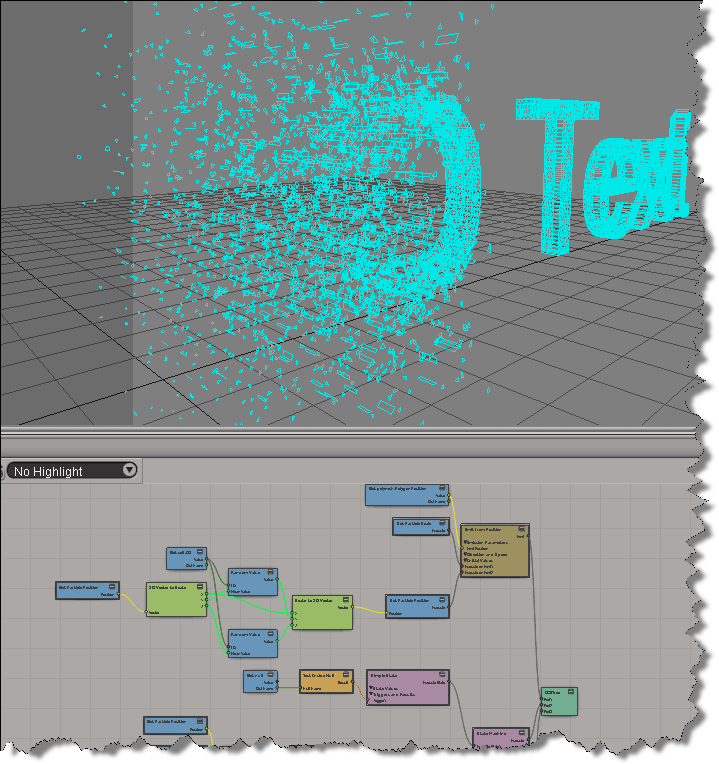
This post is based on the recent xsibase thread Golden Section Spiral in ICE, which in turn is based on Patrick Boucher’s 2006 article Points on a sphere.
So…here’s an ICE version of the Golden section spiral algorithm for evenly distributing points on a sphere. It’s a typical example of basic “thinking in ICE”: when you see a for loop in the alogrithm/pseudocode, you should see “in ICE” an array (or data set) flowing through a graph.
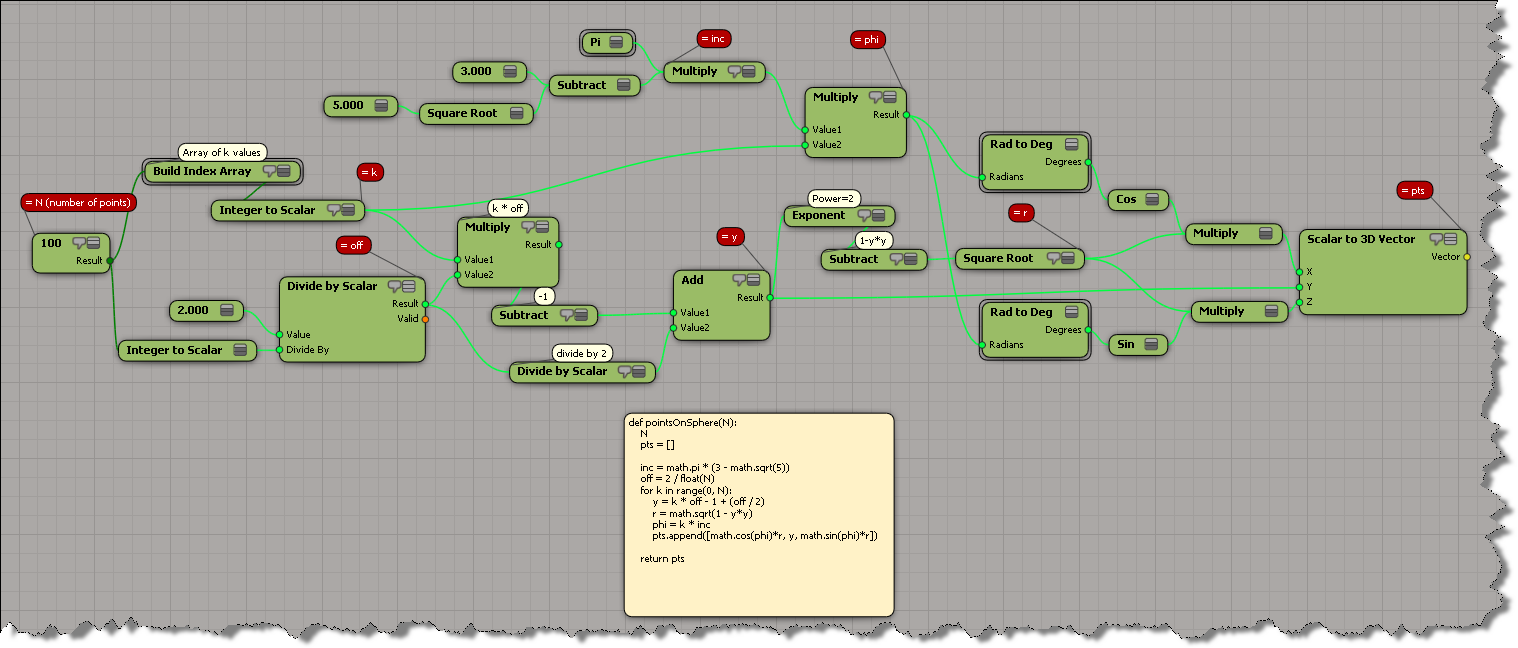
Here’s my GoldenSectionSpiral compound (although if you’ve never converted a scripted alogithm to ICE, you should do it yourself just for the exercise 😉 I thought the spiral effect was interesting, so I put in an option to not convert radians to degrees (which is necessary to get the real evenly distributed points).

We’ve had a couple of questions about this recently, so here goes…
In the 2011 release, parameters like the Environment shader’s Transformation parameter were changed to expose the raw transformation matrix instead of StaticKineState. This allows ICE attributes to plug directly in the shader input matrix ports and have texturable matrix ports.
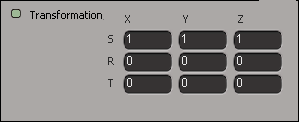
A transformation matrix is a combination of the scaling, rotation, and translation, and when you start animating those values, you’re going to see some “weird” numbers 😉 For example, if I animate the Z rotation from 0 to 45 degrees, I’ll see this in the Animation Editor. Note that in the viewport I’m using ICE to show the transformation matrix for a cone that has the same Z rotation from 0 to 45 degrees: see how it matches up with the fcurves for the Environment transformation.

To make things more artist-friendly, you have to make the Transformation parameter texturable so you can plug in a Create_Transform node in the render tree.
To make the Transformation parameter texturable, install this addon.

 eX-SI
eX-SI 
