Image from Aug 2005. XSI 5.0 was the first 64-bit version of Softimage|XSI.

We’ve had a couple of questions about this recently, so here goes…
In the 2011 release, parameters like the Environment shader’s Transformation parameter were changed to expose the raw transformation matrix instead of StaticKineState. This allows ICE attributes to plug directly in the shader input matrix ports and have texturable matrix ports.
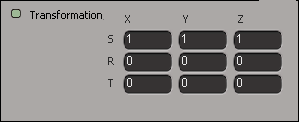
A transformation matrix is a combination of the scaling, rotation, and translation, and when you start animating those values, you’re going to see some “weird” numbers 😉 For example, if I animate the Z rotation from 0 to 45 degrees, I’ll see this in the Animation Editor. Note that in the viewport I’m using ICE to show the transformation matrix for a cone that has the same Z rotation from 0 to 45 degrees: see how it matches up with the fcurves for the Environment transformation.

To make things more artist-friendly, you have to make the Transformation parameter texturable so you can plug in a Create_Transform node in the render tree.
To make the Transformation parameter texturable, install this addon.

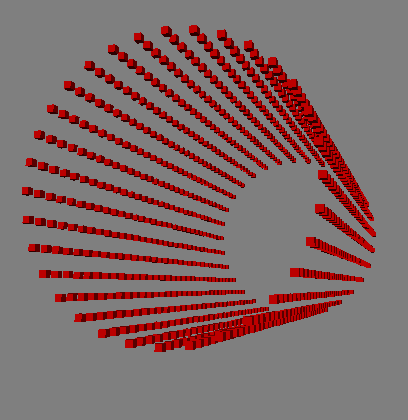
Here’s a simple parametric point cloud that shows the two techniques for using arrays instead of Repeats that I blogged about earlier:
Using arrays to avoid Repeat part I
Using arrays to avoid Repeat part II
I used this set of parametric equations to get a cylinder point cloud:
x = sin(u)
y = cos(u)
z = v
where
0 <= u <= 2*PI
-2 <= v <= 2
For this exercise, I simply used Build Interpolated Array to build arrays of U and V values, but I probably should use something like the XYZ_Grid_Generator technique described by Daniel Brassard on si-community.

Here’s a version of the ICE tree with some Show Values.

I use the Modulo technique to build an array of the XY values for all points in the cloud.
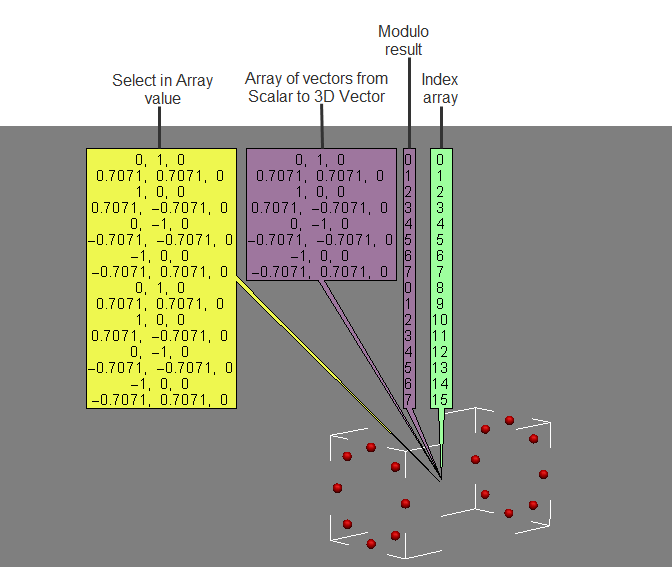
Then I use the Divide by Scalar technique (the integer result is truncated) to build an array of the Z values.

Finally, I add XY vectors to the Z vectors to get the final point positions.
Here’s how to set the default value for the FormatType list in the Capture Viewport dialog box.
from siutils import si		# Application
from siutils import log		# LogMessage
from siutils import disp	# win32com.client.Dispatch
from siutils import C		# win32com.client.constants

# Set the capture options
oViewportCapture = si.Dictionary.GetObject("ViewportCapture")
paramFormatType = si.Dictionary.GetObject( "ViewportCapture.FormatType" )

# Set default to JPEG
paramFormatType.Value = 5

# Display Viewport Capture dialog
si.CaptureViewport( 2, True )


# FormatType values
# -----------------
# 0 Alias
# 1 AVI
# 2 BMP
# 3 Cineon (DPX)
# 4 Cineon (FIDO)
# 5 JPEG
# 6 Memory mapped
# 7 mental ray color
# 8 OpenEXR
# 9 PGM
# 10 Photoshop PSD
# 11 Pict
# 12 PNG
# 13 PPM
# 14 Quicktime
# 15 SGI
# 16 Softimage .pic
# 17 Son Playstation2 TIM2/CLUT2
# 18 Targa
# 19 Tiff
# 20 Valve
# 21 Wavefront
# 22 YUV
If you are scripting a non-interactive viewport capture, you don’t use FormatType. Instead, the output file format is determined by the file extension of the output file name.
Here’s a Python version of the example on the CaptureViewport reference page.
from siutils import si		# Application
from siutils import log		# LogMessage
from siutils import disp	# win32com.client.Dispatch
from siutils import C		# win32com.client.constants
import win32com.client.dynamic

# Get the current frame
fc = si.ActiveProject.Properties("Play Control").Parameters("Current").Value

# Set the capture options
oViewportCapture = si.Dictionary.GetObject("ViewportCapture")

# Capture a 1-frame sequence
start = oViewportCapture.NestedObjects("Start Frame")
win32com.client.dynamic.Dispatch(start).Value = fc

end = oViewportCapture.NestedObjects("End Frame")
win32com.client.dynamic.Dispatch(end).Value = fc

# Specify the output file name
# For scripted captures, the output file format is determined by the extension
name = oViewportCapture.NestedObjects("File Name")
win32com.client.dynamic.Dispatch(name).Value = "C:\\test.jpg"

# No dialog
si.CaptureViewport( 2, False );
Here’s the ICE tree from the first half of the Transforming through textures master class.

The ICE tree, together with an animated mesh, gives an effect something like this:

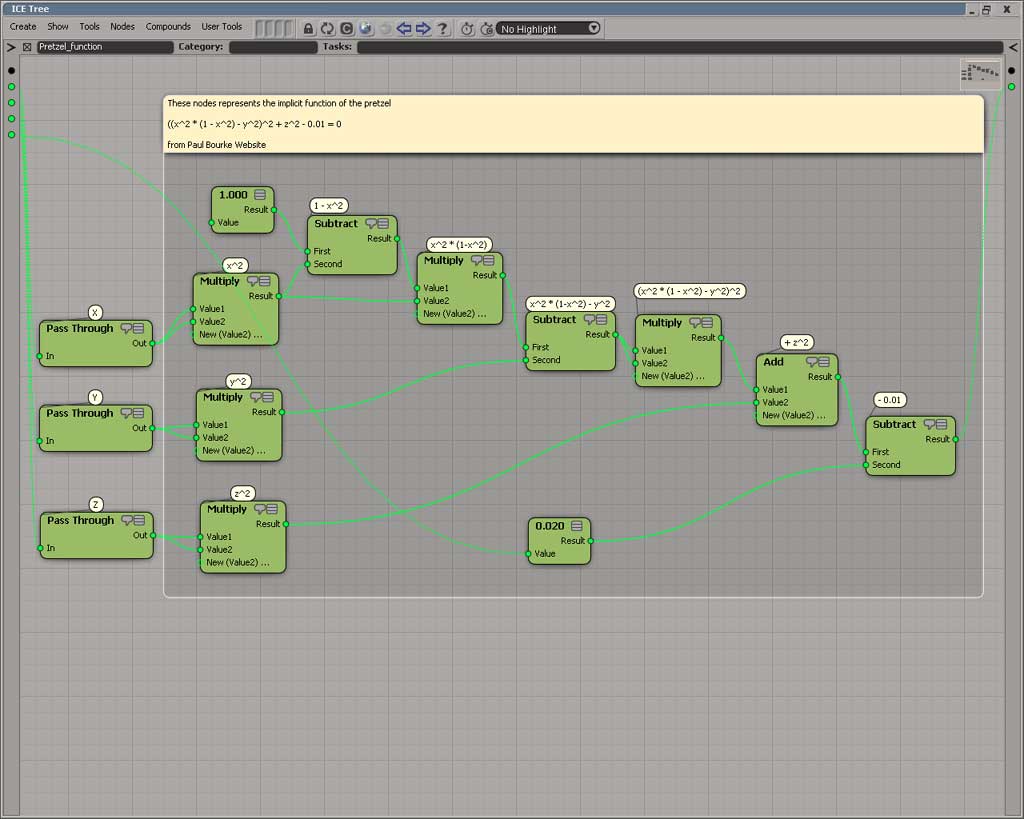
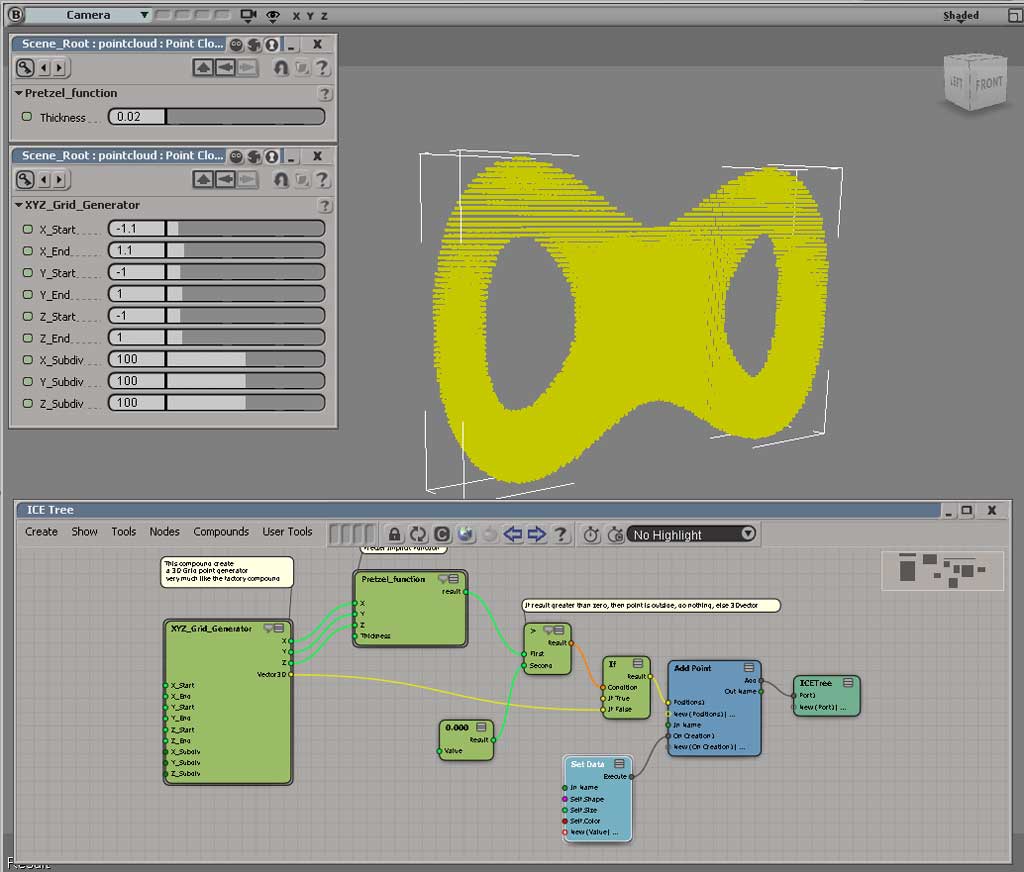
Pretzel
by Daniel Brassard
Inverted normals
by Wats

The wave
by TwinSnakes007

Quick primitive tool
by origin

Turn on Collapse Points For Snapping/Absolute Translation to move all the selected points to the same absolute location when translating with Snap, or typing values into the Transform panel. When this option is off, points keep their relative distances to each other and are never collapsed even when COG is off and Snap is on.

Back in 1999, you would use this dialog editor to build custom dialogs for SOFTIMAGE|3D shaders and plugins:
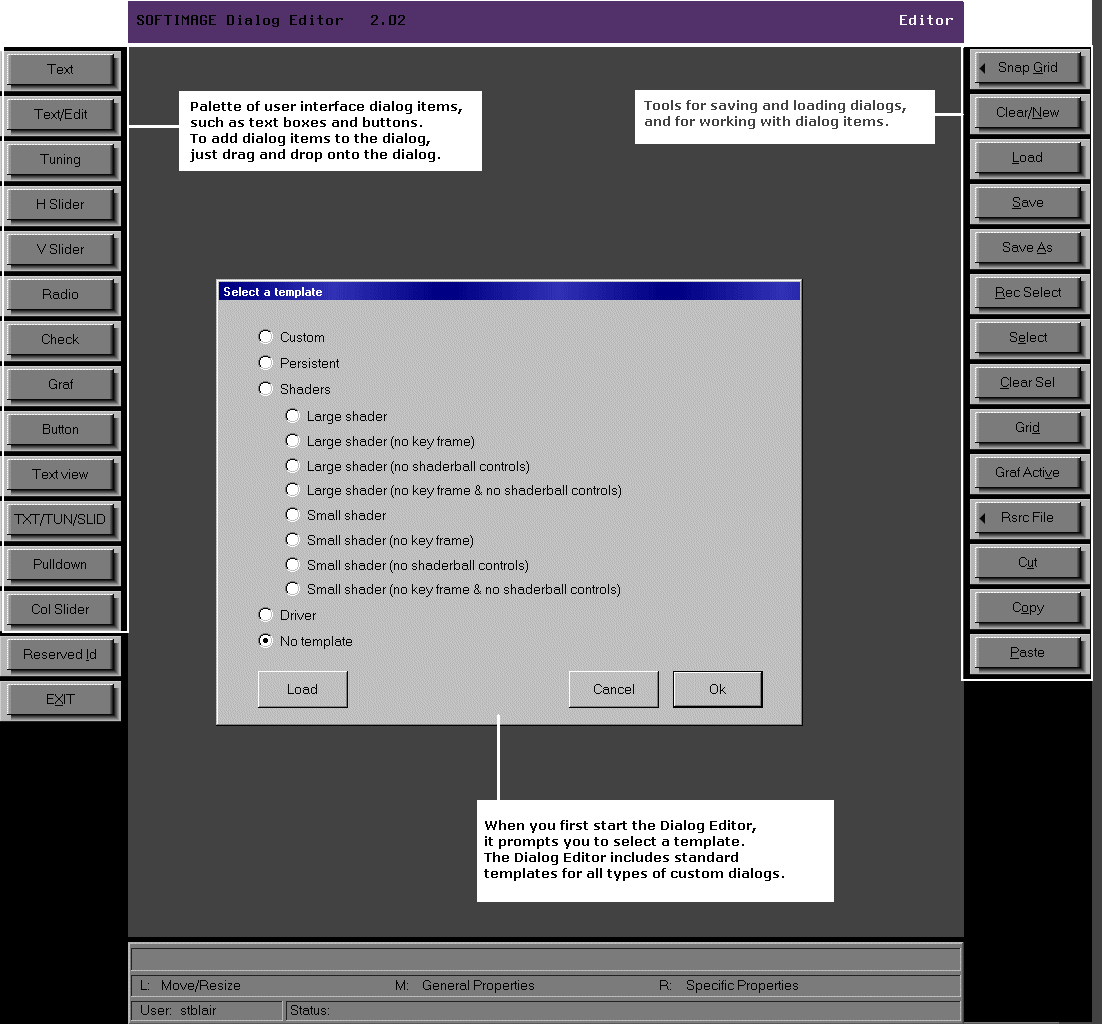
The dialog editor would generate the .cus file that specified the layout of the custom dialog. For example, this simple dialog box:
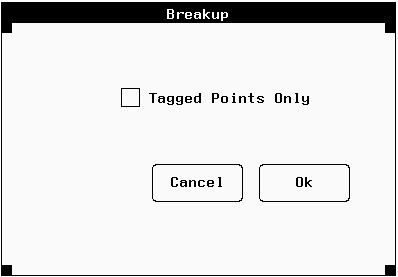
was defined by this .cus file:
Dialog
1200, "Breakup", 12, 1, -1, 442, 385, 836, 638
1, 2, "Ok", 700, 459, 790, 496, 0
2, 2, "Cancel", 593, 459, 683, 496, 0
3, 0, "", 697, 459, 697, 459, 0
4, 0, "", 697, 459, 697, 459, 0
5, 0, "", 697, 459, 697, 459, 0
6, 0, "", 697, 459, 697, 459, 0
7, 0, "", 697, 459, 697, 459, 0
8, 0, "", 697, 459, 697, 459, 0
9, 0, "", 697, 459, 697, 459, 0
10, 0, "", 697, 459, 697, 459, 0
11, 0, "", 697, 459, 697, 459, 0
12, 3, "Tagged Points Only",590, 565, 772, 580, 0

_SYMBOLS
TAG 12
_END
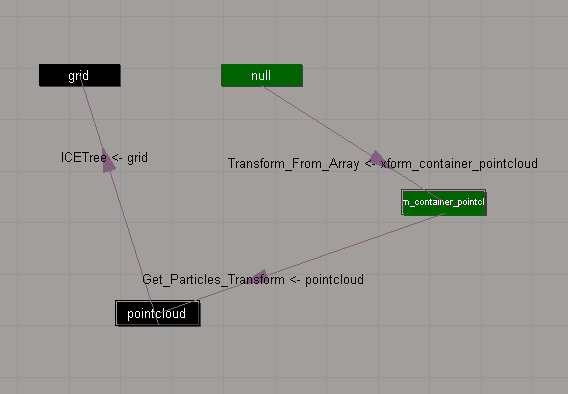
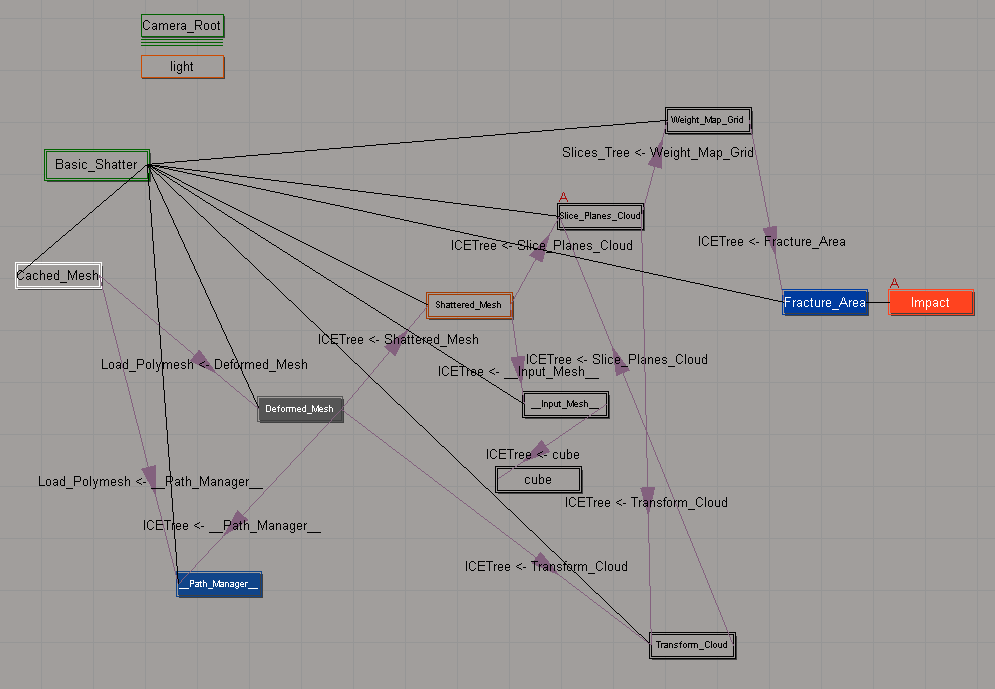
The Schematic view can show you the ICE scene references that “connect” different objects in a scene.
In this example:
Here’s a slightly more complicated schematic, for the Modeling_Basic_Shattering sample scene:
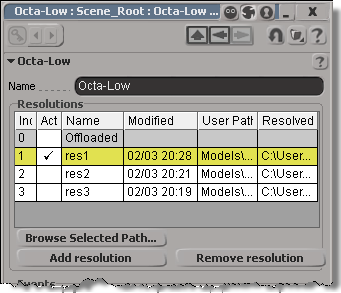
You can get at the Resolutions through scripting (via NestedObjects or Dictionary.GetObject), but you can get the resolution name and file only.
from siutils import si		# Application
from siutils import sidict	# Dictionary
from siutils import sisel	# Selection
from siutils import log		# LogMessage

def getResolutionFileName( m, res ):
	if ( m.Type == "#model" and m.Parameters("referenced_model").Value==True):
		return sidict.GetObject( m.FullName + ".resolutions." + res + ".file" ).Value

log( getResolutionFileName( sisel(0), 'res1' ) )
log( getResolutionFileName( sisel(0), 'res2' ) )
log( getResolutionFileName( sisel(0), 'res3' ) )

# INFO : Models\Octa-Low.emdl
# INFO : Models\Octa-Med.emdl
# INFO : Models\Octa-High.emdl
Going through NestedObjects is a bit more of a hassle:
from siutils import si		# Application
from siutils import sidict	# Dictionary
from siutils import sisel	# Selection
from siutils import log		# LogMessage

import win32com.client.dynamic

def getResolutions( m ):
	if ( m.Type == "#model" and m.Parameters("referenced_model").Value==True):
		return m.NestedObjects( "Resolutions" ).NestedObjects

resolutions = getResolutions( sisel(0) )

for r in resolutions:
	name = sidict.GetObject( r.FullName + ".name" ).Value
	file = sidict.GetObject( r.FullName + ".file" ).Value
	log( name )
	log( file )

	# This errors out with the dynamic dispatch fix:
	name = r.NestedObjects( "name" )
	log( si.ClassName( name ) )
	log( win32com.client.dynamic.Dispatch(name).Value )

 eX-SI
eX-SI 