Top 10 things to learn for the ICE newbie


Last week there was a Top 5 things to learn about ICE? thread on the mailing list:

If you ICE experts out there had to recommend the top 5 (first) things to learn about ICE what would they be? I’m looking for cornerstone/pedestal type foundation items. I’m going to put some time into really learning ICE and I’d like to know what the most valuable concepts are.

There were several good responses, so I’ve combined them all and added a few more to make it a “top 10” (rather than a top 7). Also, I added some links to relevant videos (mostly my own). I’d also recommend you watch Paul Smith’s tutorials, starting with 1. What does ICE do?.

Also, see these video tutorials:

Placing instances on polygons


Over on Vimeo, commenter LBX (check out his multiple texture map vids) suggested an alternative approach to placing objects on the polygons of a sphere. (See my ICE modeling posts here and here.)

Here’s the ICE tree (which is on a point cloud of course 😉 The use of PolygonNormals and the sphere radius is neat.

To deal with more general geometry, I think you’d need to do something like this:

Friday Flashback #48


Three years ago, 15 Dec 2008 was my first day in the Autodesk offices. Officially, I’d been an Autodesk employee since sometime in November, but 15 Dec was the first day I reported to work at Autodesk.

I’m cool working at Autodesk and I still enjoy what I do, but I kinda miss our old offices, in the old Reitmans factory building on St Laurent boulevard. After the acquisition, the Max/Maya support guys came up to visit and do lunch, and their jaws literally dropped when they saw the offices where me, Manny, and the other support guys sat.

On the other hand, the Autodesk offices are perfectly located for a cyclist like me. To get to Softimage I had to actually bike into the city, whereas the Autodesk is down at the Old Port, practically right at the end of the bike path along the Lachine canal.

Here’s some pics of the old Softimage headquarters:

This slideshow requires JavaScript.

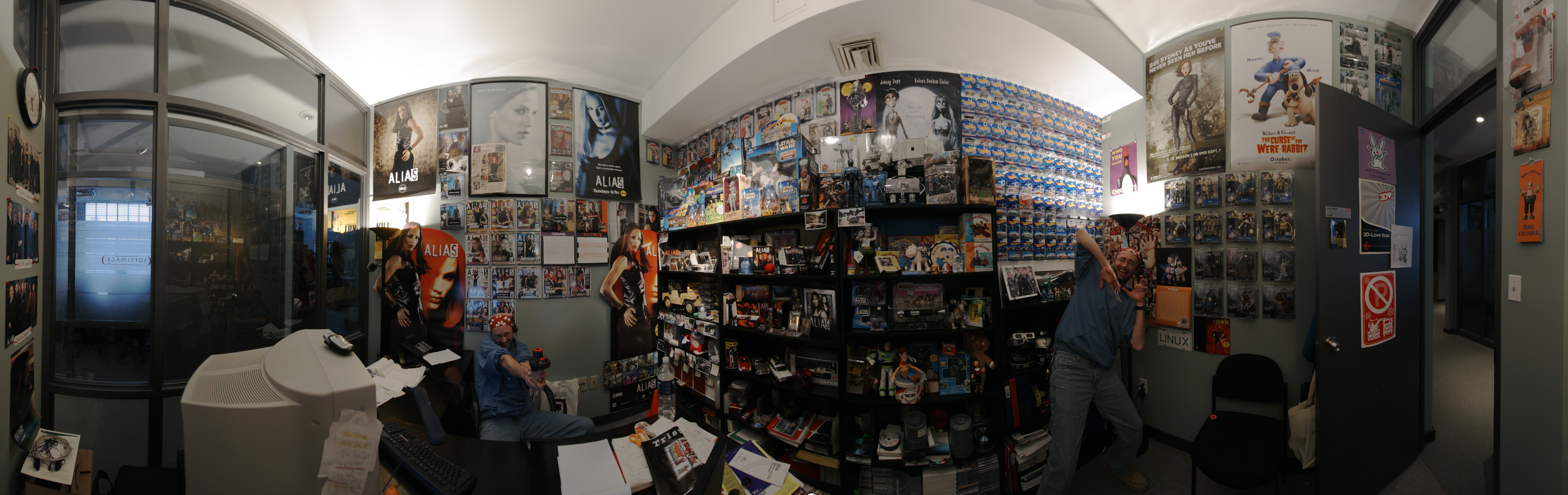
I’ve pulled out the panorama of Erik’s office so you can get a better look at it. Erik was a “cool dude” on the Softimage support team, and his office was the most fun. He had one Hot Wheels toy car pinned to wall for each month he worked at Softimage.

ICE Modeling – placing copies on another object


Part 1 of 2. A video walkthrough of how to use ICE modeling to create copies of an object and place them at specific positions on another object (in this case, on the polygon centers).
http://vimeo.com/33667035
Uses: Create Copies from Polygon Mesh, Transform per Copy, Get Copy Index, Build Array from Set, NbPolygons, PolygonPositions

Tip: Getting links to specific help pages


The online help docs use framesets, which can make it tricky to get the right URL when you want to save or send a link to a certain page. Often you end up with a link to index.html, which is just the page that holds the HTML frameset.

Here’s a few different ways to get a link to a page:

In Firefox:

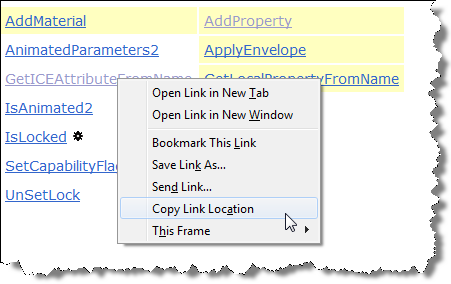
  • Click the Show in Contents icon (top-right) then right-click entry in TOC and click Copy Link Location .
  • Click the Up icon (top-right). This usually takes you to a page with a list of links to the topics in this section. Right-click the link and click Copy Link Location.
  • Click the Previous page icon (<), then right-click Next (>) and click Copy Link Location.
  • Right-click the page, click This Frame > Page Info, and copy the Address URL

The SDK docs don’t have the navigation buttons, so in general you have to get the link from This Frame > Page Info.

For something like an Object Model method or property, you can get the link from the object reference page (because it has a table of links to all methods and properties).

Filtering object selection by volume


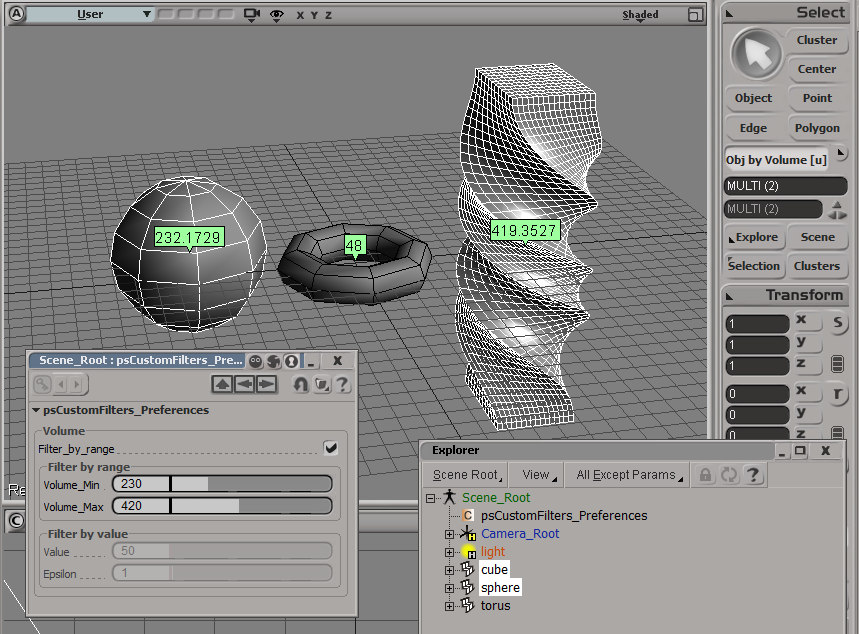
Here’s an addon that uses the ICE Volume attribute to filter object selections. The Volume attribute is always defined (so you don’t need to Show Values or anything for this filter to work).

Note that you have to freeze scaling to get the right volume for an object.

For simplicity, I’m using a custom property (on the scene root) to hold the preferences for the filter.

The filter itself is simple. It just gets the Volume attribute value and compares it to the range of values specified in the PPG.

# Match callback for the psCustomFilters custom filter.
def ObjbyVolume_Match( in_ctxt ):
	Application.LogMessage("ObjbyVolume_Match called",constants.siVerbose)

	in_object = in_ctxt.GetAttribute( "Input" );

	obj = Get3DObject( in_object );
	if ( Application.ClassName(obj) != "X3DObject" ):
		return false;
	
	v = obj.ActivePrimitive.ICEAttributes("Volume").DataArray[0]

	filterProp = GetFilterProp( )
	if filterProp.Filter_by_range.Value == True:
		bMatch = filterProp.Volume_Min.Value <= v <= filterProp.Volume_Max.Value
	else: # Filter by value with an epsilon
		min = filterProp.Value.Value - filterProp.Epsilon.Value
		max = filterProp.Value.Value + filterProp.Epsilon.Value
		bMatch = min <= v <= max
		
	return bMatch

Screenshots of the week


ICE Topology and parametric equations (Warning math here!)
by Daniel Brassard
All kinds of good stuff going on here…

Use Cross-product and dot product to test if particles inside curve
by Mathaeus

Flocking particles #Softimage

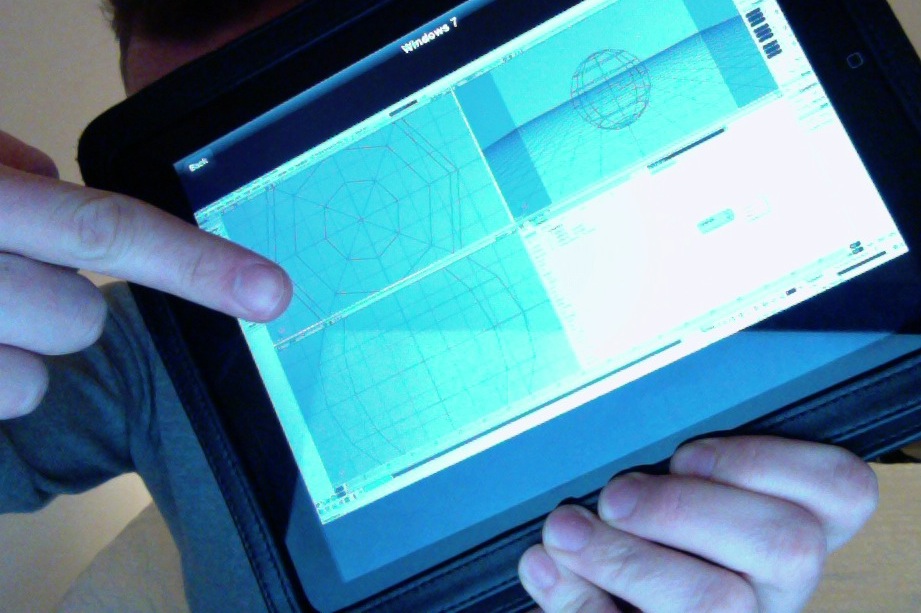
Softimage running on an iPad with the Parallels Mobile App
by andy_nicholas

Softimage running under Parallels Desktop on a Mac
Andy Nicholas

Strand alignment on deformed mesh

Scripting – Applying an ICE compound to multiple objects


UPDATE: Script updated to work in 2013

Here’s a script for applying an ICE compound to many objects in one go.

The script pops up a browser where you select a compound, and then the selected compound is applied to all selected objects (or, if a group is selected, to all members of the group.

I posted something similar before, but that was part of an add-on that adds new menu commands for applying ICE operators.


from siutils import si		# Application
if Application.Version().split('.')[0]>= "11":
	    si = si()                   # win32com.client.Dispatch('XSI.Application')

from siutils import log		# LogMessage
from siutils import C		# win32com.client.constants
from siutils import disp	# win32com.client.Dispatch

siut = disp('XSI.Utils')
sifact = disp('XSI.Factory')
siuitk = disp('XSI.UIToolkit')
sisel = si.Selection


#
# Pop up a browser to select a compound
#
def getCompound():
	initialDir = siut.BuildPath( si.InstallationPath( C.siUserPath ), "Data", "Compounds" )

	oFileBrowser = siuitk.FileBrowser
	oFileBrowser.DialogTitle = "Select compound to apply"
	oFileBrowser.InitialDirectory = initialDir
	oFileBrowser.Filter = "All Files (*.*)|*.*||"
	oFileBrowser.ShowOpen()

	return oFileBrowser.FilePathName

#
# Apply op to 
# - the selected objects
# OR
# - the members of a selected group
#
def getTargetObjects():
	objects = disp( "XSI.Collection" )

	if sisel.Count == 0:
		log( "Please select either some objects or a group" )
	elif sisel(0).IsClassOf( C.siGroupID ):
		objects = sisel(0).Members
	else:
		objects = sisel

	return objects

#
# Do it...
#
objects = getTargetObjects()	
sCompound = getCompound()

if sCompound != "" and objects.Count > 0:
	for o in objects:
		si.ApplyICEOp( sCompound, o.FullName )