Now this is what I call a Sev1 issue.

Severity 1 catastrophic failure
2

Now this is what I call a Sev1 issue.
This is a gotcha that has cost people some time
To demonstrate this, I’ve set up a simple point cloud where I Add Points using a grid primitive. I’ve added AttributeDisplay properties to the point cloud, to show the point IDs and PointPositions.
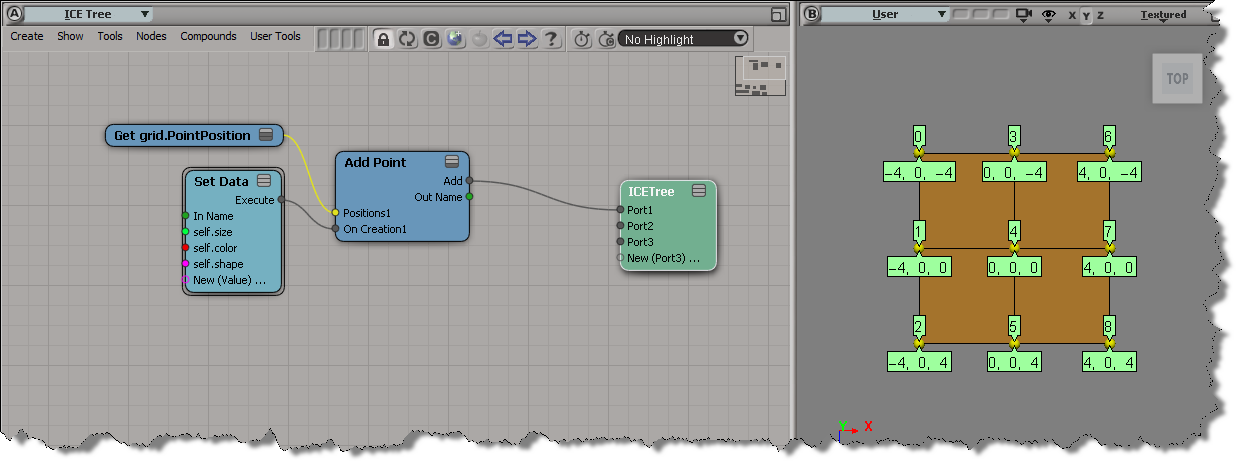
So far, so good. But if I now delete some points, notice how the point IDs don’t change (there’s none of that “reshuffling” of point IDs that the docs say will happen) because point IDs are unique. So after I delete every second point, my point IDs are 1, 3, 5, and 7, not 0, 1, 2, and 3.
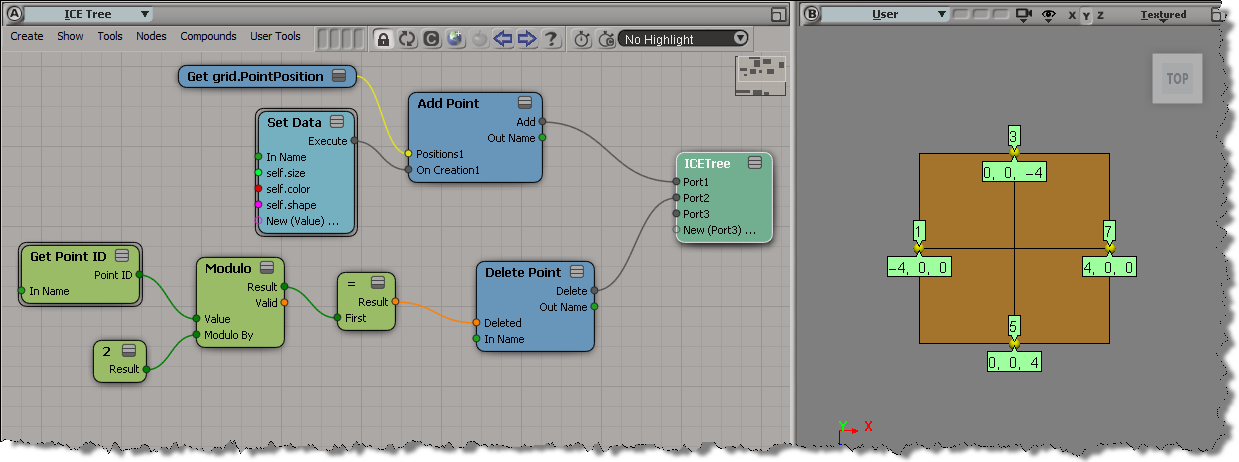
Consequently, if I use Build Array from Point Data to build an array of point positions, I get the positions for points 0, 1, 2, 3, which is incorrect. For point IDs 0 and 2, all I get is (0,0,0).
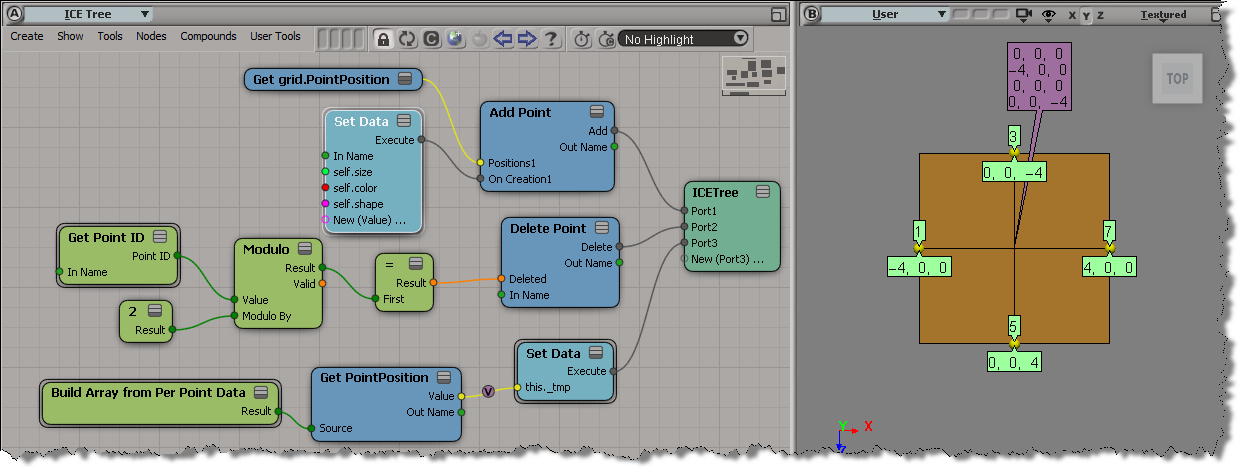
The problem is that Point Index to Location returns a valid location even when I give it the ID of a deleted point but that location doesn’t resolve to the correct point position (Build Array from Point Data uses Point Index to Location to build the array).
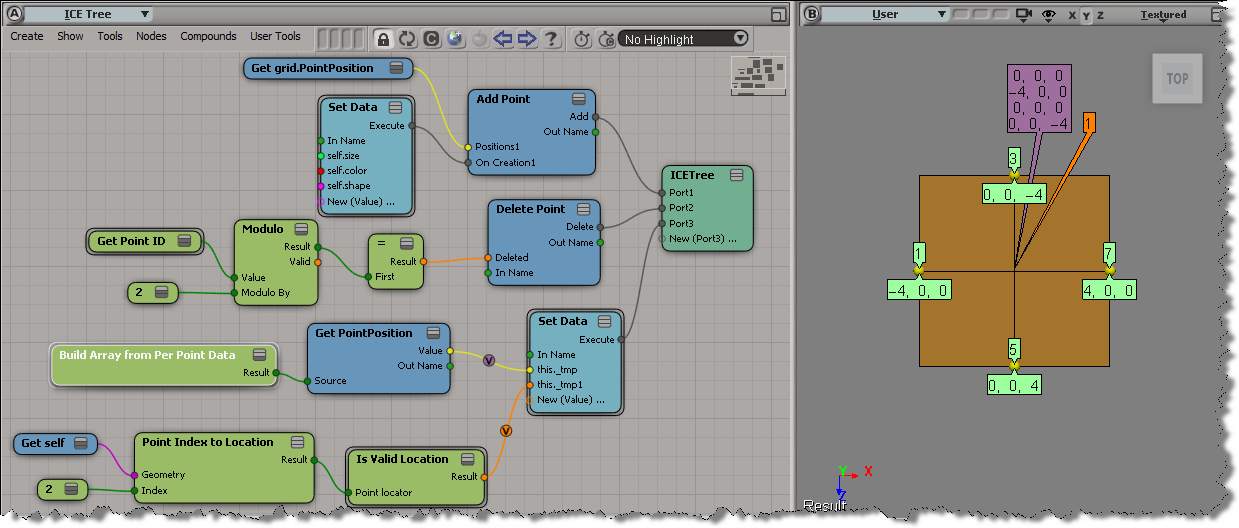
One workaround would be to do something like this in Point Index to Location:
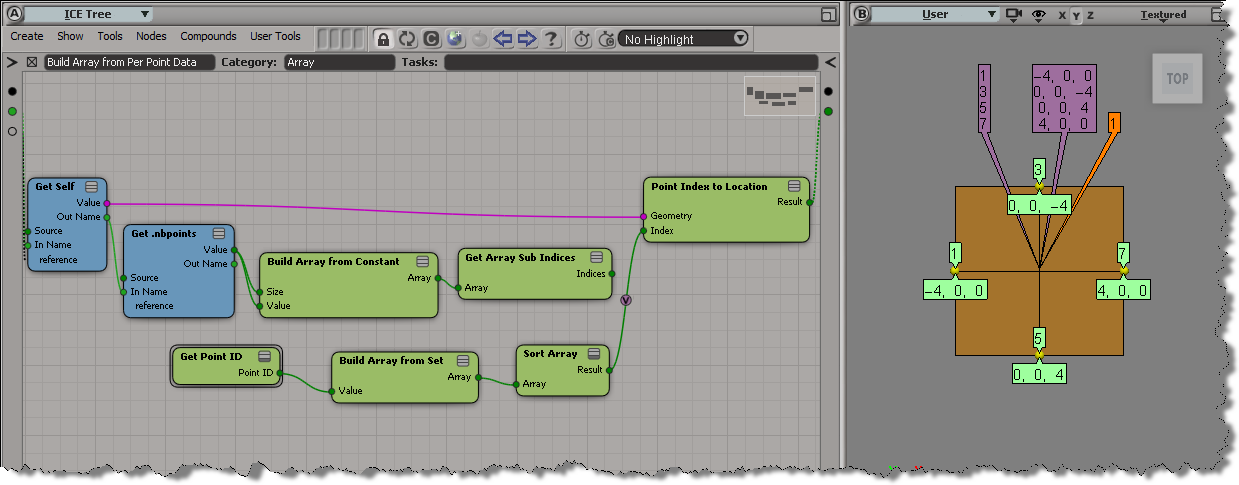
hat tip: Grahame Fuller
Given this render tree:

here’s a few snippets of JScript that show how to get the image clips for certain ports on the material (in this example, the diffuse and bump ports):
First, get the image clips from the sub-tree that’s plugged into the bump port:
SelectObj("Sources.Materials.DefaultLib.Material1.Lambert", null, null);

var s = Selection(0);
var sp = s.bump;

oEnum = new Enumerator( sp.Sources(0).Parent.ImageClips ) ;
for (;!oEnum.atEnd();oEnum.moveNext() )
{
	var oSelItem = oEnum.item() ;
	LogMessage( classname( oSelItem ) + " " + oSelItem.Name );
}
Second, how to get the image clips when a port uses texture layers:
SelectObj("Sources.Materials.DefaultLib.Material1.Lambert", null, null);

var s = Selection(0);
var sp = s.diffuse;

var tl = s.TextureLayers(0);
var d = tl.TextureLayerPorts("diffuse_port")
if  ( d != null )
{
	LogMessage("diffuse driven by a Texture Layer");
}


oEnum = new Enumerator( tl.Parameters("Color").Source.Parent.ImageClips ) ;
for (;!oEnum.atEnd();oEnum.moveNext() )
{
	var oSelItem = oEnum.item() ;
	LogMessage( classname( oSelItem ) + " " + oSelItem.Name );
}
The Autodesk support organization defines a set of “support principles” that establish a baseline for quality service. The principles are supposed to be straight-forward, common-sense guidelines such as:
We do weekly review of randomly-selected cases for principle compliance, and the review scores are a lead measure of our success. They’re a lead measure because management considers principle compliance a predictor of success (where success is measured by the quarterly Net Promoter Score aka customer satisfaction).
In practice, you can go around in endless circles discussing what these principles actually mean. I’ve sat through whole meetings where we never got past the first definition of the first principle.
Based on my experience on the front-line, here’s my take on the principles. I’ve reduced the principles to single-sentence bullet points with [I think] plain English words.
Free “experimental” shattering compounds.

Here’s a word cloud I generated from the summary and description fields of the Softimage support cases that came in so far this year. The word cloud shows the top 50 words (after I manually removed words like “Softimage”, “using”, “hello”, and others). I did about 30 search-and-replaces to get rid of words that weren’t feature-related, but there’s still some, like “attached”, left in the cloud.

From 2001, the XSI 2.0 launch ad.
Now where’s that Final Frontier?
SOFTIMAGE|XSI v.2.0 GETS YOU THERE
XSI v.2.0 takes you beyond your boundaries. Imaginary. Or real. The newest version of XSI allows you to explore advanced dynamics with the seamlessly integrated photo realistic hair/fur simulation system. Discover the industry’s only fully-interactive renderer, powered with mental ray® v.3.0. And broadcast artists will find the super sophisticated 3-D text and logo creation tools a dream come true.Want to fly further still?
How about an awesome new integrated compositor to unite your 2-D and 3-D worlds with
unprecedented speed and elegance. And our revolutionary interactive real-time shaders give artists the power to control game effects. All with mind-numbing performance and stability. Not to mention accelerated ROI.Want to impress aliens – or even your boss?
Visit http://www.sofitmage.com/v2 where you can order the very hot XSI demo CD, sign up for the XSI newsletter – even arrange for a hands-on demo. Suddenly, that final frontier seems a whole lot closer.

There was a thread on xsibase the other day about using a batch file to turn satellite rendering on or off by changing the .ray3hosts file.
Instead of overwriting the .ray3hosts file, another way to do would be to have two versions of the .ray3hosts file, and use MI_RAY_HOSTSFILE to switch between them.
For example, you would create a batch file on your desktop that does this:
@echo off
call "C:\Program Files\Autodesk\Softimage 2012.SAP\Application\bin\setenv.bat"

rem Override the default MI_RAY_HOSTSFILE
set MI_RAY_HOSTSFILE=%XSI_USERHOME%\.ray3hosts-disabled

start "" "C:\Program Files\Autodesk\Softimage 2012.SAP\Application\bin\XSI.exe" %*
.ray3hosts-disabled would either not exist, or have different satellites listed. Softimage will try to load the specified file, and would not fall back on the other .ray3hosts file.
So, you’ve set up your .ray3hosts file, got the raysat services running, and ping and telnet show that there’s no connection problems. But satellite still doesn’t seem to be working. What to do?
// INFO : JOB  0.n  progr:    89.8%    rendered on MTL-SATELLITE:7020.6
// INFO : JOB  0.13 progr:    90.9%    rendered on MTL-MASTER.13
// INFO : JOB  0.6  progr:    91.9%    rendered on MTL-MASTER.6
// INFO : JOB  0.n  progr:    92.9%    rendered on MTL-SATELLITE:7020.7
// INFO : JOB  0.12 progr:    93.9%    rendered on MTL-MASTER.12
// INFO : JOB  0.n  progr:    94.9%    rendered on MTL-SATELLITE:7020.2
// INFO : JOB  0.n  progr:    95.9%    rendered on MTL-SATELLITE:7020.4
// INFO : JOB  0.10 progr:    96.9%    rendered on MTL-MASTER.10
// INFO : JOB  0.n  progr:    97.9%    rendered on MTL-SATELLITE:7020.0
// INFO : JOB  0.n  progr:    98.9%    rendered on MTL-SATELLITE:7020.5
LogMessage( XSIUtils.Environment.Item("MI_RAY_HOSTSFILE") );
This will log the .ray3hosts file that Softimage is using.
Is this the same .ray3hosts file that you created?
On Windows XP, UserTools creates the .ray3hosts file in the “wrong” location
(UserTools puts it one place, but Softimage reads it from another place).
Here’s a Python snippet that maximizes viewport B:
vm = Application.Desktop.ActiveLayout.Views( 'vm' )
vm.SetAttributeValue("layout","maximize:b")
 eX-SI
eX-SI 