Compiling legacy preset-based operators


Preset-based operators are a deprecated feature, but there are still some of them around (Taut for example).

To compile a 64-bit version of one of these preset-based operators, here’s what I had to do:

  • Use the SDK Wizard to generate a Visual C++ project for a 64-bit plugin.
  • Add the module definition file to the Linker > Input properties (otherwise you get “Unable to locate the initialization entry point named” errors in Softimage).
  • Deal with string conversion errors like “error C2664: ‘OutputDebugStringA’ : cannot convert parameter 1 from ‘wchar_t [255]’ to ‘LPCSTR'”.

64-bit version of Taut operator


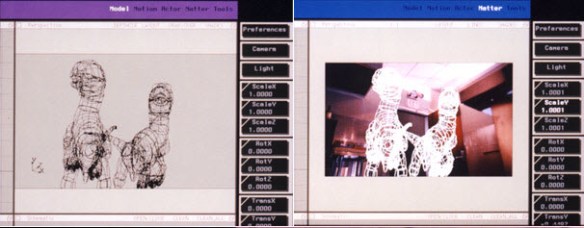
I compiled a 64-bit version of Taut for the FxNut Andy Nicholas. Download here.

Taut is a C++ modelling operator for straightening edges. It features an intelligent algorithm that searches your current selection for distinct lines, which allows multiple edges to be straightened at once. It also features three modes of operation that provide different ways of distributing the vertices along the lines.

Quick start to command-line rendering with xsibatch


I like to use a batch file to build my xsibatch command lines.
For example:

set SCN=\\EXAMPLE\Support\Project\Scenes\Scene.scn
set PASSES=Default_Pass,Depth
set XSI_BINDIR=C:\Program Files\Autodesk\Softimage 2011 Subscription Advantage Pack\Application\bin

"%XSI_BINDIR%\xsibatch.bat" -render "%SCN%"

Note that I call xsibatch.bat, not xsibatch.exe. That is because xsibatch.bat calls setenv.bat, which sets all the environment variables used by xsi.exe and xsibatch.exe. For example, setenv.bat sets the environment variable that specifies the location of the license server.

This xsibatch command line renders all frames and all passes of the specified scene:

"%XSI_BINDIR%\xsibatch.bat" -render "%SCN%"

Note that I need to provide the full path to the scene file, and I enclose it in quotation marks (just in case the path name includes spaces).

-frames allows me to render specific frames. For example, this renders a frameset (frames 1 throught 10):

"%XSI_BINDIR%\xsibatch.bat" -render "%SCN%" -frames 1-10

This renders frames 1,3,5,7,…,99 using the syntax -frames start,end,step:

"%XSI_BINDIR%\xsibatch.bat" -render "%SCN%" -frames 1,100,2

-pass specifies a comma-separated list of passes to render:

"%XSI_BINDIR%\xsibatch.bat" -render "%SCN%" -frames 1-100 -pass "%PASSES%"

-skip tells xsibatch not to re-render frames that have already been rendered (for example, by another render node):

"%XSI_BINDIR%\xsibatch.bat" -render "%SCN%" -frames 1-100 -pass "%PASSES%" -skip on

-verbose turns on verbose logging during the render. xsibatch will log the renderer diagnostics (Render Manager > mental ray > Diagnostics)

"%XSI_BINDIR%\xsibatch.bat" -render "%SCN%" -frames 1-100 -pass "%PASSES%" -skip on -verbose on

-output_dir allows you to override the output folder specified in the scene file:

"%XSI_BINDIR%\xsibatch.bat" -render "%SCN%" -frames 1-10,22 -output_dir %TEMP%

-mb allows you to enable motion blur from the command line:

"%XSI_BINDIR%\xsibatch.bat" -render "%SCN%" -frames 1-10,22 -mb on

If you need to set other mental ray options for a render job, you can use -script with -render. -script allows you to run a script on the scene before it sent to the renderer.

If you run xsibatch -h in a command prompt, you’ll get the usage:
Continue reading

Softimage TEMP folder


While Softimage is running, %TEMP% is adjusted to point to a folder that looks like %TEMP%\XSI_Temp_11676:

LogMessage( XSIUtils.Environment("TEMP") );
// INFO : C:\Users\Stephen\AppData\Local\Temp\XSI_Temp_11676

11676 is the process identifier of the XSI.exe process. To show the process identifier (PID) in the Task Manager, click View > Select Columns and click the PID (Process Identifier) check box.

BTW, Process Explorer is handy for checking out the environment (and other properties) of running processes:

Running EXEs from JScript in XSI


To run programs from JScript, you can use XSIUtils.LaunchProcess.

Here’s a simple example that does a dir on C:\Program Files, redirects the output to a text file, and then uses Notepad to open the text file:

var sPath = XSIUtils.Environment("TEMP");
XSIUtils.LaunchProcess( 'cmd /C "dir > ' + sPath + '\\dir222.txt"', false, "C:\\Program Files" );
XSIUtils.LaunchProcess( 'notepad ' + sPath + '\\dir222.txt', false, "C:\\" );

The third argument to LaunchProcess will be the current working directory of the launched process. So in the above example, I’m doing a dir of C:\Program Files (because cmd opens with C:\Program Files as its current directory).

If the exe is not in the system PATH, then you need to specify the full location:

var sCommandLine = "C:\\Program Files (x86)\\Microsoft Visual Studio 9.0\\Common7\\IDE\\devenv.exe";
var sStartupDirectory = Application.InstallationPath( siWorkgroupPath );
XSIUtils.LaunchProcess( sCommandLine, false, sStartupDirectory );

In the above example, I’m using my workgroup location as the current directory, so when I do File > Open in Visual Studio, by default I will be looking in my workgroup location.

Standalone licenses, trusted storage, and the boot sector


Following up on my post the other day about resetting standalone licenses, here’s some more technical information I on dug up on standalone licenses. I did get some conflicting info from people, particularly about the boot sector.

One person told me that all standalone licenses were written to the boot sector, but a lot of the technical documentation I found said just that trial licenses went on the boot sector.

  • Standalone licenses are encrypted and stored in trusted storage. Trial licenses are standalone licenses that are located on the boot sector (track 0 of the hard drive).
  • Trusted Storage is an encrypted file created by FLEXnet when an application standalone license is activated or a trial license is created for the first time. By default, the trusted storage file is created in the following folder and will have a name similar to adskflex_00691b00_tsf.data.
  • Deleting the _tsf.data file file force system to re-create the trusted storage file.
  • The trial anchors can be removed from trusted storage by deleting the trusted storage file itself. The trial anchors can only be removed from the machine by reformatting the drive.