Softimage Arnold render engine sneak peek.
YouTube – Softimage Arnold render engine sneak peek.
1

Softimage Arnold render engine sneak peek.
If you need to run the Visual C++ Redistributable from the command line and create a log file, use this command line:
cd C:\Autodesk\Softimage_2011_Subscription_Advantage_Pack_English_Japanese_64bit\Support\VCRedist\2005
vcredist_x64.exe /q:a /T:%windir%\temp /c:"VCREDI~2.EXE /q:a
 /c:""msiexec /i vcredist.msi /qn /l*v %temp%\vcredist_x64_2005.log"" "
You can find the command line used by the Softimage Setup in the setup.ini file
(in the C:\Autodesk\Softimage_2011_Subscription_Advantage_Pack_English_Japanese_64bit folder):
[VCREDIST2005X64]
PLATFORM=x64
PRODUCT_NAME=Microsoft Visual C++ 2005 Redistributable (x64)
EXE64_PATH=support\VCRedist\2005\vcredist_x64.exe
EXE_PARAM=/q:a /T:%windir%\temp /c:"VCREDI~2.EXE /q:a /c:""msiexec /i vcredist.msi /qn /l*v %temp%\vcredist_x64_2005.log"" "
This video shows some Process Monitor basics using the installation of the Visual C++ 2005 Redistributable as an example. You can use these same basic techniques to capture events for any application.
I started at Softimage back in 1995, a few years after Jurassic Park. But everybody in Montreal knew about Softimage and Jurassic Park; I remember my neighbours were sooo impressed when they found out where I worked. It was always nice to be able to say I worked at Softimage (or at Microsoft). People [outside the industry] knew those names. In contrast, few people knew “Avid”, and most people don’t know the name “Autodesk” (I usually have to mention “Autocad”).
Behind-the-Scenes Photos of ILM’s Greats: Jurassic Park
(Thanks to Alan Fregtman for the link)
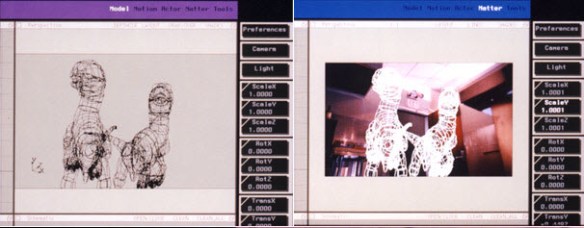
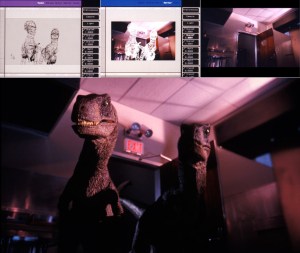
Appropriately enough, given that Jurassic Park gave Softimage’s reputation such a boost, our main meeting room in the 3510 St Laurent Softimage offices was named “Jurassic Park”. (Other meeting rooms were Jumanji, Casper, and Reboot.)

I too use cubes a lot, but then again I’m usually testing something, not making art 😉
As I’ve mentioned before, Error 1603 during an installation can be almost anything. It’s a generic error and you have to dig into the logs to find out what really happened.
For example, a customer reported getting 1603 during an install. So we looked into the %TEMP%\Autodesk_Softimage_x64_Install.log file, and found this:
2010/12/13:15:46:24 Administrator DEADBEEF Install Microsoft Visual C++ 2005 Redistributable (x86) Failed Installation aborted, Result=1603
Now that we knew it was the VCREDIST, we looked into %TEMP%\vcredist_x86_2005.log and found out that problem was that the Softimage install was blocked because installer could not remove an old version of VC++ 2005 Redistributable:
MSI (s) (98:3C) [18:28:15:187]: Product: Microsoft Visual C++ 2005 Redistributable -- Error 1714.The older version of Microsoft Visual C++ 2005 Redistributable cannot be removed.  Contact your technical support group.  System Error 1612.

Error 1714.The older version of Microsoft Visual C++ 2005 Redistributable cannot be removed.  Contact your technical support group.  System Error 1612.
Error 1714 and google led me to the solution: rename the registry key HKEY_LOCAL_MACHINE\SOFTWARE\Microsoft\Windows\CurrentVersion\Installer\UserData\S-1-5-18\Components\F942F94A19C0F79468FD2B85E5E8677B.
After that, we were able to remove Visual C++ 2005 redistributable from the Control Panel, and then Softimage installed ok.
“For LOOM, we made heavy use of ICE [the Softimage Interactive Creative Environment] to create spider webs, hair systems and deformers. We’re honored that the VES picked our film,” said co-director Ilija Brunck. “It’s simply awesome,” added co-director Jan Bitzer.
via Student Film Crafted with Autodesk Softimage Wins Visual Effects Society Award | Business Wire.
Technically, I suppose this is not really a gotcha. But for someone like me who has to switch between scripting languages frequently, it’s a potential “gotcha”.
In Python, functions and methods are legitimate objects. That’s why you can do this:
App = Application
LogMsg = App.LogMessage
ClassName = App.ClassName
but sometimes you might forget the parentheses after a name, and unlike JScript, you won’t get a syntax error (at least not for the missing parentheses). For example, this little snippet will give you a “# AttributeError: ‘NoneType’ object has no attribute ‘AddKey'” error:
param = Application.Dictionary.GetObject( "null.kine.local.rotx" )

if str(param.Source) == 'None':
    param.AddFcurve
    fcurve = param.Source
    fcurve.AddKey( 10, 90 )
    fcurve.AddKey( 20, 45 )
In JScript, you’d get a syntax error for the missing parentheses. I’m not saying that that is better 😉 it’s just a difference you have to be aware of.
param = Dictionary.GetObject( "null.kine.local.rotx" )
param.AddFcurve
// ERROR : Object doesn't support this property or method - [line 3]
Some related links:
[Japanese] WOW Tokyo” created wow effects with Softimage ICE for the Citroën Metropolis Concept project
Tutorial on the normal mapping process in Softimage
by 3DMastermind
via Tutorial on the normal mapping process in Softimage on Vimeo.

