The case of the slow 2011 startup on Fedora 14


In a recent case, a customer reported that Softimage 2011 took forever (four to five minutes) to start on Fedora 14. Softimage 2010 SP1, on the other hand, started up just fine.

It turns out that for Softimage 2011, 2011SP1, and 2011SAP on Fedora 14, you need to put back our x11 patch (this patch was needed for Fedora 8, 9, and 10; Fedora 11, 12, and 13 run with a different compiled version of XCB and don’t need the patch).

Edit the .mwenv file ($XSI_HOME/Application/mainwin/mw/scripts/.mwenv) and change this

if ( "fc8" == "$fcver" || "fc9" == "$fcver" || "fc10" == "$fcver" ) set x11patch="$MWHOME/lib-${MWCONFIG_NAME}_optimized/X11"

to this:

if ( "fc8" == "$fcver" || "fc9" == "$fcver" || "fc10" == "$fcver" || "fc14" == "$fcver" ) set x11patch="$MWHOME/lib-${MWCONFIG_NAME}_optimized/X11"

Then source the .xsi and restart Softimage.

About the x11 patch:

In a previous version of Softimage, we introduced a libX11 workaround because of a problem introduced in FC8 with XCB that can cause freezes during Multi-threaded user interaction. What we did was to place a libX11 binary (compiled _without_ xcb) into a patch directory and then add that directory to the LD_LIBRARY_PATH.

The XCB problem was fixed in FC11, so we modified Softimage. The libX11 binary is still installed with the Linux setup, but the .mwenv script checks the Fedora version you are running and only adds the libX11 patch path to the LD_LIBRARY_PATH for Fedora 8, 9, and 10. So on Fedora 11, 12, and 13 Softimage uses the system installed libX11.

UPDATE: Another symptom of this problem is “EAGAIN (Resource temporarily unavailable)” errors for the tmp/.X11-unix/X0 socket. You’ll see these in the strace log:

socket(PF_FILE, SOCK_STREAM|SOCK_CLOEXEC, 0) = 19
connect(19, {sa_family=AF_FILE, path=@"/tmp/.X11-unix/X0"}, 20) = 0
getpeername(19, {sa_family=AF_FILE, path=@"/tmp/.X11-unix/X0"}, [20]) = 0
uname({sys="Linux", node="homer", ...}) = 0
access("/var/run/gdm/auth-for-xxx-Q2I4go/database", R_OK) = 0
open("/var/run/gdm/auth-for-xxx-Q2I4go/database", O_RDONLY) = 20
fstat(20, {st_mode=S_IFREG|0600, st_size=50, ...}) = 0
mmap(NULL, 4096, PROT_READ|PROT_WRITE, MAP_PRIVATE|MAP_ANONYMOUS, -1, 0) = 0x7f3360deb000
read(20, "\1\0\0\5homer\0\0010\0\22MIT-MAGIC-COOKIE-1"..., 4096) = 50
close(20)                               = 0     
munmap(0x7f3360deb000, 4096)            = 0
getsockname(19, {sa_family=AF_FILE, NULL}, [2]) = 0
fcntl(19, F_GETFL)                      = 0x2 (flags O_RDWR)
fcntl(19, F_SETFL, O_RDWR|O_NONBLOCK)   = 0
fcntl(19, F_SETFD, FD_CLOEXEC)          = 0
poll([{fd=19, events=POLLIN|POLLOUT}], 1, -1) = 1 ([{fd=19, revents=POLLOUT}])
writev(19, [{"l\0\v\0\0\0\22\0\20\0\0\0", 12}, {"", 0}, {"MIT-MAGIC-COOKIE-1", 18}, {"\0\0", 2}, {"\367\371\200\336\321\\\37\4\22\0324\274\3356|\313", 16}, {"", 0}], 6) = 48
read(19, 0x27ae690, 8)                  = -1 EAGAIN (Resource temporarily unavailable)
poll([{fd=19, events=POLLIN}], 1, -1)   = 1 ([{fd=19, revents=POLLIN}])

Setting XSI_USERROOT in a network deployment


I found a way to create a deployment that will override the default XSI_USERROOT. The trick is to add a set_spmhost.bat file to the deployment image.

The Softimage setenv.bat file is already set up to call set_spmhost.bat:

rem SPM_HOST
if EXIST "%XSI_BINDIR%\set_spmhost.bat" call "%XSI_BINDIR%\set_spmhost.bat"

so you just need to put something like this in a set_spmhost.bat file:

rem set_spmhost.bat
rem Override XSI_USERHOME from setenv.bat
set XSI_USERHOME=%XSI_USERROOT%\Autodesk\SI_2011_SAP

set_spmhost.bat is unused in Softimage 2011 and later.
It was used back in 7.5 for Linux customers who also wanted to run on Windows (back then, Linux licenses were still SPM).

In the next release, we’ve set up setenv.bat to call a SiteDeploy.bat file:

rem Verify the existence of the SiteDeploy.bat file
if exist "%XSI_BINDIR%\SiteDeploy.bat" call "%XSI_BINDIR%\SiteDeploy.bat"

Resetting standalone license activations


Sometimes you may be forced to zap your standalone licenses so you can start over with a clean slate. For example, you might not be able to activate your new license because somehow the licenses were corrupted. Or maybe you had a blue-screen crash during installation and then you used a reg cleaner to further muddy the waters. Or maybe the software asks you for activation every time you start the product.

In those types of scenarios, as a last resort, you can reset your standalone licenses by zapping the adskflex_00691b00_tsf.data and adskflex_00691b00_tsf.data.backup files.

I suggest you rename the file or move it, rather than simply deleting it.
However, you will have to re-activate all standalone Autodesk products installed on the computer.

On Vista or Windows 7:

C:\ProgramData\FLEXnet\adskflex_00691b00_tsf.data
C:\ProgramData\FLEXnet\adskflex_00691b00_tsf.data.backup

On Windows XP:

C:\Documents and Settings\All Users\Application Data\FLEXnet\adskflex_00691b00_tsf.data
C:\Documents and Settings\All Users\Application Data\FLEXnet\adskflex_00691b00_tsf.data.backup

I include the _tsf.data.backup file because your Autodesk software will reuse that file if it cannot find the _tsf.data file. And if that backup file is corrupted too, well then…

YouTube – Softimage Lagoa ICE Test – Shattering Cup 1080p HD


YouTube – Softimage Lagoa ICE Test – Shattering Cup 1080p HD.

2.8 Million Particles – Created with the Softimage 2011, Rendered with Arnold for Softimage. Motion blur and depth of field on third shot.
Hardware used:
Dell Precision T5500 Dual Quad Core Workstation 12 gigs RAM
Nvidia Quadro 5000 Firmi based
Sim time: Thanksgiving weekend, Render time: ~6 hours for all 1000 frames.

Time tracking


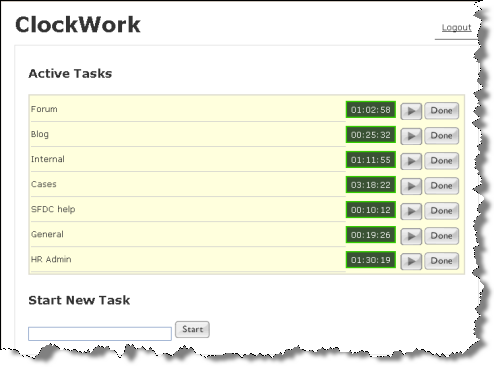
After a few abortive attempts at time-tracking, we’re rolling out a new time-tracking system here in product support. One of the main goals it to understand how much time specialists spend on “reactive” events (responding to support requests) versus “proactive” events (writing KB articles, developing training, blogging, and manning the forums).

The difficulty for me with time tracking is that these days my time and effort is so interrupt-driven. For example, I’ll be drafting a blog post when I see a new scripting question on the mailing list. So I jump on that to try and answer before someone else does 😉 But then one of my support cases is updated, so I jump on that and reply.

Meanwhile a new case comes in, so I take that and start research. Then maybe I have a meeting, or someone needs me to explain how to do something in our help desk system (I’m the local superuser). Eventually I rewind back through everything, possibly being interrupted again at any time. Or being distracted by my almost compulsive checking of my email inbox and the support incoming queue;-)

I admit this may not sound like the best way to work, but it works for me. I know many others on the support team prefer to handle one thing at a time.

I’ve found I need some utility, like the one in the screenshot, that allows me to have multiple timers going. That way I can accurately keep track of what I’m doing.

Selecting rows in a GridWidget


Here’s a basic Python example that shows how to:

  • Create a dynamic, on-the-fly custom property
  • Add a grid to the PPG
  • Set the PPG Logic in Python
  • Select rows in a GridWidget
import win32com.client
from win32com.client import constants

oProp = Application.ActiveSceneRoot.AddProperty( "CustomProperty", False, "GridWidgetDemo" )
oProp.AddParameter2("Row",constants.siInt4,1,1,20,0,100,constants.siClassifUnknown,constants.siPersistable + constants.siKeyable)
			
oParameter = oProp.AddGridParameter( "DemoGrid" )
oGridData = oParameter.Value
oGridData.ColumnCount = 3
oGridData.RowCount = 20

for i in range(0,oGridData.RowCount):
	for j in range(0,oGridData.ColumnCount):
		oGridData.SetCell( j, i, str(i) + "." + str(j) )

oPPGLayout = oProp.PPGLayout
oGridPPGItem = oPPGLayout.AddItem( "DemoGrid" )

oGridPPGItem.SetAttribute( constants.siUINoLabel, True )
oGridPPGItem.SetAttribute( constants.siUIGridSelectionMode, constants.siSelectionHeader )
oGridPPGItem.SetAttribute( constants.siUIGridColumnWidths, "25:100:75:100" )
oGridPPGItem.SetAttribute( constants.siUIGridReadOnlyColumns, "1" )

oPPGLayout.AddRow() ;
oPPGLayout.AddItem( "Row" )
oPPGLayout.AddButton( "SelectRow", "Select Row" )
oPPGLayout.EndRow()


oPPGLayout.Language = "Python"
oPPGLayout.Logic = '''
def SelectRow_OnClicked():
	Application.LogMessage( "Select Row" )
	oGridData = PPG.DemoGrid.Value
	oGridWidget = oGridData.GridWidget
	oGridWidget.ClearSelection()
	oGridWidget.AddToSelection( -1, PPG.Row.Value-1 )
'''


Application.InspectObj( oProp )

3DMastermind: Car rendered with mental ray in Softimage


via Car rendered with MentalRay in Softimage on Vimeo.

Here, I use FinalGathering with a system of bright cards for the lighting. For the first time, I also used a bright large cylinder that surrounds the car for added reflectivity and better lighting.

I then found that the lighting looked off and tried to understand why. It was because the car was getting lit via FG by the large cylinder but the “car shader” wasn’t receiving any “traced light” information in that area. This would be especially useful for the “speculars” in the car shader.

I then made a cylindrical light with the same dimensions as the FG cylinder (In area light, chose “geometry”). Now the paint looks more like it’s lit by the cylinder and doesn’t just reflect it.

The effect in the beginning is a “diffuse glow” added in the Softimage Compositor.