For Boxing Day, the SOFTIMAGE|3D box set:

hat tip: unfortunately I don’t remember exactly where I got this
Friday Flashback #204
1

For Boxing Day, the SOFTIMAGE|3D box set:
hat tip: unfortunately I don’t remember exactly where I got this
The Hive Creates Festive Fun For Legoland
14/12/2000

The commercial was created using SoftImage
3D animation house, The Hive, was commissioned by Cartoon Network Sponsorship & Promotions department to create a magical virtual advent calendar for the Windsor-based theme park, Legoland.
The commercial was created using SoftImage and airs throughout December on the Cartoon Network.

The Hive’s brief was to create something bright and colourful that really screams Christmas to promote the fact that Legoland is opening its doors over the festive period for the first time.
The Hive worked closely with Cartoon Network Producer, Tracey Cleland, to create 24 different versions – one for each day of December leading up to Christmas day. Each commercial opens with an optical pan in which a Lego Santa welcomes the viewer to a winter landscape of snow-capped hills and trees. The viewer is then drawn to one of 24 Lego advent calendar boxes that open to reveal either a mystery prize or footage of one of Legoland’s Christmas attractions.
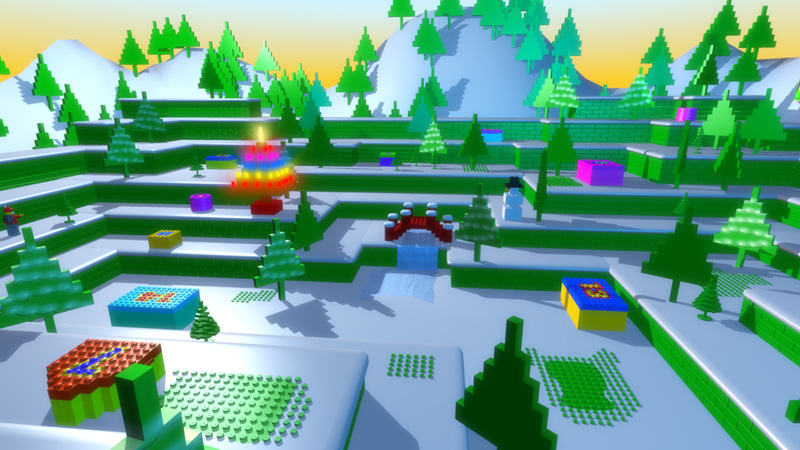
“To maximise efficiency we decided to produce a limited number of advent boxes which could change colour and date and be rotated to fill all the days required,” comments Adrian Wyer animator/compositor at The Hive. “The clever trick with this advert is that because every day is different the viewer is not left with the usual Christmas commercial fatigue.”

The advent calendar commercial follows on the back of a ten second teaser created at the Hive that invited people to ‘Leg it to Legoland’. This aired on the Cartoon Network in November.
Credits
Producer: Tracey Cleland @ The Cartoon Network
Animation Company: The Hive
Post Producer: James Niklasson @ The Hive
Animator/Project Leader/Compositor: Adrian Wyer @ The Hive
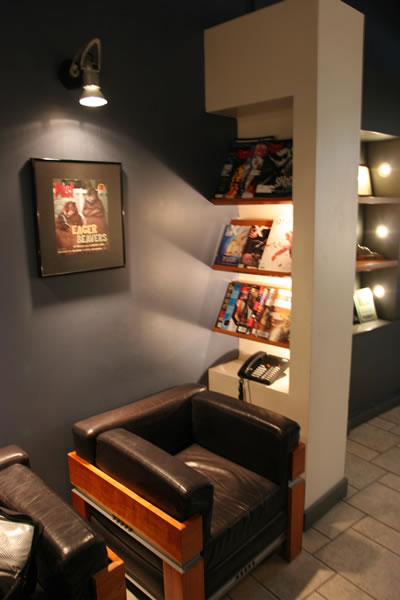
Reception area in the Softimage offices on St Laurent
It was six years ago to the day (12 Dec 2008) that I was last in that building.


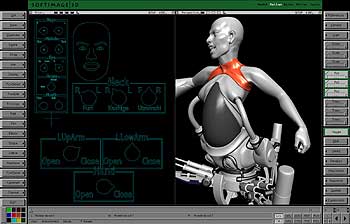
SOFIMAGE|3D screenshots for Motherdroid, from CG WORLD December 2000
Screenshots originally posted on softimage.jp:
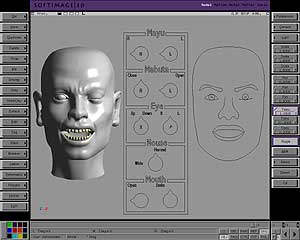

Other screenshots I found on a blog:


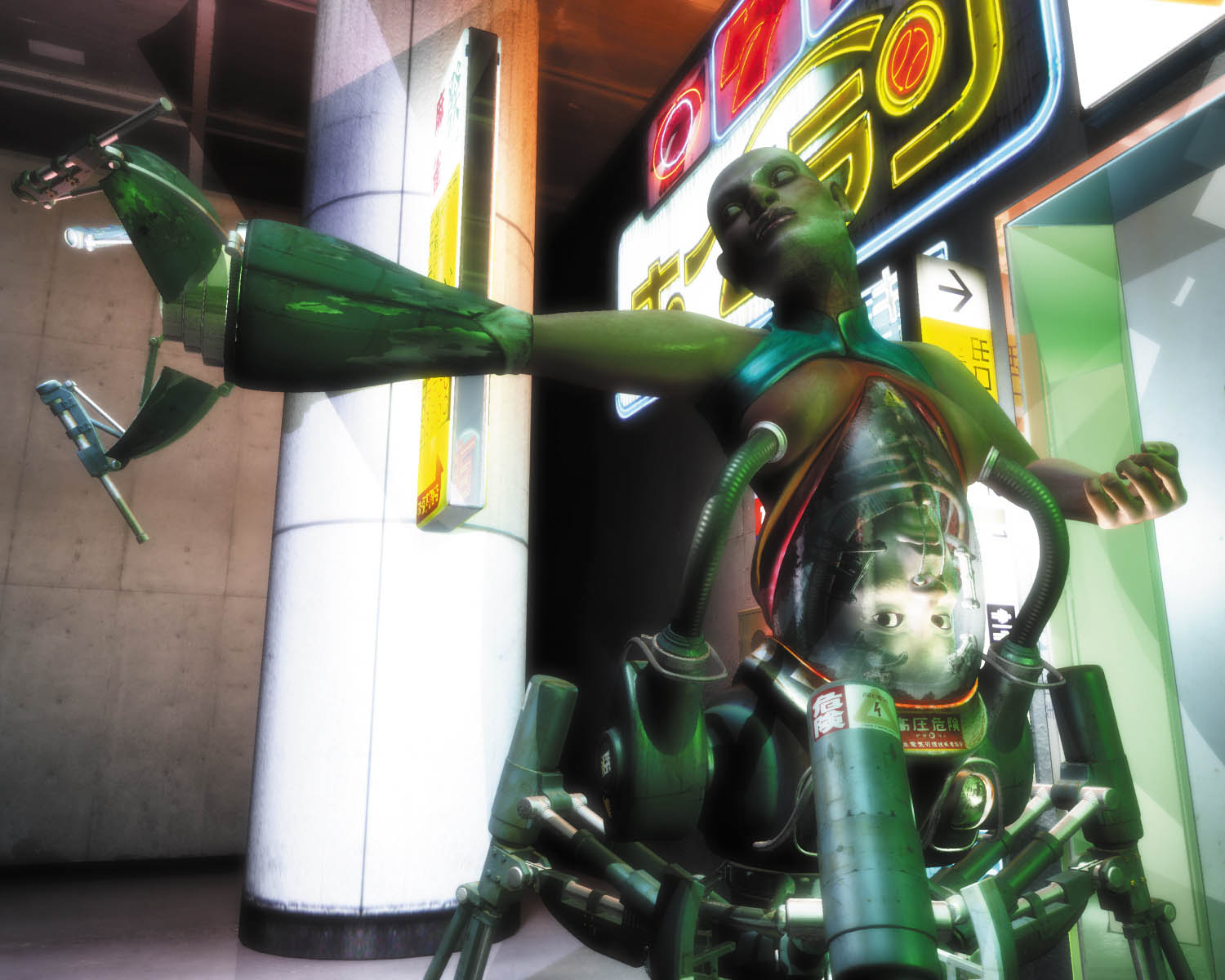
And finally, the MEKARATE video that includes the MotherDroid.
Mekarate, directed and produced by Hiroyasu Shimo, was part of the SIGGRAPH 2003 Computer Animation Festival. It focuses on an inept office worker who is haunted by a self-destructive wish and plagued with anti-social behavior.
The late Emru Townsend wrote this about MEKARATE:
On the other hand, Hiroyasu Shimo’s Mekarate eschews nature entirely; an office worker nods off at his computer late at night, and has disquieting dreams—only to awaken to find that there are worse things happening in the waking world, with much more in store for him. Contemporary Japanese anime and cinema directors have a singular talent for depicting alienation, and this film practically reeks of it, amid all the horrific biomechanical creatures that torment the lead character. Distressing audio and a visual aesthetic that faithfully mimics a handheld video recording contribute to make Mekarate so disturbing you can’t look away.
Download
https://bitbucket.org/amaanakram/aaocean/downloads
Install for mental ray
aaOceanRev255\aaOcean\MentalRay\Softimage2014
to
$MY_WORKGROUP\Application\Plugins
aaOceanRev255\aaOcean\Softimage\Softimage2014\
to
$MY_WORKGROUP\Application\Plugins\
$MY_WORKGROUP is just my workgroup location. For example:
C:\Users\StephenBlair\Documents\softimage\workgroups\aaOcean
Did you notice that the mental ray version of aaOcean doesn’t have a SPDL file? That’s because it has a shader definition plugin instead.

Install for Arnold
aaOceanRev255\aaOcean\Arnold\Arnold-4.2.0.6-windows\Shader\aaOcean.dll
to
$WORKGROUP\Addons\SItoA\Application\Plugins\bin\nt-x86-64
aaOcean\Arnold\Arnold-4.2.0.6-windows\SItoA\aaOcean.spdl
to
$WORKGROUP\Addons\SItoA\Application\spdl
aaOceanRev255\aaOcean\Softimage\Softimage2014\aaOceanDeformer.dll
to
$WORKGROUP\Addons\SItoA\Application\Plugins
$MY_WORKGROUP is just my workgroup location. For example:
C:\Users\StephenBlair\Documents\softimage\workgroups\sitoa-3.2.0-2014
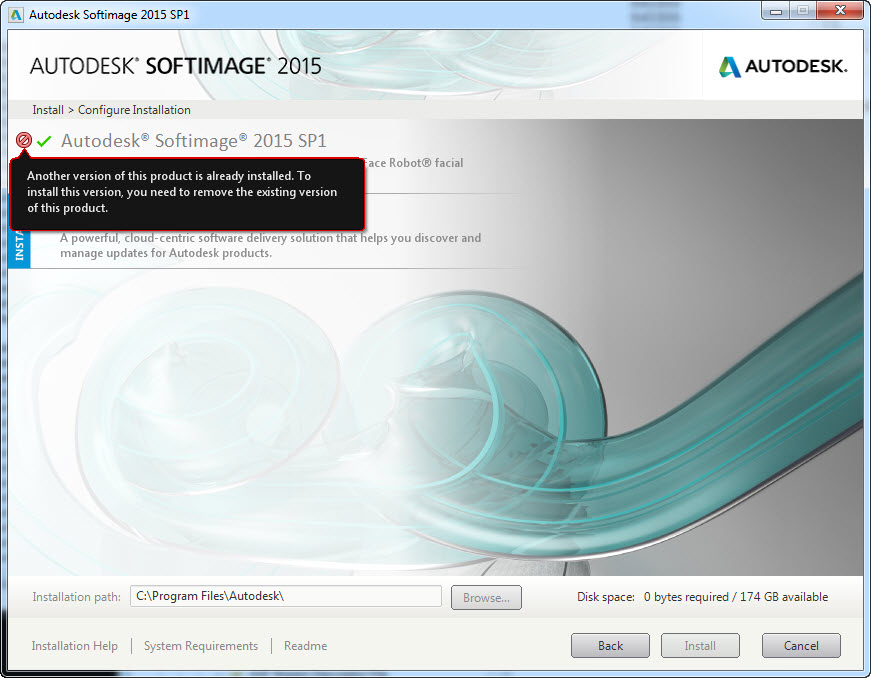
If you already have Softimage 2015, you must uninstall it first before you can install 2015 SP1.
creating instances (or strands) along curve AND subcurves
by NNois

Softimage Thanksgiving Day
by Daikin

Drawing Polygons with Maya’s Modeling Toolkit
by softimage learning channel
Softimage poster circa 1997: PoweredbyPassion | Virtua Fighter 3 | The Lost World: Jurassic Park | Chevy Baby | The Fifth Element | Reboot
Basically all the highlights mentioned in the Softimage 97 SIGGRAPH exhibitor blurb:
Softimage develops computer animation software for artists who animate dinosaurs for “The Lost World: Jurassic Park,” artists who animate singing babies for Chevy commercials, artists who create weekly half-hour animated television shows, and artists who animate Sumo wrestlers for Virtua Fighter 3. See the software that helps it happen: Softimage/3D, Softimage/Eddie Softimage/Digital Studio, Toonz.
Thanks to Rui S. for sending me this image

Nov 2002: xsibase reaches 1000 members

Today, si-community has over 2300 members (1000 or so who have ever posted) and the Softimage list has over 1300 member (450 or so who have posted this year)
Cross-posted from the Arnold Support Corner.
Here’s how to install third-party, SPDL-based shaders, like alShaders, so that you can use them with SItoA.
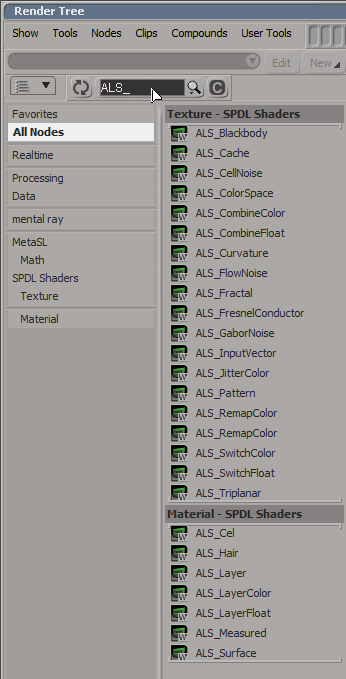
In these instructions, $AL_SHADERS is the location where you extracted the alShaders download. For example, C:\solidangle\alShaders\alShaders-win-0.4.0b18-ai4.2.0.6.
$SITOA_WORKGROUP is the SItoA workgroup location. For example, C:\Users\StephenBlair\softimage\workgroups\sita-3.3.0-2014.
Copy the alShader DLLs from
$AL_SHADERS\bin
to
$SITOA_WORKGROUP\Addons\SItoA\Application\Plugins\bin\nt-x86-64
Create a spdl folder in your Addons\SItoA\Application folder:
$SITOA_WORKGROUP\Addons\SItoA\Application\spdl
Copy the alShader spdl files from
$AL_SHADERS\spdl
to
$SITOA_WORKGROUP\Addons\SItoA\Application\spdl

Tip Don’t create an alShader from the Arnold > DLL Shaders menu; it won’t pick up the SPDL and you’ll get a raw PPG (and a raw render tree node too).
 eX-SI
eX-SI 