A couple of basic examples, because I didn’t see any screenshots in the docs.


A couple of basic examples, because I didn’t see any screenshots in the docs.
VorleX Muscle System 2.01 PRO Preserving Fine Details During Skin Sliding
Modulate particle scale
by origin
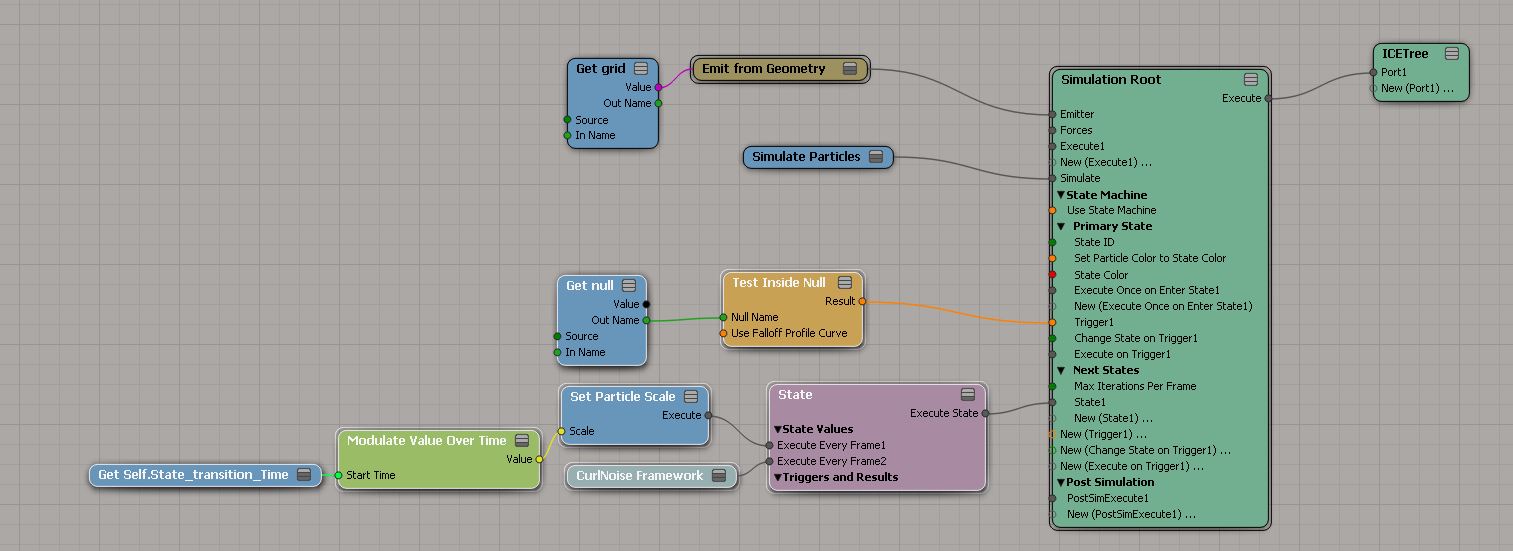
Fun with matrices
by Daniel Brassard
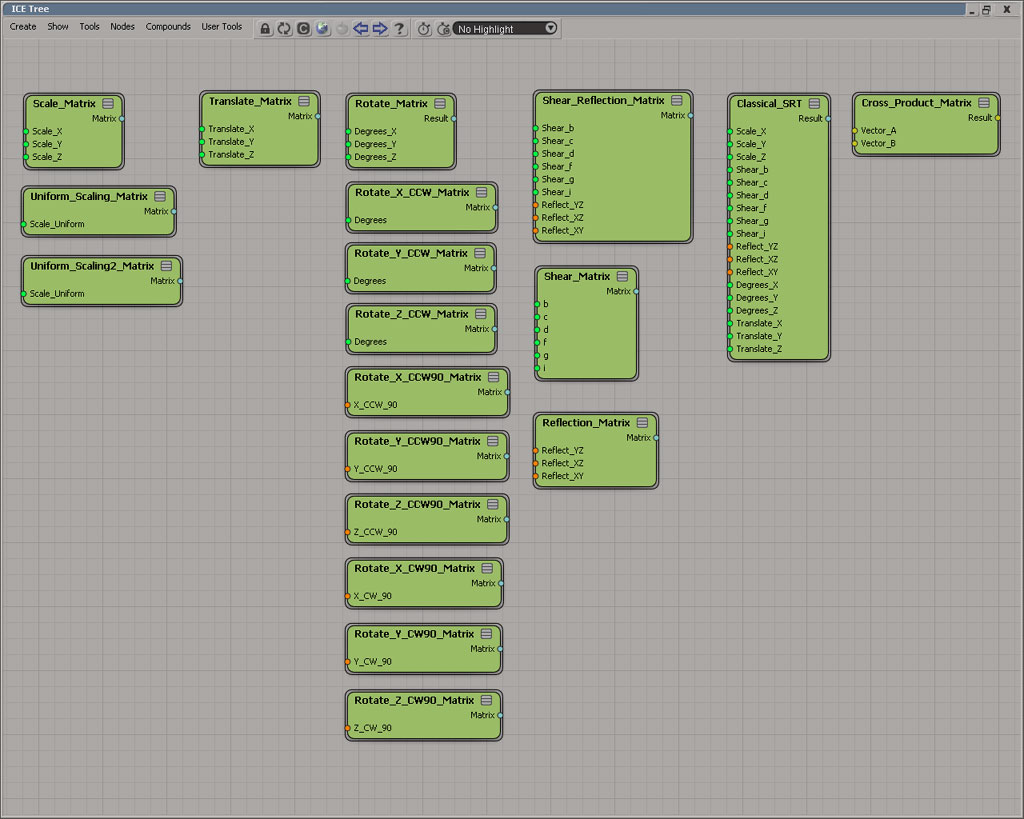

Push from bounds
by Mr.Core

1999 ad for SOFTIMAGE|3D: Art is Self-Expression

Art is Self-Expression
It’s the artist, not the tools. It’s the process involved in
realizing a creative idea, not the CAD-accurate modeling
or the obligatory check-off feature list.Discover why SOFTIMAGE|3D is used by the world’s greatest
Digital Artists to produce critically-acclaimed animation in
television, games, and feature films. Make contact.
When you’re using Get Closest Locations, positions are local. That is, they are relative to the local coordinate system of the object that “owns” the ICE tree. The input Position is in local coordinates, so in most cases, (0, 0, 0) will do fine. And if you use the output locations to get positions, those positions will be in the local coordinate system of the ICE tree owner.
https://vimeo.com/85486760
Hat tip: Gray, who has posted this several (many?) times over the years.
SOFTIMAGE|3D Ahead of the game
High octane fuel for the mind…No speed limits…Total freedom

1996
Given something like this:

Here’s how you get all shaders under a light, even the disconnected ones:
from sipyutils import si		# win32com.client.Dispatch('XSI.Application')
from sipyutils import log		# LogMessage
from sipyutils import C			# win32com.client.constants
from sipyutils import disp		# win32com.client.Dispatch

si = si()

def dispFix( badDispatch ):
    import win32com.client.dynamic
    # Re-Wraps a bad dispatch into a working one:
    return win32com.client.dynamic.Dispatch(badDispatch)

oLight = si.Selection(0)


#import win32com.client
oDisconnected = disp( "XSI.Collection" )

if oLight.IsClassOf( C.siLightID ):
	for oShader in oLight.GetAllShaders():
		oOut = dispFix( oShader.Parameters( "out" ) )
		if oOut.Targets.Count == 0:
			oDisconnected.Add( oShader )

log( oDisconnected.GetAsText() )
Hat tip: Matt Lind, who provided the GetAllShaders answer to the question “how to get all shaders in a light, even the disconnected ones”
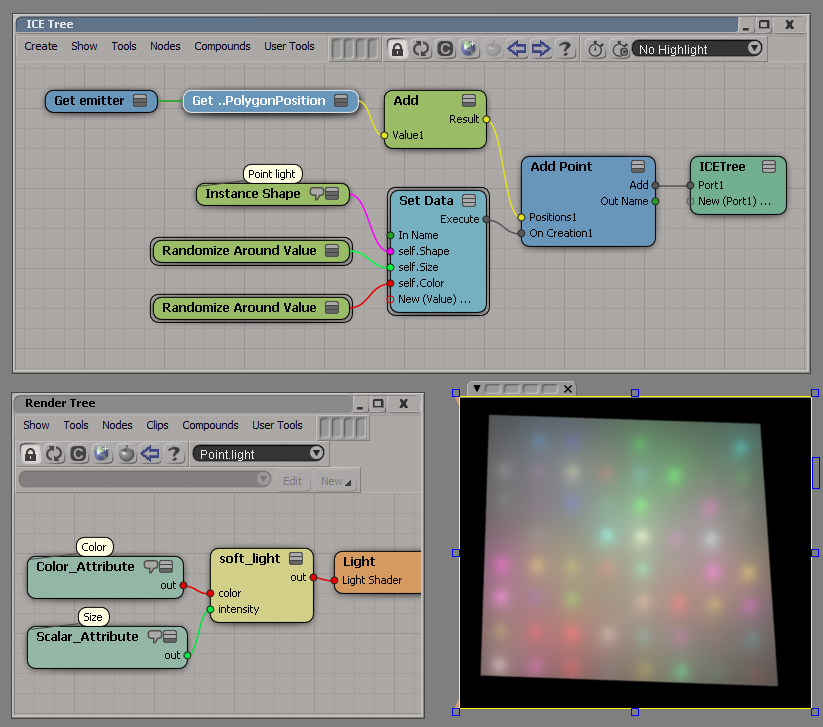
With Arnold, it’s all in the ICE tree. SItoA looks for attribute names like ArnoldLight_intensity and automatically uses those attributes to set the corresponding parameter values on the point_light nodes it exports to Arnold.

With mental ray, you use the Attribute shaders:
Dividing an integer N by itself doesn’t always give you 1.

I think it’s a problem in the Divide by Scalar node (the division is probably returning a scalar like 0.99999999, and then that is truncated to zero when it is converted to an integer).
A workaround is to do all your division with scalars, and then use modulo to determine whether you Round or Floor the result. Here’s an example compound by Guillaume Laforge:


 eX-SI
eX-SI 