Why you cannot use shortcuts to access the ViewportCapture settings


In the comments, G asks:

Why do you have do this:

si = Application
oViewportCapture = si.Dictionary.GetObject( "ViewportCapture" )
oViewportCapture.NestedObjects( "Start" ) = 10

and not this:

si = Application
oViewportCapture = si.Dictionary.GetObject( "ViewportCapture" )
oViewportCapture.Start = 10

CaptureOptions
The answer is that the ViewportCapture object is not a ProjectItem, and so does not support the Parameters property. ViewportCapture is a CollectionItemLegacy object (and before that, it was an SIObject).

si = Application
p = si.Dictionary.GetObject( "ViewportCapture.Start" )
p.Value = 10
#si.SetValue( "ViewportCapture.Start", 10 )

Using environment variables in .wkg files


I couldn’t find this in the docs anywhere, but I did find it mentioned in some old emails. You can use environment variables in the .wkg file, like this:

$SITOA_WKG_PATH
$MOOTZOID_WKG_PATH

or this:

${SITOA_WKG_PATH}
${MOOTZOID_WKG_PATH}

Either syntax worked for me when I tried it.

There does seem to be some weirdness with loading workgroup shaders this way, but that’s still under investigation.

Scripting – Creating an empty polygon mesh


There’s several ways to create an empty polygon mesh with the Object Model.

from sipyutils import si			# win32com.client.Dispatch('XSI.Application')
from sipyutils import log		# LogMessage
from sipyutils import C			# win32com.client.constants

si = si()
o = si.Selection(0)

if o.IsClassOf( C.siX3DObjectID ):
	o.AddPolygonMesh()
	o.AddPrimitive( "EmptyPolygonMesh"  )
	o.AddGeometry( "EmptyPolygonMesh" )

AddPolygonMesh() courtesy of Vladimir

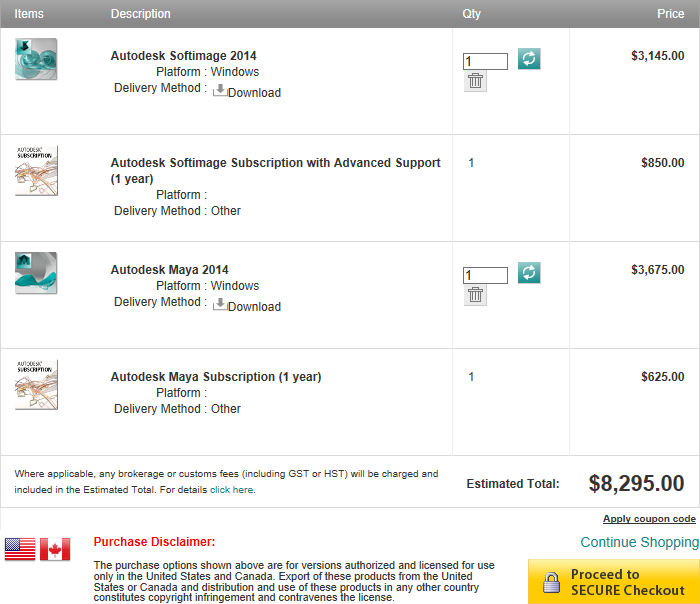
Some pricing info from the Autodesk Store


Note: Autodesk store prices are always for Standalone licenses. Network licenses are usually about $750 USD more. Also, when comparing Subscription, make sure you are comparing the same levels of Subscription.

Softimage versus Maya. Softimage is cheaper, but if you go for Subscription, it always includes Advanced Support (which costs extra). The store offers only the slightly cheaper Basic Support for Maya Subscription (but you can buy Advanced Support for Maya).
autodesk_store_soft_maya

Suite pricing. For the Ultimate Suite, you have to take Advanced Support.
autodesk_store_suites

Current Softimage upgrade promotion:
autodesk_store_soft_upgrade

Word cloud wednesday


Autodesk Quarterly Report, 31 July 2013
autodesk_quarterly_report_31_July_2013

A few tidbits from the report…

For the six months ended July 31, 2013:

  • Revenue from flagship products was 53% of total net revenue
  • Revenue from suites was 33% of total net revenue
  • Revenue from new and adjacent products was 14% of total net revenue

During the six months ended July 31, 2013, net revenue for M&E Animation decreased 10% primarily due to a 12% decrease in revenue from our flagship product, 3Ds Max, a 19% decrease in revenue from our M&E suites, which was driven by our Autodesk Entertainment Creation Suite and a 9% decrease in revenue from flagship product, Maya.

Flagship—Autodesk flagship products are our core design products. Flagship includes the following products: 3ds Max, AutoCAD, AutoCAD LT, AutoCAD vertical products (such as AutoCAD Architecture and AutoCAD Mechanical), Civil 3D, Maya, Plant 3D, Inventor products (standalone) and Revit products (standalone).

New and Adjacent—Autodesk new and adjacent products include Autodesk’s new product offerings as well as products that are not included in flagship or suites. New and adjacent includes the following services and products: Autodesk Alias Design products, Autodesk Consulting, Autodesk Buzzsaw, Autodesk Constructware, Autodesk consumer products, Autodesk Creative Finishing products, Autodesk Moldflow products, Autodesk Navisworks, Autodesk Simulation, Autodesk Vault products and all other products.

Getting ICE attribute values with greater precision


As you know, in Softimage all scalar (aka floating point) values are displayed with 3 (or sometimes 4) decimal places. For example: 0.333 instead of 0.33333333333…

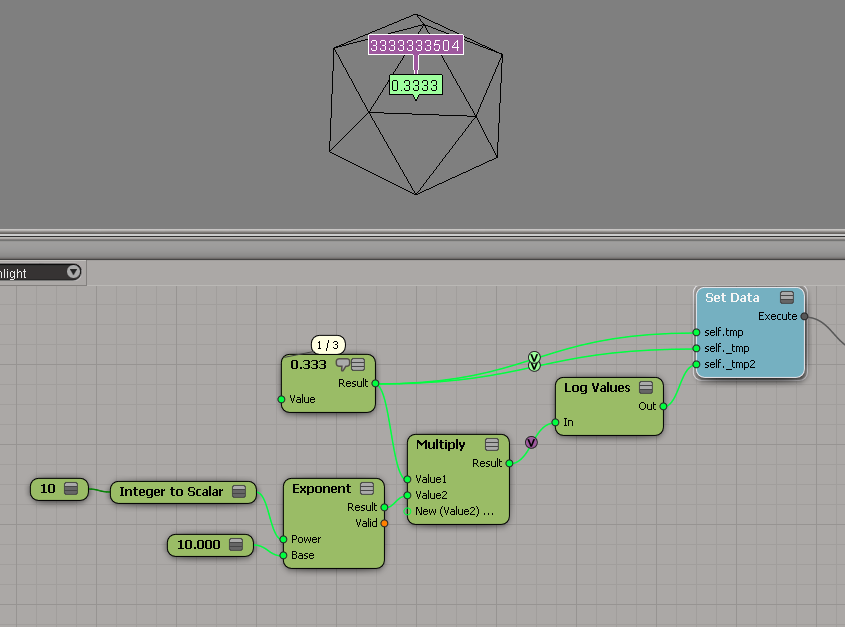
One way to display the attribute value with greater precision is to use the Log Values node, and multiply the attribute value by some power of 10 (to get more digits). Hat tip to Leonard Koch for that suggestion.
ICE_attribute_values
The above Log Values outputs this:

# INFO : 4000 - elt 0: 3333333504.000000

You could also use scripting. But note how I get 0 for the attribute named _tmp, even though it is clearly set to 0.3333333333333 in the ICE graph.

x = si.Selection(0)
y = x.ActivePrimitive.Geometry.ICEAttributes( "tmp" )
if y.IsDefined:
	print "tmp = %.10f" % y.DataArray[0]
	
y = x.ActivePrimitive.Geometry.ICEAttributes( "_tmp" )
if y.IsDefined:
	print "_tmp = %.10f" % y.DataArray[0]

# tmp = 0.3333333433
# _tmp = 0.0000000000

Finally, here’s a quick hack using a proxy parameter and the SDK explorer:
ICE_attribute_values2