Getting PointPositions from a group


For this post, I took an explanation from an ICE developer, and added some illustrations and bit of my own explanatory text…

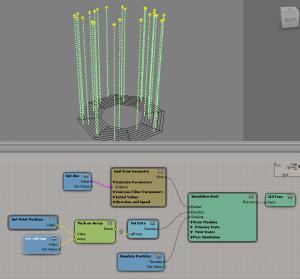
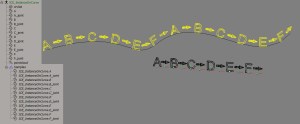
When you reference Group.PointPosition, ICE resolves the graph assuming the Get Data node outputs an array of 3DVectors in the context of the first primitive in the group. So, in this example, TRex is the first member of the group, so the context of Group.PointPosition is Array of 3D Vector per point of Trex.Trex:

Group.PointPosition1

In this case, the Array of 3D Vector is an array of four elements (the number of meshes in the group).
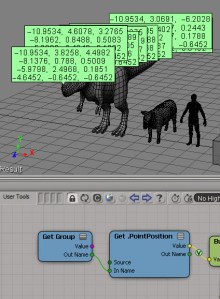
Group.PointPosition2

The indexset used (per point of Trex.Trex in this case) is reduced to its smallest size (the number of 0D from the geometry in the group with the least amount of points). The cube has 8 points, so you end up with 8 points for each group member. Since there are four groups members, you get 32 total points.
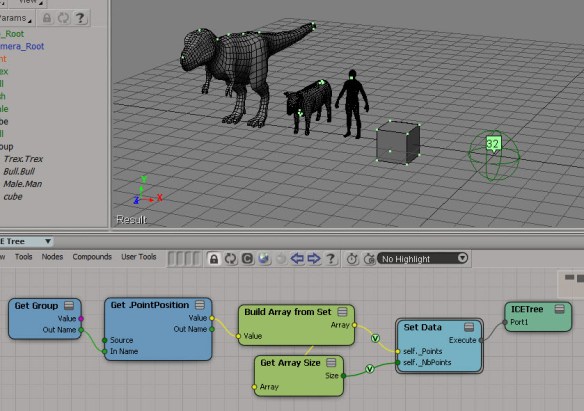
Group.PointPosition3

Here’s an alternate way to illustrate that. The Trex has 1814 points, but because of how Group.PointPosition is resolved by ICE, you get a filtered size of 8.
Group.PointPosition4

Wednesday word cloud: Softimage scripting commands


This word cloud shows the scripting names of the commands in Application.Commands (Softimage 2013 SP1)
CommandScriptingNames_2013sp1
You can see that some scripting names are repeated quite a few times:

  • ApplyTopoOp (66)
  • ApplyOp (47)
  • ApplyGenOp (44)
  • ToggleValue (43)
  • ApplyShader (37)

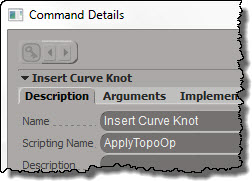
Some scripting commands, like Insert Curve Knot, are instances of a generic command like ApplyTopoOp:
InsertCurveKnotDescription
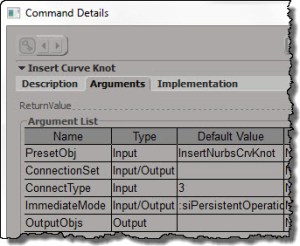
but with hard-coded arguments:
InsertCurveKnotArguments

See also Why ApplyOp doesn’t pop up a PPG.

Here’s a list of the TopoOp commands:

for c in Application.Commands:
	if c.ScriptingName == "ApplyTopoOp":
		print "%s : %s" % (c.ScriptingName, c.Name )
		
# ApplyTopoOp : Apply Topology Operator
# ApplyTopoOp : Insert Curve Knot
# ApplyTopoOp : Subdivide Edge
# ApplyTopoOp : Raise Nurbs Curve Degree
# ApplyTopoOp : Extrude Comp. Axis
# ApplyTopoOp : Filter Polygons
# ApplyTopoOp : Collapse
# ApplyTopoOp : Inset Polygons
# ApplyTopoOp : Subdivide Polygon
# ApplyTopoOp : Slice Polygons
# ApplyTopoOp : Offset Polygons
# ApplyTopoOp : Dice Object
# ApplyTopoOp : Surface Snip
# ApplyTopoOp : Invert Selected Polygons
# ApplyTopoOp : Delete Trim
# ApplyTopoOp : Duplicate Polygons Along Curve
# ApplyTopoOp : Curve Remove Knot
# ApplyTopoOp : Extrude Component Along Normal
# ApplyTopoOp : Dissolve Component
# ApplyTopoOp : Boolean Difference
# ApplyTopoOp : Boolean Union
# ApplyTopoOp : Boolean Intersection
# ApplyTopoOp : Local Subdivision
# ApplyTopoOp : Insert Surface Knot
# ApplyTopoOp : Remove Surface Knot
# ApplyTopoOp : Polygon Reduction
# ApplyTopoOp : Bevel
# ApplyTopoOp : Delete Component
# ApplyTopoOp : Quadrangulate
# ApplyTopoOp : Dissolve & Clean Adjacent Vertices
# ApplyTopoOp : Symmetrize Polygons
# ApplyTopoOp : Disconnect Component
# ApplyTopoOp : Set Curve Knot Multiplicity
# ApplyTopoOp : Bridge Edges
# ApplyTopoOp : Apply DelMeshPoint
# ApplyTopoOp : Invert All Normals
# ApplyTopoOp : Curve Inverse
# ApplyTopoOp : Surface Shift
# ApplyTopoOp : Curve Shift
# ApplyTopoOp : Surface Curve Shift
# ApplyTopoOp : Surface Swap
# ApplyTopoOp : Filter Edges
# ApplyTopoOp : Curve Reparameterize
# ApplyTopoOp : Surface Reparameterize
# ApplyTopoOp : Add Edge
# ApplyTopoOp : Add Polygon
# ApplyTopoOp : Nurbs Curve Delete Point
# ApplyTopoOp : Nurbs Surface Delete Point
# ApplyTopoOp : Mesh Surface Delete Point
# ApplyTopoOp : Surface Open/Close
# ApplyTopoOp : Curve Open/Close
# ApplyTopoOp : Delete Edge
# ApplyTopoOp : Surface Stitch
# ApplyTopoOp : Surface Extend to Curve
# ApplyTopoOp : Surface Clean
# ApplyTopoOp : Curve Stitch
# ApplyTopoOp : Curve Clean
# ApplyTopoOp : Surface Curve Inverse
# ApplyTopoOp : Extrude Component Along Curve
# ApplyTopoOp : Weld Edges
# ApplyTopoOp : Filter Points
# ApplyTopoOp : Weld Points to Target
# ApplyTopoOp : Delete Particle
# ApplyTopoOp : Trim by Projection
# ApplyTopoOp : Dice Polygons
# ApplyTopoOp : Bridge Polygon	

Writing a python script for processing scenes with xsibatch


Here’s the basic skeleton of a Python script that calls xsibatch -processing -script on all scene files in a given folder.

Python command line:
The python script takes two arguments: the root folder for the location of the scene files, and the name of the script file to run with xsibatch -script.

python process_scenes.pys --dir ""C:\Program Files\Autodesk\Softimage 2013 SP1\Data\XSI_SAMPLES\Scenes" --script "test.pys"

process_scenes.pys:
The python script takes care of finding all the scene files, and then running xsibatch -processing -script on each .scn file.

import os
import fnmatch
import subprocess
import sys
import getopt

XSI_BINDIR=r"C:\\Program Files\\Autodesk\\Softimage 2013 SP1\\Application\\bin"

opts, extraparams = getopt.getopt(sys.argv[1:], "d:s:", ["dir=","script="]) 

#
# Get root directory to scan for scene files
#
SCENES_DIR="C:\\Program Files\\Autodesk\\Softimage 2013 SP1\\Data\\XSI_SAMPLES\\Scenes\\OLD"
SCRIPT="test1.pys"

for o,p in opts:
  if o in ['-d','--dir']:
     SCENES_DIR = p
  elif o in ['-s','--script']:
     SCRIPT = p

#
# Generator function for finding files
#
def find_files(directory, pattern):
     for root, dirs, files in os.walk(directory):
         for basename in files:
             if fnmatch.fnmatch(basename, pattern):
                 filename = os.path.join(root, basename)
                 yield filename

#
# Open each scene file and run the specified script
#
for scn in find_files(SCENES_DIR, '*.scn'):
	sXsiBatch = "%s\\xsibatch" % XSI_BINDIR
	subprocess.call( [ sXsiBatch, '-processing', '-script', SCRIPT, '-args', '-sSceneName', scn ] )

Softimage script test.pys:
A simple test script to run with xsibatch. Note that because the function is named “main”, I don’t have to specify that on the xsibatch command line. I just have to specify the arguments.

def main( sSceneName ):
	LogMessage( sSceneName )	

Saturday Snippet – Building a cross-platform path


…and exporting the selected objects to an ASS file.

from win32com.client import constants as C

filename = XSIUtils.BuildPath( 
	Application.InstallationPath( C.siProjectPath ),
	'Arnold_Scenes',
	'[Scene].[Frame].ass' )
Application.SITOA_ExportScene( 1,1,1,True,True,filename)
# Application.SITOA_ExportScene(1, 1, 1, True, True, "C:\\Users\\Steve\\My Project\\Arnold_Scenes\\[Scene].[Frame].ass")

Friday Flashback #103 3Dwillneverbethesame.com


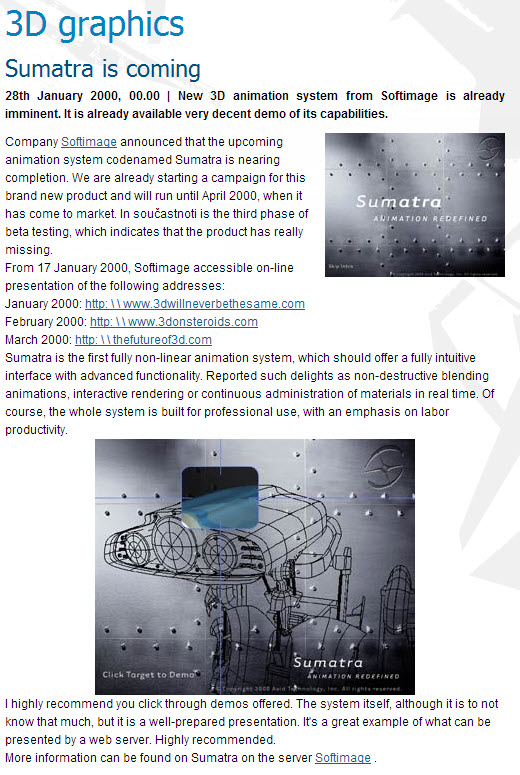
Just about 13 years ago to the day, the URL http://www.3dwillneverbethesame.com went live.

Sumatra is Coming from http://www.3dscena.cz

Sumatra is Coming from http://www.3dscena.cz

Rather predictably, this sparked some debate on the mailing lists, with a number of different riffs on the URL, including “www.toolittletoolatewearebuyingmaya.com”:

Sorry Softimage, your software has served me well, but it’s time to wake up and smell the coffee. You sat around on your ass too long while I watched everybody around me switch to Maya, now it’s my turn. I’m actually excited to learn Maya, it seems like it’s creators are willing and able to stay up-to-date and on the cutting edge.

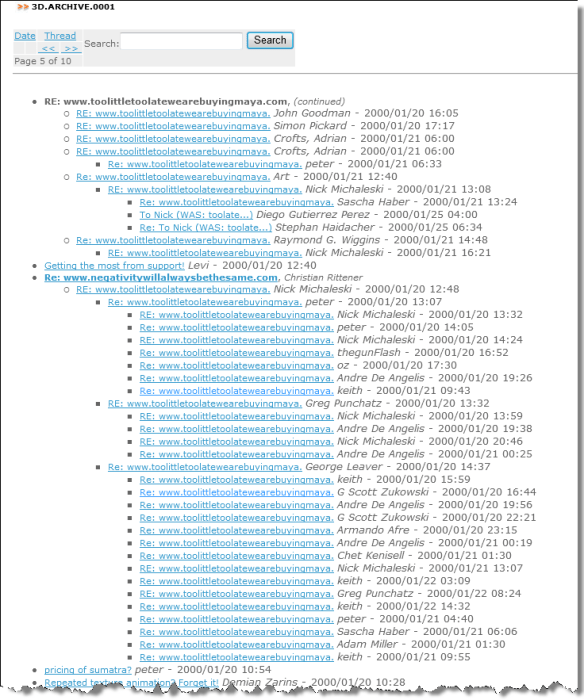
3d.archive.0001.page5

3d Discussion archive via the Wayback machine

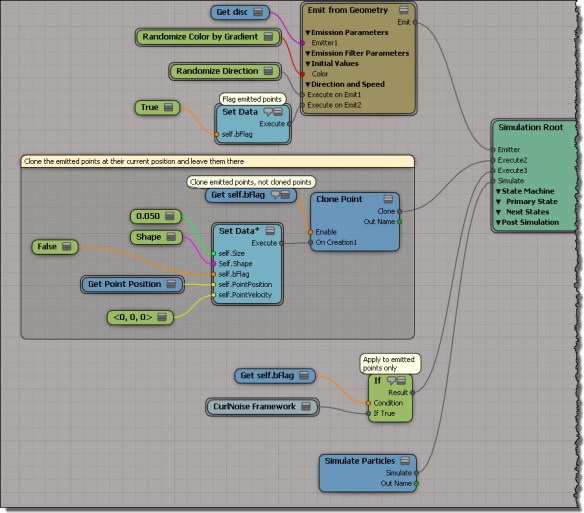
Adding points along the trajectories of emitted particles


This is something I ended up with when I was thinking about accumulating point positions. First, I accumulated them all in an array, and then I tried my hand at adding points at each frame, so that I had a series of points along the path (trajectory) of the emitted particle.
Clone-along-path-example

Add Point didn’t want to work, and it’s always in Object context mode anyway, so I ended up using Clone Points.
Clone-along-path-ice-tree

Autodesk Upgrade pricing changes


Effective 1 February 2013, Autodesk will simplify its upgrade pricing model. Starting next month, all upgrades will cost 70% of the current price for a new license.

The “Upgrade from Previous Releases” option will have an Autodesk SRP of approximately seventy percent (70%) of the current new License Autodesk SRP*, regardless of which of the six previous releases is being upgraded. Autodesk product releases more than six releases prior to the current release will no longer be eligible for upgrade.

For Softimage, I imagine the “six previous releases” covers only the Autodesk releases: 2012, 2011, 2010, 7.5, and maybe 7.01. I doubt it will cover 6.5, but you should check with your reseller to make sure.

And oh yeah, since it’s Wednesday, here’s a word cloud. I cheated a bit added more “70”s so it would stand out.
wordcloud_upgrade_policy

Shortcuts and default properties for custom parameters


Custom properties and the PPG object provide shortcuts for direct access to parameters.

For custom properties, that means you can type the shortcut oProp.SomeParam instead of oProp.Parameters(“SomeParam”). Note that that in this case, the default property is Name: if you print oProp.SomeParam, you get the name of the parameter.

from win32com.client import constants as C
si = Application

p = si.ActiveProject.ActiveScene.Root.AddCustomProperty( "Test" )
x = p.AddParameter2("X",C.siString,"a;b;c;d",None,None,None,None,C.siClassifUnknown,C.siPersistable)

print p.X
print p.X.IsEqualTo( p.Parameters("X") )
print x.IsEqualTo( p.X )

# Test.X
# True
# True

For the PPG object, the shortcut is even more of a convenience. To access a parameter named “Param”, you can type PPG.Param instead of PPG.Inspected(0).Param. And when you use the PPG.Param shortcut, the default property is Value.

So you can do this:

PPG.Param = 'hello;world'

There’s no need to type “PPG.Param.Value”, unless you’re doing something like this:

list = PPG.Param.Value.split(';')