What it is, and how to open it. In 80 seconds. A short video I had in the bag before … well you know.
http://vimeo.com/48961637
I’ll take a more technical look at the Softimage command prompt sometime later.
What it is, and how to open it. In 80 seconds. A short video I had in the bag before … well you know.
http://vimeo.com/48961637
I’ll take a more technical look at the Softimage command prompt sometime later.
[see also this tip: Using the ? wildcard]
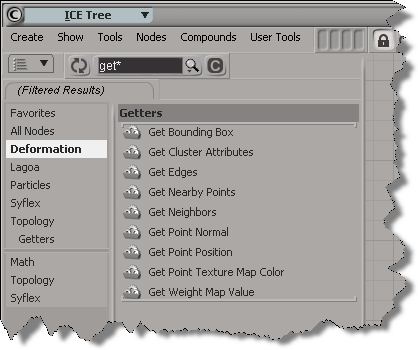
While typing part or all of a word is often enough to narrow down the possibilities, sometimes you may want to search for all compounds that start with one string and end with another. For that, you use the asterisk (*) regex wildcard.
After you use a wildcard once, there’s no more automatic partial word matching. “G*P” won’t find anything, you need to add another * at the end.
“G*P*” is a little broad, so you might want to be more specific:
Note that you can categories to further filter down the results. Here, I selected just one category (Deformation), but I could have CTRL selected two or more categories.
Ever wonder how the installer validates the product key?
No? Well I did, because that’s the kind of thing you wonder about in tech support, because sometimes cases come in about “the installer won’t accept the product key”.
I did a little checking with Process Monitor, and I found that the Setup includes a SoftimageConfig.pit file, and that pit file contains the valid product keys. During installation, setup will extract Setup\SoftimageConfig.pit, write it out to the %TEMP% folder, and use it to validate the product key entered in the installer.
During the actual installation, SoftimageConfig.pit will be added the ProductInformation.pit file on the local system.
The pit file contains product information like the product key and the license feature names (read more about the .pit file here and here).
For Softimage there is the regular product key 590E1, as well as all the different Suite product keys.
You can’t actually customize setenv.bat (or any of the other files in the distribution) when you create a deployment, but you add a SiteDeploy.bat file to the install. setenv.bat is set up to call SiteDeploy.bat:
rem Verify the existence of the SiteDeploy.bat file if exist "%XSI_BINDIR%\SiteDeploy.bat" call "%XSI_BINDIR%\SiteDeploy.bat"
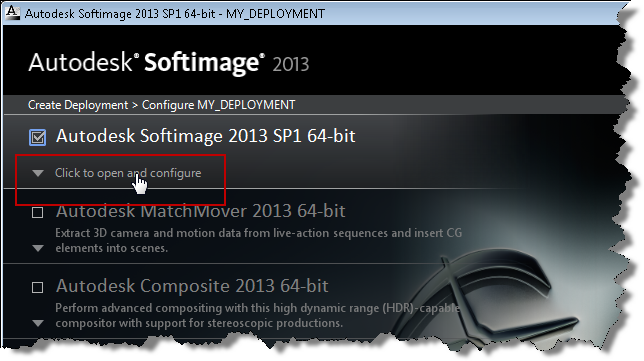
To add a SiteDeploy.bat file to a deployment, you need to configure the Softimage deployment:

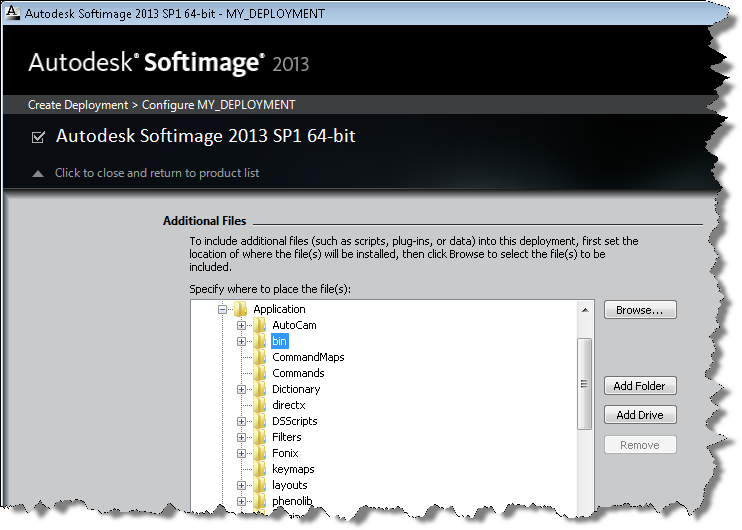
In the Additional Files section, expand Application\bin, and then click Browse to locate the SiteDeploy.bat file (which must exist somewhere already):

ICE Deform: Rotate polygons
by Vladimir

Simple Fur -01
by Paul smith
Softimage Ice: how to rig a train in five minutes
by Bradley Lewis
A customer recently reported that random machines on the farm were reporting this error. They have custom shaders installed in a workgroup, and the workgroup lives on a network drive that is accessible to all machines on the farm.
So, what is this SPDL registry thing?
It’s a file named spdl.xsiindex, and it’s a cached index of all the shader spdl files. Softimage creates/updates this SPDL registry at startup (so you can delete it to force the recreation of a new file).
You can find the file in %XSI_USERHOME%\Application. Actually, the file is named “spdl.MACHINE.xsiindex”. We had to add the machine name to the file name to prevent issues with concurrent access. However, I would think that if you ran multiple instances of xsibatch on the one machine, you might still have problems.
There’s also a MTL2UA0150CWY.xsishaderdefcache file to deal with the new-fangled, non-SPDL shaders.
Forgive me this [melodramatic] indulgence, but after 3 years, 8 months, and 13 days, I turned in my Autodesk badge. I don’t need it anymore.*

Let’s flash back to blog post #1 “The End”, from 14 Dec 2008.
I want to thank all my readers, commentators, and contributors for their time and attention.
Like we say here in Canada: keep your sticks on the ICE everybody 🙂
*I was part of the 7% layoff. Cue Bob Dylan’s Knocking on Heaven’s Door…
Let’s say you want to delete–oh, I don’t know–let’s say a random 7% of all particles, and you want to do that every N frames. Here’s one way to do it. You won’t get exactly 7%, but you’ll get close (eg I got numbers like 6.8%, 7.2%, and 7.25% when I tested it).
The Every Nth Frame compound is a custom compound that uses modulo:
The scene name and the name of the .scn file are usually the same, but if you do something like rename the scene file in the file system, you’ll end up with something like this. Note that the [Scene] token isn’t resolving to the correct file name anymore.

# In the file system, I renamed "Particle_Forces_Wind" to "RENAMED_Particle_Forces_Wind"
# So, open RENAMED_Particle_Forces_Wind and run this:
scn = Application.ActiveProject.ActiveScene
scn.Parameters("Name").Value = "RENAMED_Particle_Forces_Wind"
Running the Python snippet above will fix the naming problem: