Workarounds for caching ICE attributes [and sidestepping ICE optimizations]


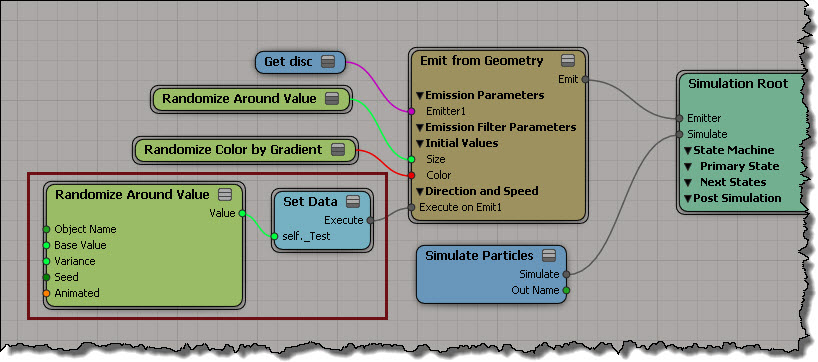
Because of how ICE is optimized, it won’t bother setting data if you never use that data (see Beware of ICE Optimizations here). For example, suppose I have a point cloud where I set a per-point scalar value, but I never use that scalar data (because I just want to cache that value and use it later).
ICE_Opt_1

That scalar attribute is never used, so it is optimized away (it makes sense: you’re not using it, so why keep it?). You won’t see that attribute in the Cache Manager, and the Cache on File node won’t write it out (even if you add that attribute to the list).

One way to force ICE to evaluate the attribute so you can cache it is to create an Attribute Display property for the attribute, but disable Show Values.
ICE_Opt_AttributeDisplay

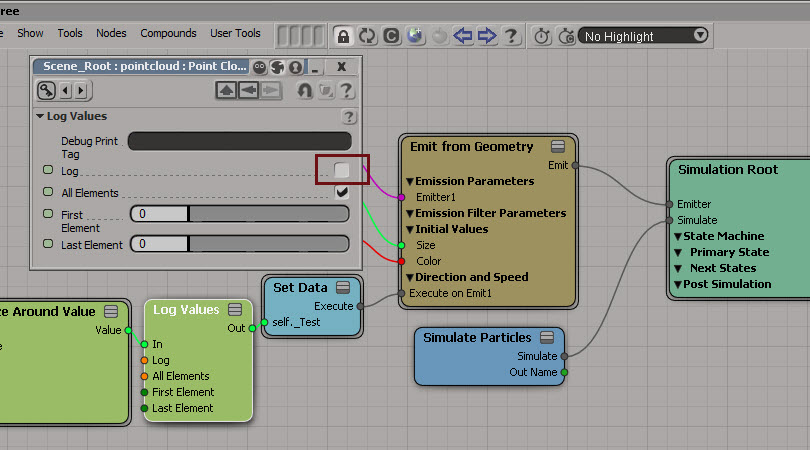
Another way is to insert a Log Values node, and disable logging.
ICE_Opt_Log

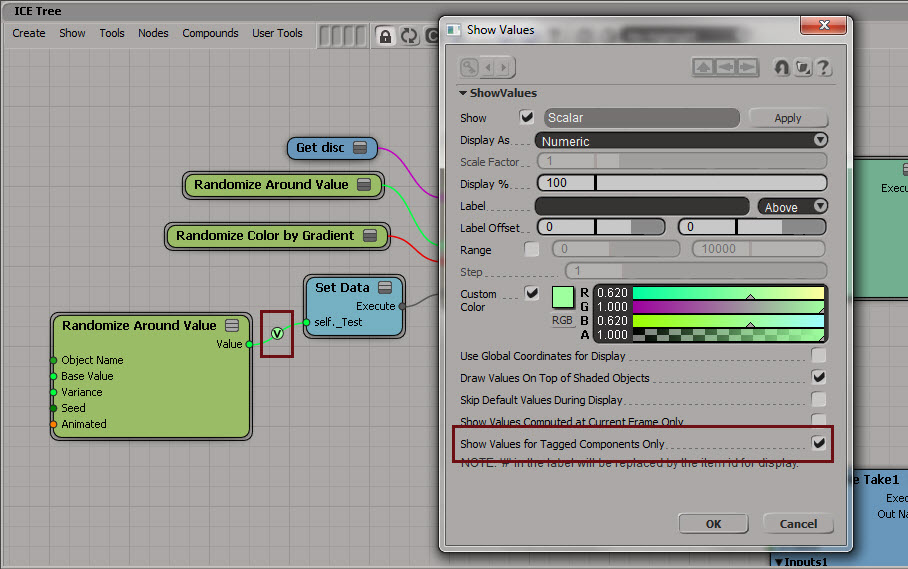
Yet another way is to use Show Values. Enable Show Values for Tagged Components Only to hide the values (if you’re going to tag components, you could set the Display % to 1).
ICE_Opt_ShowValues

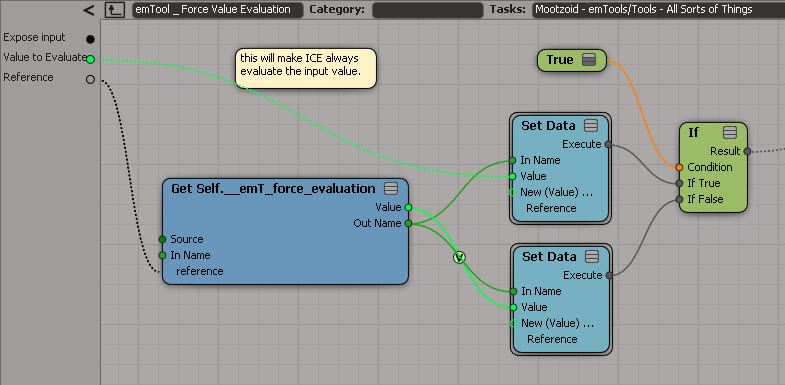
And last but not least, if you have emTools from Mootzoid, you can use the Force Value Evaluation node, which uses a Show Values on a value that is never set.
emToolsForceValueEvaluation

hat tips to Stefano, Mathieu, and Vincent on the SItoA list

Checking what attributes are in a cache


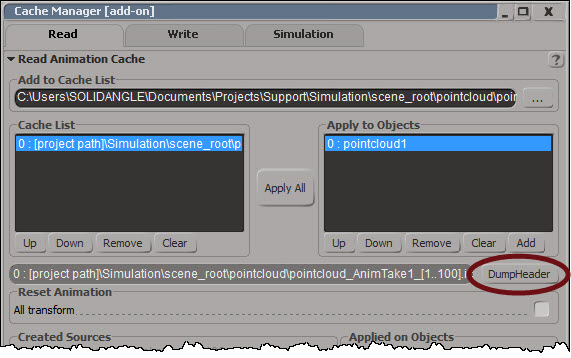
On the Read tab of the Cache Manager there’s a Dump Header button:
CacheManager_DumpHeader

Dump Header dumps the cache header and attribute list to XML and pops up NetView:
DumpHeader_XML

If you want to dump the XML and parse it yourself, you can do it with this scripting command:

Application.DumpCacheHeader("[project path]\\Simulation\\scene_root\\pointcloud\\pointcloud_AnimTake1_[1..100].icecache", False)

Emitting points from polygons


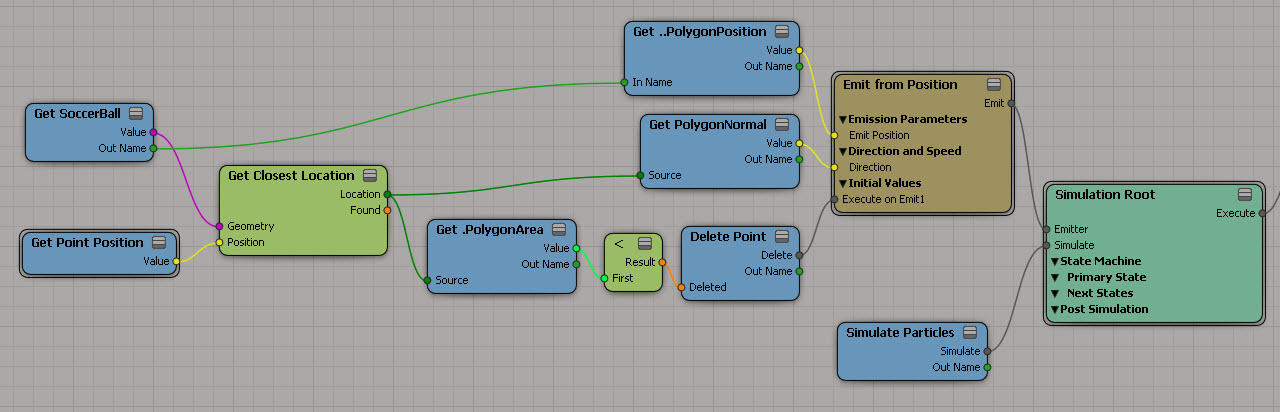
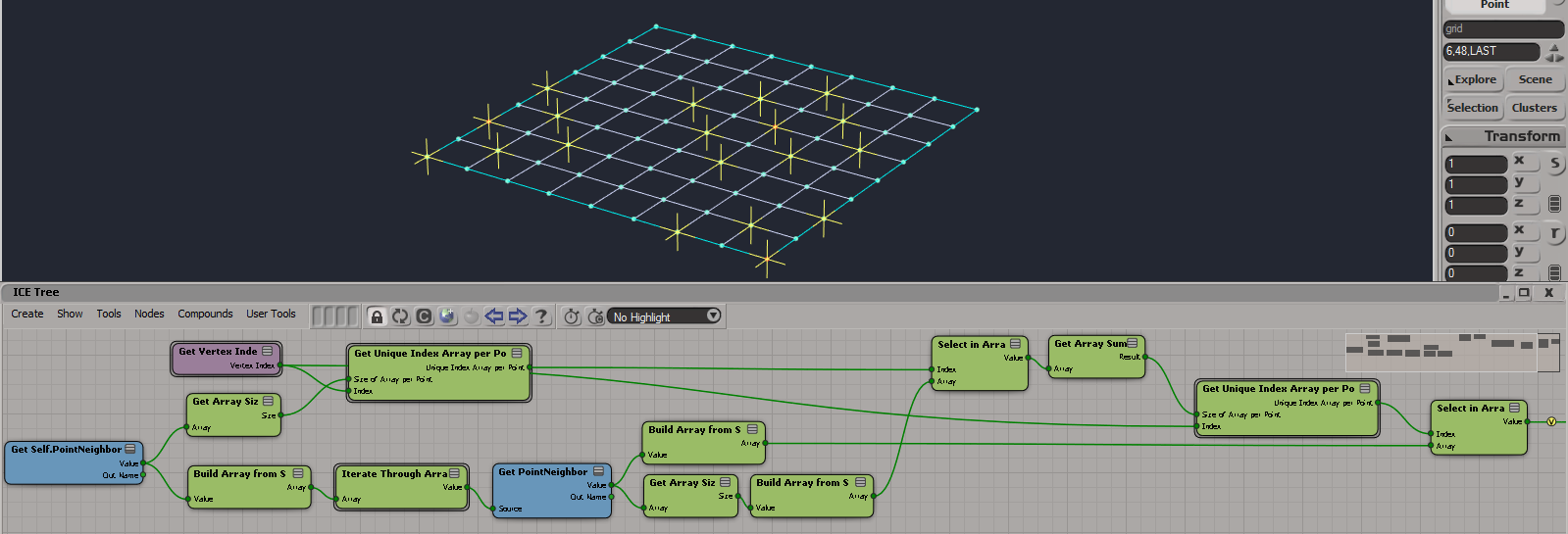
Here’s an ICE tree that emits points from the polygons on the emitter, using their PolygonPosition attributes.

Emit_points_from_polygons

As an exercise, I went to the trouble of using the PolygonNormal as the direction vector. That was slightly complicated, because I couldn’t use the EmitLocation attribute to get at the PolygonNormal. I had to use Get Closest Location with the new PointPosition instead. That’s because when you use positions instead of locations with Add Point (which is inside Emit from Position), then the EmitLocation attribute is “meaningless”, to quote the documentation.

There’s no such thing as PolygonLocation, so I had to use the PolygonPosition attribute.

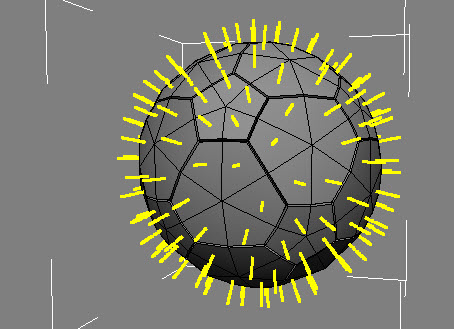
Note also that I filtered out some polygons, so that I emitted points only from the faces of the soccer ball.

Emit_points_from_polygons_ex

Creating points on a group of meshes


From the docs:

Getting Scene data on Groups
When getting per-component data, such as PointPosition, the results are correct only when all objects in the group have the same number of components. As a workaround, one possible way to get, for example, all point locations is to plug the Get Data (group) node’s value into the Geometry port of a Generate Sample Set node with Emission Type set to Point and Rate Type set to All Points.

Here’s a screenshot of that workaround:
Group.GenerateSampleSet.PointPosition

Compare with: Getting point positions from a group

Copying colors from point cloud to polygonizer mesh


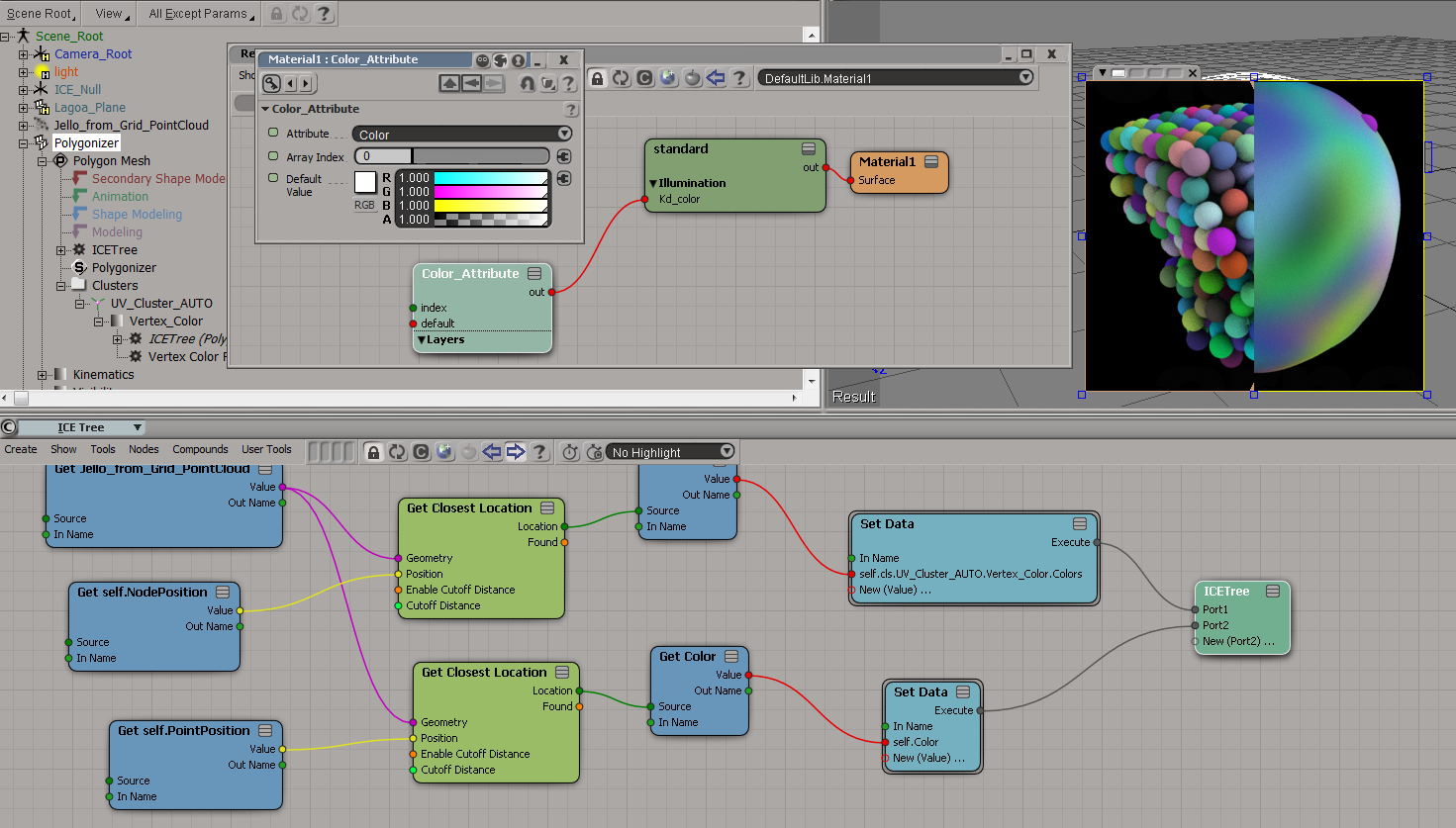
To get the colors from the point cloud onto the polygonizer mesh, you need to do something like this:

  1. On the polygonizer mesh, create an ICE Tree.
  2. Use Get Closest Location to get a location on the point cloud, get the color from that location.
  3. Store that color somewhere (eg in an attribute on the polygonizer mesh, or in a vertex color map).

Here I’m storing the colors in a CAV:
colors_to_polygonizer_CAV

And here I’m sticking the colors in a per-point Color attribute:
colors_to_polygonizer_Color

Copying StrandColors from cached strands to a point cloud


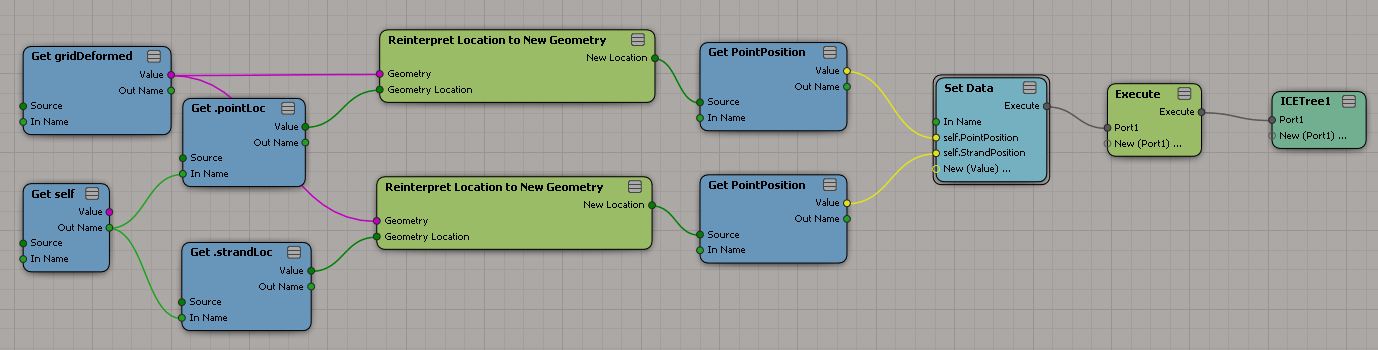
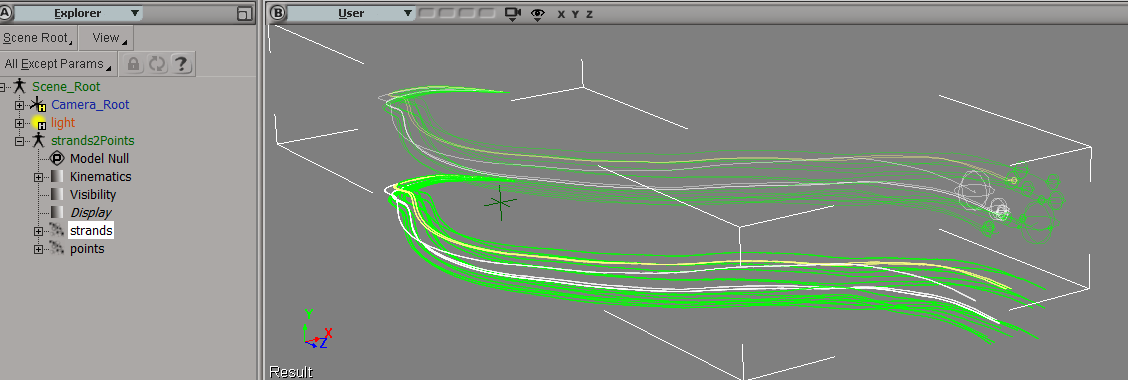
Suppose you had to load a cached strand simulation, and convert that to a point cloud of plain old points. Part of the job would be to copy the stand colors over to the new points, so let’s take a look at that.

First, and I didn’t know this, when you cache strands the StrandColor attribute isn’t cached, just a single Color per strand. So let’s rebuild the StrandColors:
rebuild-strandcolor
Now we have a per-point StrandColor array on the point cloud that reads the cached simulation. After spending awhile trying to avoid doing this, I found that this (the StrandColor array) was the easiest way.

Add Point is a pretty friendly ICE node, because it lets you take per-point data (StrandPosition) from some other point cloud and just plug it in, with no context problems.

copy-strandcolors-to-points

It’s not so simple with the StrandColors. StrandColor is a per-point array on a different point cloud, and you can’t just plug it into Set Particle Color. Set Particle Color wants a color, not an array of colors. And it doesn’t want colors from some other point cloud either 😉

To get around that, I use Build Array from Set, which gives me a per-object array in the context of the current point cloud. Then I index into that array with Point ID, and I’ve transferred over the strand colors to the points.

strands-points

ICE element-wise addition of two arrays of different sizes


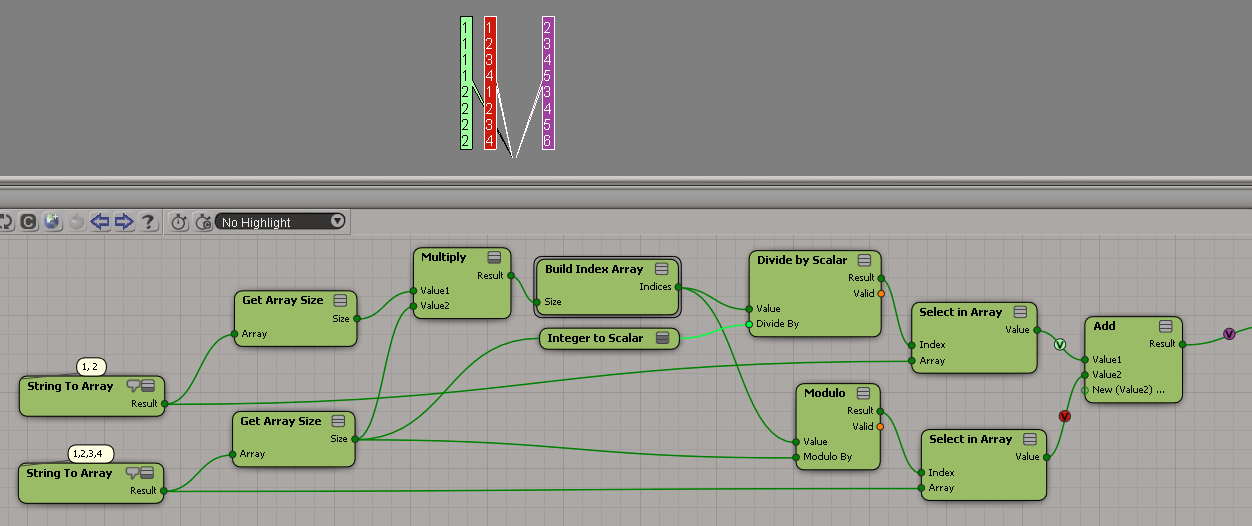
For example, given the arrays [1,2] and [1,2,3,4], produce this array: [2,3,4,5,3,4,5,6].

In Python, this would look like this:

a = [1,2]
b = [1,2,3,4]
c = []
for x in a:
	for y in b:
		c.append( x + y )
		
print c
#  [2, 3, 4, 5, 3, 4, 5, 6]

In ICE, one way to do this would be to add
[1,1,1,1,2,2,2,2]
to
[1,2,3,4,1,2,3,4]

Here’s an ICE tree that does just that:
add_arrays_diff_sizes
This ICE tree uses the modulo trick, and the scalar-to-integer truncation trick.

You can see a variation of this in this Softimage mailing list post..