Saturday Snippet – Building a cross-platform path


…and exporting the selected objects to an ASS file.

from win32com.client import constants as C

filename = XSIUtils.BuildPath( 
	Application.InstallationPath( C.siProjectPath ),
	'Arnold_Scenes',
	'[Scene].[Frame].ass' )
Application.SITOA_ExportScene( 1,1,1,True,True,filename)
# Application.SITOA_ExportScene(1, 1, 1, True, True, "C:\\Users\\Steve\\My Project\\Arnold_Scenes\\[Scene].[Frame].ass")

Friday Flashback #103 3Dwillneverbethesame.com


Just about 13 years ago to the day, the URL http://www.3dwillneverbethesame.com went live.

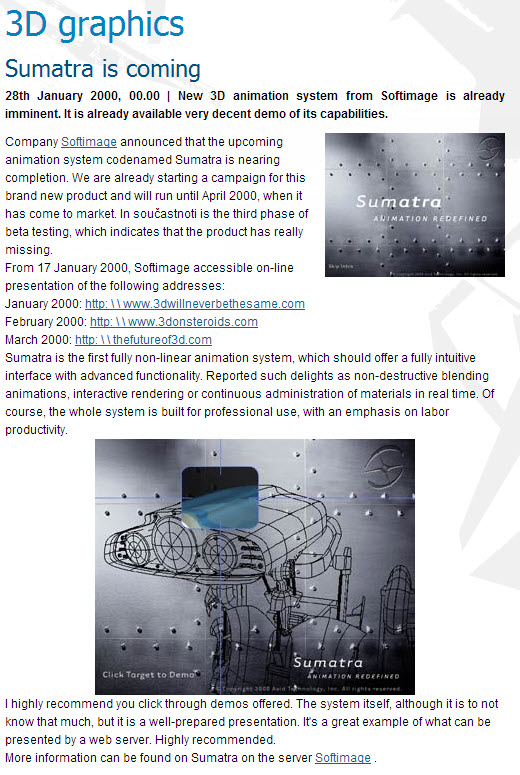
Sumatra is Coming from http://www.3dscena.cz

Sumatra is Coming from http://www.3dscena.cz

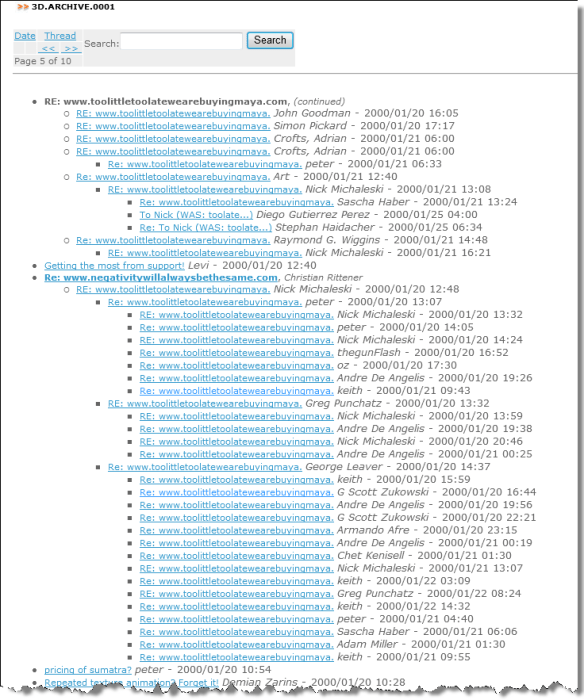
Rather predictably, this sparked some debate on the mailing lists, with a number of different riffs on the URL, including “www.toolittletoolatewearebuyingmaya.com”:

Sorry Softimage, your software has served me well, but it’s time to wake up and smell the coffee. You sat around on your ass too long while I watched everybody around me switch to Maya, now it’s my turn. I’m actually excited to learn Maya, it seems like it’s creators are willing and able to stay up-to-date and on the cutting edge.

3d.archive.0001.page5

3d Discussion archive via the Wayback machine

Shortcuts and default properties for custom parameters


Custom properties and the PPG object provide shortcuts for direct access to parameters.

For custom properties, that means you can type the shortcut oProp.SomeParam instead of oProp.Parameters(“SomeParam”). Note that that in this case, the default property is Name: if you print oProp.SomeParam, you get the name of the parameter.

from win32com.client import constants as C
si = Application

p = si.ActiveProject.ActiveScene.Root.AddCustomProperty( "Test" )
x = p.AddParameter2("X",C.siString,"a;b;c;d",None,None,None,None,C.siClassifUnknown,C.siPersistable)

print p.X
print p.X.IsEqualTo( p.Parameters("X") )
print x.IsEqualTo( p.X )

# Test.X
# True
# True

For the PPG object, the shortcut is even more of a convenience. To access a parameter named “Param”, you can type PPG.Param instead of PPG.Inspected(0).Param. And when you use the PPG.Param shortcut, the default property is Value.

So you can do this:

PPG.Param = 'hello;world'

There’s no need to type “PPG.Param.Value”, unless you’re doing something like this:

list = PPG.Param.Value.split(';')

Using modulo to delete points from a cached simulation


hat tip to tekano bob who did all the work; I’m just pointing out some things about his ICE tree 🙂

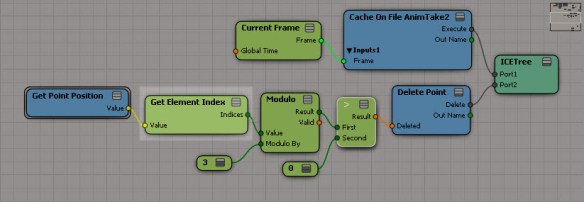
First, he’s using the Element Index in case the ID was not cached (if you cache with the Cache Manager, then by default the ID attribute is not cached).
modulo_getelementindex

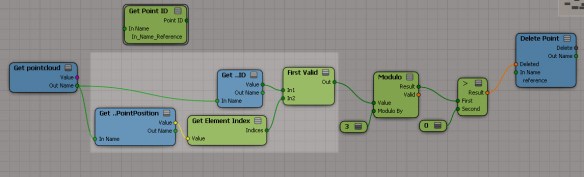
When I saw that, I thought maybe I could use First Valid to use either the ID, if available, or the Element Index:
modulo_getpointid

But that gives wacky results, because Delete Point automagically restores IDs to all the points in the cached simulation. So you have no choice but to use the Element Index.

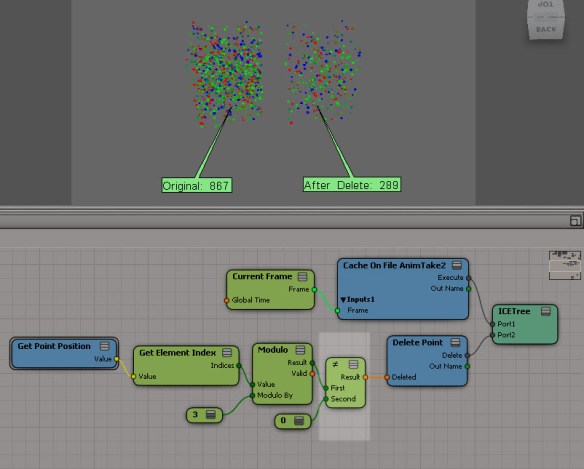
Another interesting thing I’d like to point out is how you can use modulo to delete two-thirds of all points (instead of just deleting every third point). Now, modulo by 3 has three possible results: 0, 1, and 2. If you test for modulo != 0 or modulo > 0, then you’ll be deleting two-thirds of all points:
modulo_two-thirds

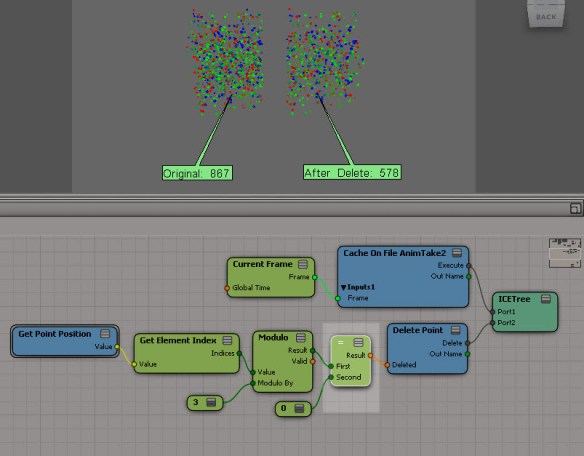
If you test for modulo = 0, then you’ll delete every third point:
modulo_one-third

Beneath the hood: why ApplyOp doesn’t pop up a PPG


Let’s take a look at a question that was posted recently on the Softimage mailing list:

From: softimage-bounces@listproc.autodesk.com [mailto:softimage-bounces@listproc.autodesk.com] On Behalf Of Adam Sale
Sent: Tuesday, January 08, 2013 3:40 PM
To: softimage@listproc.autodesk.com
Subject: Force ppg to open on script launch

I’m a little confused as to why the following does not work:
– Get a sphere
– Run Deform > Smooth
– PPG appears and all is good.

Now, take the generated command and run it through the script editor

ApplyOp(“Smooth”, “torus”, 3, siPersistentOperation, null, 0);

This time, no PPG appears.

Any idea why? And is there a way to force a ppg launch when I tun the command from a button or from the script editor?

Thanks 🙂
Adam

Matt Lind explained why on the list, but I’ll take a little more detailed look into how commands like Smooth work.

Deforms like Smooth (and Relax and Push and Bend and others) are commands that are mapped to a special handler function in $XSI_HOME\Application\DSScripts\operators.vbs.
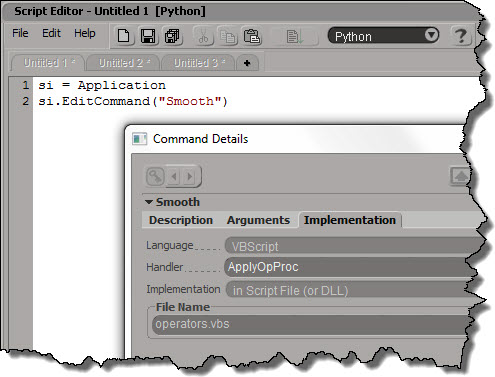
Smooth_Implementation

The ApplyOpProc provides special-case handling for applying operators, and also takes care of popping up a PPG after the operator is applied.

Don’t try to run “Smooth”; you’ll just get an error. It’s scripting name is actually ApplyOp.
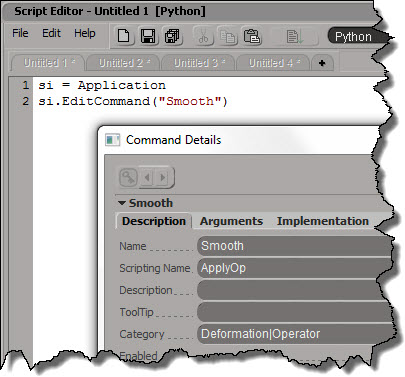
Smooth_Description

ApplyOp is also implemented by a VBScript handler in operator.vbs. This time, it’s ApplyOpFunc, and ApplyOpFunc does not inspect the created operators.

If you want to apply a Smooth operator from your script, and pop up the PPG after, here’s one way to do it:

si = Application
si.AutoInspect( si.ApplyOp("Smooth", si.Selection, 3, "siPersistentOperation", "", 0) )

Wednesday word cloud: Autodesk NDA


Another Wednesday, another word cloud. This time, for the Autodesk NDA (Non-Disclosure Agreement) that all attendees must sign if they want to attend the next Softimage Creatives user group, where Autodesk Softimage Product Manager Cory Mogk will be presenting.

wordcloud_autodesk_nda_50

In this document of 1983 words, the top words are:

  • autodesk (53)
  • receiving (46)
  • information (46)
  • party (41)
  • confidential (39)
  • agreement (30)

In other words, these are the top words and phrases: “autodesk”, “receiving party”, “confidential information”, and “agreement”. Nothing surprising there.